
1. Introduction
Thank you for purchasing the ZOLAMENTE 5K Digital Camera. This compact and versatile camera is designed to capture high-quality photos and videos, offering a range of features for both beginners and enthusiasts. Please read this manual carefully to ensure proper use and to maximize your camera's potential.

Image: ZOLAMENTE 5K Digital Camera highlighting its key features.
2. Package Contents
Ensure all items are present in your package:
- 1 × ZOLAMENTE 5K Digital Camera
- 1 × 64GB MicroSD Card
- 1 × USB Cable
- 1 × Rechargeable Battery (1200mAh)
- 1 × Camera Bag
- 1 × Strap
- 1 × Japanese Instruction Manual (English version provided here)

Image: All included accessories for the ZOLAMENTE 5K Digital Camera.
Unboxing Video
Video: A short unboxing demonstration of a similar digital camera, showing the contents.
3. Product Overview
The ZOLAMENTE 5K Digital Camera features a compact design with intuitive controls and dual screens for versatile shooting.
Physical Features
- Front Screen: 1.5-inch high-vision display for selfies.
- Rear Screen: 2.8-inch IPS LCD monitor for clear viewing.
- Lens: F/3.2, focal length 7.36mm.
- Sensor: 13 Megapixel CMOS sensor.
- Buttons: Shutter, Power, Menu, OK, Navigation (Up/Down/Left/Right), Zoom (W/T), DISP.
- Ports: USB charging port, MicroSD card slot, tripod mount.
- Indicators: LED light, flash.
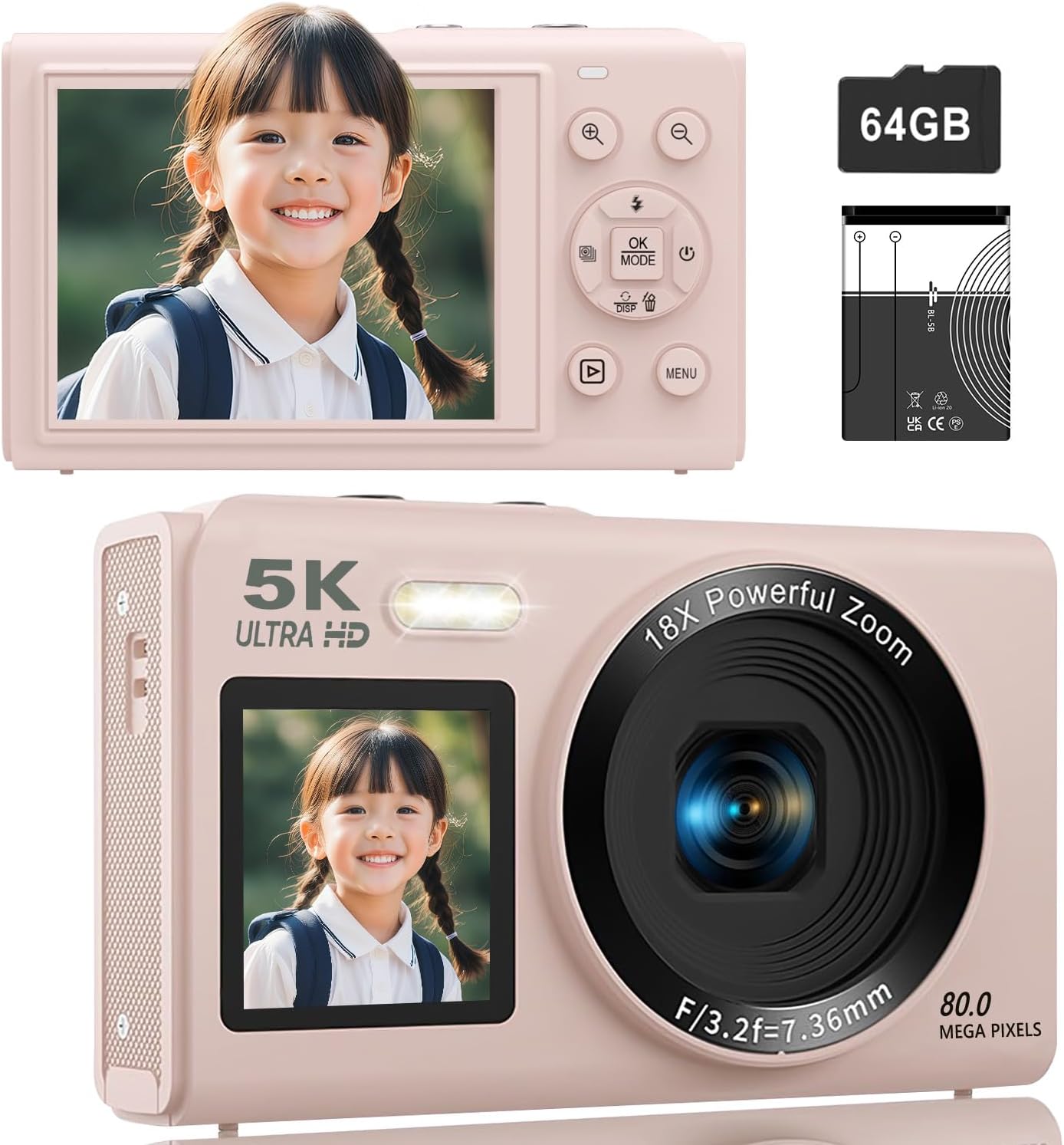
Image: Front and rear views of the ZOLAMENTE 5K Digital Camera, showing its compact design and dual screens.
Product Rotation View
Video: A 360-degree view of the S95PRO digital camera, showcasing its design and ports.
4. Setup
4.1. Battery Installation
- Open the battery compartment cover located at the bottom of the camera.
- Insert the provided 1200mAh rechargeable battery, ensuring correct polarity.
- Close the battery compartment cover securely.
4.2. MicroSD Card Installation
The camera supports MicroSD cards up to 256GB. A 64GB MicroSD card is included.
- Locate the MicroSD card slot on the side of the camera.
- Insert the MicroSD card with the gold contacts facing down until it clicks into place.
- To remove, gently push the card inward until it pops out.
4.3. Initial Settings (Language, Date/Time)
Upon first use or after a factory reset, you may need to set the language and date/time.
- Power on the camera by pressing the Power button.
- Press the MENU button to access the settings.
- Navigate using the Up/Down buttons to find 'Language' or 'Date/Time' settings.
- Press OK to select, then use the navigation buttons to adjust the settings.
- Press MENU again to save and exit.
Setup Demonstration Video
Video: A demonstration of inserting the MicroSD card, powering on, and navigating basic settings like language and date/time.
5. Operating Instructions
5.1. Power On/Off
Press the Power button to turn the camera on or off.
5.2. Switching Between Photo and Video Modes
Press the MENU button to access the mode selection screen. Use the navigation buttons to select between photo mode, video mode, or time-lapse mode, then press OK.
5.3. Photo Mode
The camera supports up to 80 Megapixel (MP) photo resolution. You can adjust the pixel settings in the menu.
- Ensure the camera is in photo mode.
- Frame your shot using the screen.
- Press the Shutter button halfway to focus, then fully press to take a photo.
Pixel Settings
You can select various pixel settings for your photos, up to 80MP, to suit your needs.
Flash Settings
Press the Up button to cycle through flash modes (Auto, On, Off).
Special Photo Features
- Beauty Filter: Enhance facial features.
- Face Detection: Automatically detects and focuses on faces.
- Self-Timer: Set a delay (e.g., 3s, 5s, 10s, 20s) before taking a photo.
- Continuous Shooting: Capture multiple photos in quick succession.

Image: Visual representation of various photo modes including beauty filter, face detection, self-timer, and continuous shooting.


Images: Detailed views of face detection, continuous shooting, and self-timer features.
5.4. Video Mode
Record stunning videos in 5K resolution. You can adjust video resolution settings in the menu.
- Ensure the camera is in video mode.
- Press the Shutter button to start recording.
- Press the Shutter button again to stop recording.
Video Resolution Settings
The camera supports various video resolutions, including 5K. Select your preferred resolution from the menu.

Image: Demonstrating 5K video recording and various photo resolutions (80MP, 56MP, 30MP, 20MP).
Special Video Features
- Slow Motion: Capture dynamic scenes in slow motion.
- Time-Lapse: Condense long events into short, engaging videos.
- Record While Charging: Allows for extended recording sessions.

Image: Illustrating autofocus, slow-motion, video loop, and time-lapse recording capabilities.
5.5. Digital Zoom
The camera features an 18x digital zoom. Use the W (Wide) and T (Telephoto) buttons to zoom in and out, allowing you to capture distant subjects clearly without moving the lens.

Image: Demonstrating the 18x digital zoom capability and the front and rear screens.
5.6. Focus Modes
Choose from three focus modes to ensure sharp images:
- Autofocus (AF): Automatically adjusts focus for clear images.
- Manual Focus (MF): Allows you to manually adjust focus by half-pressing the shutter button.
- Fixed Focus: Maintains a fixed focus distance.

Image: Illustrating autofocus, image stabilization, pause function, and recording while charging.
5.7. Dual Screens
The camera features a 1.5-inch front screen and a 2.8-inch rear IPS screen. Long-press the Down button to switch between the front and rear screens, which is convenient for selfies and vlogging.
5.8. Color Filters
The camera offers 19 types of color filters to add creative effects to your photos and videos.

Image: The ZOLAMENTE 5K Digital Camera displaying different filter options.
5.9. WiFi Transfer Function
Easily transfer captured images and videos to your smartphone via WiFi. This eliminates the need for card readers or computers for quick sharing on social media.
- Enable WiFi on your camera through the settings menu.
- Download the dedicated app (e.g., 'HelloCam') on your smartphone (available on App Store and Google Play).
- Connect your smartphone to the camera's WiFi network (SSID and password displayed on the camera screen).
- Open the app to view and transfer files.

Image: Demonstrating WiFi transfer of images from the camera to a laptop and the camera being used as a webcam.
WiFi Connection Video
Video: Instructions on how to connect the camera to a smartphone via WiFi using the dedicated app.
5.10. Webcam Function
The camera can be used as a webcam for high-quality video calls and live streaming.
- Connect the camera to your computer using the provided USB cable.
- Select 'Webcam Mode' on the camera if prompted.
- Your computer should recognize the camera as a webcam.

Image: The camera connected to a laptop and functioning as a webcam.
6. Maintenance
- Keep the camera clean by wiping it with a soft, dry cloth.
- Avoid exposing the camera to extreme temperatures, dust, or moisture.
- Store the camera in its protective bag when not in use.
- Regularly back up your photos and videos to prevent data loss.
7. Troubleshooting
Common Issues and Solutions
| Issue | Possible Cause | Solution |
|---|---|---|
| Camera does not power on | Low battery; Battery incorrectly inserted | Charge the battery; Reinsert battery correctly |
| Cannot take photos/videos | MicroSD card full; MicroSD card not inserted; Incorrect mode selected | Delete files or replace card; Insert MicroSD card; Switch to photo/video mode |
| Blurry images | Incorrect focus mode; Camera shake | Adjust focus mode; Use image stabilization or a tripod |
| WiFi connection fails | Incorrect password; App not installed | Verify WiFi password; Install the correct app |
8. Specifications
| Feature | Detail |
|---|---|
| Brand | ZOLAMENTE |
| Model | 5K Digital Camera |
| Color | Pink (with 64GB SD Card) |
| Video Resolution | Up to 5K |
| Photo Resolution | Up to 80 Megapixels |
| Digital Zoom | 18X |
| Front Screen | 1.5 inches |
| Rear Screen | 2.8 inches IPS |
| Sensor | 13 Million CMOS Sensor |
| Lens Aperture | F/3.2 |
| Focal Length | 7.36mm |
| Storage | Supports MicroSD up to 256GB (64GB included) |
| Battery | 1200mAh Rechargeable Battery |
| Weight | Approx. 114g (including battery) |
| Dimensions | 11.4 x 8.5 x 7.7 cm |
| ASIN | B0FQMLD2BV |
9. Warranty and Support
This product, when purchased as a domestic genuine product (new), comes with a 5-year manufacturer's warranty. Please note that parallel imported or overseas retail products do not come with a manufacturer's warranty. For support, please contact your seller.