
1. Introduction
The iflytek AINOTE 2 is a 10.65" E-Ink tablet designed for efficient note-taking, transcription, and document management. It features AI-powered assistance for various tasks, a paper-like writing experience, and multi-language support for transcription and handwriting-to-text conversion. Its ultra-thin and portable design makes it suitable for work, study, and travel.
2. What's in the Box
The following items are included in your AINOTE 2 package:
- AINOTE 2 Tablet
- Stylus Pen
- USB Cable
- User Manual
Note: A protective case is not included and is sold separately.
3. Setup
3.1 Initial Power On and Charging
Upon receiving your AINOTE 2, ensure it is fully charged using the provided USB cable and a compatible power adapter. The device features a USB Type-C port for charging.
3.2 Connecting to the Internet (Wi-Fi)
Many AI features and synchronization capabilities require an active internet connection. To connect to Wi-Fi:
- Access the settings menu on your AINOTE 2.
- Navigate to the Wi-Fi settings.
- Select your desired network and enter the password if prompted.
Video: Demonstrates connecting to the internet on the AINOTE 2 to improve OCR accuracy. This step is crucial for online features.
3.3 Stylus Pen Usage
The included stylus pen is an electromagnetic pen with 4096 levels of pressure sensitivity, providing a paper-like writing experience. It does not require charging or Bluetooth pairing.
- Writing: Use the pen directly on the E-Ink display for note-taking and drawing.
- Erasing: The side button on the stylus toggles eraser mode.
3.4 Account Setup and Synchronization
To fully utilize features like note synchronization and calendar management, you will need to set up your AINOTE account and link it with supported services like Google Calendar. Notes can be synced across AINOTE Mobile and PC apps.
3.5 Firmware Update
Ensure your AINOTE 2 is running the latest firmware version for optimal performance and access to new features. To update the firmware:
- Connect your device to the internet.
- Go to Settings.
- Select "Software Update" and check for available updates.
- Follow the on-screen prompts to install any updates.
Video: Illustrates the process of updating the AINOTE 2 firmware to ensure the device is up-to-date.
3.6 Re-downloading OCR Language Pack
For improved OCR accuracy, especially for English recognition, it is recommended to re-download the English OCR language pack. This requires an internet connection and access to Google servers.
- Go to Settings.
- Navigate to "General" then "Language and Region".
- Select "OCR Language" and re-download the English (US) pack.
Video: Shows how to re-download the English OCR language pack for better recognition accuracy.
4. Operating the AINOTE 2
4.1 Paper-Like Writing Experience
The AINOTE 2 offers a natural writing feel, similar to pen on paper, thanks to its frontlight-free E-Ink display and low-latency handwriting performance. It supports 8 brush styles for varied creative and note-taking needs.

Image: A hand using the stylus to write on the AINOTE 2 screen, illustrating the paper-like writing experience.
Video: Demonstrates the smooth, paper-like writing experience and dynamic strokes for sketching on the AINOTE 2.
Video: Shows a user writing on the AINOTE 2, highlighting the responsiveness and feel of the stylus on the E-Ink screen.
4.2 Handwriting to Text Conversion
The AINOTE 2 can convert handwritten notes into editable text with high accuracy (up to 99%). This feature supports 133 languages, making your notes easily searchable and editable.

Image: The AINOTE 2 displaying handwritten notes being converted into digital text, emphasizing the accuracy and multi-language support.
Video: Demonstrates the handwriting to text conversion feature, showing how written notes are transformed into editable text.
4.3 Voice-to-Text and 16-Language Transcription
The AINOTE 2 supports real-time voice-to-text transcription in 16 languages, ideal for meetings, lectures, and interviews. This feature helps convert spoken content into text for easy review and organization. An active internet connection is required for transcription services, and accuracy may vary based on audio quality and accents.

Image: The AINOTE 2 screen displaying various languages and text bubbles, illustrating its multi-language voice-to-text and handwriting-to-digital capabilities.
Video: Highlights the real-time transcription feature, showing spoken words being converted to text in multiple languages.
Video: Shows the transcription mode in action, allowing selection of various languages for voice-to-text conversion.
Video: Demonstrates the 16-language transcription feature, emphasizing its utility for boosting productivity.
4.4 Smart AI Assistance (AIAide)
The AINOTE 2 integrates AI-powered assistance (AIAide) to interact with selected text, offering suggestions for study, summarization, and organization. This feature supports a smoother workflow and can be accessed via a dedicated button or by circling text. It also includes AI writing tools for generating documents.
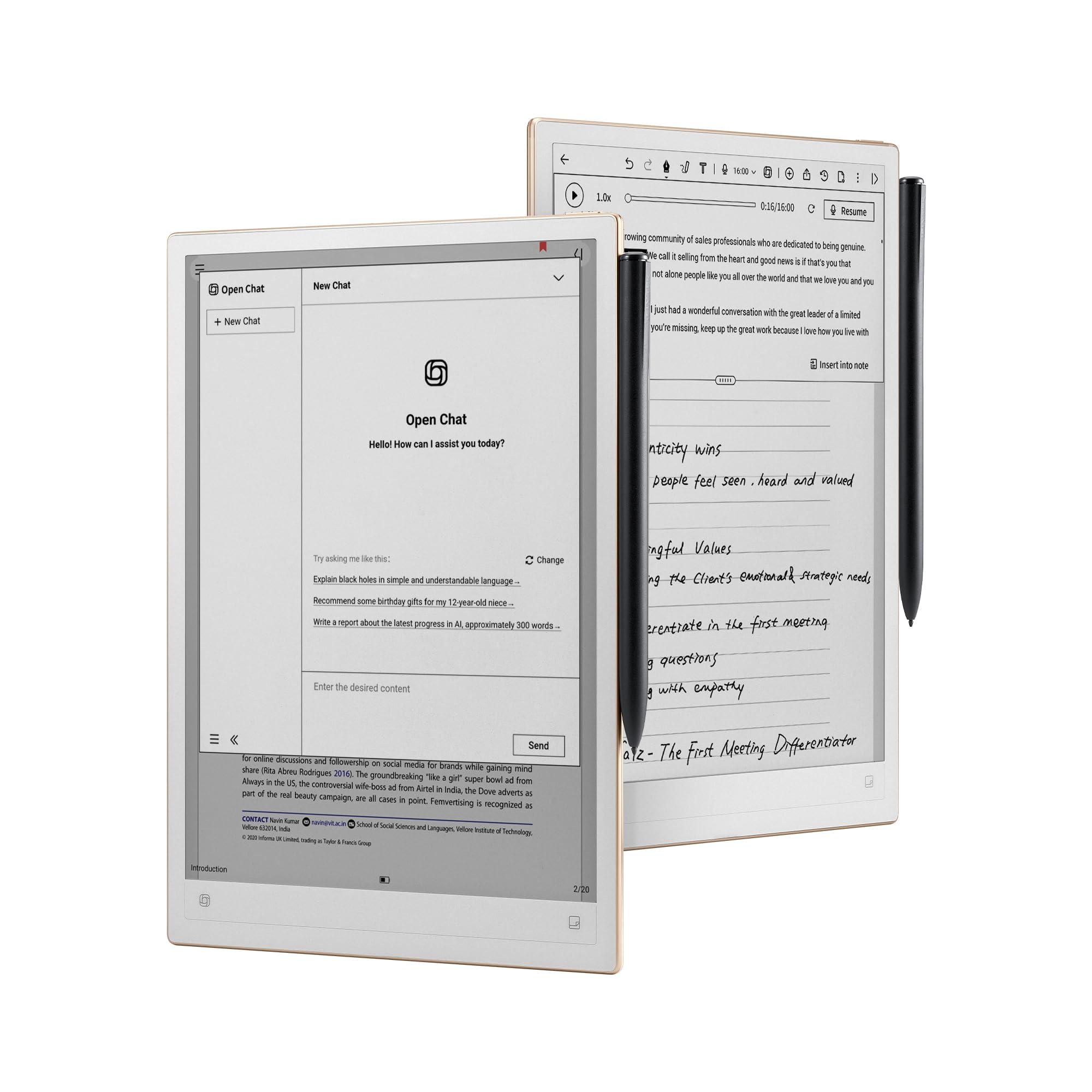
Image: The AINOTE 2 displaying an "Open Chat" interface with AI assistant features for summarization, search, and conversation.

Image: The AINOTE 2 showing the AIAide interface, prompting the user to state their request for AI assistance.

Image: A user interacting with the AINOTE 2's AI conversation feature, asking questions and receiving instant context-aware answers.

Image: The AINOTE 2 demonstrating the "Circle it, AI Search it" feature, where circling text triggers an instant AI search.

Image: The AINOTE 2 showcasing its AI writing capabilities, allowing users to generate full drafts from simple outlines.
Video: Shows the AI chat feature, allowing users to ask questions and receive responses directly on the device.
4.5 Schedule and Note Management
Manage your daily schedules and tasks by syncing with supported calendar services, including Google Calendar. Notes can be marked with stars, triangles, or circles for task tracking and are synced across AINOTE Mobile and PC apps for cross-device access and organization.

Image: The AINOTE 2 displaying a calendar and task list, highlighting its schedule and task management features with Google Calendar sync.

Image: The AINOTE 2 illustrating how handwritten notes can be converted into tasks and synced with Google Calendar.
Video: Demonstrates the auto-scheduling feature, showing how tasks can be added and managed within the calendar interface.
Video: Shows how notes can be turned into trackable tasks and synced with a calendar, ensuring no idea is lost.
4.6 Multi-Device Note Access
Notes created on your AINOTE 2 can be accessed and edited on AINOTE Mobile and AINOTE PC apps, ensuring continuity across your devices. This allows for flexible viewing and organization of your content whether you are on your tablet, phone, or desktop.
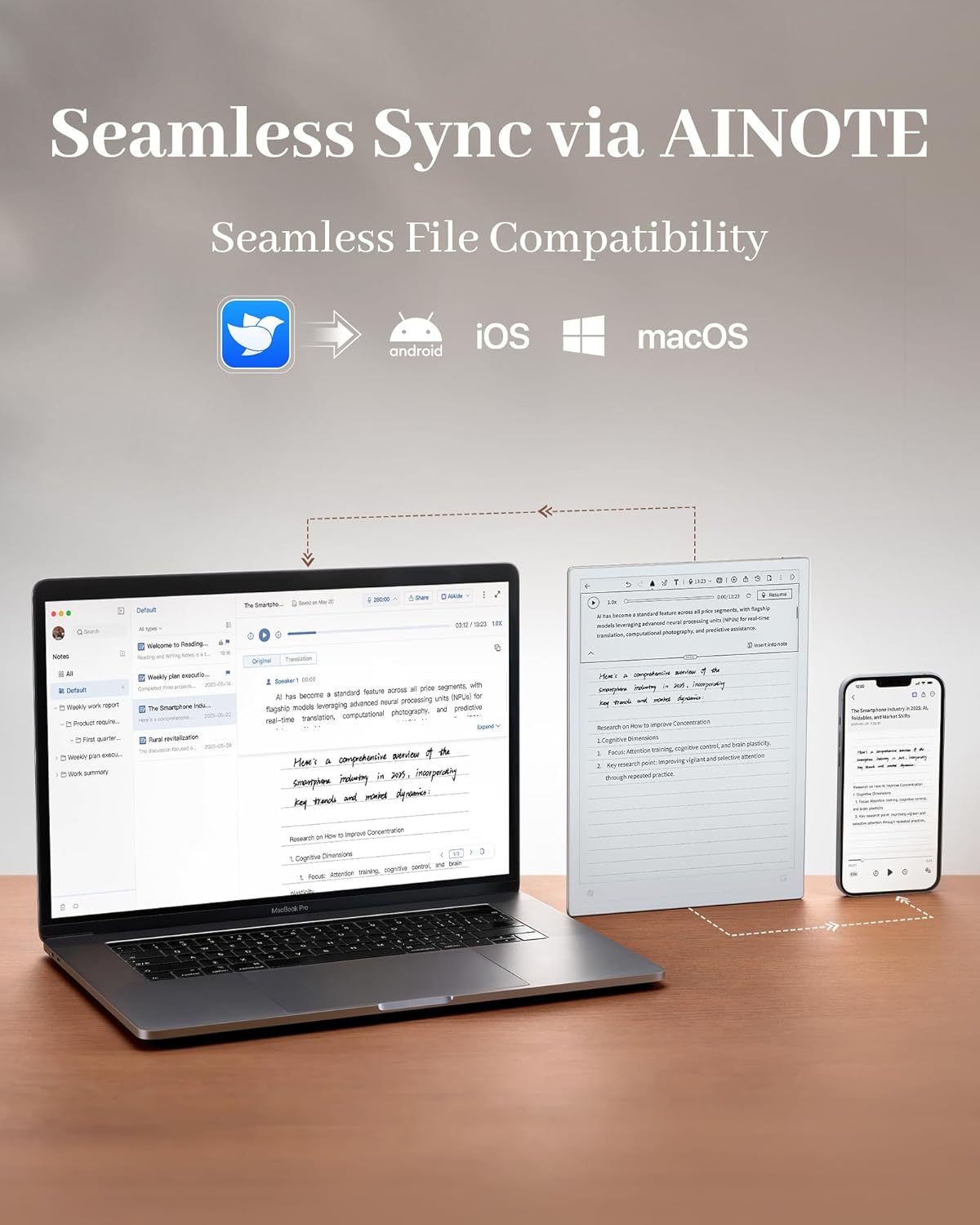
Image: The AINOTE 2 tablet, a laptop, and a smartphone displaying synchronized notes, highlighting seamless file compatibility across different operating systems.
4.7 Reading Mode and Document Management
The AINOTE 2 functions as an e-reader, allowing you to import and read various document formats. You can annotate documents, highlight text, and use split-screen for easier note-taking while reading. It supports importing books and integrating with apps like Kindle.

Image: A person reading on the AINOTE 2, demonstrating features like highlighting, annotation, and split-screen for comfortable reading and note-taking.
Video: Shows the reading mode, including importing documents via cloud or USB, and annotating directly on the text.
4.8 Application Download (Google Play Store)
The AINOTE 2 operates on an open system, allowing compatibility with Google Play apps. This expands the device's functionality, enabling you to download various applications to suit your needs.

Image: The AINOTE 2 displaying various app icons, including Google Play, indicating its open system and compatibility with Android applications.
Video: Shows the Google Play Store on the AINOTE 2, demonstrating the ability to download various applications.
4.9 AI-Generated Meeting Summaries
After a meeting, the AINOTE 2 can generate concise summaries of discussions and key action points with just a tap, streamlining your post-meeting workflow.

Image: The AINOTE 2 displaying AI-generated meeting minutes, summarizing key points, action items, and decisions from a meeting.
Video: Shows the AI-generated meeting summary feature, converting recorded discussions into structured notes.
4.10 Handwrite Your Mind Maps
Capture ideas as they come by handwriting mind maps directly on the AINOTE 2. You can then refine and adjust them freely, turning your thoughts into actionable plans.
Video: Demonstrates handwriting mind maps and adjusting them on the AINOTE 2, facilitating idea capture and organization.
5. Maintenance
5.1 Battery Life
The AINOTE 2 offers up to 14 days of usage time when used for approximately 30 minutes per day, with the remaining time in standby or powered off. It can achieve up to 113 days of standby time. To maximize battery life, ensure the device is powered off when not in use for extended periods.
5.2 Environmental Conditions
The device is not designed for use in extreme temperatures or harsh environmental conditions, which may affect performance or battery life. Store and operate the AINOTE 2 within recommended temperature and humidity ranges.
6. Troubleshooting
6.1 E-Ink Screen Refresh Speed
E-Ink technology prioritizes eye comfort and battery life. You might notice a slight delay or a "flash" during page turns or screen refreshes. This is normal behavior and not a defect or performance lag. The technology creates a slight pause to ensure crisp text, better battery life, and maximum eye protection.
Video: Explains the real refresh speed of E-Ink displays and why slight delays are normal, focusing on eye comfort and battery life.
6.2 Improving OCR Accuracy
If you experience issues with OCR accuracy, ensure the following:
- Internet Connection: Connect to a stable internet connection. AINOTE 2 automatically switches to an online OCR engine with a stable network, providing higher recognition accuracy.
- Firmware Update: Ensure your device's firmware is updated to the latest version.
- Re-download Language Pack: Re-download the English OCR language pack from settings.
- Clear Handwriting: Write clearly and legibly for best results.
Video: Provides instructions on how to improve OCR accuracy on the AINOTE 2, including connecting to the internet, updating firmware, and re-downloading language packs.
7. Specifications
| Feature | Detail |
|---|---|
| Standing screen display size | 10.65 Inches |
| Screen Resolution | 2048x1536 |
| Max Screen Resolution | 1920×2560 Pixels Per Inch |
| Card Description | Integrated |
| Wireless Type | 802.11ac, 802.11ax |
| Average Battery Life (in hours) | 14 days |
| Brand | iflytek |
| Series | AINOTE 2 |
| Item model number | AINOTE 2 |
| Operating System | Android 14 |
| Item Weight | 1.79 pounds |
| Product Dimensions | 9.7 x 7 x 0.17 inches |
| Processor Brand | Rockchip |
| Flash Memory Size | 4 GB |
| Batteries | 1 Nonstandard Battery batteries required. (included) |
| Memory Storage Capacity | 64 GB |
8. Warranty and Support
The iflytek AINOTE 2 comes with a 1-year hassle-free warranty, in addition to standard Amazon return and exchange policies.
8.1 Customer Support
For any product-related questions or support, you can:
- Amazon Support: Log in to your Amazon account, go to "Your Orders," and select "Ask Product Question."
- After-Sales Support: Send an email to the After-Sales Team at service@synlantech.com for 24/7 customer support.

Image: Details on how to contact Amazon Support and iFLYTEK's After-Sales Support via email.

Image: Overview of the service policy, including warranty duration, customer support availability, return policy, and update frequency.
9. Important Safety Information
Please read all safety instructions before using the device to prevent injury or damage.
- Do not expose the device to extreme temperatures, direct sunlight, or high humidity.
- Avoid dropping or subjecting the device to strong impacts.
- Use only approved charging cables and adapters.
- Keep the device away from water and other liquids.
- Do not attempt to disassemble or repair the device yourself. Contact customer support for assistance.
- Dispose of the device and its battery responsibly according to local regulations.


