
Samsung SM-X133
Samsung Galaxy Tab A11 (Model SM-X133) User Manual
Model: SM-X133
1. Introduction
This manual provides essential information for the safe and efficient use of your Samsung Galaxy Tab A11 tablet. Please read this manual thoroughly before using your device to ensure proper operation and to prevent damage.
1.1 Package Contents
Verify that all items are present in your product box:
- Samsung Galaxy Tab A11 Tablet
- Data Cable (Type C-C)
- SIM Ejection Pin
- Quick Start Guide
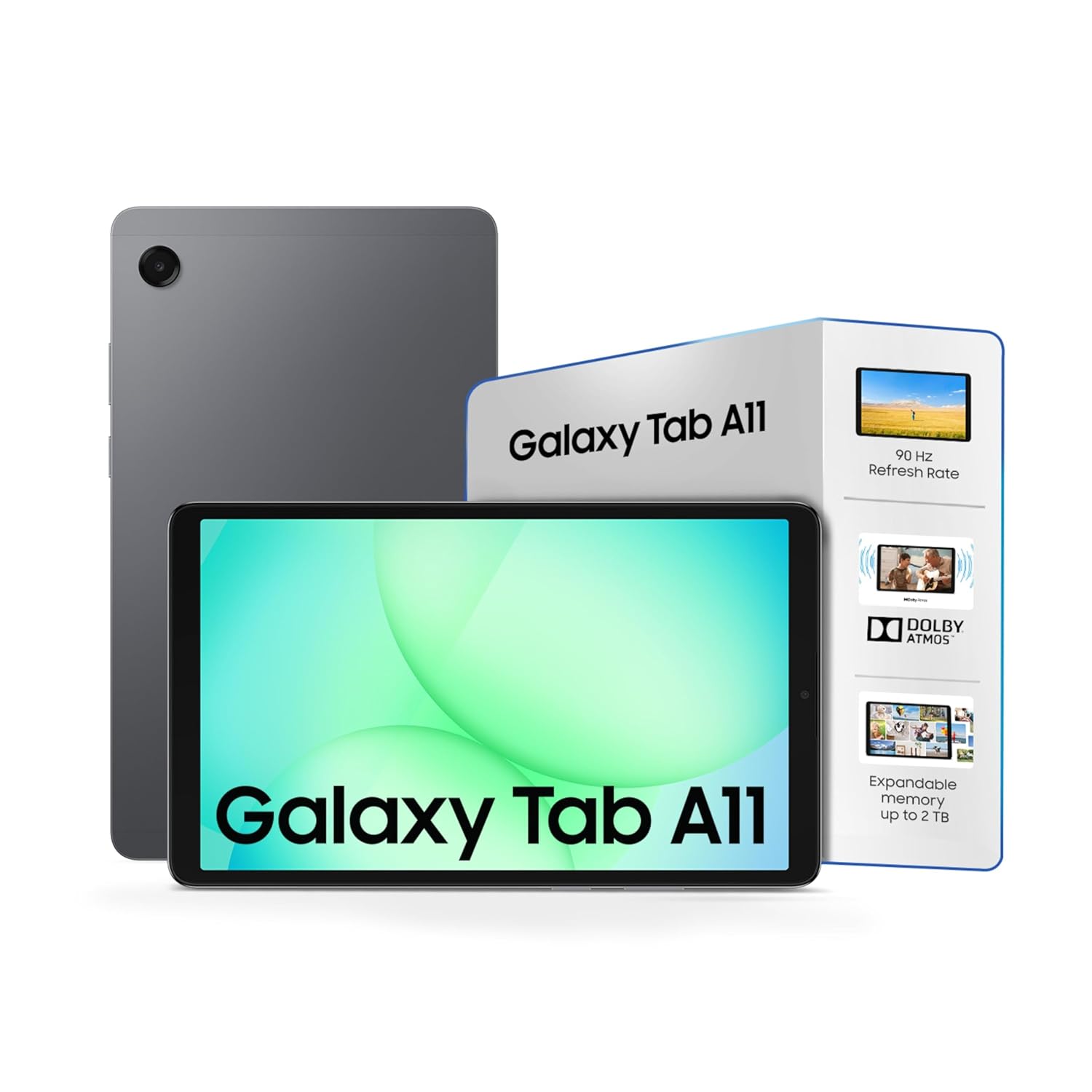
Image: Samsung Galaxy Tab A11 tablet, front view.

Image: Contents of the Samsung Galaxy Tab A11 package, including the tablet, USB-C data cable, and SIM ejection pin.
2. Initial Setup
2.1 Charging the Battery
Before first use, fully charge the tablet's battery. Connect the provided USB Type-C cable to the tablet's charging port and the other end to a compatible power adapter (sold separately) or a computer's USB port.
2.2 Powering On/Off
- To Power On: Press and hold the Power button until the Samsung logo appears.
- To Power Off: Press and hold the Power button, then select 'Power off' from the options on the screen.
2.3 Installing a SIM Card (LTE models only) and MicroSD Card
Use the provided SIM ejection pin to open the tray. Insert your Nano-SIM card (for LTE models) and/or a microSD card into the designated slots on the tray. Ensure the cards are correctly oriented before reinserting the tray into the tablet.
3. Operating Your Tablet
3.1 Display
The Samsung Galaxy Tab A11 features an 8.7-inch TFT LCD display with a resolution of 1340 x 800 pixels. It supports a 90Hz refresh rate for smoother visuals and improved responsiveness.

Image: The tablet's display showcasing its 90Hz refresh rate for smooth motion.
3.2 Audio
Experience rich audio with Dolby-engineered Dual Speakers. The tablet also includes a 3.5mm audio jack for connecting wired headphones.

Image: The tablet displaying content with visual cues for rich audio and Dolby Atmos support.
3.3 Camera
The tablet is equipped with an 8 MP rear camera and a 5 MP front camera, suitable for capturing photos, videos, and making video calls.

Image: The tablet's screen during a video call, highlighting the 5 MP front camera for clear communication.
3.4 Storage
The device comes with 128 GB of internal storage. Storage can be expanded up to 2 TB using a microSD card (sold separately).

Image: The tablet screen filled with various media, illustrating its 128 GB internal storage and expandable microSD storage up to 2 TB.
3.5 Connectivity
The Samsung Galaxy Tab A11 supports Wi-Fi and Bluetooth connectivity for internet access and pairing with accessories.
3.6 Operating System
The tablet runs on Android 15, providing access to a wide range of applications and features.
4. Maintenance
4.1 General Care
- Avoid exposing the tablet to extreme temperatures, direct sunlight, or high humidity.
- Do not drop or subject the tablet to severe impacts.
- Keep the tablet away from liquids and dust.
4.2 Cleaning
To clean the tablet, use a soft, lint-free cloth. For stubborn marks, slightly dampen the cloth with water or a screen cleaner specifically designed for electronic devices. Avoid using harsh chemicals or abrasive materials.
5. Troubleshooting
If you encounter issues with your Samsung Galaxy Tab A11, refer to the following common solutions:
- Device not powering on: Ensure the battery is charged. Connect the tablet to its charger for at least 10-15 minutes before attempting to power it on again.
- Screen unresponsive: Try restarting the device by holding down the Power button for approximately 10 seconds until it reboots.
- Wi-Fi connectivity issues: Check if Wi-Fi is enabled in the settings. Restart your Wi-Fi router and the tablet. Forget the network and reconnect.
- Applications crashing: Close and reopen the application. Clear the app's cache and data in the tablet's settings. Ensure the operating system and apps are updated to their latest versions.
- Slow performance: Close unused applications. Clear cache and temporary files. Consider performing a factory reset if performance issues persist (back up your data first).
For more complex issues, consult the Samsung support website or contact customer service.
6. Specifications
| Brand | Samsung |
| Model Name | Samsung Galaxy Tab A11 |
| Item Model Number | SM-X133 |
| Colour | Gray |
| Standing Screen Display Size | 8.7 Inches |
| Screen Resolution | 1340 x 800 Pixels Per Inch |
| Processor Brand | MediaTek |
| Processor Speed | 2 GHz |
| Memory Storage Capacity | 128 GB |
| Expandable Storage | Up to 2 TB (microSD) |
| Rear Webcam Resolution | 8 MP |
| Front Webcam Resolution | 5 MP |
| Connectivity Type | Bluetooth, Wi-Fi |
| Operating System | Android 15 |
| Item Weight | 332 g |
| Batteries | 1 AAA batteries required. (included) - Note: This likely refers to a small internal battery for specific components, not the main tablet battery. |
| Lithium Battery Energy Content | 19.48 Watt Hours |
7. Warranty and Support
Specific warranty details for your Samsung Galaxy Tab A11 are not provided within this manual. For comprehensive warranty information, technical support, and service options, please refer to the official Samsung website or contact Samsung customer service in your region.
You can typically find support resources by visiting www.samsung.com/support.
Related documentsSM-X133


Ask a question about this manual
Ask about setup, troubleshooting, compatibility, parts, safety, or missing instructions. Manuals+ will review the question and use this page’s manual context to help answer it.