
1. Introduction and Overview
This manual provides detailed instructions for the installation, operation, and troubleshooting of your iCarSEPTON 5GWiFi Upgrade Car Radio. This Android 13-based head unit offers advanced features including wireless CarPlay and Android Auto, GPS navigation, Wi-Fi connectivity, Bluetooth 4.0, FM/RDS radio, and support for a rearview camera and steering wheel controls. Please read this manual thoroughly before installation and use to ensure proper functionality and safety.

Image: Main unit of the iCarSEPTON 5GWiFi Upgrade Car Radio.
2. Product Features
- Wireless CarPlay & Android Auto: Seamlessly integrate your smartphone for navigation, music, calls, and messages via Bluetooth. Supports voice control with Siri or Google Assistant.
- GPS Navigation & Wi-Fi: Built-in GPS supports online and offline maps with real-time traffic. Connect to Wi-Fi to download and manage apps.
- Android 13 System: Powered by a 4-core CPU, 2GB RAM, and 32GB ROM for efficient performance and immersive audio experience.
- Bluetooth & FM Radio: Bluetooth 4.0 for hands-free calling, music streaming, and phonebook syncing. FM/RDS radio with 18 preset stations.
- Rear View Camera & Steering Wheel Control: Includes high-definition rearview camera input with night vision for parking assistance. Supports existing steering wheel controls for audio and call management.
- Screen Mirroring: iOS/Android screen mirroring via USB.

Image: Display showing Wireless Apple CarPlay and Android Auto interfaces.

Image: Display showing Wi-Fi connectivity and GPS Navigation features.
3. Setup and Installation
The iCarSEPTON 5GWiFi Upgrade Car Radio is designed for a plug-and-play installation in compatible vehicles. Ensure all cables are securely connected before powering on the unit.
3.1 Component Identification
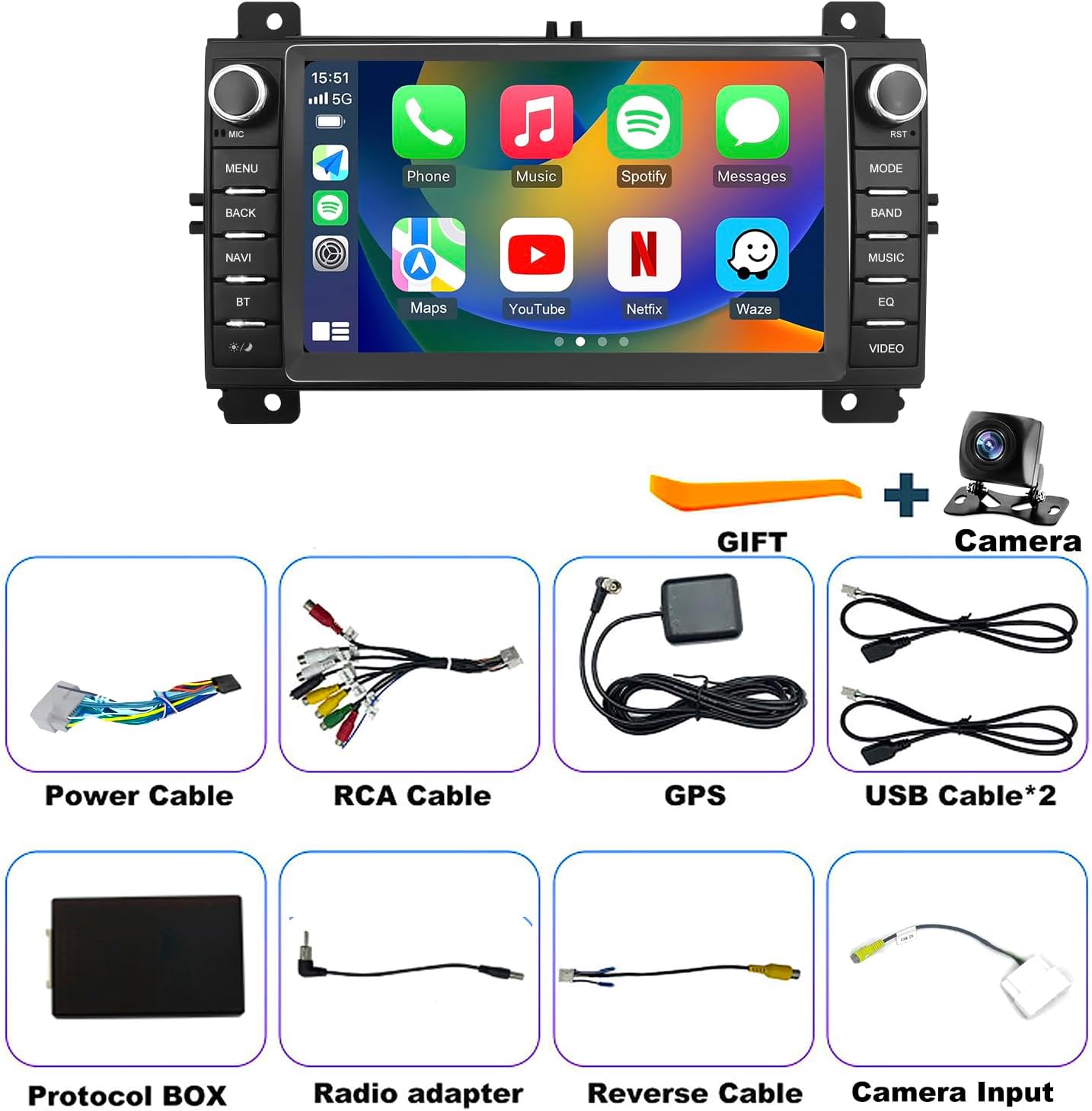
Image: Overview of included components: Car Radio, Back Camera, Harness Cable, Canbus Box, Instructions, and Installation Guide.
3.2 Wiring Diagram
Refer to the detailed wiring diagram for correct connections. Pay close attention to the power cable, RCA cables, GPS antenna, USB cables, protocol box, radio adapter, reverse cable, and camera input.

Image: Detailed wiring diagram for the car radio, showing connections for USB, RCA, MIC, Radio, GPS, Reversing line, and Protocol serial line.
3.3 Camera Cable Insertion
It is crucial to insert the camera cable to enhance both Wi-Fi and Bluetooth signals, regardless of whether a camera is installed. This cable acts as an antenna for improved wireless performance.
Video: Demonstration of inserting the camera cable to enhance Wi-Fi and Bluetooth signals.
4. Operating Instructions
4.1 System and Settings Overview
Navigate through the system settings to customize your car radio. Access Factory Settings using password 8888 for advanced configurations. The user interface allows adjustments for volume, brightness, navigation app selection, steering wheel learning, and logo settings.
Video: Overview of the system settings and user interface, including access to factory settings and various customization options.
4.2 Connecting Bluetooth
To connect your phone via Bluetooth:
- On the car radio, swipe down from the top to access quick settings and tap the Bluetooth icon, or navigate to the Bluetooth settings menu.
- On your phone, enable Bluetooth and search for available devices. The car radio's Bluetooth name is typically "CarBT".
- Select "CarBT" on your phone. If prompted for a PIN, enter 0000.
- If you encounter issues, try turning Bluetooth on and off several times on your phone, or clear previously paired devices from the car radio's Bluetooth settings.
4.3 Wireless CarPlay & Android Auto
After connecting your phone via Bluetooth, CarPlay or Android Auto will automatically launch. Ensure the CarPlay function is open on your iPhone (Settings > General > CarPlay > Zlink > Open/Close CarPlay).
To disconnect CarPlay or Android Auto:
- Clear background applications on the car radio.
- Find the Zlink application and turn off the automatic CarPlay/Android Auto background connection within its settings.
4.4 Simultaneous Bluetooth and Wi-Fi Usage
To use Bluetooth and Wi-Fi simultaneously, ensure you turn off the automatic CarPlay/Android Auto connection in Zlink. This allows independent control of both wireless functions.

Image: Display showing FM Radio and Bluetooth connection interface.

Image: Display showing Steering Wheel Control learning steps and Rear View Camera input after reversing.
5. Maintenance
To ensure the longevity and optimal performance of your iCarSEPTON car radio, follow these general maintenance guidelines:
- Screen Cleaning: Use a soft, lint-free cloth to gently wipe the touchscreen. Avoid abrasive cleaners or harsh chemicals that could damage the display.
- Software Updates: Periodically check for software updates in the system settings to ensure you have the latest features and bug fixes.
- Environmental Conditions: Avoid exposing the unit to extreme temperatures, direct sunlight for prolonged periods, or excessive moisture.
- Cable Connections: Periodically check all cable connections to ensure they are secure and free from damage.
6. Troubleshooting
If you encounter any issues with your iCarSEPTON car radio, refer to the following common troubleshooting steps:
- Q: Why isn’t my screen turning on or showing a black image?
- A: Lightly press the RST reset hole using a toothpick, check whether the blue/red fuse on the back is blown, and confirm the CANbus box is firmly plugged in.
- Q: Why is the touchscreen not responding?
- A: Recalibrate it by placing five fingers on the screen as shown in the instructional video.
- Q: Why do I have no audio?
- A: Make sure the speaker wires are connected correctly and not reversed, and verify the CANbus box is installed securely.
- Q: Why are my Bluetooth or Wi-Fi signals weak?
- A: Connect the reverse wire, which helps strengthen both Bluetooth and Wi-Fi reception.
- Q: Why won’t my phone pair via Bluetooth?
- A: Select “Car-BT,” enter “0000,” remove any old saved devices, and try pairing again.
- Q: How can I enable or disable CarPlay?
- A: 1) Connect Bluetooth to auto-launch CarPlay through Zlink. 2) Close background apps (second icon top-right). 3) iPhone: Settings > General > CarPlay > Zlink.
- Q: Why aren’t my steering wheel controls responding?
- A: Check that the protocol cable is properly connected and ensure the correct protocol is chosen in settings.
- Q: Why is my reverse camera not displaying?
- A: Review the wiring via the diagram, then go to Settings > Factory Settings (8888) > Protocol Settings > Reverse Video Format and choose AHD/25.
7. Specifications
| Brand | iCarSEPTON |
| Model Name | iCarSEPTON 5GWiFi Upgrade Car Radio |
| Operating System | Android 13 |
| CPU | 4 Core |
| RAM | 2GB |
| Memory Storage Capacity | 32GB |
| Screen Size | 7 Inches |
| Display Type | Capacitive Touch Screen |
| Connectivity Technology | Bluetooth, USB, Wi-Fi |
| Supported Navigation System | GPS (North America maps) |
| Audio Output Mode | Stereo |
| Mounting Type | Dashboard Mount |
| Parcel Dimensions | 29.21 x 18.9 x 10.39 cm; 1.09 kg |
8. Warranty and Support
Your iCarSEPTON car radio comes with a standard return policy of 30 days for refund or replacement. For any installation issues, wiring problems, protocol selection concerns, or functionality questions, please contact iCarSEPTON customer service. We are committed to providing a prompt response on the next business day to assist you.
Contact information for customer service can typically be found on the product packaging or the seller's page.