
1. Introduction
This manual provides detailed instructions for the setup, operation, and maintenance of your GMKtec Nucbox G3S Mini PC. Please read this manual thoroughly before using the device to ensure proper functionality and to maximize your user experience. Keep this manual for future reference.
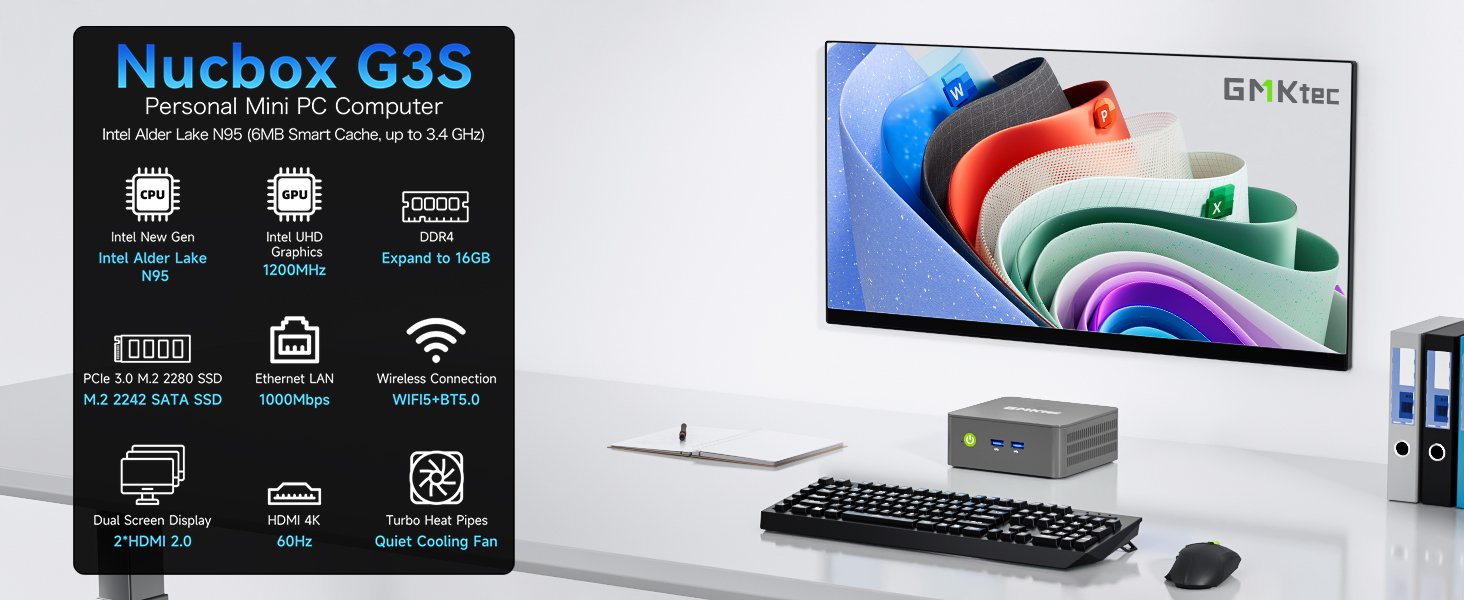
Image: Overview of the GMKtec Nucbox G3S Mini PC and its core features.
2. What's in the Box
Verify that all items are present in the package:
- 1 x GMKtec Nucbox G3S Mini PC
- 1 x Power Adapter
- 1 x VESA Mount with Screws
- 1 x HDMI Cable
- 1 x User Manual (this document)

Image: All components included in the GMKtec Nucbox G3S retail packaging.
3. Product Overview
The GMKtec Nucbox G3S is a compact and powerful mini PC designed for various computing needs, from office tasks to home entertainment. It features an Intel N95 processor, ample memory, and fast storage.
3.1. Key Features
- Processor: 12th Gen Intel Alder Lake N95 CPU (4 Cores, 4 Threads, 6MB Cache, up to 3.4GHz)
- Memory: 16GB DDR4 RAM
- Storage: 512GB M.2 2242 SSD (expandable)
- Graphics: Intel UHD Graphics (up to 1200MHz)
- Display Output: Dual HDMI 2.0 ports supporting 4K@60Hz
- Connectivity: WiFi 5, Bluetooth 5.0, Gigabit Ethernet (RJ45 1000MbE)
- Ports: USB 3.2, USB 2.0, 3.5mm Audio Jack

Image: Detailed diagram of the Nucbox G3S's internal components and specifications.
3.2. Port Layout
The GMKtec Nucbox G3S features a variety of ports for connecting peripherals and network devices.
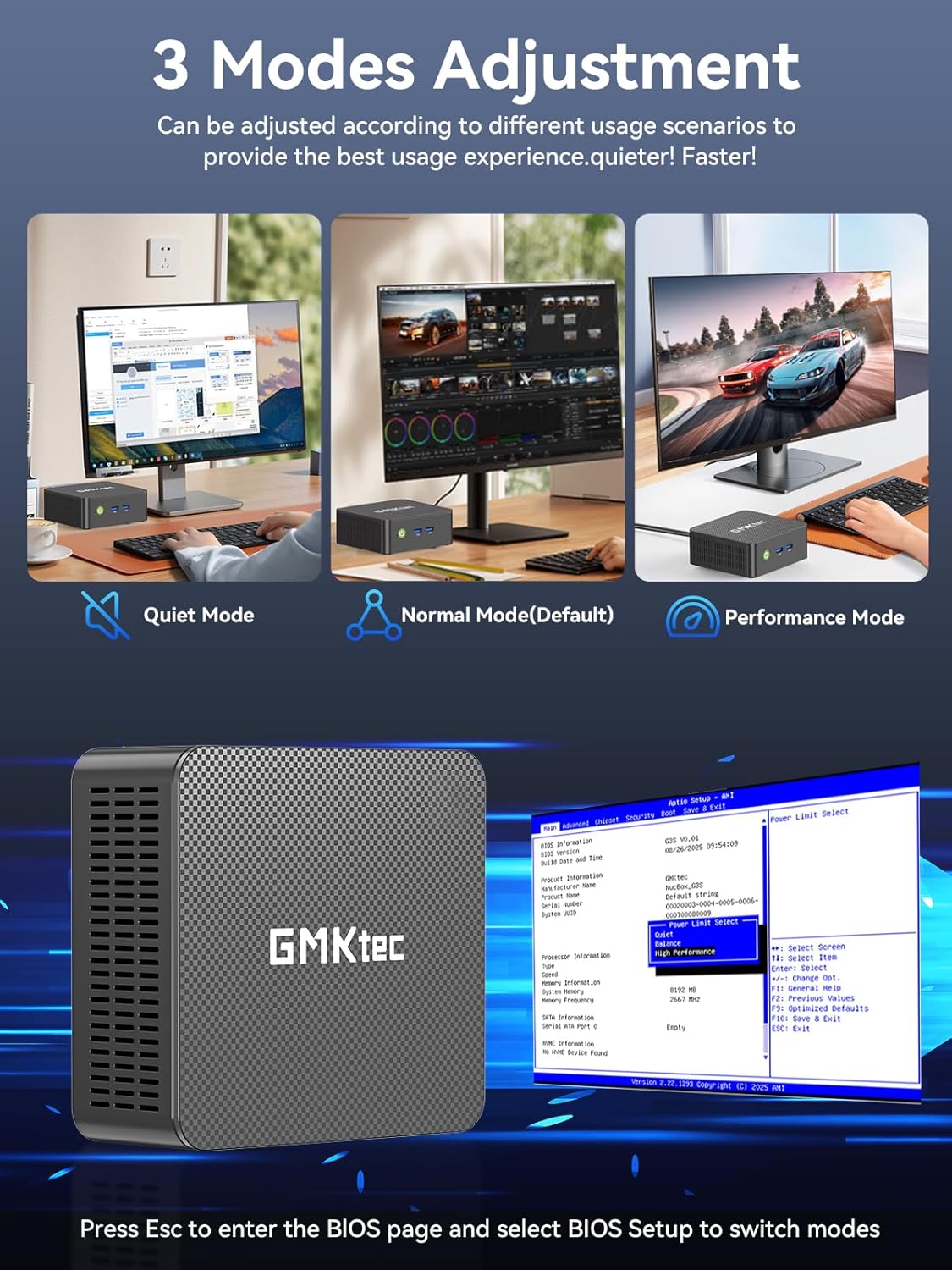
Image: Front and rear panel port layout of the GMKtec Nucbox G3S.
- Front Panel: Power Button, 2x USB 3.2 ports
- Rear Panel: 2x HDMI (4K@60Hz), 1x USB 3.2, 1x USB 2.0, 1x Giga LAN (RJ45 2.5G), 1x 3.5mm Audio, DC 12V 3A Power Input
4. Setup
4.1. Initial Connection
- Connect Display: Use the provided HDMI cable to connect the Mini PC to a monitor or TV. The device supports dual 4K displays.
- Connect Peripherals: Plug in your USB keyboard and mouse into the available USB ports.
- Connect Power: Connect the power adapter to the DC 12V 3A input port on the Mini PC, then plug the adapter into a power outlet.
- Power On: Press the power button on the front of the Mini PC.
4.2. VESA Mount Installation
The GMKtec Nucbox G3S can be mounted behind a monitor using the included VESA mount for a clutter-free setup.
- Attach the VESA mount bracket to the back of your monitor using the provided screws. Ensure the mount is securely fastened.
- Slide the Mini PC onto the VESA mount bracket until it clicks into place.
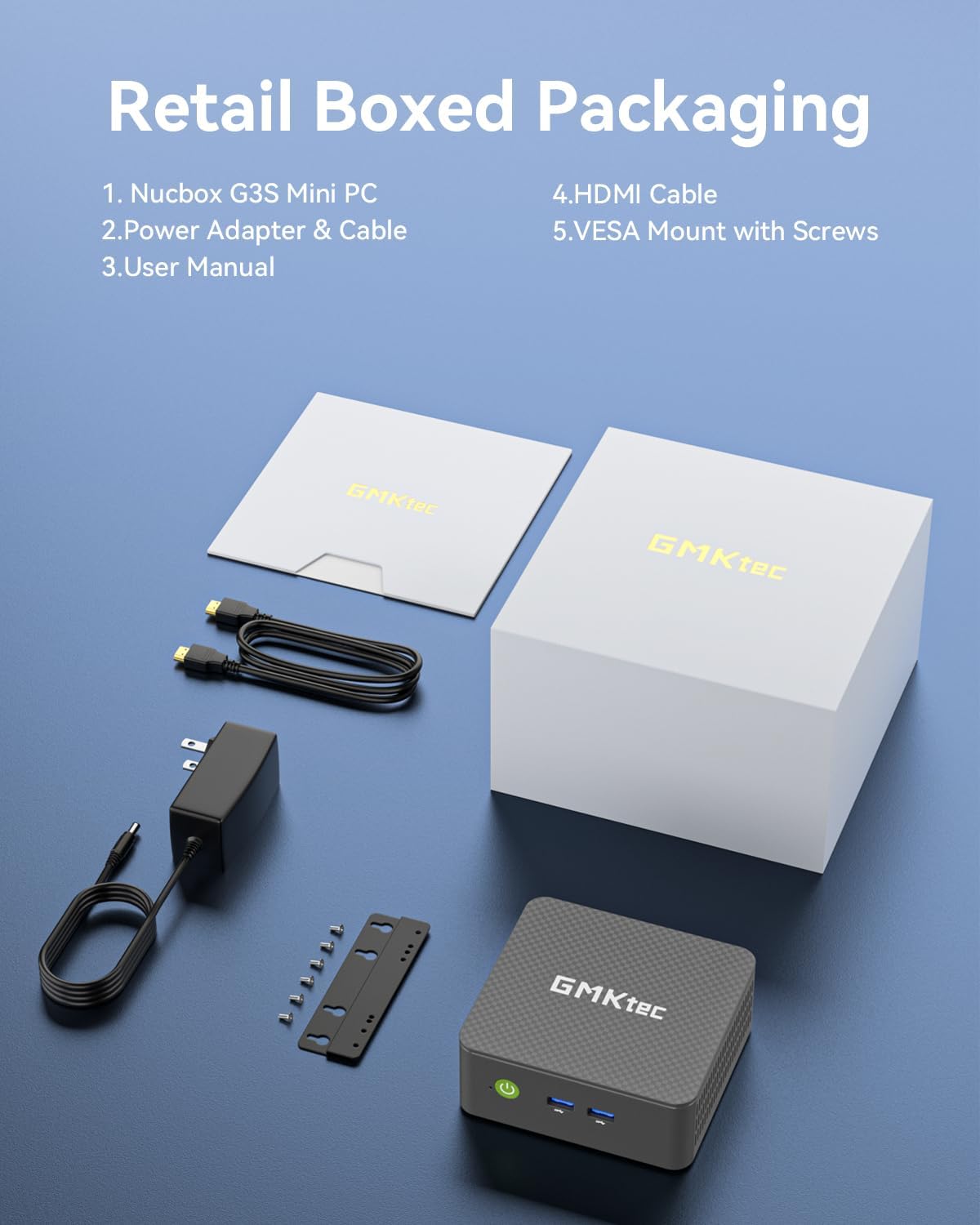
Image: Desktop placement and VESA mount installation options for the Mini PC.
5. Operating Instructions
5.1. Power On/Off
- Power On: Press the power button on the front panel.
- Power Off: Access the operating system's shutdown menu or press and hold the power button for 5 seconds.
5.2. BIOS Access and Operating Modes
To access the BIOS settings, press the ESC or DEL key repeatedly during startup.
The Mini PC supports three adjustable operating modes: Quiet Mode, Normal Mode (Default), and Performance Mode. These modes can be selected within the BIOS settings to optimize for different usage scenarios.
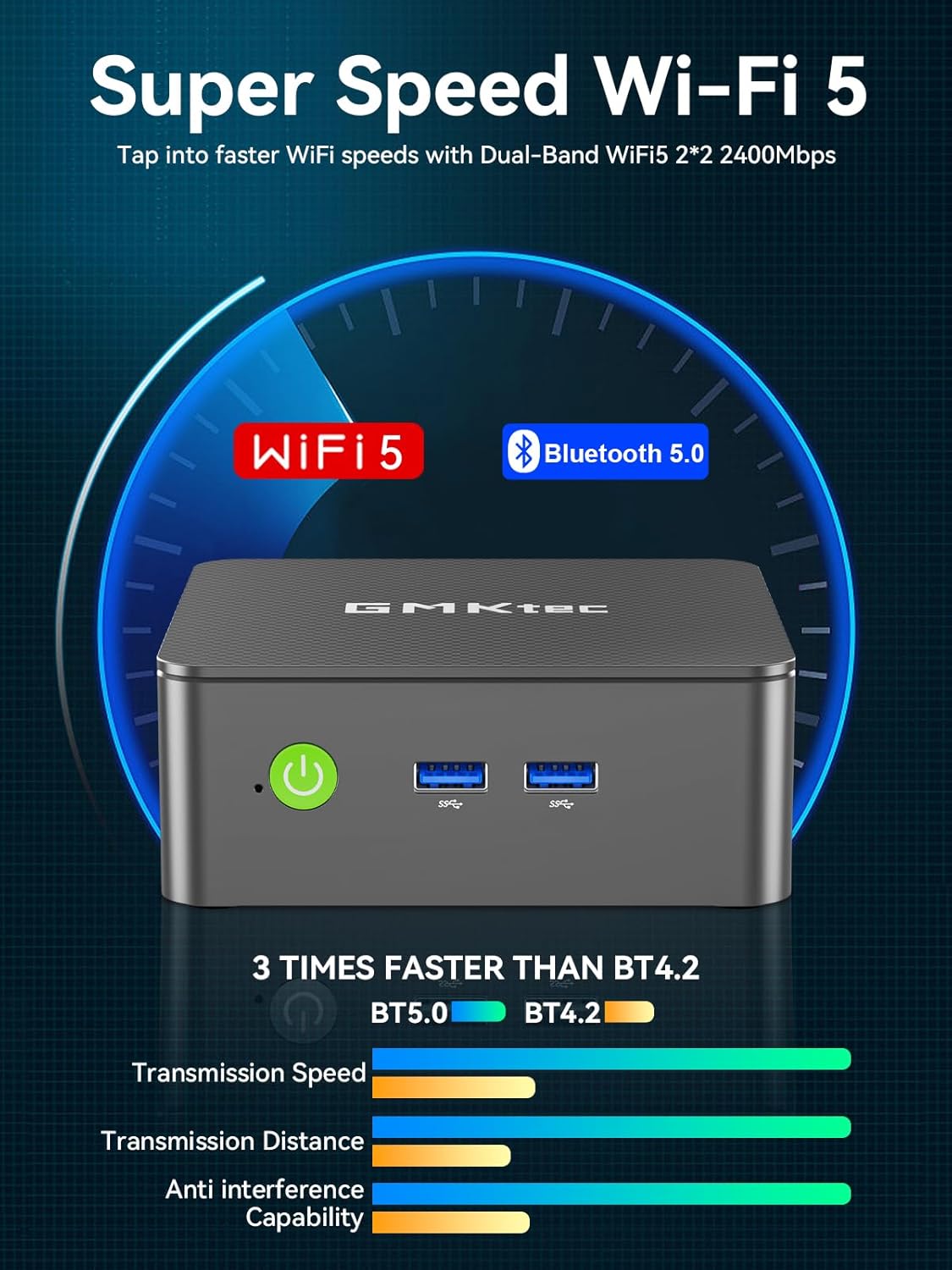
Image: Visual representation of the three operating modes and BIOS access.
5.3. Dual Screen Display
The Nucbox G3S supports connecting two 4K monitors simultaneously via its dual HDMI 2.0 ports. This allows for extended desktop functionality and enhanced productivity.
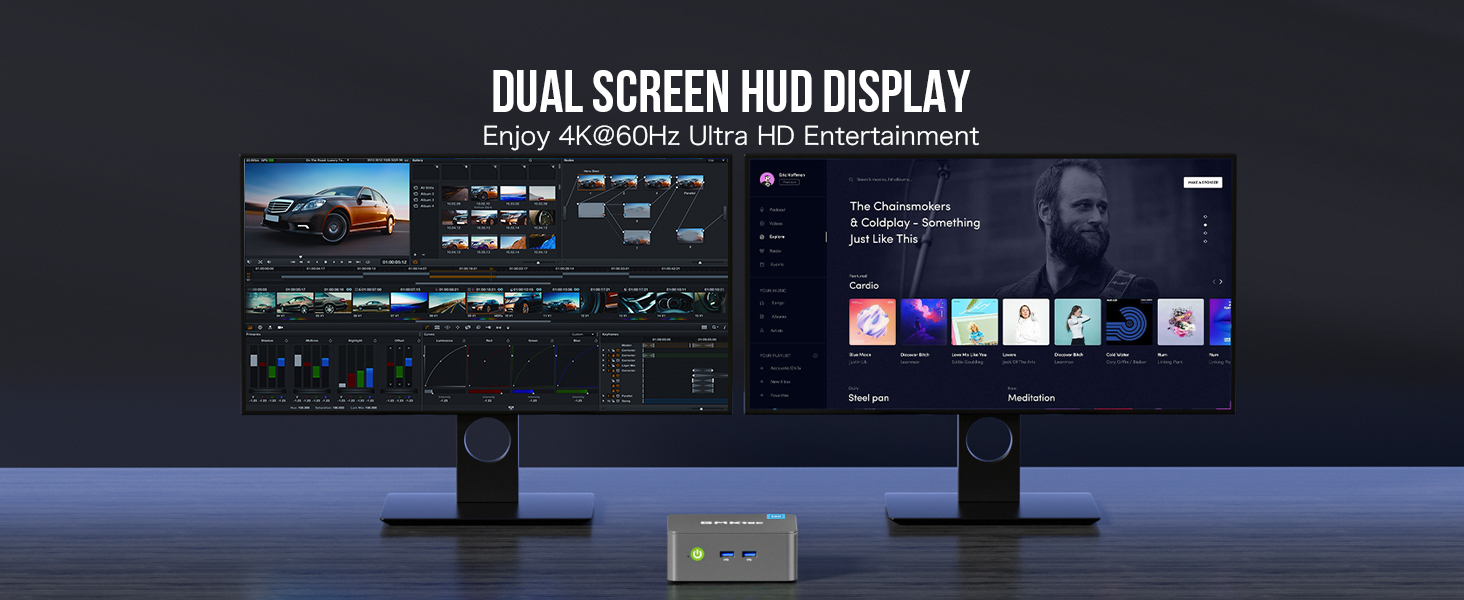
Image: Example of a dual 4K monitor setup with the Mini PC.
5.4. Network and Wireless Connectivity
- Wi-Fi: The device supports WiFi 5 for high-speed wireless internet access. Connect to your preferred network through the operating system's network settings.
- Bluetooth: Bluetooth 5.0 allows for connection to various wireless peripherals such as keyboards, mice, and audio devices.
- Ethernet: For a stable wired connection, use the Gigabit Ethernet (RJ45) port.
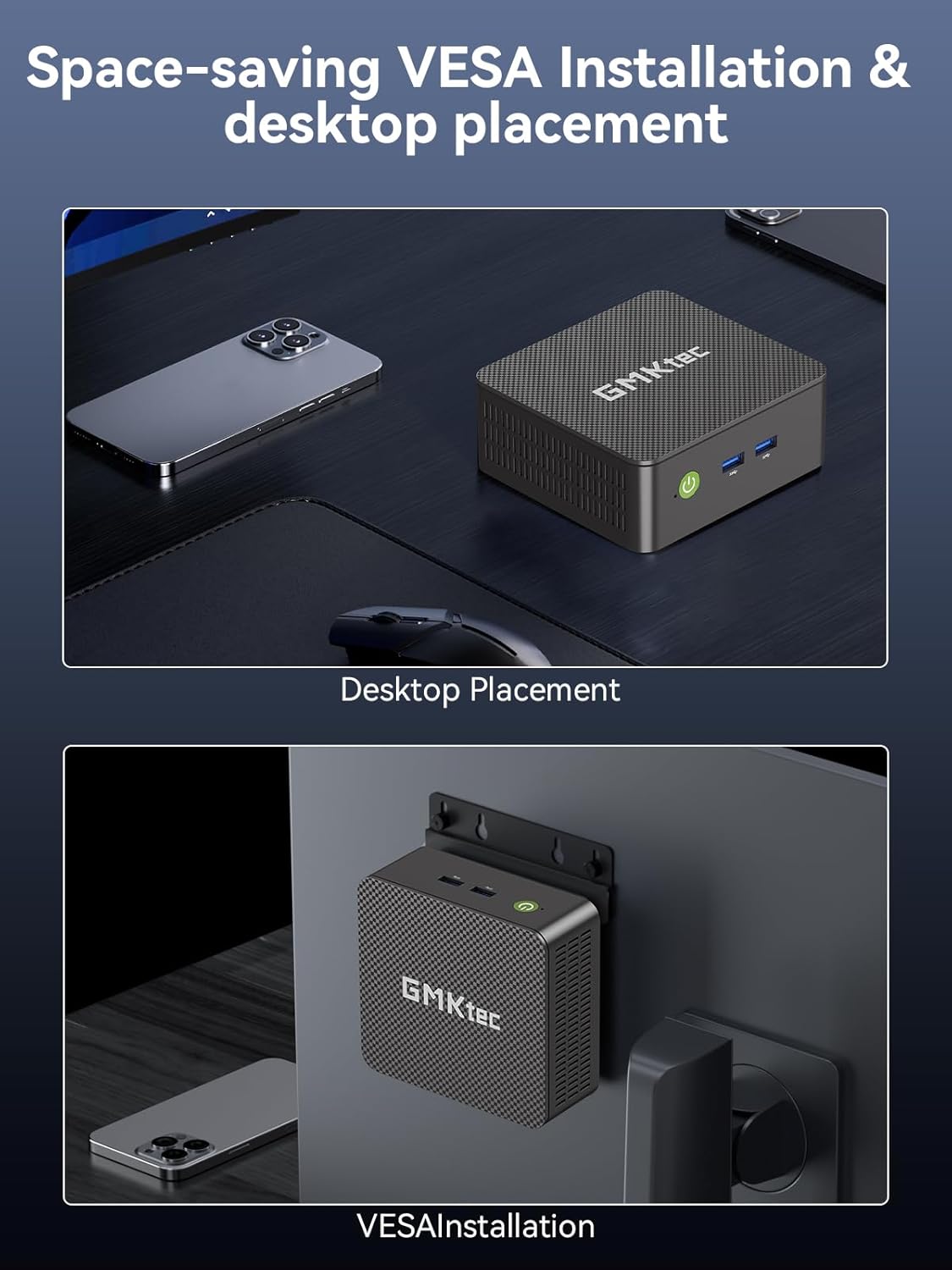
Image: Details on WiFi 5 and Bluetooth 5.0 connectivity.
5.5. Supported Operating Systems
The GMKtec Nucbox G3S comes with Windows 11 Pro pre-installed. It is also compatible with various Linux distributions, including Ubuntu.

Image: The Mini PC handling multiple software applications for various tasks.
6. Maintenance
6.1. General Care
- Keep the Mini PC in a clean, dry environment away from direct sunlight and extreme temperatures.
- Ensure proper ventilation by not blocking the cooling vents.
- Clean the exterior with a soft, dry cloth. Avoid liquid cleaners.
6.2. Storage Expansion
The Nucbox G3S supports storage expansion. It includes a built-in 512GB M.2 2242 SSD and has additional slots for M.2 2280 PCIe Gen3*2 (up to 8TB) and M.2 2242 SATA (up to 2TB) drives.

Image: Illustration of the storage expansion capabilities.
To access the internal components for storage upgrades, carefully remove the bottom cover by unscrewing the retaining screws. Refer to the internal component diagram for guidance.

Image: Exploded view showing internal components and cooling system.
7. Troubleshooting
If you encounter issues with your GMKtec Nucbox G3S, consider the following basic troubleshooting steps:
- No Power: Ensure the power adapter is securely connected to both the Mini PC and a working power outlet. Try a different outlet.
- No Display: Verify that the HDMI cable is firmly connected to both the Mini PC and the monitor. Check if the monitor is set to the correct input source. Try a different HDMI cable or monitor if available.
- No Internet Connection: For Wi-Fi, check your network settings and ensure you are connected to the correct network. For wired Ethernet, ensure the cable is properly connected and your router is functioning.
- Peripheral Issues: If a USB device or Bluetooth device is not working, try connecting it to a different port or re-pairing the Bluetooth device. Ensure drivers are up to date in the operating system.
- System Unresponsive: If the system freezes, press and hold the power button for 5-10 seconds to force a shutdown, then restart the device.
For more complex issues, please refer to the GMKtec support website or contact customer service.
8. Specifications
| Feature | Detail |
|---|---|
| Brand | GMKtec |
| Model | G3S |
| Processor | 12th Gen Intel Alder Lake N95 CPU (4 Cores, 4 Threads, 6MB Cache, up to 3.4GHz) |
| RAM | 16GB DDR4 SDRAM (3200 MHz) |
| Storage | 512GB M.2 2242 SSD (PCIe Gen3*2 + 1*M.2 2242 SATA) |
| Graphics Coprocessor | Intel UHD Graphics 1200MHz |
| Max Screen Resolution | 5120 x 2880 Pixels (4K@60Hz via HDMI) |
| HDMI Ports | 2 (HDMI 2.0) |
| USB 3.2 Ports | 3 |
| USB 2.0 Ports | 1 |
| Ethernet | Gigabit Ethernet (RJ45 1000MbE) |
| Wireless Type | WiFi 5 (2.4 GHz, 5 GHz), Bluetooth 5.0 |
| Operating System | Pre-installed Windows 11 Pro |
| Item Weight | 1.1 pounds |
| Color | Black |
| Special Features | Wake On LAN, PXE Boot, RTC Wake, Auto Power On |
9. Warranty and Support
9.1. Warranty Information
GMKtec offers a 1-year limited warranty for each Mini PC, effective from the date of purchase. This warranty covers defects due to design and workmanship. Please retain your proof of purchase for warranty claims.
9.2. Customer Support
For technical assistance, warranty claims, or any questions regarding your GMKtec Nucbox G3S Mini PC, please contact GMKtec customer support. A professional after-sales team is available to assist you.
You may find additional support resources on the official GMKtec website.


