
1. Introduction
The BOOX InkSense Plus Active Stylus is designed to enhance your digital writing and drawing experience on compatible BOOX e-readers. This manual provides essential information on setting up, operating, maintaining, and troubleshooting your stylus to ensure optimal performance.
2. Product Overview
The InkSense Plus Active Stylus offers precise input for note-taking, sketching, and navigation. Its ergonomic design ensures comfortable use over extended periods.
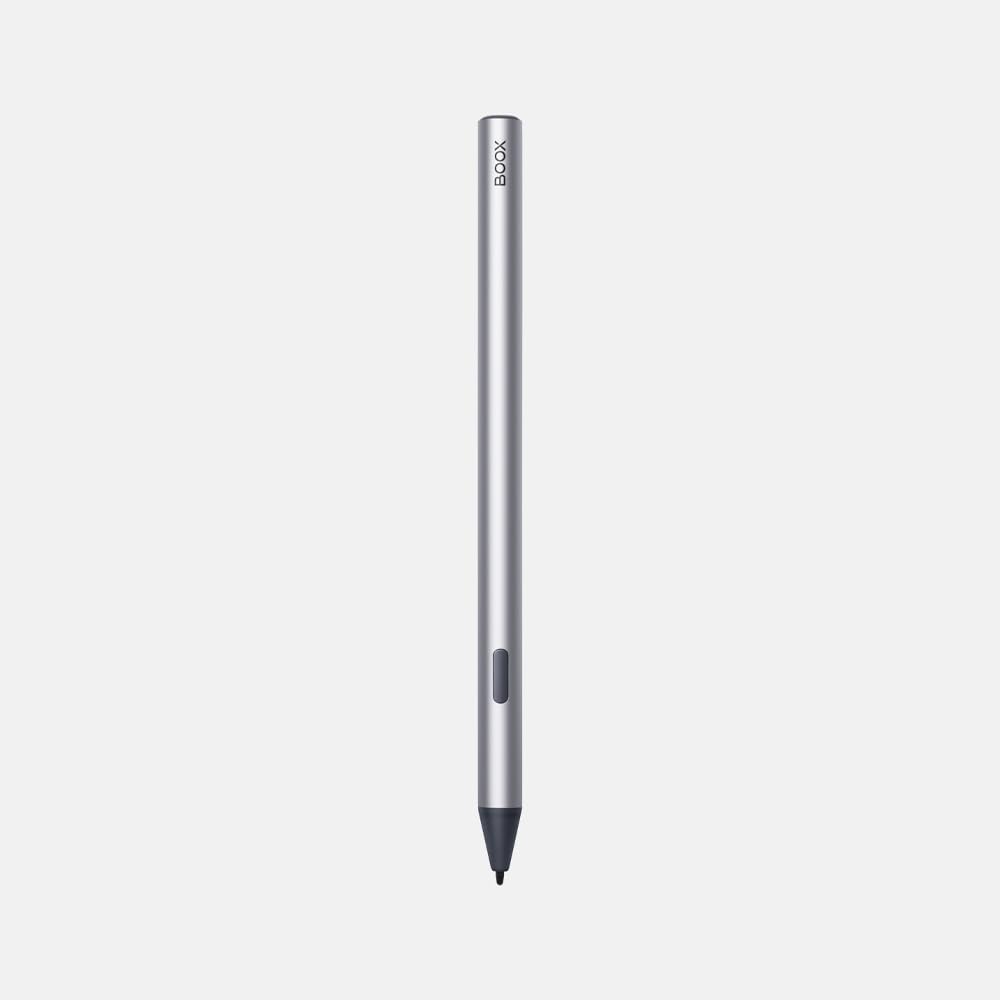


Key Features:
- Smooth Writing Experience: Designed for fluid and natural writing on compatible e-ink screens.
- Eraser Function: The end of the stylus can be used as an eraser for quick corrections.
- Tilt Support: Allows for varying line thickness based on the stylus's tilt angle, mimicking traditional drawing tools.
- Replaceable Nibs: Comes with extra tips for extended use.
- Rechargeable Battery: Equipped with an internal battery that requires charging via a USB-C cable.
3. Compatibility
The BOOX InkSense Plus Active Stylus is specifically designed for use with the following BOOX devices:
- BOOX Palma2 Pro
- BOOX Go Color 7 Gen II
- BOOX Go 7
Important: This stylus is NOT compatible with the following models:
- Tab X C
- Note Max
- Note Air 4 C
- Go 10.3
- Go Color 7 Gen I
- Tab Ultra C Pro
4. Setup
Charging the Stylus:
- Locate the USB-C charging port on the stylus (refer to Product Overview image PT03).
- Connect the included USB-C cable to the stylus and a compatible power source (e.g., computer USB port, wall adapter).
- Allow the stylus to charge until the indicator light (if present) signals a full charge. A full charge typically lasts several days to weeks depending on usage.
Pairing with Your Device:
The BOOX InkSense Plus Active Stylus can be paired with one compatible device at a time. Refer to your BOOX e-reader's user manual for specific pairing instructions. Generally, ensure Bluetooth is enabled on your device and follow the on-screen prompts to connect the stylus.
5. Operating Instructions
Writing and Drawing:
- Hold the stylus as you would a traditional pen.
- Gently touch the stylus tip to the e-reader screen to begin writing or drawing.
- Experiment with different pressure and tilt angles to achieve desired line variations, if supported by the application.
Using the Eraser Function:
To erase, simply flip the stylus and use the top end (opposite the writing tip) on the screen. This will activate the eraser function in compatible applications.
Side Button Functionality:
The side button on the stylus may offer additional functions depending on the application and device settings. Common functions include quick access to eraser, highlighter, or selection tools. Consult your device's settings for customization options.
Demonstration of the BOOX InkSense Plus Active Stylus features, including writing, erasing, tilt sensitivity, and nib replacement, on a compatible BOOX Go Color 7 tablet.
6. Maintenance
Cleaning:
Wipe the stylus with a soft, dry cloth. Avoid using harsh chemicals or abrasive materials that could damage the surface.
Nib Replacement:
Over time, the stylus nib may wear down. Replace it using the included nib removal tool and spare nibs:
- Gently grasp the old nib with the nib removal tool.
- Pull the old nib straight out.
- Insert a new nib firmly into the stylus until it is securely seated.
7. Troubleshooting
Stylus Not Responding:
- Check Battery: Ensure the stylus is sufficiently charged. Recharge if necessary.
- Check Compatibility: Verify that your BOOX device is listed as compatible with the InkSense Plus Active Stylus.
- Re-pair Stylus: If previously paired, try unpairing and re-pairing the stylus with your device.
- Restart Device: Restart your BOOX e-reader.
- Inspect Nib: Ensure the nib is properly installed and not damaged. Replace if worn or broken.
Inaccurate or Lagging Input:
- Screen Cleanliness: Ensure your e-reader screen is clean and free of smudges or debris.
- Nib Condition: A worn nib can affect accuracy. Replace the nib if it appears damaged or excessively worn.
- Application Settings: Some applications may have specific stylus settings that can be adjusted for better performance.
8. Specifications
- Model: InkSense Plus Active Stylus
- Brand: BOOX
- Material: Plastic
- Color: Black with silver tip
- Dimensions: 7.01 x 2.01 x 0.35 inches (17.8 x 5.1 x 0.9 cm)
- Weight: 2.82 ounces (80 grams)
- Power Source: Rechargeable internal battery (USB-C charging)
9. Warranty and Support
For warranty information, technical support, or further assistance, please refer to the official BOOX website or contact your retailer. Keep your proof of purchase for warranty claims.
Overview of the BOOX Go 7 and Go 7 Gen 2 devices, demonstrating how the stylus can be stored with a compatible magnetic case.


