
Garmin Edge 550
Garmin Edge 550 GPS Cycling Computer User Manual
Comprehensive instructions for setup, operation, and maintenance.
1. Introduction
The Garmin Edge 550 is a compact GPS cycling computer designed to enhance your cycling experience with advanced navigation, training, and performance tracking features. It features a vivid color display and button controls for intuitive operation. This manual provides detailed instructions to help you get the most out of your device.

Image: Front view of the Garmin Edge 550 GPS Cycling Computer, displaying a "ROAD" activity screen with mileage and a "SPRINT WORK" graph.
2. What's in the Box
Verify that all components are present in your product packaging:
- Edge 550 GPS cycling computer
- Flush out-front mount
- Standard mount
- Tether
- Charging/data cable
- Documentation
3. Setup and Installation
3.1 Charging the Device
Before initial use, fully charge your Edge 550. Connect the charging/data cable to the device and a USB power source. The battery icon on the display will indicate charging status. A full charge provides up to 12 hours of use in demanding scenarios or up to 36 hours in battery saver mode.
3.2 Mounting the Device
The Edge 550 includes both a flush out-front mount and a standard mount. Choose the mount that best suits your bicycle and riding preference.
- Standard Mount Installation:
- Place the rubber pad on the back of the bike mount.
- Place the bike mount on the bicycle stem.
- Secure the mount using the two O-rings.
- Align the tabs on the back of the Edge 550 with the bike mount notches.
- Press down slightly and turn the Edge 550 clockwise until it locks into place.
- Flush Out-Front Mount Installation:
- Choose a secure location on your handlebars.
- Use the provided hex wrench to attach the mount securely.
- Align the tabs on the back of the Edge 550 with the mount notches.
- Press down slightly and turn the Edge 550 clockwise until it locks into place.

Image: A gloved hand holding the Garmin Edge 550, illustrating its compact size and button controls. The screen displays a "Training" menu.
3.3 Initial Device Configuration
Upon first power-on, the device will guide you through initial setup, including language, time zone, and user profile information. Ensure accurate data entry for personalized training insights.
4. Operating Instructions
4.1 Powering On/Off
Press and hold the power button (located on the side) to turn the device on or off. A short press will toggle the backlight.
4.2 Navigation and Menus
The Edge 550 uses physical buttons for navigation. Use the up/down buttons to scroll through menus and the enter button to select options. The back button returns to the previous screen.
4.3 Starting a Ride
- From the home screen, select a profile (e.g., Road, Gravel, MTB).
- Wait for GPS signal acquisition (indicated by a solid GPS icon).
- Press the Start button to begin recording your ride.
- Press the Stop button to pause or end the ride.
4.4 Using Preloaded Maps
The device comes with preloaded maps for road, gravel, and trails. To access navigation features:
- Select "Navigation" from the main menu.
- Choose a destination or a saved course.
- Follow the on-screen directions and turn-by-turn prompts.

Image: The Garmin Edge 550 mounted on bicycle handlebars, showing a detailed map with a highlighted route and navigation instructions.
4.5 Advanced Training Features
The Edge 550 offers advanced training and performance insights:
- Smart Fueling Alerts: Receive in-ride prompts to hydrate and refuel based on your fitness, course demands, heat, and humidity (requires compatible power meter and heart rate monitor).
- Power Guide: Manage your efforts with recommended power targets based on real-time stamina and wind.
- Garmin Coach Training Plans: Access personalized training plans that adapt to your performance and recovery.
- Multi-band GPS: For superior accuracy and position tracking.

Image: Three cyclists on a road, with an inset showing the Garmin Edge 550 highlighting "Advanced Training Features", "Vivid Color Display", and "Ride-Specific Navigation".
4.6 Connectivity and Smart Features
Pair your Edge 550 with your compatible smartphone and the Garmin Connect™ app for enhanced features:
- Road Hazard Alerts: Receive alerts for hazards reported by other cyclists and contribute your own.
- GroupRide: Stay connected with in-ride messaging, live locations, and incident detection alerts.
- LiveTrack: Share your real-time location with loved ones.
- Weather Radar: Monitor weather conditions with radar and wind direction overlays.
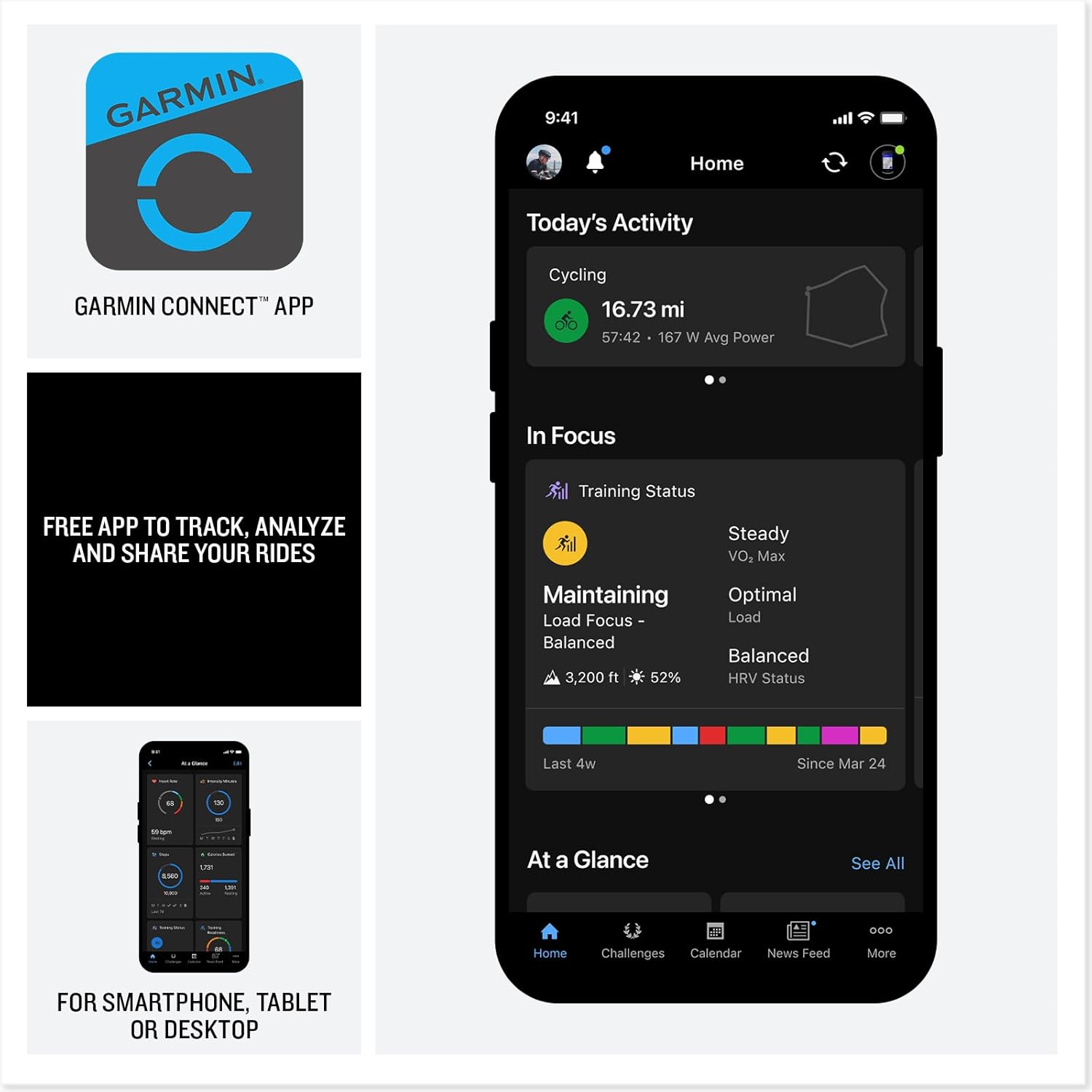
Image: The Garmin Edge 550 displaying screens for electronic shifting connectivity, group ride features, and an incident detection alert.

Image: The Garmin Connect™ app logo and its interface displayed on a smartphone, showing activity tracking and training status.
Video: An official Garmin video showcasing the features of the Garmin Edge 550 and Edge 850 GPS Cycling Computers, including navigation, training, and connectivity.
5. Maintenance and Care
5.1 Cleaning the Device
Regularly clean your Edge 550 with a soft, damp cloth. Avoid using abrasive cleaners or solvents that could damage the device's finish or screen.
5.2 Battery Care
To prolong battery life, avoid exposing the device to extreme temperatures. Store the device in a cool, dry place when not in use. Recharge the battery periodically if storing for extended periods.
5.3 Software Updates
Connect your Edge 550 to your computer or the Garmin Connect app to check for and install software updates. Updates often include performance improvements and new features.
6. Troubleshooting
- Device not turning on: Ensure the device is fully charged. If the issue persists, try connecting it to a different USB power source.
- GPS signal loss: Ensure you are in an open area with a clear view of the sky. Avoid areas with tall buildings or dense tree cover.
- Inaccurate data: Verify that your user profile settings (weight, height, etc.) are correct. Ensure sensors (power meter, heart rate monitor) are properly paired and calibrated.
- Connectivity issues (Bluetooth/Wi-Fi): Ensure your smartphone's Bluetooth is enabled and the Garmin Connect app is running. For Wi-Fi, ensure the device is within range of a known network.
- Battery draining quickly: Reduce screen brightness, disable unnecessary features (e.g., Wi-Fi, Bluetooth) when not in use, and ensure the device has the latest software update.
For further assistance, refer to the official Garmin support website or contact customer service.
7. Specifications
| Product Dimensions | 0.7 x 2.1 x 3.6 inches |
| Item Weight | 3.9 ounces |
| Model Number | 010-03022-00 |
| Batteries | 1 Nonstandard Battery (included) |
| Operating System | Garmin OS |
| Connectivity Technologies | Bluetooth, USB, Wi-Fi |
| Human Interface Input | Buttons |
| Color | Black |
| Screen Size | 2.7 Inches |
| Map Type | North America (preloaded) |
| Battery Life | Up to 12 hours (demanding use), up to 36 hours (battery saver mode) |
8. Warranty and Support
8.1 Product Warranty
Garmin products are warranted to be free from defects in materials or workmanship for one year from the date of purchase. Within this period, Garmin will, at its sole option, repair or replace any components that fail in normal use. Such repairs or replacement will be made at no charge to the customer for parts or labor, provided that the customer shall be responsible for any transportation cost.
8.2 Customer Support
For technical support, product registration, or to access additional resources, please visit the official Garmin support website:
You can also find FAQs, software updates, and contact information for your region on the support page.
Related Documents - Edge 550
 |
Garmin 8-Pin Transducer Adapter Box Installation Instructions Detailed installation guide for the Garmin 8-Pin Transducer Adapter Box, including safety precautions, mounting instructions, wiring diagrams, and compatibility tables for various Garmin and Airmar transducers. |
 |
Garmin Varia RCT715 Owner's Manual: Radar, Camera, and Tail Light Comprehensive owner's manual for the Garmin Varia RCT715, detailing setup, features, operation, and troubleshooting for this bicycle radar, camera, and tail light system. |
 |
Garmin Varia Vue Owner's Manual: Installation, Features, and Troubleshooting Comprehensive owner's manual for the Garmin Varia Vue cycling headlight and camera, covering installation, setup, Varia app integration, Edge bike computer compatibility, video recording, device care, specifications, and troubleshooting. |
 |
Garmin Varia RCT715 Owner's Manual: Rearview Radar, Camera, and Tail Light Comprehensive owner's manual for the Garmin Varia RCT715, detailing its rearview radar, camera, and tail light features, setup, operation, and troubleshooting for cyclists. Learn how to pair with devices, manage recordings, and ensure safe cycling. |
 |
Garmin Speed and Cadence Sensor 010-12104-00 User Guide Instructions for attaching and pairing the Garmin Speed and Cadence Sensor (010-12104-00) to your bicycle, including battery replacement and technical specifications. |
 |
Garmin Varia RCT716 Gebruikershandleiding Uitgebreide gebruikershandleiding voor de Garmin Varia RCT716, met details over installatie, bediening, radarmogelijkheden, camerafuncties, app-integratie en probleemoplossing. |
Ask a question about this manual
Ask about setup, troubleshooting, compatibility, parts, safety, or missing instructions. Manuals+ will review the question and use this page’s manual context to help answer it.