Introduction
This manual provides detailed instructions for the Lenovo IdeaPad Slim 3 15IRH10 Laptop. It covers initial setup, operational guidance, maintenance procedures, troubleshooting common issues, and a comprehensive list of technical specifications. Please read this manual thoroughly to ensure optimal use and longevity of your device.
Product Overview
The Lenovo IdeaPad Slim 3 15IRH10 is a high-performance laptop designed for productivity and everyday computing. Familiarize yourself with its components and layout.
Front View
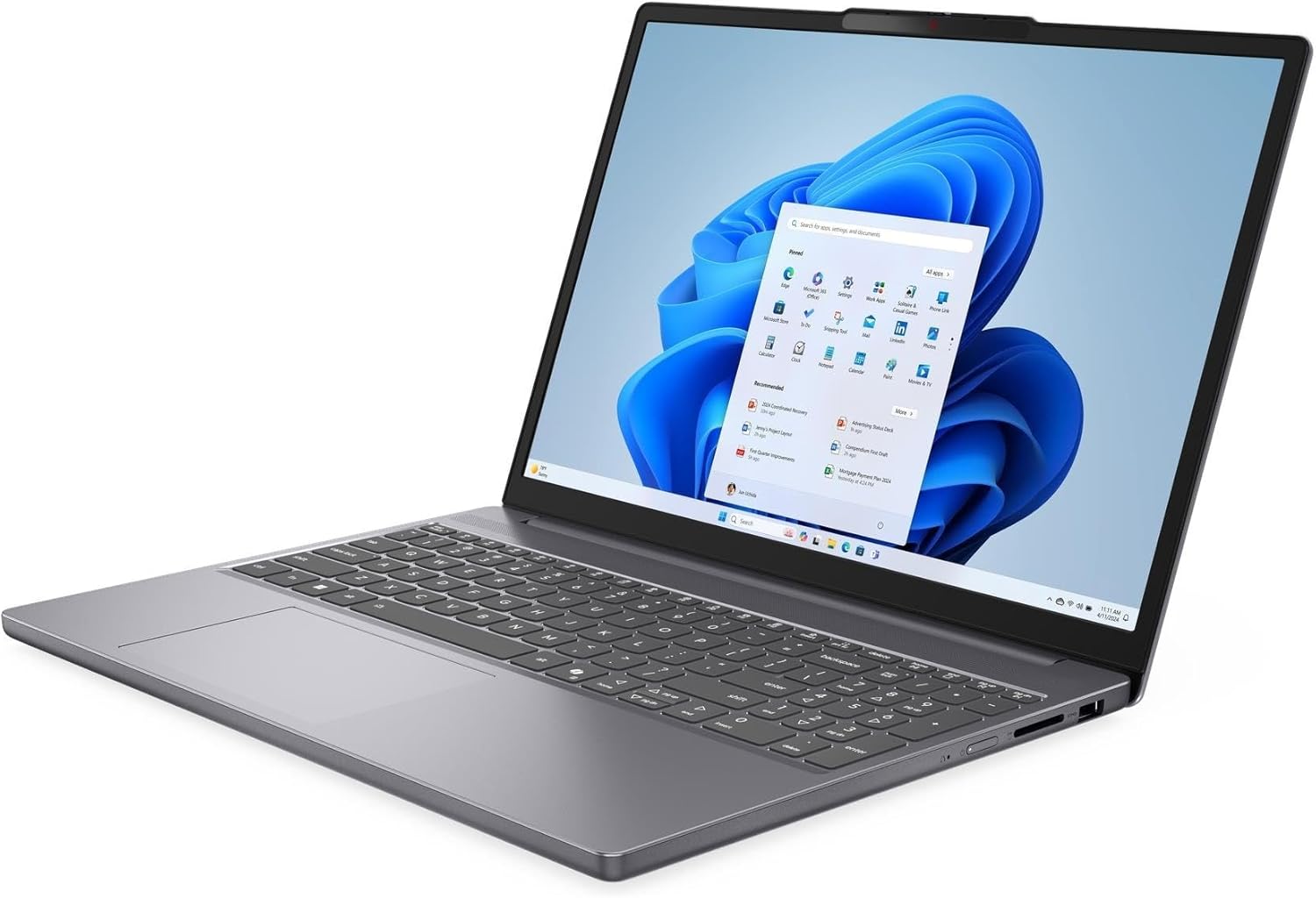
This image displays the laptop from the front, showcasing the 15.3-inch WUXGA display, keyboard with Numpad, and touchpad. The integrated 720p HD camera with a privacy shutter is visible at the top bezel of the screen.
Side Views (Ports and Connectors)

The sides of the laptop house various ports for connectivity. These include one USB-C 3.2 Gen 1 port (supporting Power Delivery and DisplayPort 1.4), two USB 3.2 Gen 1 ports, one HDMI v1.4 port, and a headphone/microphone combo jack. The power input port is also located on one of the sides.
Closed View

This image shows the laptop in its closed state, highlighting its slim profile and the Lenovo branding on the lid.
Setup
Unpacking
Carefully remove the laptop and all accessories from the packaging. Ensure all components listed in the packing slip are present, including the laptop, power adapter, and any documentation.
Initial Power On
- Connect the power adapter to the laptop's power input port and then to an electrical outlet.
- Open the laptop lid and press the power button, typically located on the top-right side of the keyboard or on the side chassis.
- Follow the on-screen instructions to complete the initial setup of Windows 10 Pro, including language selection, network connection, and user account creation.
Connecting Peripherals
- USB Devices: Connect external mice, keyboards, or storage devices to the available USB 3.2 Gen 1 ports or the USB-C 3.2 Gen 1 port.
- External Display: Use an HDMI cable to connect an external monitor or projector to the HDMI v1.4 port. The USB-C port also supports DisplayPort 1.4 for compatible displays.
- Audio Devices: Plug headphones or external speakers into the headphone/microphone combo jack.
Operating Instructions
Power Management
- Turning On/Off: Press the power button to turn on. To shut down, click the Start button in Windows, then select Power > Shut down.
- Sleep Mode: Close the lid or select Power > Sleep from the Start menu to put the laptop into sleep mode.
- Restart: Select Power > Restart from the Start menu to restart the system.
Keyboard and Touchpad

The laptop features a full-size keyboard with a Numpad for efficient data entry. The touchpad supports multi-touch gestures for navigation. Refer to Windows settings for customizing touchpad sensitivity and gestures.
- Function Keys (Fn): Use the Fn key in combination with the F1-F12 keys to access special functions like adjusting brightness, volume, or enabling/disabling Wi-Fi.
- Numpad: The dedicated Numpad on the right side of the keyboard allows for quick numerical input.
Display Settings
Adjust display settings to suit your preferences:
- Brightness: Use the dedicated function keys (e.g., Fn + F5/F6) or Windows display settings to adjust screen brightness.
- Resolution: The native resolution is 1920 x 1200 (WUXGA). You can change display scaling and resolution through Windows Display Settings.
Connecting to Wi-Fi and Bluetooth
- Wi-Fi: Click the Wi-Fi icon in the taskbar, select your desired network, enter the password if prompted, and click Connect. The laptop supports Intel Wi-Fi 6 AX203 (2x2).
- Bluetooth: Go to Windows Settings > Devices > Bluetooth & other devices to pair with Bluetooth 5.2 compatible devices like headphones or speakers.
Using the Camera
The laptop is equipped with a 720p HD camera. To use it, open the Camera app in Windows or any video conferencing application. The camera features a physical privacy shutter; slide it to cover the lens when not in use to ensure privacy.
Maintenance
Cleaning the Laptop
- Screen: Use a soft, lint-free cloth slightly dampened with water or a screen-cleaning solution. Do not spray liquid directly onto the screen.
- Keyboard and Chassis: Use a soft, dry cloth. For stubborn dirt, a slightly damp cloth can be used. Avoid harsh chemicals or abrasive materials.
- Vents: Periodically clean the ventilation openings with compressed air to prevent dust buildup, which can affect cooling performance.
Battery Care
- For optimal battery life, avoid frequently discharging the battery completely.
- Store the laptop in a cool, dry place and avoid exposing it to extreme temperatures.
- If storing the laptop for an extended period, ensure the battery is charged to approximately 50-60%.
Software Updates
Regularly update your operating system and drivers to ensure optimal performance, security, and compatibility.
- Windows Updates: Go to Windows Settings > Update & Security > Windows Update and check for available updates.
- Driver Updates: Visit the official Lenovo support website for your specific model to download and install the latest drivers for components like graphics, Wi-Fi, and chipset.
Troubleshooting
This section addresses common issues you might encounter with your laptop.
Common Issues and Solutions
- No Power:
- Ensure the power adapter is securely connected to both the laptop and a working electrical outlet.
- Check if the battery has sufficient charge.
- Try a different power outlet.
- Display Problems (No image, flickering):
- Adjust screen brightness using function keys.
- If using an external monitor, ensure the cable is properly connected and the correct display output is selected (Fn + F7 or Windows Display Settings).
- Restart the laptop.
- Wi-Fi Connectivity Issues:
- Ensure Wi-Fi is enabled (check function keys or Windows settings).
- Restart your router and modem.
- Forget the network and reconnect.
- Update Wi-Fi drivers from the Lenovo support website.
- Slow Performance:
- Close unnecessary applications running in the background.
- Check for and install any pending Windows updates.
- Run a disk cleanup and defragmentation (for HDDs, not necessary for SSDs).
- Scan for malware or viruses.
Specifications
| Feature | Specification |
|---|---|
| Model Name | IdeaPad Slim 3 15IRH10 |
| Processor | 13th Gen Intel Core i7-13620H (10-Core, up to 4.9 GHz) |
| Graphics | Intel Iris Xe Graphics (Integrated) |
| Display | 15.3-inch WUXGA (1920 x 1200) LED-backlit Anti-glare 300 nits 45% NTSC, 60Hz |
| RAM | 24GB DDR5 SDRAM 4800 MHz |
| Storage | 2TB NVMe M.2 SSD |
| Operating System | Windows 10 Pro |
| Keyboard | Full-size with Numpad |
| Webcam | 720p HD Camera with Privacy Shutter |
| Wireless Connectivity | Intel Wi-Fi 6 AX203 (2x2), Bluetooth 5.2 |
| Ports | 1x USB-C 3.2 Gen 1 (PD, DP 1.4, 5Gbps), 2x USB 3.2 Gen 1 (5Gbps), 1x HDMI v1.4, 1x Headphone/Microphone Combo Jack |
| Battery | 50Wh Lithium-Ion (up to 6 hours) |
| Dimensions (LxWxH) | 13.54 x 9.54 x 0.71 inches |
| Weight | 6.97 pounds (Note: Product description states 3.51 lbs, using specification data for consistency) |
| Color | Luna Grey |
Warranty and Support
The Lenovo IdeaPad Slim 3 15IRH10 Laptop comes with a 12-month warranty, as specified by the manufacturer. For technical support, warranty claims, or service inquiries, please visit the official Lenovo support website or contact their customer service. It is recommended to keep your purchase receipt and the laptop's model number (83K100R3IN) readily available when contacting support.
You can find additional support resources and contact information on the Lenovo Support Website.


