
ANYFAR RM-BZ2503F
ANYFAR Decoder for Mercedes-Benz NTG 5.0/5.1 System User Manual
Model: RM-BZ2503F
1. Introduction
This manual provides detailed instructions for the installation, operation, and maintenance of your ANYFAR Decoder. This device is designed to integrate advanced features like Wireless CarPlay, Android Auto, Mirror Link, and camera support into compatible Mercedes-Benz vehicles equipped with the NTG 5.0/5.1 system.
Please read this manual thoroughly before installation and use to ensure proper functionality and to avoid damage to the product or your vehicle.
2. Safety Information
- Installation should be performed by a qualified professional to prevent damage to the vehicle's electrical system or the decoder.
- Ensure the vehicle's ignition is off and the battery is disconnected before beginning installation.
- Do not attempt to disassemble or modify the decoder unit. This will void the warranty and may cause malfunction.
- Operate the device responsibly. Distracted driving can lead to accidents.
- Keep the device away from water, excessive heat, and direct sunlight.
3. Package Contents
Verify that all items listed below are present in your package:
- ANYFAR Decoder Unit
- Power Cable
- LVDS OUT Cable
- LVDS IN Cable
- RCA & USB Cable
- External Microphone
- User Manual (this document)

Image 3.1: Contents of the ANYFAR Decoder package, showing the main unit, power cable, LVDS cables, RCA/USB cable, and external microphone.
4. Vehicle Compatibility
This ANYFAR Decoder is specifically designed for the following Mercedes-Benz vehicles equipped with the NTG 5.0/5.1 system:
- Model Years: 2015-2018
- Compatible Classes: A, B, C, E, S, GLA, GLC, GLE, GLS
Important: Before installation, confirm your vehicle's NTG system version. This decoder is not compatible with NTG 4.0, 4.5, or 4.7 systems.

Image 4.1: A table detailing compatible Mercedes-Benz car models, years, and screen sizes for NTG 5.0 & 5.1 systems.

Image 4.2: Visual guide to identify compatible NTG 5.0/5.1 systems by comparing the original car radio homescreen menu picture with examples of incompatible NTG 4.0, 4.5, and 4.7 systems.
5. Installation Guide
Installation of the ANYFAR Decoder involves integrating it with your vehicle's existing infotainment system. Professional installation is highly recommended.
5.1 Pre-Installation Checklist
- Ensure the vehicle is parked on a level surface with the parking brake engaged.
- Turn off the vehicle's ignition and remove the key.
- Disconnect the vehicle's battery to prevent electrical shorts.
- Gather necessary tools (e.g., trim removal tools, screwdrivers, wiring harness).
5.2 General Installation Steps (Consult a professional for specific vehicle instructions)
- Carefully remove the vehicle's head unit or display panel to access the rear connections.
- Connect the provided power cable to the vehicle's wiring harness and the ANYFAR Decoder.
- Connect the LVDS IN and LVDS OUT cables between the vehicle's display, the original head unit, and the ANYFAR Decoder. These cables typically intercept the video signal path.
- Connect the RCA & USB cable to the decoder for auxiliary audio input, USB drive playback, and optional camera inputs.
- Install the external microphone in a suitable location for optimal voice recognition (e.g., near the rearview mirror or steering column).
- Secure the ANYFAR Decoder unit in a safe, dry location within the dashboard, ensuring it does not interfere with other components.
- Reconnect the vehicle's battery.
- Test the system before reassembling the dashboard.

Image 5.1: The ANYFAR Decoder unit, showing its compact design and various connection ports for integration into the vehicle's system.
6. Operating Instructions
6.1 Switching Between Systems
To switch between your vehicle's original OEM car system and the ANYFAR CarPlay/Android Auto system, long-press the "Back" button on your car's central control knob or the designated button as per your vehicle's specific configuration.

Image 6.1: Illustration demonstrating the process of switching between the original car system and the integrated CarPlay/Android Auto interface by long-pressing a control button.
6.2 Wireless CarPlay & Android Auto
Once the ANYFAR system is active, your smartphone can connect wirelessly via Bluetooth and Wi-Fi for CarPlay or Android Auto functionality. Follow the on-screen prompts to pair your device. This enables access to navigation, music, calls, messaging, and voice assistants directly on your car's display.

Image 6.2: A car's infotainment screen displaying the main interface of the ANYFAR system, highlighting features like Bluetooth, CarPlay, Android Auto, and voice control.
6.3 Mirror Link & USB Playback
The Mirror Link feature allows you to mirror your smartphone's display onto the car screen. Connect your phone via USB or follow wireless mirroring instructions. The USB port also supports playback of videos and music from a USB drive, and can be used for phone charging.
6.4 Voice Control
Utilize intelligent voice control for hands-free operation. Activate your phone's voice assistant (Siri for CarPlay, Google Assistant for Android Auto) to make calls, play music, get directions, and more. The external microphone ensures clear voice input.
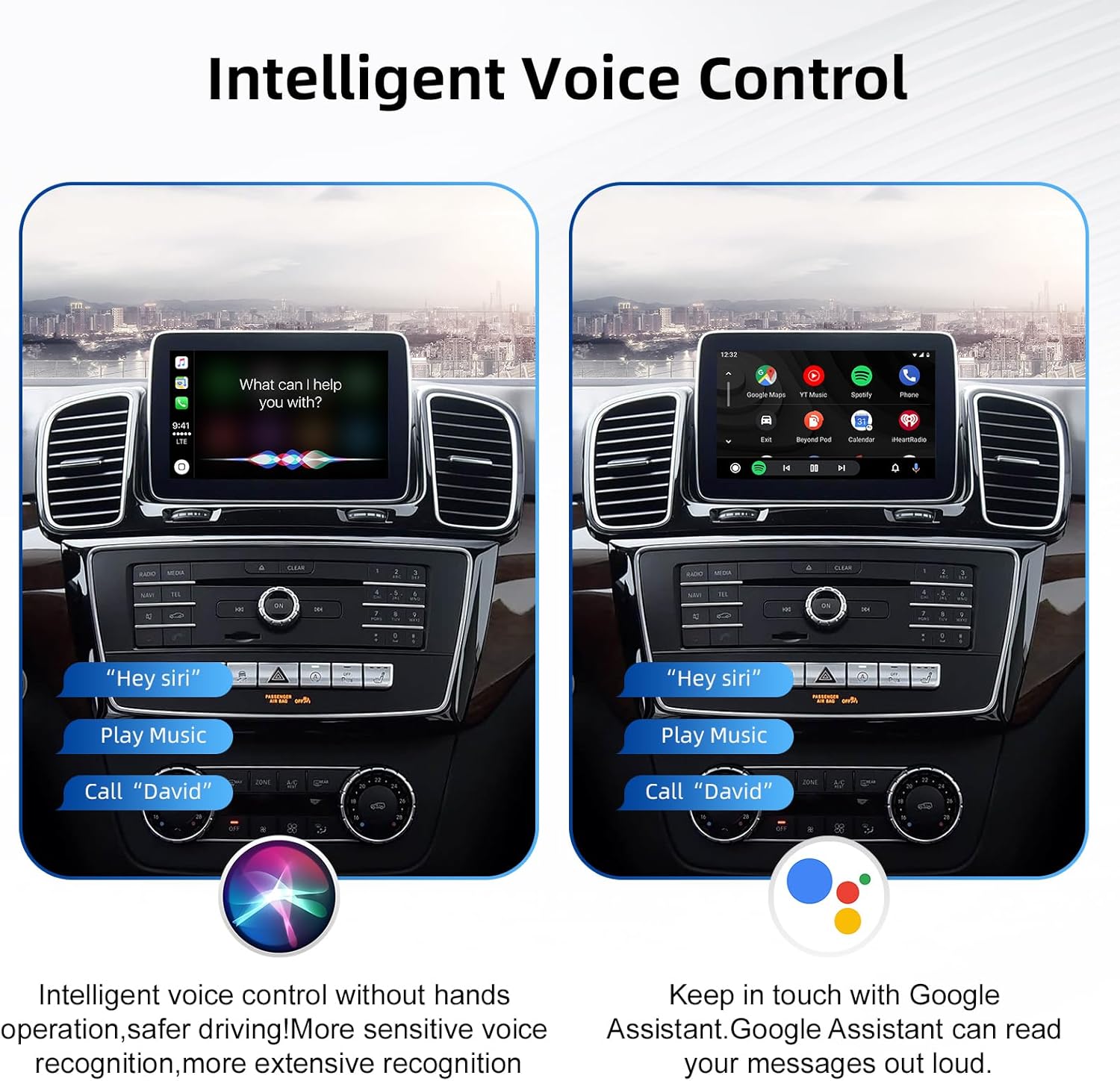
Image 6.3: The car screen demonstrating intelligent voice control, showing both Siri and Google Assistant interfaces responding to commands like "Play Music" and "Call David".
6.5 Retaining Original Car Controls
The ANYFAR Decoder is designed to integrate seamlessly, allowing you to retain full functionality of your original car controls, including the touchscreen, voice control, physical buttons, and central control knob. These controls will operate both the OEM system and the integrated CarPlay/Android Auto system.

Image 6.4: A view of the car's interior, illustrating how original controls like steering wheel buttons and the central control panel are retained and function with the new system.
6.6 Backup Camera Support
If an aftermarket backup camera or front camera is connected to the decoder, the camera feed will automatically display on the car screen when you shift into reverse gear.

Image 6.5: The car's display showing an optional aftermarket rear view camera feed, complete with parking guidelines.
7. Maintenance
- Keep the decoder unit and cables free from dust and moisture.
- Do not use harsh chemicals or abrasive cleaners on the unit or connected screens. Use a soft, dry cloth for cleaning.
- Ensure all cable connections remain secure. Loose connections can lead to intermittent functionality.
- Regularly check for firmware updates from the manufacturer's official website (if applicable) to ensure optimal performance and compatibility.
8. Troubleshooting
| Problem | Possible Cause | Solution |
|---|---|---|
| No display after installation. | Incorrect wiring; loose connections; incompatible NTG system. | Verify all power and LVDS cables are securely connected. Confirm vehicle NTG system compatibility (refer to Section 4). Recheck installation steps. |
| CarPlay/Android Auto not connecting wirelessly. | Bluetooth/Wi-Fi not enabled on phone; incorrect pairing; interference. | Ensure Bluetooth and Wi-Fi are active on your smartphone. Delete previous pairings and re-pair the device. Move phone closer to the unit. |
| Audio quality issues (static, no sound). | Loose audio connections; incorrect audio source selection. | Check RCA audio connections. Ensure the correct audio input source is selected on your car's head unit (e.g., AUX). |
| Original car controls not working with the decoder system. | Incorrect wiring or configuration. | Recheck wiring connections related to control integration. Consult the installation guide or a professional. |
| Backup camera not displaying. | Camera not connected; incorrect camera input selected; faulty camera. | Ensure the camera is properly connected to the decoder's camera input. Verify the camera is functional. |
9. Specifications
| Brand | ANYFAR |
| Model | RM-BZ2503F |
| Compatible Devices | Smartphone |
| Special Features | Wireless CarPlay, Wireless Android Auto, Mirror Link, USB Playback, Hands-Free Calls, Backup Camera Support, Retains Original Car Controls |
| Audio Output Mode | Stereo |
| Connectivity Technology | USB, Bluetooth, Wi-Fi |
| Controller Type | Mechanical knob (via original car controls) |
| Dimensions (approx.) | 139mm x 92mm x 20mm (Decoder Body) |
| Weight (approx.) | 800 g (Parcel Weight) |
Image 9.1: A visual representation of the ANYFAR Decoder unit with its approximate dimensions (139mm x 92mm x 20mm) indicated.
10. Warranty Information
Please refer to the warranty card included with your product or contact ANYFAR customer support for detailed warranty terms and conditions. The warranty typically covers manufacturing defects for a specified period from the date of purchase.
Note: Unauthorized disassembly or modification of the product will void the warranty.
11. Customer Support
For technical assistance, troubleshooting not covered in this manual, or warranty inquiries, please contact ANYFAR customer support through the following channels:
- Website: Visit the official ANYFAR website for support resources and contact information.
- Email: Refer to your product packaging or warranty card for customer service email address.
Related documentsRM-BZ2503F


Ask a question about this manual
Ask about setup, troubleshooting, compatibility, parts, safety, or missing instructions. Manuals+ will review the question and use this page’s manual context to help answer it.