
Introduction
This manual provides detailed instructions for the setup, operation, and maintenance of your Acer OHR516 Wireless Over-Ear Headphones. Please read this manual thoroughly before using your headphones to ensure proper functionality and to maximize your listening experience.
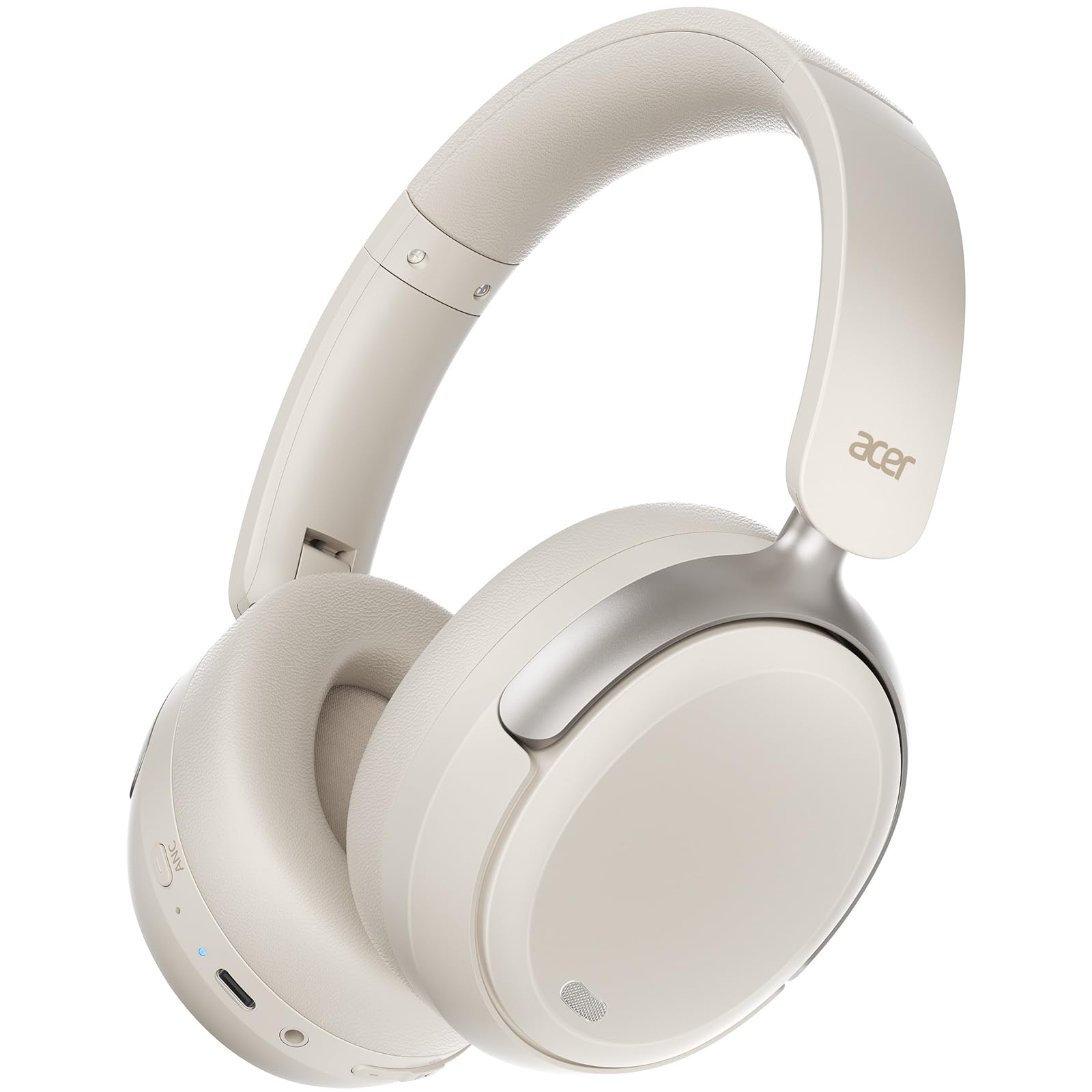
Figure 1: Acer OHR516 Wireless Over-Ear Headphones.
What's in the Box
Upon unboxing your Acer OHR516 headphones, verify that all the following components are included:
- 1x Acer OHR516 Wireless Over-Ear Headphones
- 1x USB-C Charging Cable
- 1x 3.5mm Audio Cable
- 1x User Manual (this document)

Figure 2: Included accessories with the Acer OHR516 headphones.
Product Features
Active Noise Cancellation (ANC)
The Acer OHR516 headphones feature advanced Active Noise Cancellation technology, designed to reduce ambient noise for a focused listening experience. This technology minimizes ear pressure, ensuring comfort during extended use. Noise reduction can be up to 45 decibels, effectively muting traffic and silencing airplane cabin noise.

Figure 3: Active Noise Cancellation in action.
Immersive Sound with 40mm Drivers
Equipped with custom-tuned 40mm large-aperture drivers, these headphones deliver rich bass, clear mid-range frequencies, and crisp highs. This provides a balanced and detailed audio performance suitable for music, movies, and calls.

Figure 4: Visual representation of immersive sound quality.
Dual Device Connection & One-Click Switch
The headphones can seamlessly connect to two Bluetooth devices simultaneously, such as a smartphone and a laptop. You can switch between these devices with a single click, facilitating multitasking for calls or media playback.

Figure 5: Dual device connectivity for seamless switching.
Exceptional Battery Life
Enjoy up to 60 hours of continuous playback with ANC off, or 40 hours with ANC activated. A quick 2-hour charge via the USB-C port provides ample power for extended use.

Figure 6: Battery life indicators for Acer OHR516 headphones.
Low-Latency Gaming Mode
Activate the low-latency game mode by double-clicking the ANC button. This mode reduces audio latency, providing real-time synchronization for a more responsive gaming experience.

Figure 7: Low-latency gaming mode for enhanced responsiveness.
All-Day Comfort & Portable Design
The headphones feature a lightweight frame, plush memory-protein foam ear cushions, and breathable materials for comfort during extended periods. The foldable and rotating earcups enhance portability and ease of storage.

Figure 8: Ergonomic design for all-day comfort.
Clear Calls with Environmental Noise Cancellation (ENC)
Built-in microphones with Environmental Noise Cancellation (ENC) ensure your voice is captured clearly during calls by reducing background noise. This feature is beneficial in busy environments like offices or outdoors.

Figure 9: Clear call quality with ENC technology.
Setup
Bluetooth Pairing
To pair your Acer OHR516 headphones with a Bluetooth-enabled device:
- Ensure the headphones are charged.
- Press and hold the Power button (labeled '5' in Figure 10) until the LED indicator flashes, indicating pairing mode.
- On your device (smartphone, laptop, etc.), enable Bluetooth and search for available devices.
- Select "OHR516" from the list of devices.
- Once connected, the LED indicator will show a solid light.
Video 1: A brief demonstration of the Acer OHR516 headphones, including a quick look at the controls and the pairing process.
Wired Connection
For devices without Bluetooth or when battery is low, you can use the included 3.5mm audio cable. Simply plug one end into the 3.5mm audio jack (labeled '3' in Figure 10) on the headphones and the other end into your audio source.
Operating Instructions
Controls Overview

Figure 10: Labeled control buttons on the Acer OHR516 headphones.
- ANC Button: Press to cycle through Active Noise Cancellation modes (On/Off/Transparency). Double-click to activate Low-Latency Gaming Mode.
- USB-C Charging Port: For charging the headphones.
- 3.5mm Audio Jack: For wired connection.
- Volume Down / Next Track: Short press for volume down, long press for next track.
- Power On/Off / Play/Pause / Answer/End Call / Reject Call: Long press for power, short press for play/pause or call management.
- Volume Up / Previous Track: Short press for volume up, long press for previous track.
Charging the Headphones
Connect the USB-C charging cable to the USB-C port on the headphones and to a compatible USB power source. The LED indicator will show charging status and turn off when fully charged.
Maintenance
To ensure the longevity and optimal performance of your Acer OHR516 headphones, follow these maintenance guidelines:
- Keep the headphones clean by wiping them with a soft, dry cloth.
- Avoid exposing the headphones to extreme temperatures, humidity, or direct sunlight.
- Do not immerse the headphones in water, as they are not water-resistant.
- Store the headphones in a cool, dry place when not in use, preferably in their folded position to protect the earcups.
Troubleshooting
If you encounter any issues with your Acer OHR516 headphones, please refer to the following common solutions:
- No Power: Ensure the headphones are fully charged.
- Cannot Pair: Make sure the headphones are in pairing mode (flashing LED) and within range of your device. Turn off and on Bluetooth on your device, or restart both devices.
- No Sound: Check the volume levels on both the headphones and your connected device. Ensure the correct audio output is selected on your device.
- Poor Sound Quality: Move closer to your connected device to reduce interference. Ensure there are no obstructions between the headphones and the device.
- ANC Not Working: Press the ANC button to ensure it is activated. Note that ANC is most effective against low-frequency, constant noise.
If the problem persists, please contact Acer customer support for further assistance.
Specifications
| Model Name | OHR516 |
| Connectivity Technology | Wireless (Bluetooth 5.4) |
| Wireless Communication Technology | Bluetooth |
| Bluetooth Version | 5.4 |
| Bluetooth Range | 10 Meters |
| Noise Control | Active Noise Cancellation |
| Audio Driver Size | 40 Millimeters |
| Frequency Response | 20 KHz |
| Audio Latency | 20 Milliseconds |
| Battery Life (ANC Off) | 60 Hours |
| Battery Life (ANC On) | 40 Hours |
| Charging Time | 2.5 Hours |
| Headphones Jack | 3.5 mm Jack |
| Control Type | Button Control |
| Material | Acrylonitrile Butadiene Styrene (ABS) |
| Item Weight | 11.3 ounces |
| Color | White |
Warranty and Support
Acer provides a standard manufacturer's warranty for the OHR516 Wireless Over-Ear Headphones. For detailed information regarding warranty coverage, terms, and conditions, please refer to the warranty card included in your product packaging or visit the official Acer support website. For technical support, troubleshooting assistance, or service inquiries, please contact Acer customer service through their official channels.


