
1. Introduction
This manual provides detailed instructions for the installation, operation, and maintenance of your Vratzn Car Radio Stereo. Please read this manual thoroughly before using the product to ensure proper functionality and safety. This unit is designed to enhance your driving experience with advanced features such as Android 13, wireless CarPlay, Android Auto, GPS navigation, and Bluetooth connectivity.
2. Product Overview
Key Features:
- Android 13 System: Equipped with 2GB RAM and 32GB ROM for smooth operation and quick response.
- Wired/Wireless CarPlay & Android Auto: Seamless integration with your smartphone for navigation, music, calls, and voice assistant control.
- High-Speed Performance: Powerful quad-core processor for efficient multitasking.
- Bluetooth & FM Radio: Supports hands-free calls, phonebook synchronization, mobile music streaming, and FM radio with 18-station presets.
- GPS Navigation & WiFi Connection: Supports online and offline maps, allowing app installation and internet browsing via Wi-Fi.
- Backup Camera Support: Includes a backup camera for enhanced safety during reversing.
Compatible Vehicle Models:
This car radio stereo is compatible with the following vehicle models:
- For Chevrolet: Silverado 1500HD 2500HD 3500HD (2007-2013), Tahoe (2007-2014), Equinox (2005-2009), Suburban (2007-2012), Avalanche (2007-2013), Express Van (2008-2019), Impala (2006-2013).
- For GMC: Sierra (2007-2013), Savana (2008-2019), Yukon (2007-2014), Acadia (2007-2012).
- For Buick: Enclave (2008-2012).
Note:
- If your car has a factory original Onstar system, this unit is not compatible.
- This radio does not have a CD slot and no AM radio functionality.

Image 2.1: Front view of the Vratzn Car Radio Stereo with the included backup camera and a smartphone displaying CarPlay/Android Auto icons.

Image 2.2: Comparison of a vehicle dashboard before and after the installation of the Vratzn Car Radio Stereo, demonstrating seamless integration.

Image 2.3: Visual guide indicating compatible and incompatible car radio models for installation, specifically for GMC, Chevrolet, and Buick vehicles.
3. Package Contents
Please verify that all items listed below are included in your package:
- Vratzn Car Radio Stereo Head Unit
- Instruction Manual
- Power Cable
- Original Car USB Cable
- Radio Antenna
- Crowbar (for trim removal)
- Reverse Kit
- Reversing Radar
- RCA Cable
- Microphone
- CANBUS Decoder
- GPS Antenna
- 6-pin USB Cable
- Backup Camera (if "with backup camera" variant was purchased)
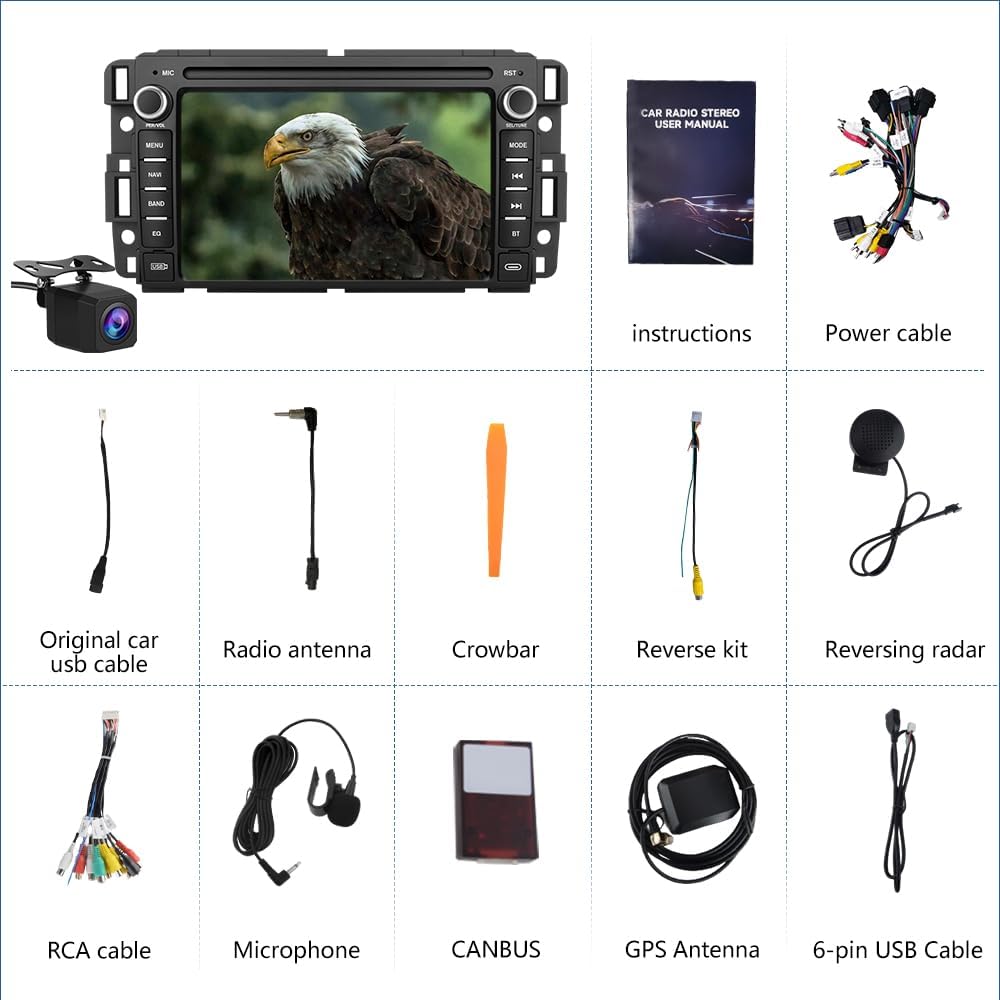
Image 3.1: An overview of all components included in the Vratzn Car Radio Stereo package, including the head unit, cables, antennas, and tools.
4. Setup and Installation
Installation of the Vratzn Car Radio Stereo requires careful attention to wiring and vehicle trim removal. It is recommended that installation be performed by a qualified professional if you are not familiar with car audio system installations.
General Installation Steps:
- Preparation: Disconnect the vehicle's battery before starting any electrical work.
- Remove Old Unit: Carefully remove the existing car radio and surrounding trim using the provided crowbar tool.
- Connect Wiring Harness: Connect the Vratzn power cable and other necessary wiring harnesses to the vehicle's existing connectors. Ensure all connections are secure.
- Connect Antennas: Connect the radio antenna and GPS antenna. Position the GPS antenna in a location with a clear view of the sky for optimal signal reception.
- Backup Camera Installation (if applicable): Install the backup camera at the rear of the vehicle and route its cable to the head unit. Connect the camera signal and power wires as indicated in the wiring diagram.
- CANBUS Connection: Connect the CANBUS decoder and 8-pin extension CAN bus cables as provided in the package to enable steering wheel controls and other vehicle-specific functions.
- Test Connections: Before fully reassembling the dashboard, temporarily reconnect the battery and test the unit's basic functions (power, audio, radio, navigation, backup camera).
- Secure Unit: Mount the new head unit securely into the dashboard opening.
- Reassemble Trim: Carefully reattach all removed trim pieces.
- Final Check: Perform a comprehensive test of all features, including CarPlay/Android Auto, Bluetooth, and steering wheel controls.

Image 4.1: Detailed wiring diagram for the Vratzn Car Radio Stereo, showing connections for power, speakers, GPS, camera, and CANBUS. Also illustrates compatible and incompatible factory radio plugs.
5. Operating Instructions
5.1. Power On/Off and Volume
Press the PWR/VOL knob to turn the unit on or off. Rotate the knob to adjust the volume level.
5.2. Android 13 System Navigation
The unit runs on Android 13. Navigate through applications and settings using the touch screen interface. Swipe left or right to access different home screens, and tap icons to open applications.
5.3. Wired/Wireless CarPlay & Android Auto
This unit supports both wired and wireless Apple CarPlay and Android Auto. This allows you to project your phone's interface onto the head unit's screen for safe access to navigation, music, messages, and calls.
- Wireless Connection:
- Ensure Bluetooth is enabled on your smartphone and the head unit.
- Pair your phone with the head unit via Bluetooth.
- Once paired, select the CarPlay or Android Auto icon on the head unit's screen. Your phone's interface should appear.
- Wired Connection:
- Connect your smartphone to the head unit using a USB cable.
- The unit should automatically detect and launch CarPlay or Android Auto.
Use voice commands (Siri for CarPlay, Google Assistant for Android Auto) for hands-free operation.

Image 5.1: Displays the user interfaces for Apple CarPlay and Android Auto on the Vratzn head unit, highlighting voice assistant integration and app access.

Image 5.2: Illustrates the wireless connectivity for both CarPlay and Android Auto, showing how smartphones connect to the car stereo for integrated functionality.
5.4. Bluetooth Connectivity
The Bluetooth function allows for hands-free calling and audio streaming.
- Go to the Bluetooth settings on the head unit.
- Enable Bluetooth on your smartphone and search for available devices.
- Select the head unit's name from the list on your phone to pair.
- Once paired, you can make/receive calls, access your phonebook, and stream music directly to the car stereo.

Image 5.3: Screenshot of the Bluetooth interface on the Vratzn head unit, showing options for phonebook, call history, and music streaming.
5.5. FM Radio
Access the FM Radio application to listen to local radio stations.
- Use the touch screen to scan for stations or select from preset frequencies.
- The unit supports 18 FM station presets.

Image 5.4: Displays the FM radio interface with frequency display and preset options.
5.6. GPS Navigation
The unit supports both online and offline GPS navigation. Connect to Wi-Fi to download maps or use online navigation services.
- Tap the "NAVI" button or the navigation app icon on the screen to launch the navigation software.
- Enter your destination and follow the on-screen directions.

Image 5.5: Shows the GPS navigation interface with 2D/3D map views and the wireless network connection screen for internet access and app downloads.
5.7. Steering Wheel Control
If properly connected via the CANBUS cables during installation, the unit supports existing steering wheel controls for functions like volume adjustment, track skipping, and mode switching.
- Ensure the CANBUS and 8-pin extension CAN bus cables are correctly connected.
- Access the steering wheel control settings in the unit's menu to configure or calibrate the buttons if necessary.

Image 5.6: Illustrates how the Vratzn Car Radio Stereo integrates with existing steering wheel controls, allowing for convenient operation while driving.
5.8. Backup Camera (Reverse Mode)
When the vehicle is shifted into reverse, the unit will automatically display the feed from the connected backup camera, providing a clear view of the area behind your vehicle.
- The included backup camera features dynamic trajectory and is waterproof.
- Ensure the camera is properly installed and connected to the "Reverse Kit" input on the head unit.
Image 5.7: Shows the display of the backup camera feed on the car stereo screen, complete with parking guidelines for safe reversing.
5.9. Multimedia Playback
The Android 13 system allows you to install and use various multimedia applications from the Google Play Store, such as Spotify, YouTube, and other streaming services, when connected to Wi-Fi.
Image 5.8: Displays various multimedia applications like Spotify, YouTube, and Chrome accessible on the head unit's Android interface.
6. Maintenance
To ensure the longevity and optimal performance of your Vratzn Car Radio Stereo, follow these maintenance guidelines:
- Screen Cleaning: Use a soft, lint-free cloth to gently wipe the touch screen. Avoid abrasive cleaners or harsh chemicals that could damage the display.
- Software Updates: Periodically check for system software updates through the unit's settings menu to ensure you have the latest features and security patches.
- Cable Connections: Ensure all cables remain securely connected. Loose connections can lead to intermittent functionality.
- Environmental Conditions: Avoid exposing the unit to extreme temperatures, direct sunlight for prolonged periods, or excessive moisture.
7. Troubleshooting
If you encounter issues with your Vratzn Car Radio Stereo, refer to the following common troubleshooting steps:
- No Power:
- Check all power cable connections.
- Verify the vehicle's fuse related to the car stereo.
- Ensure the vehicle battery is properly connected and charged.
- No Sound:
- Check speaker wire connections.
- Ensure the volume is not muted or set to minimum.
- Verify audio settings in the unit's menu.
- GPS Signal Issues:
- Ensure the GPS antenna is installed in a location with a clear view of the sky.
- Check the GPS antenna connection to the head unit.
- CarPlay/Android Auto Not Connecting:
- For wireless connection, ensure Bluetooth is on and paired, and Wi-Fi is enabled on both devices.
- For wired connection, try a different USB cable.
- Restart both the head unit and your smartphone.
- Steering Wheel Controls Not Working:
- Verify that the CANBUS decoder and associated cables are correctly installed.
- Check the steering wheel control settings in the unit's menu for proper configuration.
If the problem persists after attempting these steps, please contact customer support for assistance.
8. Specifications
| Item Weight | 3.36 pounds |
| Package Dimensions | 11.46 x 9.61 x 4.02 inches |
| Display Size | 7 Inches |
| Voice Command | Microphone, Touchscreen |
| Vehicle Service Type | Car |
| Special Feature | Bluetooth |
| Connectivity Technology | Bluetooth, USB, Wi-Fi |
| Map Type | North America |
| Mounting Type | Dashboard Mount |
| Operating System | Android |
| Memory Storage Capacity | 32 GB |
9. Warranty and Support
Warranty Information:
This product comes with a 1-Year Warranty from the date of purchase. Please retain your proof of purchase for warranty claims.
After-Install Assistance:
Should you encounter any issues or require assistance after installation, our dedicated support team is available to help. Please reach out to us for personalized, one-on-one guidance to ensure your radio functions correctly.
For support, please refer to the contact information provided with your purchase or visit the official Vratzn website.