
1. Introduction
This manual provides detailed instructions for the installation, operation, and maintenance of your Genérico A28b IP66 Outdoor Security Camera. Please read this manual thoroughly before using the product to ensure proper functionality and safety. Keep this manual for future reference.
2. Safety Information
- Power Supply: Use only the provided DC 5V power adapter. Ensure the power source is stable and meets the camera's requirements (110-220V).
- Installation: Install the camera securely to prevent accidental falls. Avoid placing the camera in direct sunlight for prolonged periods or near heat sources.
- Water Resistance: The camera is IP66 rated for outdoor use, protecting against dust and strong jets of water. Do not submerge the camera in water.
- Cleaning: Disconnect power before cleaning. Use a soft, dry cloth. Do not use harsh chemicals or abrasive cleaners.
- Operating Temperature: Ensure the camera operates within its specified temperature range to prevent damage.
- Data Security: Protect your Wi-Fi network with a strong password. Regularly update the camera's firmware and change default passwords to enhance security.
3. Package Contents
Verify that all items are present in the package:
- Genérico A28b Security Camera
- DC 5V Power Adapter
- Screw Kit for Installation
- User Manual
4. Product Overview
Familiarize yourself with the components of your security camera.

Figure 4.1: Camera Components and Dimensions. This diagram illustrates the various parts of the Genérico A28b camera, including the 5db superior antenna, rotatable angle bracket, 3.6mm lenses, 4+4 dual core light source (infrared and white lights), Micro SD slot, reset button, and speaker. Dimensions are also provided.
- Dual Lenses: Two 3.6mm lenses for simultaneous viewing from different angles.
- Antennas: Two 5db antennas for enhanced Wi-Fi connectivity.
- Dual Core Light Source: Consists of infrared lights for black and white night vision and white lights for color night vision and deterrence.
- Micro SD Card Slot: For local video storage (supports up to 64GB).
- Reset Button: Used to restore factory settings.
- Speaker & Microphone: For two-way audio communication.
- Mounting Bracket: For wall installation.
5. Setup
5.1. Physical Installation
Follow these steps to physically install your camera:
- Choose a Location: Select an outdoor location with a clear view of the area you wish to monitor. Ensure it is within range of your 2.4GHz Wi-Fi network and has access to a power outlet.
- Mount the Bracket: Use the provided screw kit to securely attach the mounting bracket to a wall or suitable surface.
- Attach the Camera: Slide the camera onto the mounted bracket, ensuring it locks into place.
- Connect Power: Plug the DC 5V power adapter into the camera's power port and then into a power outlet. The camera will power on and initiate its self-test.
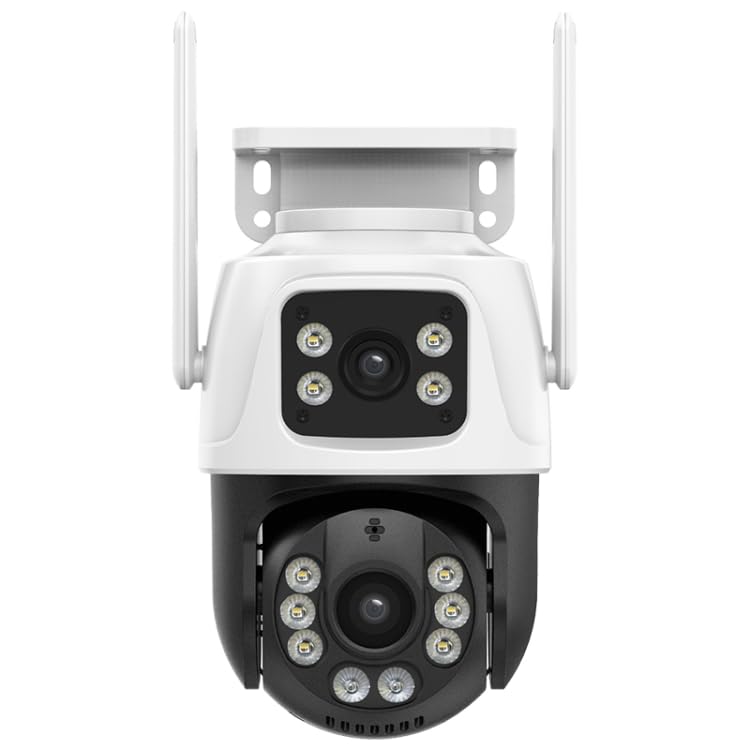
Figure 5.1: Camera Mounted. This image shows the Genérico A28b security camera installed on a wall bracket, ready for operation.
5.2. App Installation and Connection
To connect your camera to your smartphone:
- Download the App: Search for "iCSee" in your smartphone's app store (iOS or Android) and download the application.
- Register Account: Open the iCSee app and follow the on-screen instructions to register a new account or log in if you already have one.
- Add Device: Tap the "+" icon or "Add Device" option in the app. Select "Wi-Fi Camera" or similar option.
- Network Configuration: Follow the app's prompts to connect the camera to your 2.4GHz Wi-Fi network. This usually involves scanning a QR code displayed on your phone with the camera or entering Wi-Fi credentials.
- Device Naming: Once connected, you can name your camera for easy identification.
6. Operating Instructions
6.1. Live View and Pan/Tilt/Zoom
Access the live video feed and control camera movement through the iCSee app.
- Access Live View: Open the iCSee app and select your camera from the device list to view the live feed.
- Pan and Tilt: On the live view screen, swipe your finger across the video to pan (horizontal movement up to 270°) and tilt (vertical movement up to 90°) the camera.
- Digital Zoom: Pinch the screen to digitally zoom in or out on the live feed.
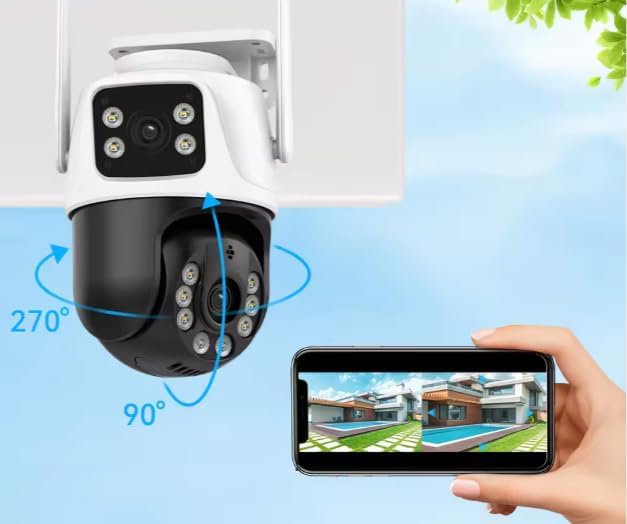
Figure 6.1: Pan/Tilt Control. This image demonstrates controlling the camera's pan (270°) and tilt (90°) movements via the smartphone application, showing the dual lens view.
6.2. Motion Detection and Auto Tracking
The camera features intelligent motion detection and automatic tracking.
- Enable Motion Detection: In the app settings for your camera, navigate to "Alarm Settings" or "Motion Detection." Enable the feature and adjust sensitivity levels as needed.
- AI Human Detection: The camera can differentiate human shapes from other moving objects, reducing false alarms. Ensure this feature is enabled in the app for precise alerts.
- Automatic Tracking: When a human is detected, the camera can automatically track their movement, keeping them centered in the frame. Activate "Auto Tracking" in the app settings.
- Alerts: Receive real-time notifications on your smartphone when motion is detected.
6.3. Night Vision
The camera offers advanced night vision capabilities.
- Infrared Night Vision: In low-light conditions, the camera automatically switches to infrared mode, providing clear black and white images up to 15 meters.
- Color Night Vision: The integrated white lights can be activated manually or automatically upon motion detection to provide full-color night vision.
- Police Light: The white lights can also function as a deterrent, flashing to ward off intruders. This feature can be configured in the app.
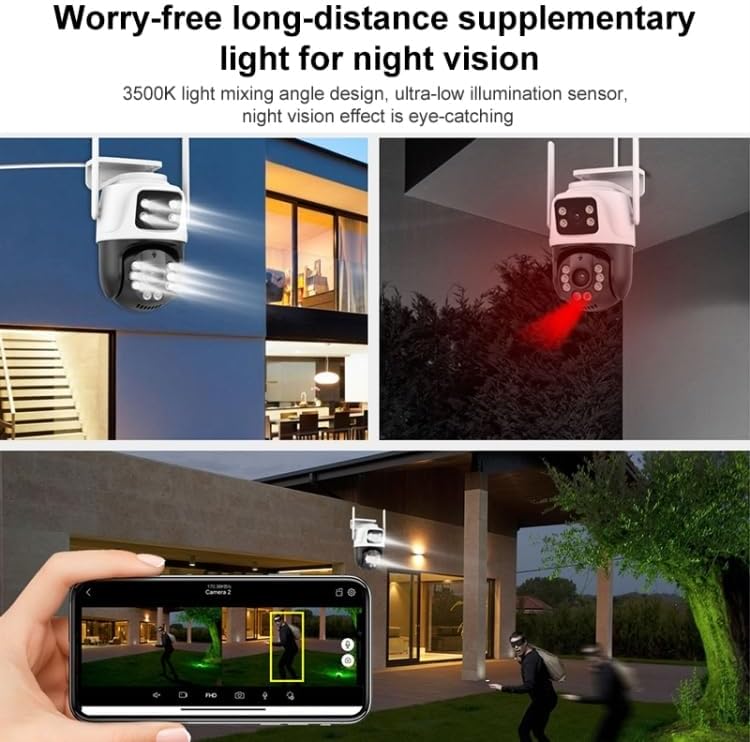
Figure 6.2: Night Vision and Motion Detection. This image illustrates the camera's ability to provide clear night vision, both infrared and color, and its intelligent motion detection capabilities, highlighting detected human figures.
6.4. Two-Way Audio
Communicate with individuals near the camera using the built-in microphone and speaker.
- Activate Two-Way Audio: On the live view screen in the iCSee app, tap the microphone icon to speak. Your voice will be transmitted through the camera's speaker.
- Listen: The camera's microphone will capture audio from its surroundings, which you can hear through your smartphone.
6.5. Recording and Storage
The camera supports local and cloud storage options.
- Micro SD Card: Insert a Micro SD card (up to 64GB, not included) into the designated slot on the camera. The camera will automatically begin recording based on your settings (continuous, motion-triggered).
- Cloud Storage: The iCSee app may offer optional cloud storage services for secure off-site backup of your recordings. Refer to the app for subscription details.
- Playback: Access recorded footage through the iCSee app's playback feature.
7. Maintenance
- Cleaning: Periodically clean the camera lenses and housing with a soft, damp cloth to ensure clear image quality. Do not use harsh detergents.
- Firmware Updates: Check the iCSee app regularly for available firmware updates. Keeping your camera's firmware updated ensures optimal performance and security.
- Power Cycle: If the camera experiences issues, try disconnecting and reconnecting the power supply to restart it.
8. Troubleshooting
| Problem | Possible Cause | Solution |
|---|---|---|
| Camera not connecting to Wi-Fi | Incorrect Wi-Fi password; Camera too far from router; Only 5GHz Wi-Fi available. | Ensure correct 2.4GHz Wi-Fi password. Move camera closer to router. Ensure router supports 2.4GHz. Reset camera and try again. |
| Poor image quality | Dirty lens; Insufficient lighting; Network bandwidth issues. | Clean the camera lens. Ensure adequate lighting or enable night vision. Check your internet connection speed. |
| Motion detection not working | Feature disabled; Incorrect sensitivity settings; Obstructions in view. | Enable motion detection in the app. Adjust sensitivity. Ensure camera view is clear. |
| No audio from camera | Microphone muted in app; Speaker volume too low. | Check app settings to ensure microphone is enabled and speaker volume is adequate. |
| SD card not recording | SD card full or faulty; Incorrect recording settings. | Format or replace the SD card. Check recording schedule and settings in the app. |
9. Specifications
| Model Name | A28b |
| Brand | Genérico |
| Connectivity Technology | Wi-Fi (2.4GHz), Ethernet, ONVIF, RTSP |
| Special Features | Brightness Control, Integrated Light, Motion Sensor, Night Vision, 2-Way Audio |
| Usage Environment | Outdoor (IP66 Weatherproof) |
| Compatible Devices | Smartphone (iCSee App) |
| Mounting Type | Wall Mount |
| Material | Aluminum and Plastic |
| Water Resistance Level | IP66 (Waterproof) |
| Alert Type | Motion Detection |
| Light Source | LED (Infrared and White Light) |
| Final Resolution | 6 MP |
| Video Capture Resolution | 1080p Full HD |
| Frame Rate | 30 fps |
| View Angle | 20 Degrees |
| Focus Type | Auto Focus |
| Zoom Type | Digital |
| Memory Card Type | Micro SD |
| Max Memory Supported | 64 GB |
| Power Source | AC/DC (DC 5V Adapter) |
| Voltage | 110-220V |
| Night Vision Range | 15 Meters |
| Item Dimensions (LxWxH) | 16.5 x 12 x 18 cm |
10. Warranty and Support
This product comes with a standard manufacturer's warranty. For specific warranty terms and conditions, please refer to the documentation provided at the time of purchase or contact your retailer. For technical support, please refer to the iCSee app's help section or visit the manufacturer's website (if available) for contact information.