
1. Introduction
This manual provides essential information for setting up, operating, and maintaining your Rokid Max2 AR Glasses and Station2 Spatial Computer. Please read it thoroughly to ensure optimal performance and a safe user experience. The Rokid Max2 AR Glasses offer an immersive visual experience with a 3-screen display, while the Station2 Spatial Computer provides the processing power and connectivity for various applications.
2. What's in the Box
Upon unboxing your Rokid Max2 AR Glasses and Station2 Spatial Computer, verify that all the following items are included:
- Rokid Max2 AR Glasses
- Station2 Spatial Computer
- Spare nose pads (additional sizes for comfort)
- USB-C cables for connection and charging
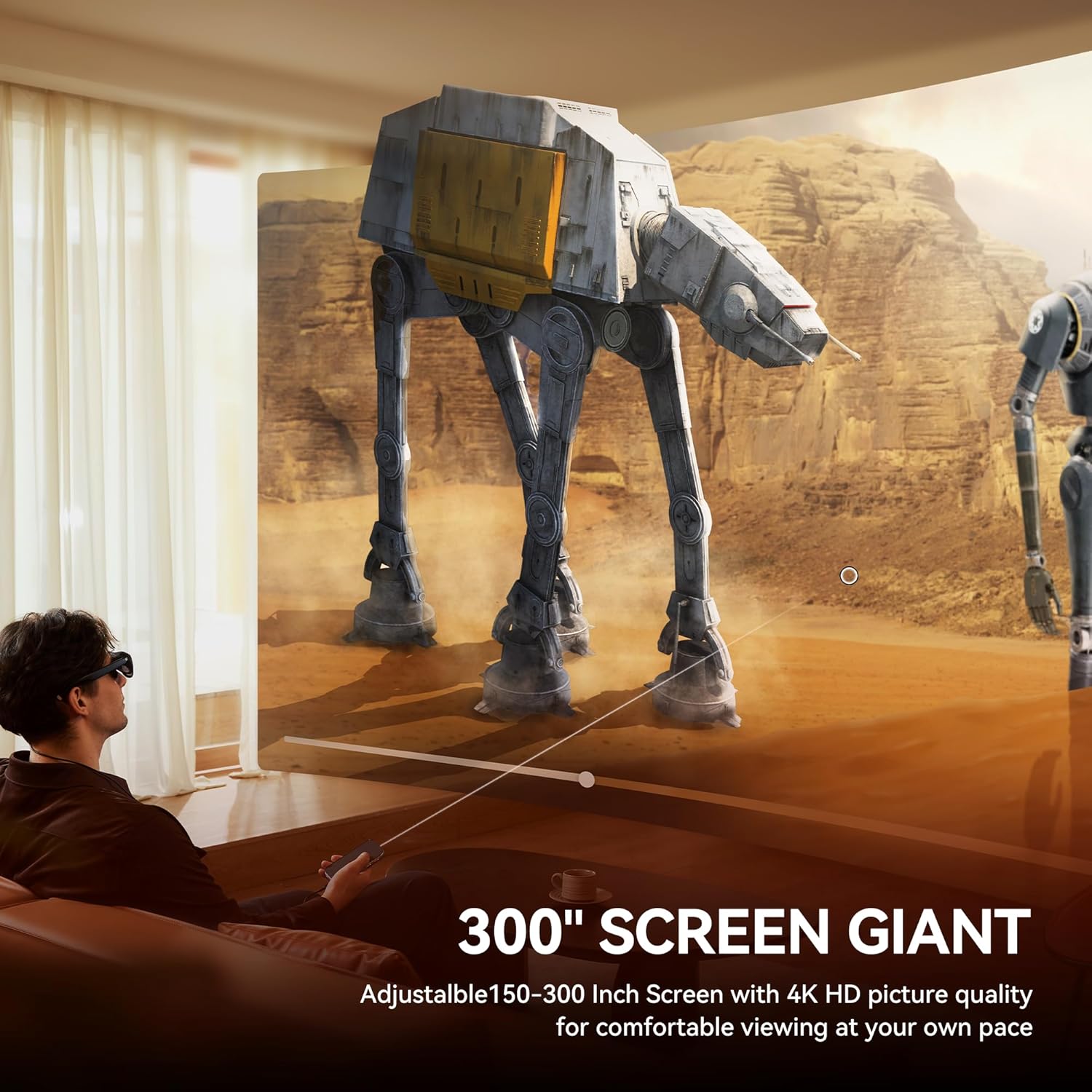
Image: Contents of the Rokid Max2 AR Glasses and Station2 packaging, showing the glasses, Station2 device, cables, and spare nose pads.
3. Setup
3.1 IPD Adjustment
Proper Interpupillary Distance (IPD) adjustment is crucial for clear and comfortable viewing. The Max2 AR Glasses support up to 600 degrees of myopia correction (astigmatism not supported) and feature auto IPD adjustment (55–72mm) when paired with Station2. Fine-tune the adjustment dials on top of the glasses for optimal clarity.
Video: This video demonstrates how to adjust the IPD on the Rokid Max2 AR Glasses and connect to Wi-Fi and Bluetooth via the Station2 settings.
3.2 Connecting to Devices
The Rokid Max2 AR Glasses and Station2 offer broad compatibility with various devices via USB-C and wireless connections.
- Android Phones: Most Android phones supporting DisplayPort can connect directly via USB-C. For others, wireless connection to Station2 is possible via apps supporting ChromeCast/Miracast/DLNA.
- iPhones: Type-C models (iPhone 15/16 series) support direct connectivity. Older iPhones require adapters.
- iPads & Android Pads: All iOS iPad models released since 2020 and Samsung, Huawei, Vivo's tablet series since 2021 can directly connect to Max2.
- Mac & Windows Laptops: Laptops with USB-C ports can connect directly. Laptops without USB-C require an HDMI adapter.
- Gaming Consoles: Nintendo Switch requires the Rokid Hub. PS5, Xbox Series X/S, and most major game consoles can be connected via an HDMI adapter.

Image: A user connecting Rokid Max2 AR Glasses to a Nintendo Switch using the Rokid Hub, enabling a large virtual display for gaming.
Video: This video demonstrates connecting the Rokid Max2 to an iPhone via USB-C and using a wireless controller for interaction.
4. Operating Modes & Features
4.1 3-Screen Multitasking
The Rokid AR Spatial features a unique 3-screen display, allowing simultaneous use of three applications for enhanced productivity, gaming, or immersive entertainment. Note: When connecting with Android phones, the 3-screen display is only supported via DLNA protocol (Miracast and ChromeCast connections are limited to single-screen mode).

Image: A user wearing Rokid AR glasses, viewing three virtual screens simultaneously for multitasking, including chat and video content.
4.2 Smart Modes & Screen Sizes
Switch between Reading, Giant Screen, Sports, and Multi-Screen modes. Each mode is adjustable to Wide (16:9), Narrow (3:4), or Ultra-Wide (21:9) ratios (some apps, e.g., File Assistant, do not support all ratios). In Giant Screen Mode, the aspect ratio can expand up to 32:9 for a more immersive viewing experience.
4.3 3DoF Functionality
Giant Screen Mode and Multi-Screen Mode support 3DoF (Three Degrees of Freedom), allowing the display to remain fixed in space without following head movements. Sports Mode and Reading Mode only support 0DoF, meaning the screen moves along with your head. This provides a versatile AR solution for various activities.

Image: A user wearing Rokid AR glasses, demonstrating the 3DoF functionality where the virtual screen remains anchored in space regardless of head movement.
4.4 Cinematic Visuals
The Max2 AR glasses feature a 50% larger Micro OLED display compared to the Max model, offering 1920×1200 resolution, a 120Hz refresh rate, 600 nits brightness, and 108% sRGB for vivid, lag-free visuals. This enhances immersion in movies and games.
4.5 All-Day Power & Performance (Station2)
The Station2 weighs 0.31kg, making it portable for on-the-go use. This spatial computer includes a 5000mAh battery (providing approximately 3.5 hours of runtime), 8GB RAM, and 128GB storage. It supports Wi-Fi 6 and Bluetooth 5.2 for smooth operation. Dual Type-C ports allow for charging while using the device.
Video: This video provides an unboxing experience for the Rokid Max2 AR Glasses and Station2 Spatial Computer, showcasing the components.
4.6 Comfort Redefined
The Rokid Max2 weighs just 75 grams and features soft, flexible temples for a lightweight fit. Its redesigned nose pad incorporates an airy cushioning design, significantly improving comfort. This innovative structure prevents slippage during wear and reduces pressure fatigue, ensuring long-lasting stability. Additional spare sizes are included for personalized fit.
4.7 Exclusive Rokid Ecosystem & Apps
Access popular streaming services like Netflix, YouTube, and Prime Video, along with 3D games, via Station2’s app store (Note: Netflix/Apple TV only support 0DoF). Effortlessly connect Rokid AR Spatial to gaming devices like Nintendo Switch, PS5, and Xbox for seamless, lag-free play, delivering an immersive and captivating gaming experience.
4.8 Intuitive Controls
Navigate the interface using gesture-based spatial rays, voice commands, or touch. You can also connect gamepads or keyboards via Bluetooth/USB for precision control. The system runs on YodaOS-Master with regular updates, ensuring compatibility with evolving AR/XR content.

Image: A user demonstrating two methods of interaction with the Rokid AR glasses: using a controller ray for precise selection and touch interaction for navigation.
4.9 Spatial Album & Cross-Device Sharing
Relive memories in 3D with the Spatial Album feature, compatible with smartphones. Easily transfer content from phones or other Station2 devices via the Rokid AR app.
5. Maintenance
To ensure the longevity and optimal performance of your Rokid Max2 AR Glasses and Station2 Spatial Computer, follow these maintenance guidelines:
- Cleaning: Use a soft, lint-free cloth to clean the lenses and device surfaces. Avoid abrasive materials or harsh chemicals.
- Storage: Store the devices in their protective cases when not in use to prevent scratches and damage.
- Temperature: Avoid exposing the devices to extreme temperatures or direct sunlight for prolonged periods.
- Moisture: Keep the devices dry. While designed for durability, excessive moisture can cause damage.
6. Troubleshooting
If you encounter issues with your Rokid Max2 AR Glasses or Station2 Spatial Computer, refer to the following common troubleshooting steps:
- No Display/Flickering: Ensure all cables are securely connected. Check the power status of both the glasses and Station2. Restart the Station2 device.
- Unclear Image: Adjust the IPD dials on the glasses. Ensure the lenses are clean and free of smudges. If you have myopia greater than 600°, consider using prescription lenses.
- Connectivity Issues: Verify Wi-Fi and Bluetooth settings on Station2. Ensure devices are within range and properly paired. Restart both the Station2 and the connected device.
- App Malfunction: Ensure Station2's YodaOS-Master system is updated to the latest version. Clear the app's cache or reinstall the app if necessary.
For persistent issues, please contact Rokid customer support.
7. Specifications
| Feature | Specification |
|---|---|
| Brand | Rokid |
| Model Number | AR spatial |
| Item Weight (Glasses) | 75 Grams |
| Display Technology | Micro OLED |
| Resolution | 1920×1200 |
| Refresh Rate | 120Hz |
| Brightness | 600 Nits |
| Color Gamut | 108% sRGB |
| Myopia Adjustment | Up to 600 degrees (astigmatism not supported) |
| IPD Adjustment | 55–72mm (Auto with Station2) |
| Station2 Battery Capacity | 5000mAh (3.5h runtime) |
| Station2 RAM | 8 GB |
| Station2 Storage | 128 GB |
| Operating System | YodaOS-Master |
| Connectivity | Wi-Fi 6, Bluetooth 5.2 |
8. Warranty & Support
Rokid products are covered by a limited warranty. Please refer to the warranty card included in your product packaging for specific terms and conditions. For technical support, product inquiries, or warranty claims, please visit the official Rokid website or contact their customer service directly.
Keep your proof of purchase for warranty validation.