
1. Introduction
The Green Cell PowerProof UPS 2000VA/1200W is an Uninterruptible Power Supply designed to provide reliable power protection for sensitive electronic devices. It safeguards equipment such as computers, routers, and network devices from power outages, surges, and voltage fluctuations, thereby preventing data loss and hardware damage. Featuring a modified sine wave output, this UPS ensures your devices continue to operate smoothly during power interruptions with a fast transfer time of 2-6 milliseconds. The integrated LCD display offers real-time monitoring of the UPS's operational status, including battery level, input/output voltage, and alerts.
2. Safety Instructions
Please read and follow these safety instructions carefully before installing, operating, or maintaining the UPS.
- Do not open the UPS casing. There are no user-serviceable parts inside. Refer all servicing to qualified service personnel.
- Do not connect appliances that could overload the UPS, such as laser printers, vacuum cleaners, or heaters, to the UPS output sockets.
- Ensure the UPS is connected to a grounded power outlet.
- Do not expose the UPS to rain, moisture, or direct sunlight. Operate it in a well-ventilated area.
- In case of fire, use a dry chemical fire extinguisher. Do not use water.
- The UPS contains batteries. Do not dispose of the UPS or its batteries in fire. Batteries may explode.
- Disconnect the UPS from the power outlet before cleaning or performing any maintenance.
3. Package Contents
Verify that all items are present in the package:
- Green Cell PowerProof UPS 2000VA/1200W Unit
- User Manual
- USB Communication Cable (if included)
- Output Power Cables (IEC to Schuko, if included)
Note: Power input cables and some output cables may not be included and might need to be purchased separately depending on your region and specific needs.
4. Product Overview
Front View
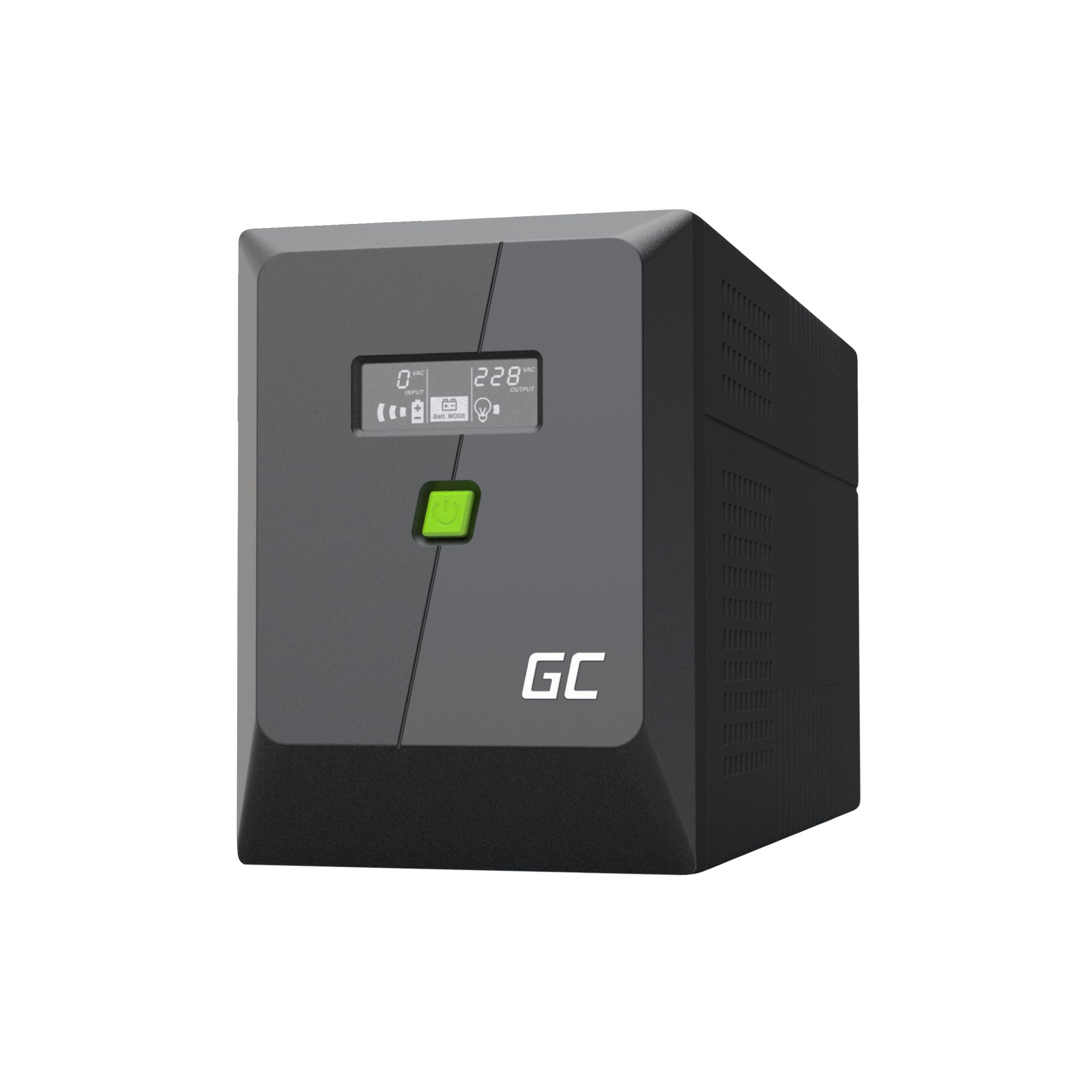
The front panel features the LCD display for status monitoring and the main power button. The Green Cell logo is prominently displayed.
Side View

The side panels are equipped with ventilation grilles to ensure proper airflow and prevent overheating of the internal components.
Rear View (Connectivity Ports)

The rear panel includes the AC input, 4 Schuko output sockets, 2 IEC output sockets, a USB communication port, and RJ45 ports for network protection.
LCD Display

The LCD display provides critical information at a glance, including input voltage, output voltage, battery charge level, and current operating mode. It also shows alerts for errors or warnings.
5. Setup
- Unpacking: Carefully remove the UPS from its packaging. Inspect for any shipping damage.
- Placement: Place the UPS in a cool, dry, and well-ventilated area, away from direct sunlight, heat sources, and moisture. Ensure there is adequate space around the unit for proper airflow.
- Initial Charging: Before initial use, connect the UPS to a standard wall outlet for at least 8 hours to ensure the internal batteries are fully charged. The UPS will charge even if it is turned off.
- Connecting Devices: Connect your electronic devices (computer, monitor, router, etc.) to the output sockets on the rear of the UPS. Ensure the total power consumption of connected devices does not exceed the UPS's rated capacity (1200W).
- USB/RJ45 Connectivity: For advanced monitoring and automatic shutdown features, connect the USB cable from the UPS to your computer. Use the RJ45 ports to protect network lines from surges.
6. Operating Instructions
Turning On/Off
- To Turn On: Press and hold the power button on the front panel for approximately 3 seconds until you hear a beep and the LCD display illuminates.
- To Turn Off: Press and hold the power button for approximately 3 seconds until the display turns off.
LCD Display Information
The LCD display cycles through various information screens, providing real-time status updates:
- Input Voltage: Shows the current voltage from the wall outlet.
- Output Voltage: Displays the voltage supplied by the UPS to connected devices.
- Battery Status: Indicates the remaining battery charge level.
- Load Level: Shows the percentage of the UPS's capacity being used by connected devices.
- Operating Mode: Indicates if the UPS is operating on utility power, battery power, or in bypass mode.
- Error/Warning Indicators: Alerts for issues such as overload, low battery, or fault conditions.
Cold Start Function
The UPS supports a cold start function, allowing you to power on the connected devices using battery power even when there is no utility power available. To perform a cold start, ensure the UPS is off and not connected to the main power, then press and hold the power button for approximately 3 seconds.
Key Features Overview
This video highlights key features of the Green Cell PowerProof UPS, including its fast transfer time (less than 10 milliseconds), Line-Interactive AVR technology for voltage regulation, dedicated app for monitoring, clear LED display, and comprehensive protection against surges, overloads, and short circuits. It demonstrates how the UPS ensures continuous operation even during power outages.
7. Maintenance
- Battery Care: To maximize battery life, ensure the UPS is connected to a power outlet and charging continuously. Avoid frequent deep discharges. Perform a full discharge and recharge cycle every 3-6 months to calibrate the battery meter.
- Cleaning: Disconnect the UPS from the power outlet and all connected devices before cleaning. Use a soft, dry cloth to wipe the exterior. Do not use liquid or aerosol cleaners.
- Ventilation: Regularly check that the ventilation grilles are free from dust and obstructions to ensure proper cooling.
8. Troubleshooting
| Problem | Possible Cause | Solution |
|---|---|---|
| UPS does not turn on | Low battery; No input power; Faulty unit | Charge the UPS for at least 8 hours; Check power cord and outlet; Contact support if problem persists. |
| Short backup time | Overload; Battery not fully charged; Old battery | Reduce connected load; Charge UPS for 8+ hours; Consider battery replacement if old. |
| Continuous beeping | Overload; Low battery; Fault condition | Reduce connected load; Allow battery to charge; Check LCD for error codes and consult manual. |
| UPS not providing power to devices | UPS is off; Output sockets not enabled; Internal fault | Turn on the UPS; Ensure devices are plugged into battery-backed outlets; Contact support. |
9. Specifications
| Feature | Detail |
|---|---|
| Brand | Green Cell |
| Model Number | UPSLM1200 |
| Capacity | 2000VA / 1200W |
| Output Waveform | Modified Sine Wave |
| Input Voltage | 230 Volt |
| Output Voltage | 230 Volt |
| Amperage | 5.2 Ampere |
| Battery Type | Lead-Acid (2 x 12V/9Ah) |
| Transfer Time | 2-6 ms |
| Product Dimensions (DxWxH) | 20.5 x 39.7 x 14.6 cm |
| Item Weight | 11.5 Kilograms |
| Housing Material | Plastic |
| Connectivity | USB, RJ45, 4 Schuko sockets, 2 IEC sockets |
| Country of Origin | China |
10. Warranty and Support
The Green Cell PowerProof UPS 2000VA/1200W comes with a 2-year warranty from the date of purchase. This warranty covers manufacturing defects and malfunctions under normal use. For technical support, warranty claims, or any questions regarding your UPS, please contact Green Cell customer service through their official website or the retailer where the product was purchased. Please have your model number (UPSLM1200) and proof of purchase ready when contacting support.


