
1. Introduction
This manual provides essential information for setting up, operating, and maintaining your Dell S2725HSM 27-inch FHD monitor. Please read this manual thoroughly before using your monitor to ensure proper installation and optimal performance. Keep this manual for future reference.
2. Box Contents
Verify that all components are present in the box:
- Dell S2725HSM Monitor
- Monitor Stand (Base and Riser)
- Power Cable
- 1 x HDMI 1.4 Cable (1.80 m)
- QR Card
- Safety, Environmental, and Regulatory Information
3. Setup Instructions
Follow these steps to set up your Dell S2725HSM monitor:
3.1 Assembling the Stand
- Carefully remove the monitor and stand components from the packaging.
- Attach the stand riser to the monitor panel. Ensure it clicks securely into place.
- Attach the stand base to the riser and tighten the captive screw at the bottom of the base.

Figure 3.1: Front view of the Dell S2725HSM monitor with stand assembled.
3.2 Connecting the Monitor
Connect the monitor to your computer or other devices using the provided cables.
- Connect the power cable to the monitor's power connector and then to a wall outlet.
- Connect the HDMI cable from your computer's HDMI port to one of the two HDMI ports on the monitor.
- The monitor features built-in speakers. No separate audio cable is required for HDMI connections.

Figure 3.2: Rear view of the monitor showing power connector (1), security lock slot (2), stand lock (3), 2x HDMI ports (4), and built-in speakers (5).
3.3 Adjusting the Monitor Position
The monitor offers ergonomic adjustments for comfortable viewing:
- Tilt: Adjust the screen angle from -5° to +21°.
- Swivel: Rotate the monitor horizontally up to 30° in either direction.
- Pivot: Rotate the screen vertically up to 90° for portrait mode.
- Height Adjustment: Raise or lower the monitor up to 110mm.

Figure 3.3: The monitor's ergonomic stand allows for height, tilt, pivot, and swivel adjustments.
4. Operating Instructions
This section details how to operate your Dell S2725HSM monitor.
4.1 Powering On/Off
- Press the power button located on the monitor to turn it on or off.
- The power LED will indicate the monitor's status.
4.2 On-Screen Display (OSD) Menu
Use the control buttons on the monitor to navigate and adjust settings via the OSD menu. Common adjustments include:
- Brightness/Contrast: Adjust image luminance.
- Color Settings: Fine-tune color temperature and modes.
- Input Source: Select between HDMI 1 and HDMI 2.
- Audio: Adjust volume and select sound profiles for the built-in speakers.
4.3 Display Features
- FHD Resolution & IPS Panel: Provides clear visuals and wide viewing angles.
- 144Hz Refresh Rate & 1ms MPRT: Ensures smooth motion and reduced ghosting, ideal for fast-paced content.
- AMD FreeSync™: Synchronizes the monitor's refresh rate with compatible graphics cards to eliminate screen tearing and stuttering.
- Built-in 3W Dual Speakers: Delivers integrated audio for multimedia.
- TÜV 4-star Eye Comfort Certified: Reduces harmful blue light emissions and flicker for extended viewing comfort.

Figure 4.1: The Dell S2725HSM monitor displaying content in a typical office setup.
5. Maintenance
Proper maintenance ensures the longevity and optimal performance of your monitor.
- Cleaning the Screen: Gently wipe the screen with a soft, lint-free cloth. For stubborn marks, use a monitor-specific cleaning solution applied to the cloth, not directly to the screen.
- Cleaning the Casing: Use a soft, dry cloth to clean the monitor casing. Avoid abrasive cleaners.
- Ventilation: Ensure the monitor's ventilation openings are not blocked to prevent overheating.
For detailed cleaning instructions, refer to the comprehensive user manual available on the Dell support website.
6. Troubleshooting
This section provides solutions to common issues you might encounter.
- No Power: Ensure the power cable is securely connected to both the monitor and the power outlet. Check if the power outlet is functional.
- No Image: Verify that the video cable (HDMI) is correctly connected to both the monitor and the computer. Ensure the correct input source is selected via the OSD menu.
- Flickering or Distorted Image: Check the video cable for damage. Ensure your graphics card drivers are up to date. Adjust the refresh rate settings on your computer.
- No Audio from Speakers: Check the audio settings in the OSD menu and on your computer. Ensure the volume is not muted.
For more extensive troubleshooting guides and solutions, please visit the Dell support website.
7. Specifications
Key technical specifications for the Dell S2725HSM monitor:
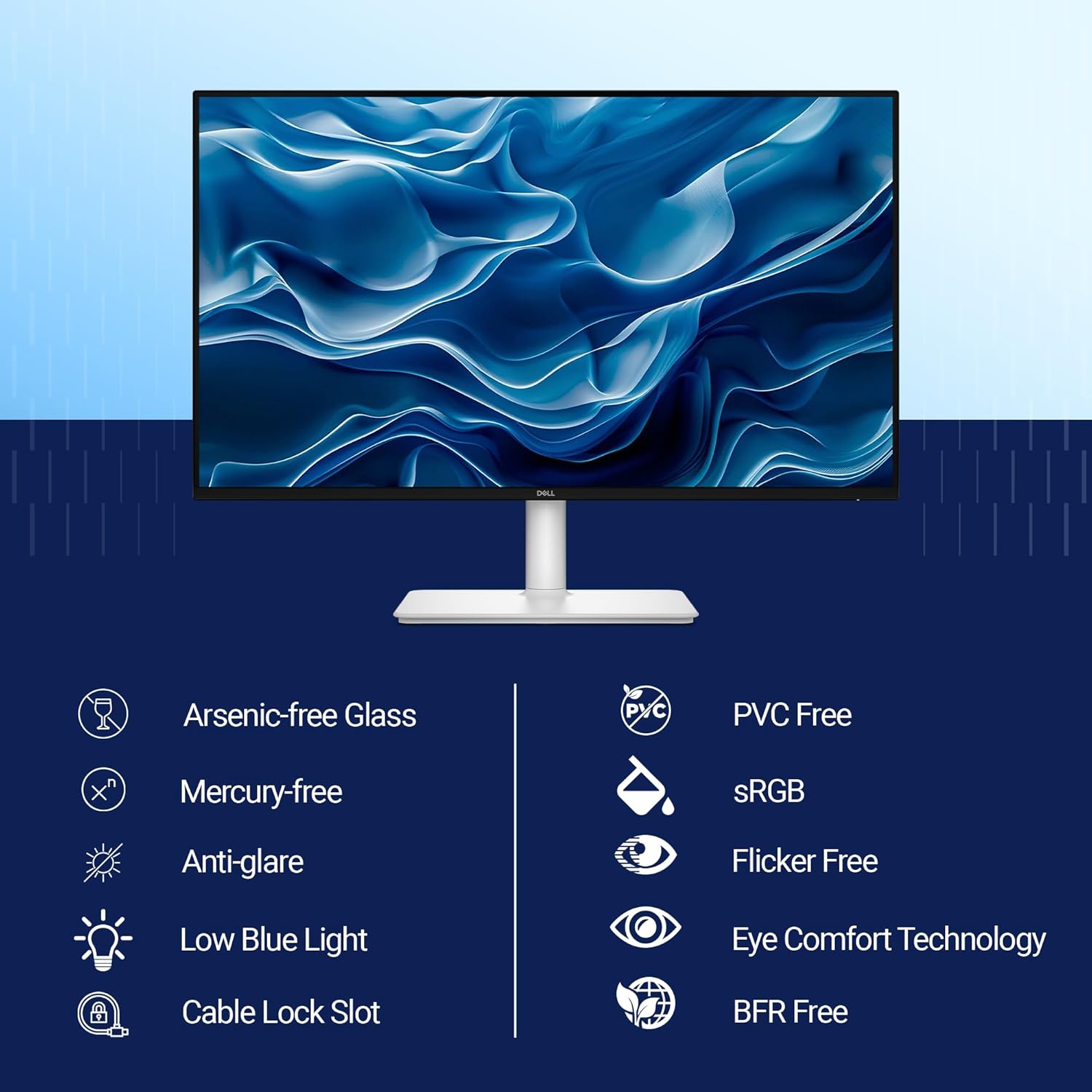
Figure 7.1: Visual summary of key specifications including screen size, resolution, refresh rate, and panel type.
| Feature | Specification |
|---|---|
| Brand | Dell |
| Model Number | S2725HSM |
| Screen Size | 27 Inches (68.58 cm) |
| Resolution | FHD 1080p (1920 x 1080 Pixels) |
| Panel Type | IPS LED |
| Refresh Rate | 144 Hz |
| Response Time | 1 Millisecond (MPRT) |
| Contrast Ratio | 1500:1 |
| Brightness | 300 cd/m² |
| Color Gamut | 99% sRGB |
| Viewing Angle | 178 Degrees |
| Aspect Ratio | 16:9 |
| Connectivity | 2 x HDMI 1.4 |
| Speakers | Built-in 3W Dual Speakers |
| Adaptive Sync | AMD FreeSync™ |
| Ergonomics | Height, Tilt, Swivel, Pivot Adjustment |
| Power Consumption | 17 Watts |
| Item Weight | 3.95 Kilograms |
| Environmental Features | Arsenic-free Glass, Mercury-free, Anti-glare Screen, Low Blue Light, Flicker Free, PVC Free, BFR Free |
8. Warranty Information
Your Dell S2725HSM monitor is covered by a 3-Year Manufacturer Warranty. This warranty covers defects in materials and workmanship under normal use. For specific terms and conditions, please refer to the warranty documentation included with your product or visit the official Dell support website.
9. Support Services
For technical assistance, warranty claims, or further information, please contact Dell Support:

Figure 9.1: Dell Support Services contact details including phone numbers and website.
- Basic Advance Exchange & Premium Advance Exchange Support:
- Land Line: 080-6411-0010 (Mon to Fri 9 AM to 6 PM)
- Toll Free: 1800-420-0088 (Mon to Fri 9 AM to 6 PM)
- CIS Center Support: Visit the official Dell Support website: https://www.dell.com/support/home/en-in/Servicecenter
- WhatsApp Support: +91 910-888-3355
Please have your monitor's serial number ready when contacting support.


