
1. Introduction
This manual provides detailed instructions for the installation, operation, and maintenance of your dzcctvipc SQ17 Dual-Lens Smart Indoor/Outdoor Security Camera. Designed for comprehensive surveillance, this camera features dual lenses, 2K HD resolution, color night vision, 360° AI motion tracking, two-way audio, and IP65 weatherproofing. Please read this manual thoroughly before use to ensure proper functionality and safety.
2. What's in the Box
- 1x SQ17 Camera
- 1x Mounting Bracket
- 1x Screw Installation Kit
- 1x Power Cord
- 1x Power Adapter
- 1x Instruction Manual

Figure 2.1: Package Contents
The image above illustrates the items included in your product package. Ensure all components are present before proceeding with installation.
3. Product Overview
The SQ17 camera features a unique dual-lens design for comprehensive surveillance. It includes a fixed wide-angle lens and a rotating PTZ lens, providing both a panoramic view and detailed tracking capabilities.

Figure 3.1: Front View of the SQ17 Camera

Figure 3.2: Dual-Lens Design and Movement Range
Key Components:
- Upper Lens: Fixed wide-angle lens for continuous monitoring of a broad area.
- Lower Lens: Pan-Tilt-Zoom (PTZ) lens for 360° horizontal and 90° vertical rotation, with 10X hybrid zoom for detailed tracking.
- Antennas: For stable 2.4GHz/5G dual-band Wi-Fi connectivity.
- LEDs: 8 built-in LEDs for color night vision.
- Microphone & Speaker: For two-way audio communication.
- Micro SD Card Slot: Supports up to 128GB for local storage.
- Reset Button: Used for resetting the device (refer to Troubleshooting).
4. Setup
4.1 App Download and Installation
To control your camera, download the O-KAM Pro app from your device's app store (Google Play for Android or App Store for iOS).
Video 4.1.1: Unboxing and App Setup Guide. This video demonstrates the unboxing process and initial steps for downloading and setting up the O-KAM Pro app for your camera.
4.2 Powering On and Initial Connection
Connect the camera to the power adapter using the provided cable. Wait approximately 1 minute for the camera to boot up. You will hear a voice prompt indicating it's ready for Wi-Fi connection.
Video 4.2.1: Powering On and Initial Voice Prompt. This video shows how to connect the camera to power and listen for the voice prompt indicating readiness for Wi-Fi setup.
4.3 Wi-Fi Connection (Bluetooth Quick Connect)
The camera supports Bluetooth quick connect for easy pairing with your 2.4GHz or 5G Wi-Fi network. Ensure your phone's Bluetooth and location services are enabled.
- Open the O-KAM Pro app and register/log in.
- Tap 'Add Device' or the '+' icon.
- Allow the app to access your phone's location and Bluetooth.
- The app will search for nearby devices. Select your camera (e.g., 'IPC-VE0225767ITJ').
- Enter your home Wi-Fi network name and password.
- Wait for the connection process to complete. The camera will provide voice prompts during this stage.
Video 4.3.1: Bluetooth Connection Guide. This video demonstrates the Bluetooth quick connect process for linking your camera to your Wi-Fi network.
4.4 Micro SD Card Installation
The camera supports a Micro SD card (up to 128GB, not included) for 24/7 continuous recording. Locate the Micro SD card slot, typically under a protective cover on the camera body. Insert the card gently until it clicks into place.
Video 4.4.1: SD Card Installation. This video shows the location and method for installing a Micro SD card into the camera.
4.5 Mounting the Camera
The camera is designed for wall mounting. Use the provided mounting bracket and screw installation kit. Choose a location that provides optimal viewing coverage and has access to a power outlet.
- Secure the mounting bracket to the desired surface using the screws.
- Attach the camera to the mounting bracket.
- Adjust the camera's position to cover the desired area.
5. Operating Instructions
5.1 Live View and Playback
Access live video feeds and recorded footage remotely via the O-KAM Pro app from anywhere. The camera supports 24/7 continuous recording to an SD card.
5.2 Dual Lens and Dual Screen Functionality
The camera's dual-lens system provides a comprehensive view. The upper fixed wide-angle lens monitors a key area, while the lower PTZ lens can be controlled to track movement or focus on specific details. Both views are displayed simultaneously in the app.

Figure 5.2.1: Dual Lens and Dual Screen View
Video 5.2.2: Dual-Screen Wireless Camera Product Display. This video showcases the dual-screen feature, allowing simultaneous monitoring from both lenses.
5.3 Pan, Tilt, and Zoom (PTZ) Control
The lower lens offers 355° horizontal pan and 90° vertical tilt, controllable via the app. It also supports 10X hybrid zoom to magnify details in the surveillance area.
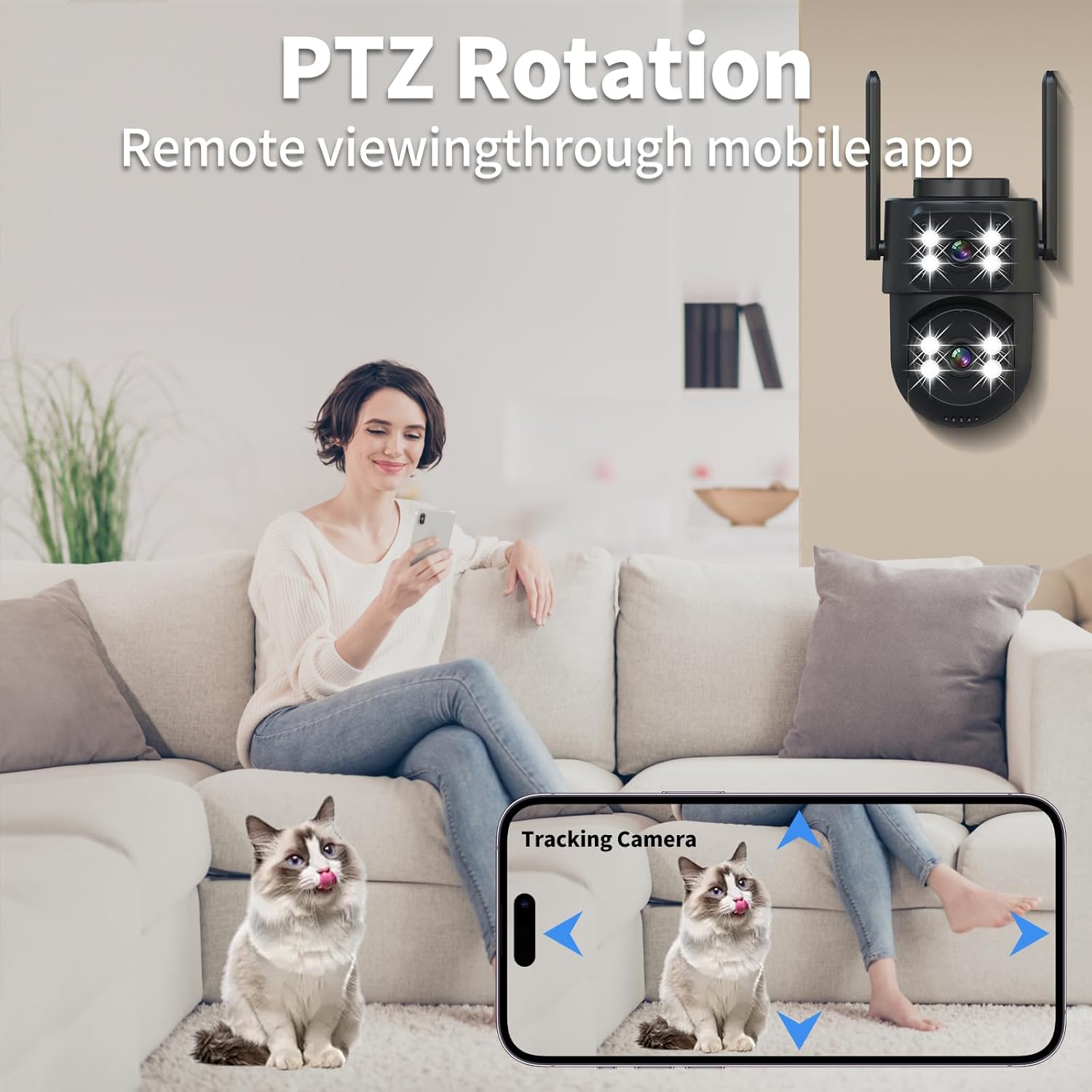
Figure 5.3.1: PTZ Rotation via Mobile App
5.4 Night Vision Modes
The camera provides two night vision modes:
- Color Night Vision: Utilizes 8 built-in LEDs to provide full-color video in low-light conditions, either motion-triggered or always-on.
- Infrared Night Vision: Standard black and white infrared view.

Figure 5.4.1: Full Color Night Vision

Figure 5.4.2: Night Vision Mode Comparison
5.5 Two-Way Audio
The integrated microphone and high-volume speaker allow for clear two-way communication through the app. Speak to visitors or deter intruders directly from your smartphone.

Figure 5.5.1: Two-Way Audio Communication

Figure 5.5.2: Two-Way Talking Feature
5.6 AI Recognition and Motion Tracking
Advanced AI algorithms enable the camera to identify people, cars, pets, and packages, reducing false alarms. The intelligent motion tracking feature automatically follows and records moving targets within its 360° field of view.
- Receive mobile alerts with clear event descriptions.
- Tracks pet behavior.
- Compatible with Alexa and Google Home for voice control.
- Supports ONVIF protocol for integration with existing security systems.

Figure 5.6.1: AI Humanoid Tracking

Figure 5.6.2: Human Detection & Auto Motion Tracking

Figure 5.6.3: Human Detection for Reduced False Alarms
Video 5.6.4: Motion Tracking Demonstration. This short video illustrates the camera's motion tracking capabilities.
6. Maintenance
6.1 Cleaning
To maintain optimal performance, regularly clean the camera lenses and housing. Use a soft, damp cloth. Avoid abrasive cleaners or solvents that could damage the camera's finish or lenses.
6.2 Firmware Updates
Periodically check the O-KAM Pro app for available firmware updates. Keeping your camera's firmware up-to-date ensures you have the latest features, security enhancements, and bug fixes.
7. Troubleshooting
7.1 Camera Not Powering On
- Ensure the power adapter is securely plugged into both the camera and a working electrical outlet.
- Verify the power outlet is functional by plugging in another device.
7.2 Wi-Fi Connection Issues
- No Voice Prompt: If the camera does not provide a voice prompt after powering on, press and hold the reset button for 4 seconds. Wait for the 'reset success' voice prompt, then retry the Wi-Fi connection.
- Incorrect Wi-Fi Password: Double-check your Wi-Fi password in the app.
- Router Compatibility: Ensure your router supports 2.4GHz or 5G Wi-Fi. The camera is compatible with both.
- Signal Strength: Place the camera closer to your Wi-Fi router during initial setup to ensure a strong signal.
7.3 Poor Image Quality
- Check your internet connection speed. A stable and fast connection is crucial for 2K HD streaming.
- Ensure the camera lenses are clean and free from dust or smudges.
- Adjust the video quality settings in the O-KAM Pro app (e.g., from SD to HD or Super HD).
7.4 Motion Detection Not Working
- Verify that motion detection is enabled in the app settings.
- Adjust the motion detection sensitivity levels.
- Ensure the camera's field of view is clear and not obstructed.
8. Specifications
| Feature | Specification |
|---|---|
| Model Name | SQ17 Corded Electric Wireless WiFi Smart Indoor-Outdoor Camera |
| Indoor/Outdoor Usage | Indoor, Outdoor |
| Video Capture Resolution | 2304*1296 (2K/3MP) |
| Connectivity Technology | Wireless (Bluetooth, ONVIF, Wi-Fi) |
| Wireless Communication Technology | Bluetooth, Wi-Fi (Dual-Band) |
| Controller Type | AJ Cloud, Amazon Alexa, Google Assistant |
| Mounting Type | Wall Mount |
| Viewing Angle | 355 Degrees (Pan), 90 Degrees (Tilt) |
| Night Vision Range | 65 Feet |
| Frame Rate | 15 frames per second |
| Water Resistance Level | IP65 Waterproof |
| Flash Memory Type | Micro SD (Max 128 GB) |
| Item Weight | 9.6 ounces |
| Product Dimensions | 4 x 3 x 7.5 inches |
| Power Source | Corded Electric (5 Volts DC, 3 Watts) |
| Special Features | 2-Way Audio, Bluetooth connectivity, HD Resolution, Mobile tracking and identification of people, cars, pets, packages, privacy protection mode, Works with Alexa & Google Home, ONVIF protocol, NVR support |
9. Warranty and Support
For warranty information and technical support, please refer to the documentation included with your product or contact dzcctvipc customer service. Keep your purchase receipt for warranty claims.

