
1. Introduction
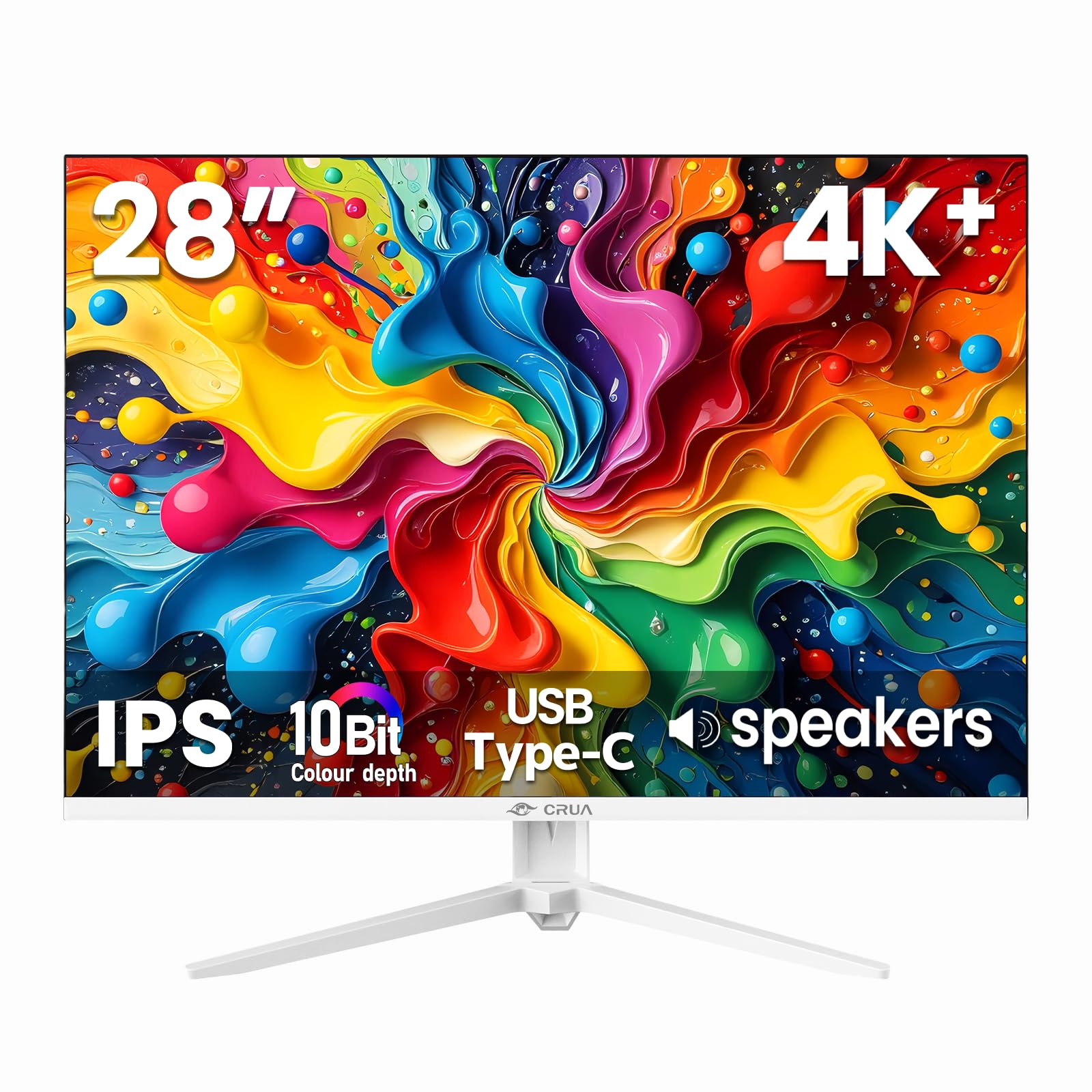
Thank you for choosing the CRUA 28 Inch 4K UHD+ IPS Monitor. This monitor is designed to deliver stunning visual clarity and vibrant colors for an immersive viewing experience, whether for work, gaming, or creative projects. Featuring a 3840×2560p resolution, 60Hz refresh rate, and extensive connectivity options, it is built to enhance your digital interactions.
Please read this manual carefully before operating your monitor to ensure proper setup and optimal performance. Keep this manual for future reference.
2. Package Contents
Ensure all items are present in the box before proceeding with the setup:
- 28-inch white monitor
- Base and support
- User instructions (this manual)
- DP cable x1 (4.92 ft)
- Type-C cable x1 (4.92 ft)
- Power adapter x1 (4.92 ft)
3. Setup
3.1. Monitor Assembly
To assemble the monitor stand:
- Carefully remove the monitor from its packaging, placing it face down on a soft, clean surface to prevent scratches.
- Attach the stand support to the back of the monitor.
- Secure the base to the stand support using the provided screws.
Alternatively, the monitor is wall-mountable (75×75mm VESA compatible) for flexible ergonomic setups.
3.2. Connecting Your Monitor
The CRUA monitor offers versatile connectivity options:
- HDMI 2.0: Connect your computer, gaming console, or other HDMI-enabled devices using one of the two HDMI 2.0 ports.
- DisplayPort 1.4: For high-resolution and refresh rate connections, use the DisplayPort 1.4.
- USB Type-C: Connect compatible devices for video, data transfer, and power delivery (charging).
- 3.5mm Audio Jack: Connect external speakers or headphones.
Ensure the power adapter is securely connected to the monitor and a power outlet.

4. Operating Your Monitor
4.1. On-Screen Display (OSD) Menu
The OSD menu allows you to adjust various monitor settings. Buttons are typically located on the back or bottom edge of the monitor. Common controls include:
- Power Button: Turns the monitor on/off.
- Menu Button: Accesses the OSD menu.
- Navigation Buttons: Used to move through menu options and adjust values (e.g., brightness, contrast, input source).
4.2. Key Features
- Ultra-Sharp 4K Visuals: Enjoy a 3840×2560p resolution on a 28-inch IPS panel with a 15:10 aspect ratio, 1.07 billion colors (8-bit+FRC), 120% sRGB, 270 cd/m² brightness, and 1200:1 contrast ratio for vivid and true-to-life images.
- IPS Panel & Wide Viewing Angles: Consistent and accurate colors are maintained across a wide 178° viewing angle, ideal for various professional and entertainment uses.
- Smooth Gaming & Eye Protection: AMD FreeSync technology and a 60Hz refresh rate provide tear-free gameplay. A built-in blue light filter helps reduce eye strain during extended use.
- Flexible Ergonomic Setup: Adjust the monitor with tilt support (-5° forward, 15° backward) or mount it on a wall using the 75×75mm VESA standard.
- Built-in Speakers: Integrated speakers deliver clear audio, eliminating the need for external audio devices.


5. Maintenance
To ensure the longevity and optimal performance of your CRUA monitor, follow these maintenance guidelines:
- Cleaning the Screen: Gently wipe the screen with a soft, lint-free cloth. For stubborn marks, lightly dampen the cloth with water or a screen-cleaning solution. Avoid harsh chemicals or abrasive materials.
- Cleaning the Casing: Use a soft, dry cloth to clean the monitor's casing.
- Ventilation: Ensure the monitor's ventilation openings are clear and unobstructed to prevent overheating.
- Power Off: Always power off the monitor and unplug it from the power outlet before cleaning or if it will not be used for an extended period.
6. Troubleshooting
If you encounter issues with your monitor, refer to the following common troubleshooting steps:
- No Display/Black Screen:
- Check if the monitor is powered on and the power cable is securely connected.
- Verify that the video cable (HDMI, DisplayPort, or USB-C) is correctly connected to both the monitor and your computer/device.
- Ensure the correct input source is selected on the monitor via the OSD menu.
- Test with a different video cable or device to rule out cable or source issues.
- Flickering/Unstable Image:
- Check the video cable connections for looseness.
- Adjust the refresh rate in your computer's display settings.
- Disable AMD FreeSync in the OSD menu if issues persist.
- No Audio from Built-in Speakers:
- Ensure the monitor's volume is not muted or set too low in the OSD menu.
- Check your computer's audio output settings to ensure the monitor is selected as the playback device.
- Verify the audio source is working correctly.
- Image Too Dark/Bright/Incorrect Colors:
- Adjust brightness, contrast, and color settings through the OSD menu.
- Reset the monitor to factory default settings via the OSD menu.
If these steps do not resolve the issue, please contact CRUA customer support for further assistance.
7. Specifications
| Feature | Specification |
|---|---|
| Product Dimensions | 18.58 x 24.09 x 19.97 inches |
| Item Weight | 11.08 pounds |
| Manufacturer | CRUA |
| Item Model Number | CR280HDM |
| Standing Screen Display Size | 28.2 Inches |
| Aspect Ratio | 3:2 (Note: Marketing materials mention 15:10, which is approximately 1.5:1, while 3:2 is 1.5:1. These are very similar.) |
| Resolution | 3840x2560 Pixels (4K UHD+) |
| Image Brightness | 270 Candela (cd/m²) |
| Total USB Ports | 1 (USB Type-C) |
| Screen Surface Description | Matte |
| Panel Type | IPS |
| Refresh Rate | 60Hz |
| Color Depth | 10-Bit (8-bit + FRC) |
| Color Gamut | 120% sRGB |
| Adaptive Sync Technology | AMD FreeSync |
8. Warranty and Support
CRUA provides high-quality computer monitors and premium services. For any questions or issues regarding your CRUA 28 Inch 4K UHD+ IPS Monitor, please contact our customer support team. We are committed to serving you and solving all your problems.
Please refer to your purchase documentation for specific warranty details and contact information.

