
1. Introduction
Thank you for choosing the TizzyToy MT22 GPS Drone. This manual provides essential information for the safe operation, setup, and maintenance of your drone. Please read it thoroughly before your first flight to ensure proper usage and to maximize your flying experience.
The TizzyToy MT22 is a lightweight, foldable GPS drone equipped with dual 4K UHD cameras, designed for both beginners and experienced pilots. Key features include:
- Under 249g Weight: No FAA registration or Remote ID required in many regions.
- GPS Auto Return-to-Home (RTH): Ensures safe return in case of low battery or signal loss.
- Altitude Hold: Maintains a stable hover for easier control.
- Dual 4K UHD Cameras: Capture high-resolution photos and videos with a 90° adjustable lens.
- 5G WiFi FPV: Real-time video transmission to your mobile device.
- Extended Flight Time: Up to 50 minutes with two modular batteries.
- Long Range Transmission: Reliable control up to 2,625 feet.
- Brushless Motors: Provide stable flight and require minimal maintenance.
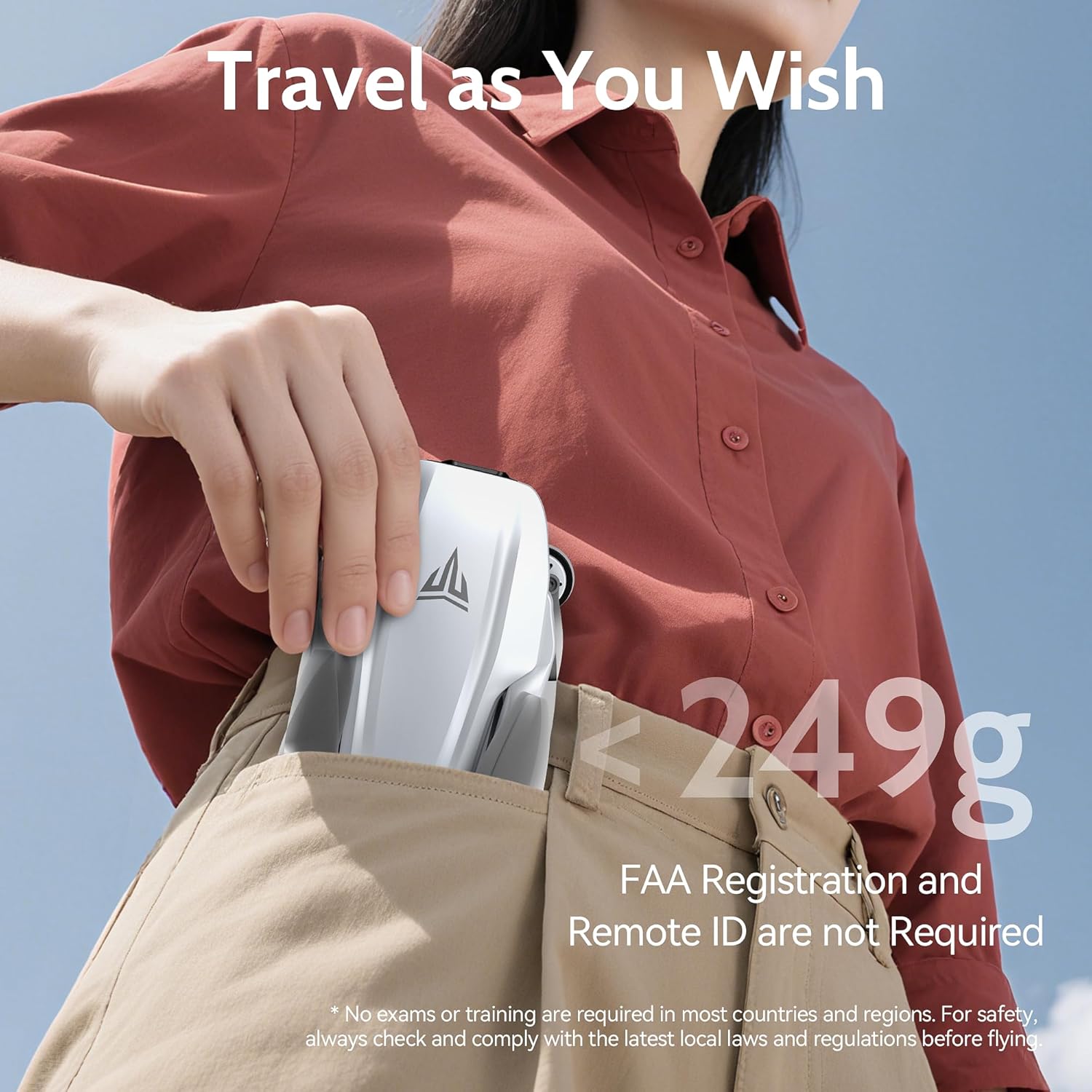
Image 1.1: The TizzyToy MT22 drone's compact, foldable design allows it to fit easily into a pocket, highlighting its portability and lightweight nature (under 249g).
2. Safety Guidelines
Operating a drone requires responsibility. Adhere to the following safety guidelines to prevent accidents and ensure a pleasant flying experience.
- Local Regulations: Always check and comply with local laws and regulations regarding drone operation before flying. While this drone is under 249g and may not require FAA registration in some regions, other local rules may apply.
- Pre-Flight Check: Before each flight, ensure the drone, remote controller, and batteries are in good condition and fully charged.
- Environmental Conditions: Do not fly in strong winds (the drone has Level 5 wind resistance, but extreme conditions should be avoided), heavy rain, snow, or fog. Maintain visual line of sight with the drone.
- Flight Area: Fly in open areas, away from people, animals, buildings, and obstacles. Avoid flying over crowds or private property.
- Battery Safety: Use only original batteries and chargers. Do not overcharge or puncture batteries. Discontinue use if batteries show signs of damage or swelling.
- Propeller Safety: Keep hands and face away from rotating propellers. Ensure propellers are correctly installed and free from damage before flight.
- Emergency Procedures: Familiarize yourself with the Return-to-Home (RTH) function and emergency stop procedures.

Image 2.1: The TizzyToy MT22 drone incorporates multiple safety features, including Geo-Fencing, One-Key Return, Signal-Loss Return, and Low Battery Return, enhancing flight safety and ease of use.
3. Package Contents
Please verify that all items are present in your package:
- TizzyToy MT22 GPS Drone
- Remote Controller
- Intelligent Flight Batteries (x2)
- Spare Propellers (set)
- Screwdriver
- USB Charging Cables (x3)
- Carrying Case
- User Manual (this document)
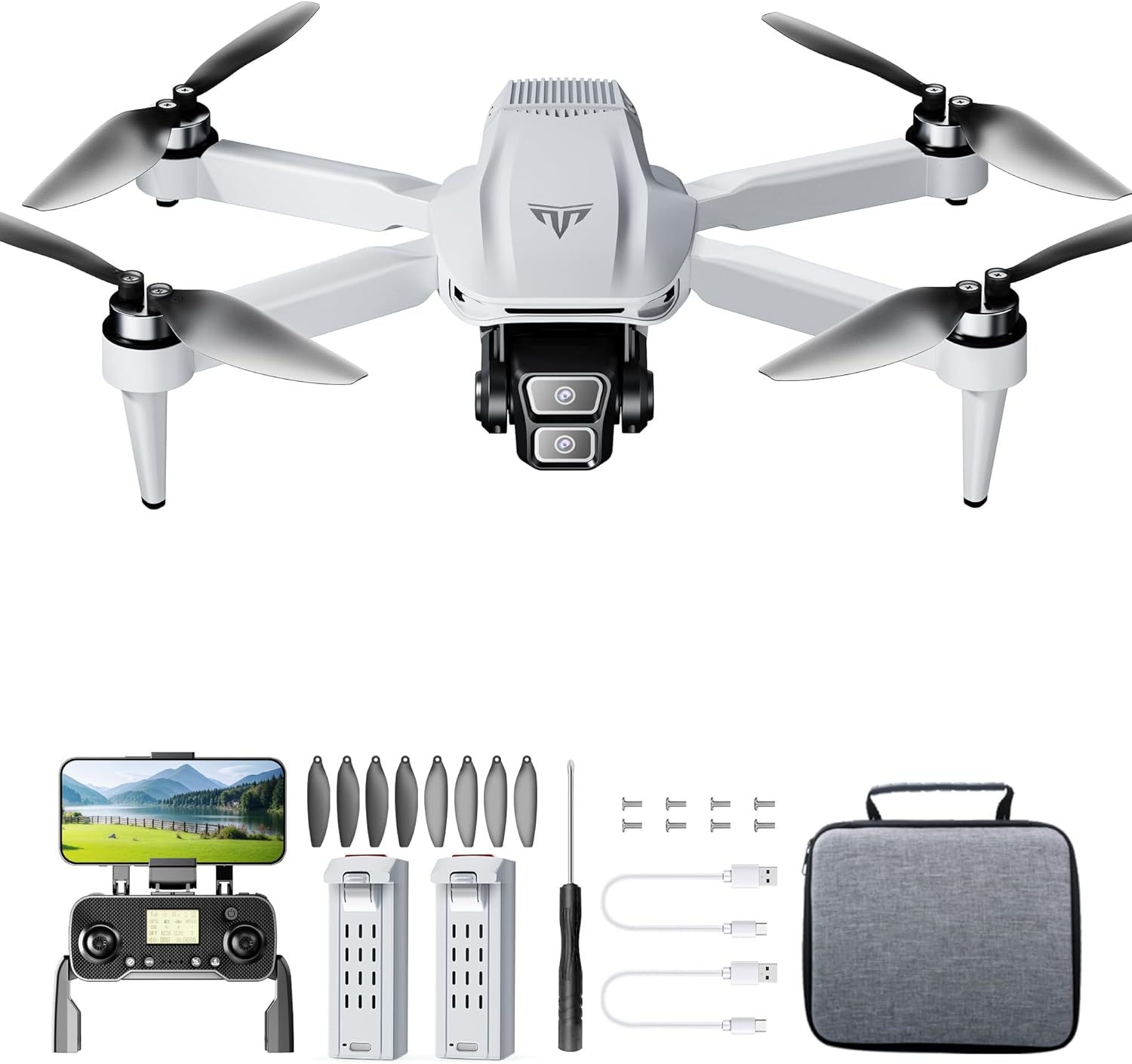
Image 3.1: Overview of the TizzyToy MT22 GPS Drone package contents, showing the drone, remote, batteries, and accessories.
4. Setup Guide
4.1 Unfolding the Drone
- Place the drone on a flat surface with the camera facing forward.
- Gently unfold the front arms until they lock into position.
- Unfold the rear arms until they lock into position.
4.2 Installing Propellers
The drone comes with propellers pre-installed. If replacement is needed:
- Identify the 'A' and 'B' marked propellers and motors.
- Match the 'A' propellers to 'A' motors and 'B' propellers to 'B' motors.
- Use the provided screwdriver to secure the propellers with the small screws. Ensure they are firmly attached but not overtightened.
4.3 Charging Batteries
Fully charge both the drone's intelligent flight batteries and the remote controller battery before first use.
- Drone Battery: Connect the drone battery to a USB power adapter (not included) using the provided USB charging cable. The indicator lights on the battery will show charging status. Charging typically takes 3-4 hours. The battery features auto power-off after full charge.
- Remote Controller Battery: Connect the remote controller to a USB power adapter using its dedicated USB charging cable. The indicator light on the remote will show charging status.
4.4 Installing Drone Battery and SD Card
- Slide the fully charged intelligent flight battery into the battery compartment on the rear of the drone until it clicks into place.
- If using an SD card (not included), insert it into the SD card slot on the drone's body. Ensure the card is inserted correctly according to the diagram near the slot.
4.5 Pairing Remote Controller and App Connection
- Power on the drone by pressing the power button once, then pressing and holding it until the indicator lights illuminate.
- Power on the remote controller.
- The drone and remote controller should automatically pair. If not, refer to the specific pairing instructions in the quick start guide or app.
- Download the TizzyToy FPV app from your mobile device's app store.
- Connect your mobile device to the drone's 5G WiFi network (usually named "TizzyToy_XXXXXX").
- Open the TizzyToy FPV app to view the live camera feed and access advanced flight functions.
5. Operating Instructions
5.1 Pre-Flight Checks
- Ensure drone and remote batteries are fully charged.
- Check propellers for damage and ensure they are securely attached.
- Verify the flight environment is clear of obstacles and people.
- Confirm GPS signal acquisition (indicated by solid green lights on the drone or in the app).
- Ensure your mobile device is connected to the drone's WiFi and the app is functioning correctly.
5.2 Take-off and Landing
- Motor Start: Push both control sticks on the remote controller down and outwards simultaneously to start the motors.
- Take-off:
- Manual Take-off: Slowly push the left joystick (throttle) upwards to ascend.
- One-Key Take-off: Press the dedicated One-Key Take-off button on the remote or in the app. The drone will automatically ascend to a safe height.
- Landing:
- Manual Landing: Slowly pull the left joystick (throttle) downwards until the drone lands.
- One-Key Landing: Press the dedicated One-Key Landing button on the remote or in the app. The drone will automatically descend and land.
5.3 Basic Flight Controls
- Left Joystick (Throttle/Yaw):
- Up/Down: Ascend/Descend
- Left/Right: Rotate drone left/right (Yaw)
- Right Joystick (Forward/Backward/Left/Right):
- Up/Down: Fly forward/backward (Pitch)
- Left/Right: Fly left/right (Roll)
5.4 GPS Functions
- GPS Mode: The drone defaults to GPS mode when sufficient satellites are acquired, providing stable hovering and precise positioning.
- Return-to-Home (RTH):
- Smart RTH: Initiated by pressing the RTH button on the remote or in the app. The drone will return to its recorded home point.
- Low Battery RTH: Automatically triggered when the drone's battery is critically low.
- Signal Loss RTH: Automatically triggered if the connection between the drone and remote controller is lost.
- Altitude Hold: The drone will automatically maintain its current altitude when the throttle stick is centered, allowing for easier control.
5.5 Camera Operation

Image 5.1: The TizzyToy MT22 features dual 4K UHD cameras with a 90-degree adjustable lens for versatile aerial photography and videography.
- Photo/Video: Use the dedicated buttons on the remote controller or within the app to take photos or start/stop video recording.
- Camera Angle Adjustment: The camera lens can be adjusted by 90° via the remote controller or app to capture different perspectives.
- FPV (First Person View): The 5G WiFi transmission allows for real-time video feed to your connected mobile device via the TizzyToy FPV app.
- SD Card Storage: Footage can be stored directly onto an inserted SD card (up to 128GB, Class 10 or higher recommended) for higher quality recordings.
5.6 Smart Flight Modes
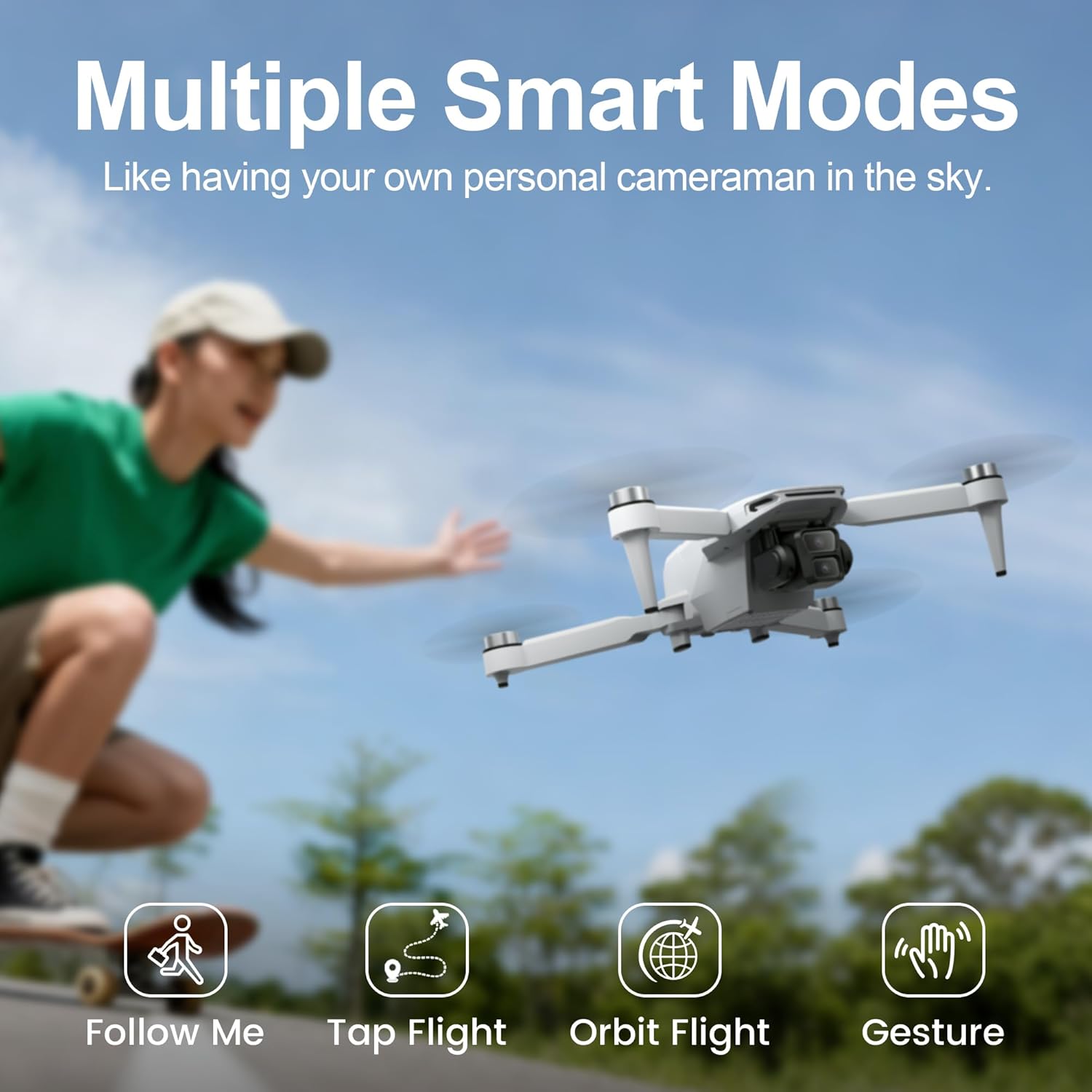
Image 5.2: The TizzyToy MT22 offers multiple smart flight modes, including Follow Me, Tap Flight, Orbit Flight, and Gesture Control, for enhanced creative possibilities.
Access these modes via the TizzyToy FPV app:
- Follow Me: The drone will automatically follow the subject (e.g., you with your mobile device).
- Tap Flight (Waypoint Flight): Tap points on the map in the app, and the drone will fly along the designated path.
- Orbit Flight (Point of Interest): Select a central point, and the drone will circle around it at a set radius and altitude.
- Gesture Control: Perform specific hand gestures to trigger photo or video recording.
6. Maintenance
Regular maintenance ensures the longevity and optimal performance of your TizzyToy MT22 drone.
- Cleaning: Use a soft, dry cloth to clean the drone body, camera lens, and motors after each flight. Avoid using liquids or solvents.
- Propeller Inspection: Regularly check propellers for cracks, bends, or other damage. Replace damaged propellers immediately using the provided spare parts and screwdriver.
- Battery Care:
- Store batteries in a cool, dry place, away from direct sunlight and extreme temperatures.
- Do not fully discharge batteries for extended periods. Charge them to about 50-60% for long-term storage.
- If a battery swells or shows signs of damage, discontinue use and dispose of it properly.
- Storage: When not in use, fold the drone and store it in its carrying case to protect it from dust and physical damage.
7. Troubleshooting
If you encounter issues with your TizzyToy MT22 drone, refer to the following common problems and solutions:
| Problem | Possible Cause | Solution |
|---|---|---|
| Drone does not power on. | Battery not charged or improperly installed. | Ensure battery is fully charged and correctly inserted. Press and hold power button to turn on. |
| Remote controller fails to connect. | Remote battery low; pairing failed. | Charge remote controller. Re-attempt pairing process as per section 4.5. |
| No GPS signal. | Flying indoors; insufficient satellites. | Fly outdoors in an open area. Wait for the drone to acquire sufficient GPS satellites (indicated by solid green lights). |
| Unstable flight/Drifting. | Improper calibration; strong winds; damaged propellers. | Perform gyroscope and compass calibration (refer to app instructions). Avoid flying in strong winds. Check and replace damaged propellers. |
| No FPV video feed. | Mobile device not connected to drone's WiFi; app not open. | Ensure your phone is connected to the drone's 5G WiFi network and the TizzyToy FPV app is open. |
| Camera not recording/taking photos. | No SD card; SD card full or corrupted; insufficient permissions. | Insert a compatible SD card. Format the SD card via the app. Check app permissions on your mobile device. |
8. Specifications
| Feature | Detail |
|---|---|
| Brand | TizzyToy |
| Model | MT22 |
| Weight | Under 249g (No FAA registration required in many regions) |
| Dimensions (Folded) | Approximately 2.54 x 2.54 x 2.54 cm (1 x 1 x 1 inch) - Note: This dimension seems unusually small for a folded drone, likely a placeholder or error in source data. Actual folded dimensions would be larger. |
| Max Flight Time | Up to 50 minutes (with 2 batteries, 25 mins per battery) |
| Max Transmission Range | 2,625 feet (approx. 800 meters) |
| Camera | Dual 4K UHD, 90° Adjustable Lens |
| FPV Transmission | 5G WiFi |
| Motor Type | Brushless Motor |
| SD Card Slot | Yes (Card not included, supports up to 128GB) |
| GPS Features | Auto Return-to-Home (RTH), Altitude Hold |
| Wind Resistance | Level 5 |

Image 8.1: The TizzyToy MT22 drone offers a maximum flight time of 50 minutes, achieved with two intelligent flight batteries, each providing approximately 25 minutes of flight.
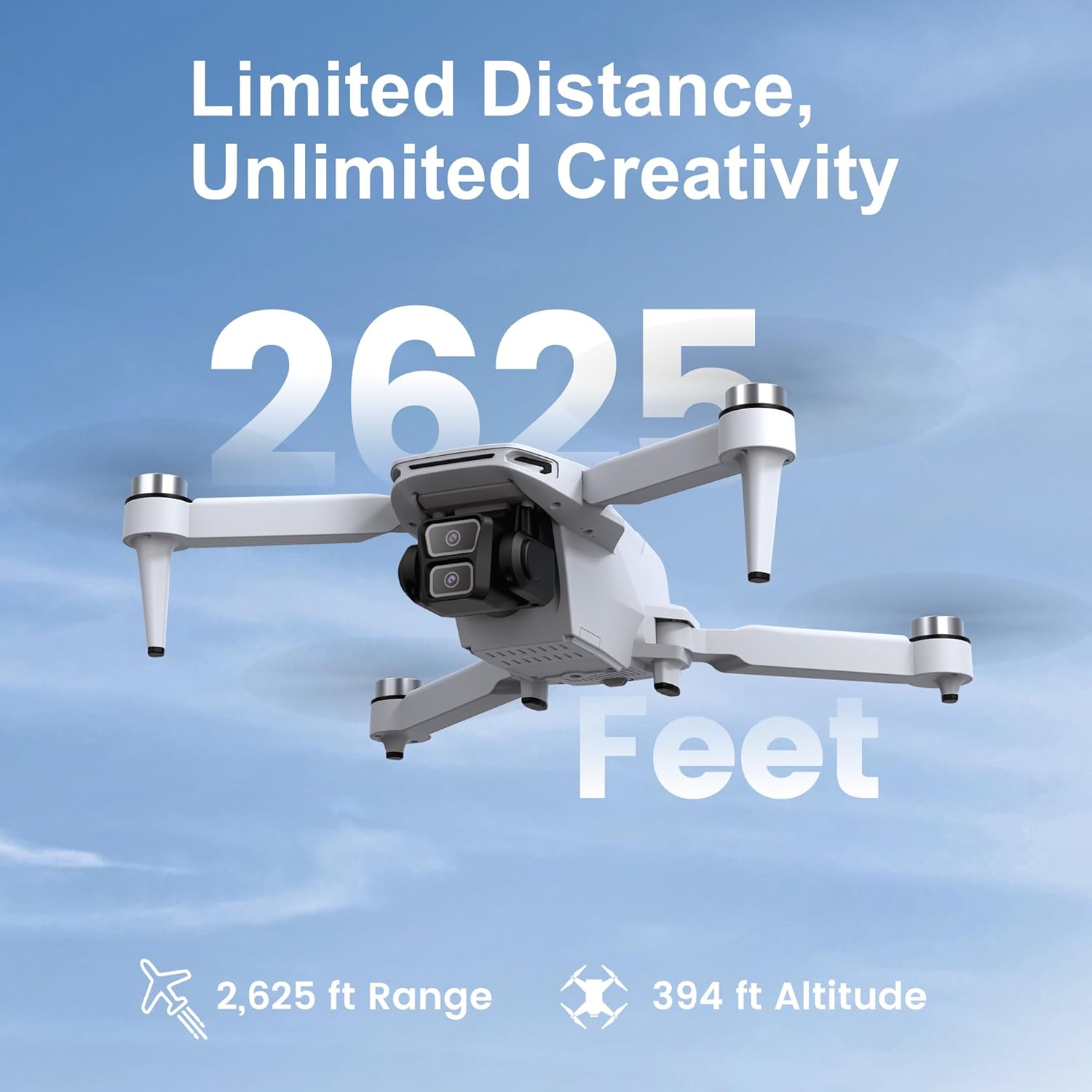
Image 8.2: The TizzyToy MT22 drone boasts a reliable transmission range of up to 2,625 feet, allowing for extensive exploration.
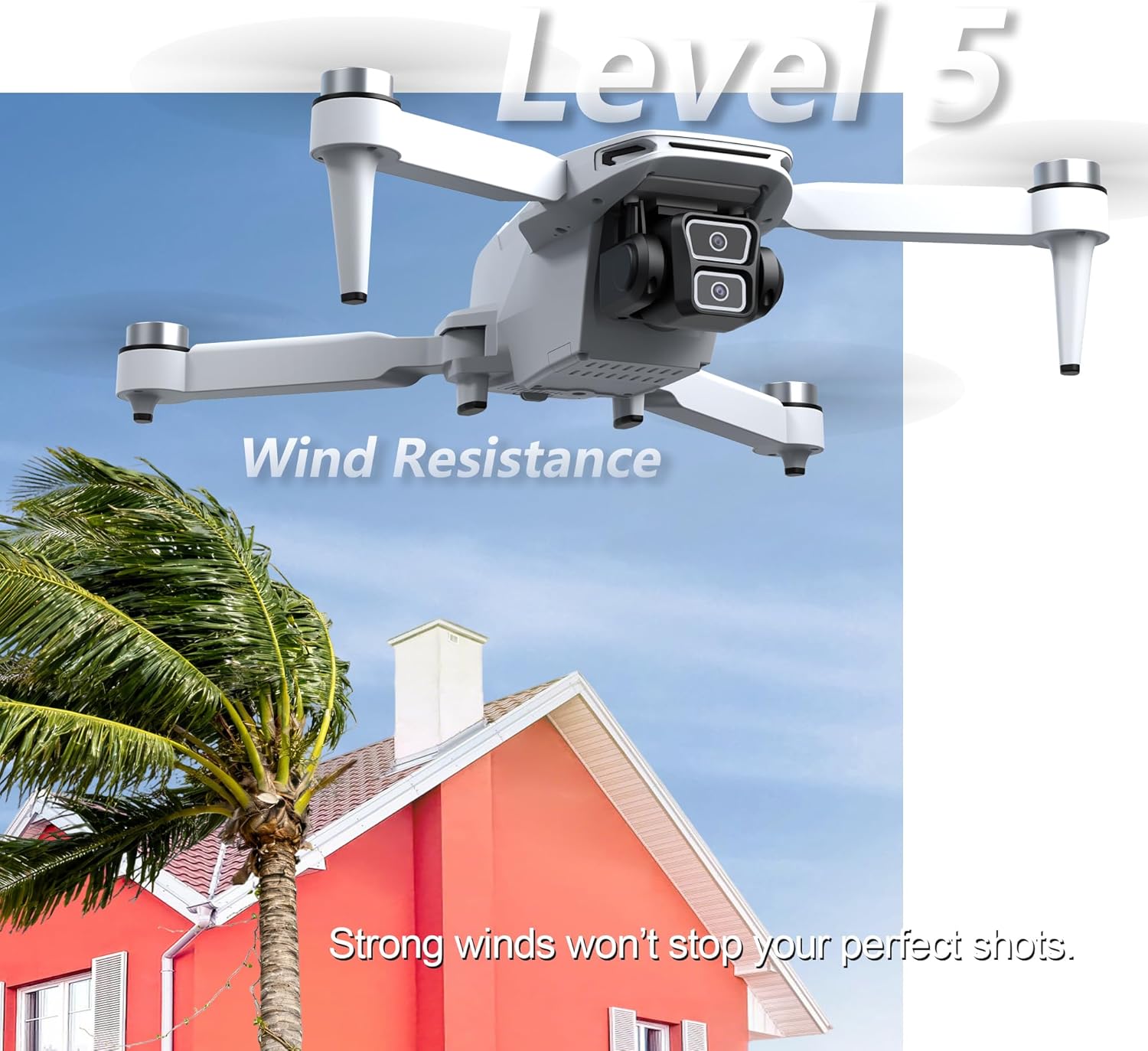
Image 8.3: The TizzyToy MT22 drone features Level 5 wind resistance, enabling stable flight even in moderate wind conditions.
9. Warranty and Support
Specific warranty details are not provided within this manual. For information regarding warranty coverage, technical support, or service, please refer to the documentation included with your purchase or contact TizzyToy customer service directly through their official website or the retailer where the product was purchased.