
Introduction
Thank you for purchasing the AFEXOA DY29Z Night Light Bluetooth Speaker Alarm Clock. This versatile device combines a Bluetooth speaker, night light, alarm clock, sound machine, and MP3 player into one compact unit. This manual provides detailed instructions for setup, operation, and maintenance to ensure optimal performance and user satisfaction.

Figure 1: AFEXOA DY29Z device highlighting its 5-in-1 functionality.
Safety Information
- Do not expose the device to water or excessive moisture.
- Avoid extreme temperatures and direct sunlight.
- Do not disassemble or attempt to repair the device yourself. Contact customer support for assistance.
- Keep out of reach of children and pets.
- Use only the provided charging cable or a certified Type-C cable for charging.
Package Contents
Please check the package for the following items:
- AFEXOA DY29Z Night Light Bluetooth Speaker Alarm Clock
- Type-C USB Charging Cable
- User Manual
Product Overview
Front Panel Controls
The front panel features an LED display for time and status, along with several control buttons:
- Timer Button: Short press to pause, long press for standby (turns off sound and light).
- Bluetooth On/Off Button: Activates or deactivates Bluetooth mode.
- Previous Track / Volume Down Button: Short press for previous track, long press to decrease volume.
- Next Track / Volume Up Button: Short press for next track, long press to increase volume.
- Natural Sound & Lullaby Button: Cycles through built-in soothing sounds.
Rear Ports and Switches
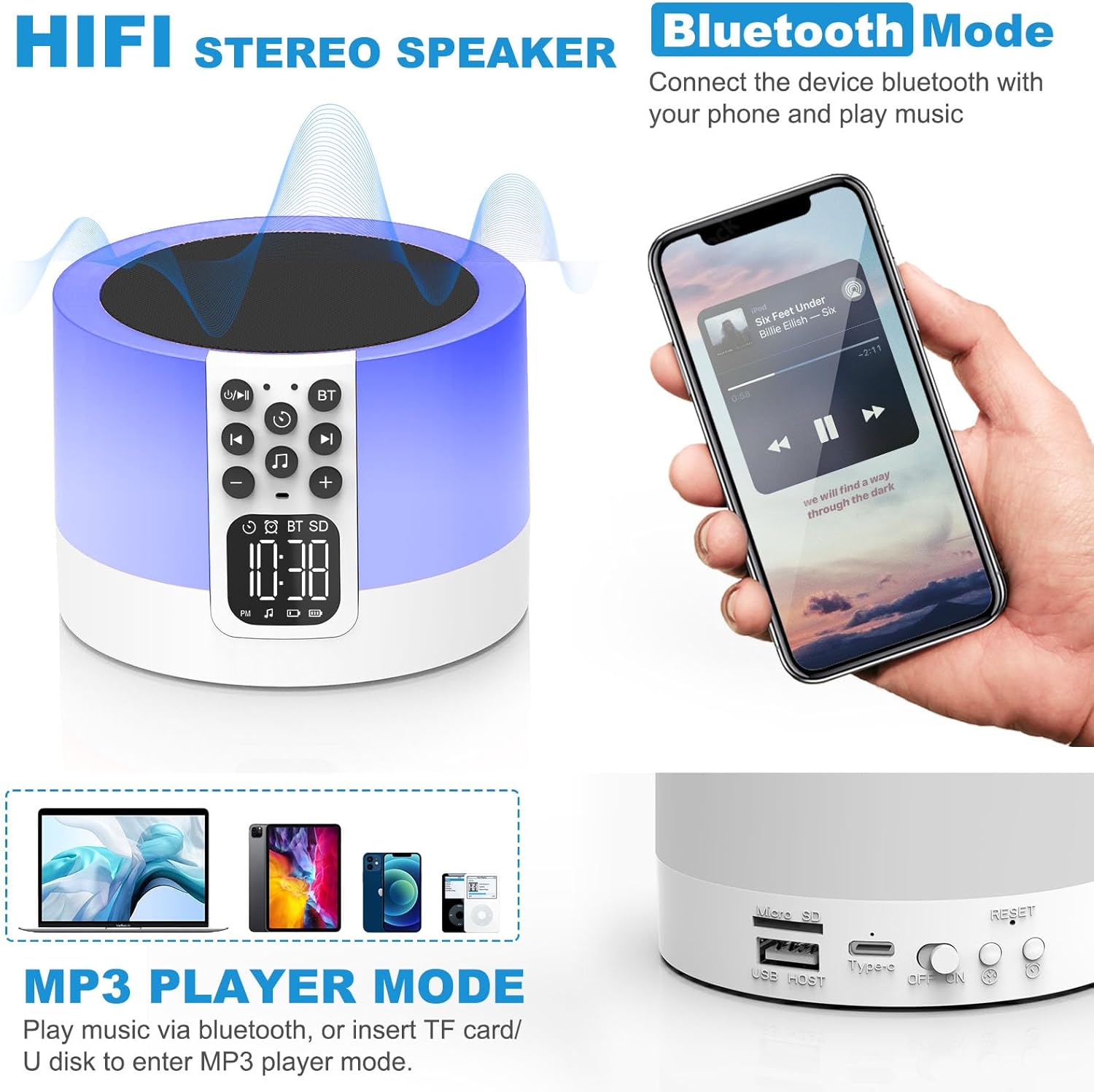
Figure 2: AFEXOA DY29Z showing Bluetooth connectivity and rear ports.
- Micro SD/TF Card Slot: For playing MP3 files from a memory card.
- USB HOST Port: For playing MP3 files from a USB flash drive.
- Type-C Power Port: For charging the device.
- On/Off Switch: Main power switch for the device.
- Reset Button: Small button to reset the device (requires a pin).
- Time Setup Button: Short press for 12h/24h mode, long press for time setup.
- Alarm Setup Button: For setting the alarm.
Setup
1. Charging the Device
Before first use, fully charge the device. Connect the provided Type-C USB cable to the Type-C power port on the back of the device and plug the other end into a USB power adapter (not included), computer, or power bank.

Figure 3: Charging the device via USB.
2. Setting the Time
- Turn on the device using the On/Off switch on the back.
- Long press the 'Time Setup' button on the back until the hour digits flash.
- Use the 'Previous Track / Volume Down' and 'Next Track / Volume Up' buttons on the front to adjust the hour.
- Press the 'Time Setup' button again to switch to minute adjustment. Adjust minutes using the volume buttons.
- Press the 'Time Setup' button a third time to confirm and exit time setting.
- Short press the 'Time Setup' button to toggle between 12-hour and 24-hour display formats.
Operating Instructions
1. Power On/Off
Slide the 'On/Off' switch on the back of the device to turn it on or off.
2. Bluetooth Speaker Mode
- Turn on the device.
- Press the 'Bluetooth On/Off' button on the front panel. The device will enter pairing mode, indicated by a flashing Bluetooth icon on the display.
- On your smartphone or other Bluetooth-enabled device, search for 'DY29Z' in the Bluetooth settings and select it to pair.
- Once paired, you can play audio from your device through the speaker.
- Use the 'Previous Track / Volume Down' and 'Next Track / Volume Up' buttons to control playback and volume.
3. Night Light Function
The device features a sensitive touch top mesh for light control.

Figure 4: Adjusting warm white light brightness via touch control.
- Warm White Light: Tap the top mesh to cycle through 3 levels of warm white brightness (low, medium, high). Tap again to turn off.
- Multicolor Light: Long press the top mesh and then release to activate the ambient light mode, which cycles through various colors.
- Fixed Color Light: While in multicolor cycling mode, long press the top mesh again and release to fix the current color. Repeat to cycle through other fixed colors.

Figure 5: Various multicolor night light options.
4. Alarm Clock Function
Set and manage alarms with customizable tones.

Figure 6: Digital alarm clock with wake-up light.
- Setting the Alarm: Long press the 'Alarm Setup' button on the back until the alarm hour digits flash. Adjust the hour using the volume buttons. Press 'Alarm Setup' again to set minutes, then press again to confirm.
- Custom Alarm Tone: Insert a USB Flash Drive or Micro SD Card with your favorite MP3 music. The device will automatically use this as the alarm tone.
- Snooze Function: When the alarm sounds, tap the top mesh to activate snooze. The alarm will sound again after 9 minutes. This can be repeated indefinitely.
- Stopping the Alarm: Press any button (except the top mesh for snooze) to stop the alarm for the day.
5. Sound Machine Function
The device offers 30 built-in soothing sounds to aid sleep and relaxation.
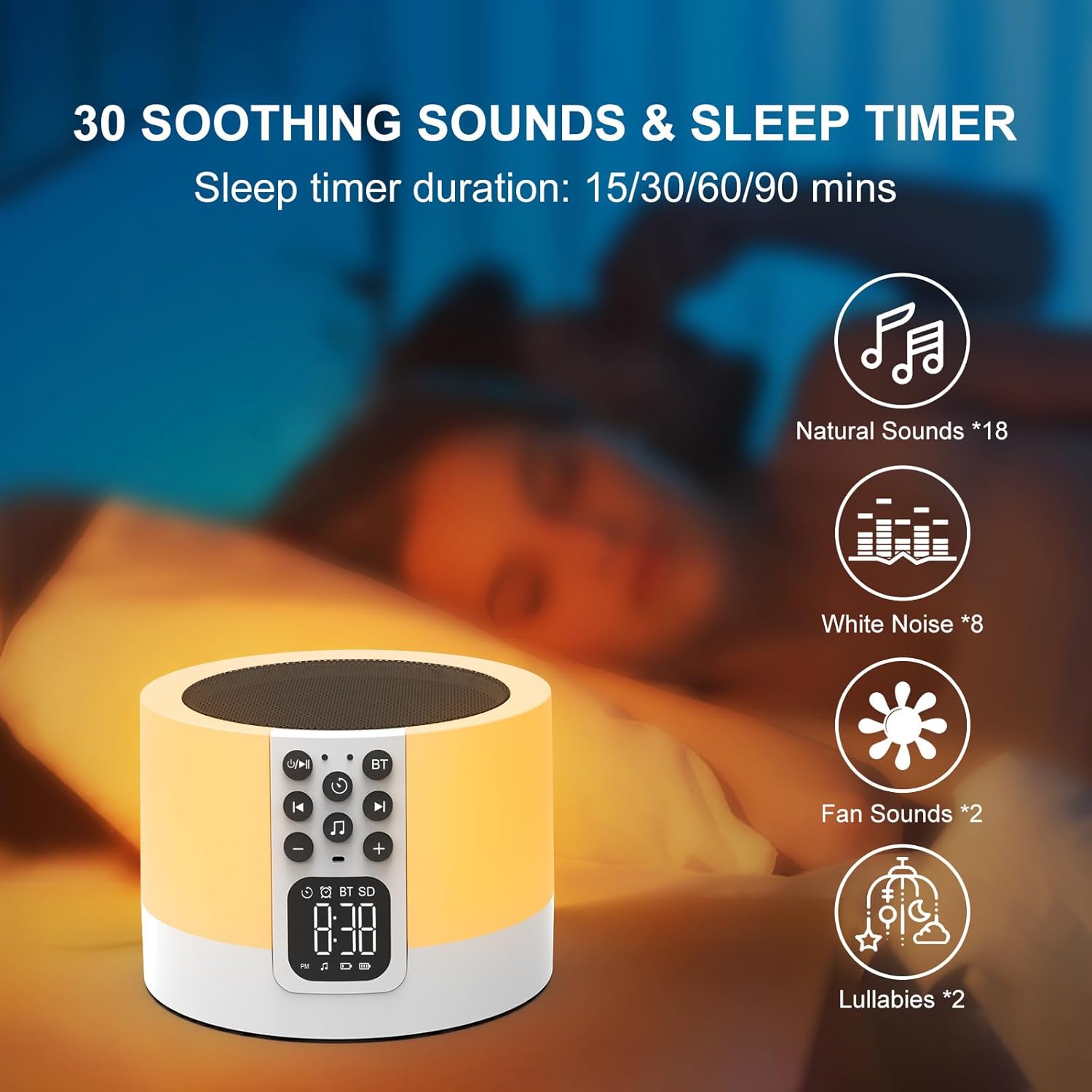
Figure 7: Soothing sounds and sleep timer options.
- Press the 'Natural Sound & Lullaby' button on the front panel to cycle through the 30 available sounds (including white noise, fan noise, pink noise, nature sounds, and lullabies).
- Sleep Timer: To set a sleep timer, short press the 'Timer' button repeatedly to select 15, 30, 60, or 90 minutes. The device will automatically turn off after the selected duration.
6. MP3 Player Mode
Play your own music directly from a USB flash drive or Micro SD card.

Figure 8: Using USB flash drives and Micro SD cards for MP3 playback.
- Insert a USB flash drive into the USB HOST port or a Micro SD card into the Micro SD/TF card slot on the back of the device.
- The device will automatically detect the storage and begin playing MP3 files.
- Use the 'Previous Track / Volume Down' and 'Next Track / Volume Up' buttons to navigate tracks and adjust volume.
7. Hands-Free Calling
When connected via Bluetooth to a smartphone, the device can be used for hands-free calls.
- When a call comes in, the device will ring.
- Press the 'Timer' button (which also functions as Play/Pause) to answer an incoming call.
- Press the 'Timer' button again to end the call.
Maintenance
- Clean the device with a soft, dry cloth. Do not use abrasive cleaners or solvents.
- Ensure all ports are free of dust and debris.
- Store the device in a cool, dry place when not in use for extended periods.
Troubleshooting
| Problem | Possible Cause | Solution |
|---|---|---|
| Device does not power on. | Battery is depleted. Power switch is off. | Charge the device fully. Ensure the On/Off switch is in the 'On' position. |
| Cannot connect via Bluetooth. | Bluetooth not enabled on device or phone. Device is already paired with another unit. | Ensure Bluetooth is active on both devices. Disconnect from other devices. Restart pairing process. |
| No sound from speaker. | Volume is too low. Device is paused. Incorrect mode selected. | Increase volume. Press the 'Timer' button to unpause. Ensure correct mode (Bluetooth, MP3, Sound Machine) is active. |
| Night light not working. | Device is off or in standby. | Ensure the device is powered on. Tap the top mesh to activate the light. |
| Alarm does not sound. | Alarm not set correctly. Volume too low. | Verify alarm time and activation. Increase device volume. |
Specifications
| Feature | Detail |
|---|---|
| Brand | AFEXOA |
| Model Number | DY29Z |
| Connectivity Technology | Bluetooth, USB |
| Audio Output Mode | Stereo |
| Material | Acrylonitrile Butadiene Styrene (ABS) |
| Speaker Type | Portable Bluetooth Speaker |
| Additional Features | Alarm, Illuminated, Mood Light, Noise Machine, Timer |
| Control Method | Touch |
| Power Source | Battery Powered |
| Number of Batteries | 1 Lithium Ion (included) |
| Compatible Devices | Laptop, MP3 Player, Smartphone, Tablet |
Warranty and Support
This product comes with a limited warranty. For detailed warranty information or technical support, please refer to the product packaging or contact AFEXOA customer service. Keep your purchase receipt for warranty claims.


