
Introduction
This manual provides essential information for the safe and efficient use of your JVC LT-40VRF3555 40-inch Full HD Smart Fire TV. Please read these instructions thoroughly before operating the device and retain them for future reference.
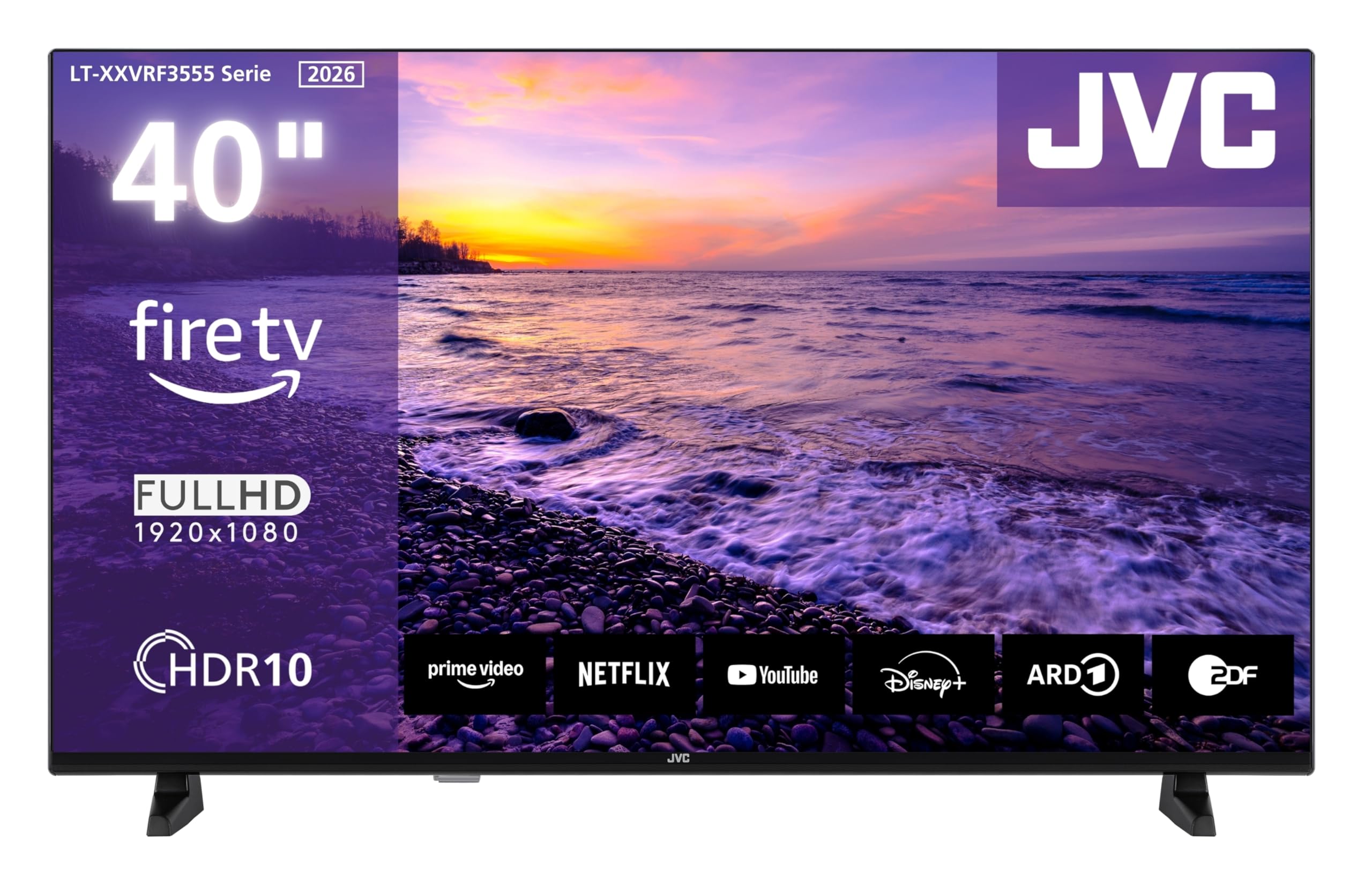
Image: Front view of the JVC LT-40VRF3555 40-inch Full HD Smart Fire TV, displaying the Fire TV interface with various streaming content options.
Key Features:
- Stunning Images: Experience Full HD content. The combination of HDR10, Super Resolution, and Micro Dimming delivers high-contrast images with realistic colors and extraordinary detail.
- Unlimited Entertainment with Fire TV: Binge-watch series, enjoy movie nights, or catch cutting-edge sports. Experience the variety of Fire OS with numerous apps and libraries like Prime Video, Netflix, DAZN, Disney+, YouTube, and more.
- Smart Control with Built-in Alexa: Alexa fulfills your requests. No more endless scrolling. Press the Alexa button and use your voice to discover new content, adjust volume, change channels, or even control Smart Home devices.
- Multiple Connectivity Options: DTS Virtual X provides optimized audio, and numerous ports including 2x HDMI (CEC + ARC), USB with media player, Wi-Fi, and Bluetooth offer extensive usage possibilities for gaming consoles, external audio devices, and more.
- More Than a Television: The flat screen has a diagonal of 100 cm (40"). The integrated triple tuner allows you to receive programs via antenna (DVB-T2), cable (DVB-C), or satellite (DVB-S2) without additional receivers.
Setup
1. Unpacking and Included Components
Carefully remove all components from the packaging. Ensure all items listed below are present:
- JVC LT-40VRF3555 Television
- Remote Control
- AAA Batteries (2x) for Remote Control
- Stand Feet
- User Manual / Instructions
2. Attaching the Stand
Place the TV screen face down on a soft, clean surface to prevent scratches. Align the stand feet with the corresponding slots on the bottom of the TV and secure them with the provided screws. Refer to the diagram for proper orientation.

Image: Diagram showing the dimensions of the JVC TV, including height with and without stand (55.3 cm and 51.7 cm), width (90.2 cm), depth with and without stand (16.5 cm and 8.7 cm), and VESA M4 100x100 mounting points.
3. Connecting Peripherals
Connect your external devices such as gaming consoles, sound systems, or set-top boxes to the TV's ports. Ensure the TV is powered off before making any connections.
- HDMI: Use HDMI ports for high-definition video and audio. This TV features 2 HDMI ports (CEC + ARC compatible).
- USB: Connect USB storage devices for media playback. This TV has 1 USB port.
- Antenna/Cable/Satellite: Connect your antenna, cable, or satellite feed to the appropriate input for DVB-T2, DVB-C, or DVB-S2 reception.
- Digital Coaxial Out: For connecting to external audio systems.
- LAN: For wired internet connection.

Image: Illustration of the JVC TV's rear panel, highlighting various connectivity ports including 2x HDMI, 1x USB, LAN, CI-Slot, Digital Coaxial Out, and Antenna input.
4. Initial Power On and First-Time Setup
After connecting all necessary cables, plug the TV into a power outlet. Press the power button on the remote control or the TV. Follow the on-screen instructions to complete the initial setup, which includes:
- Language selection
- Network connection (Wi-Fi or Ethernet)
- Fire TV account login or creation
- Channel scanning for DVB-T2/C/S2
Operating
1. Basic TV Functions
Use the remote control to navigate the TV. Insert the two AAA batteries into the remote control, ensuring correct polarity.

Image: Close-up of the JVC TV remote control, highlighting the Alexa built-in button and quick access buttons for Netflix, Prime Video, and Amazon Music.
- Power: Press the power button to turn the TV on or off.
- Volume: Use the volume up/down buttons to adjust the sound level.
- Channel: Use the channel up/down buttons to change channels.
- Input: Press the input button to select different sources (HDMI, USB, TV tuner).
2. Smart TV Features (Fire TV)
Your JVC TV runs on Fire OS, providing access to a wide range of streaming services and applications.

Image: The JVC Fire TV interface displaying a selection of popular streaming applications such as Netflix, Prime Video, Disney+, YouTube, DAZN, and more.
- Home Screen: The Fire TV home screen provides personalized recommendations and quick access to your favorite apps.
- Apps: Download and install additional apps from the Amazon Appstore.
- Streaming: Access services like Prime Video, Netflix, DAZN, Disney+, and YouTube directly.
3. Alexa Voice Control
The built-in Alexa allows you to control your TV and smart home devices using voice commands.

Image: A person interacting with the JVC TV using Alexa voice control, with the command "Alexa, play 'Cross' on Prime Video" displayed on screen.
- Activate Alexa: Press the Alexa button on your remote control.
- Voice Commands: Speak clearly into the remote to search for content, launch apps, control playback, adjust settings, or manage compatible smart home devices.
4. Picture Settings
Optimize your viewing experience by adjusting picture settings.

Image: A vibrant landscape scene displayed on the JVC TV, illustrating the enhanced picture quality with HDR10, showing brilliant image quality in detail.

Image: A close-up of an eye displayed on the JVC TV, demonstrating sharp details and precise contrasts achieved through Micro Dimming and Super Resolution technologies.
- HDR10: Provides a wider range of colors and contrasts for a more realistic image.
- Super Resolution: Enhances image clarity and detail.
- Micro Dimming: Improves contrast by analyzing and adjusting brightness in different zones of the screen.
5. Audio Settings
Adjust audio settings for an immersive sound experience.

Image: A TV screen showing a concert with sound waves emanating from it, illustrating clear and powerful sound with Dolby Audio and DTS HD technologies.
- DTS Virtual X: Provides an immersive audio experience with virtual surround sound.
- Dolby Audio: Enhances sound quality for movies, shows, and games.
6. Connectivity
Your TV supports various wireless connectivity options.
- Wi-Fi: Connect to your home wireless network for internet access.
- Bluetooth: Pair with Bluetooth-enabled devices like headphones or speakers.
- Miracast: Mirror your compatible mobile device's screen to the TV.
Maintenance
1. Cleaning the TV
To maintain the TV's appearance and performance:
- Always unplug the TV before cleaning.
- Use a soft, dry cloth to wipe the screen and cabinet.
- For stubborn marks, lightly dampen the cloth with water or a mild, non-abrasive screen cleaner. Never spray cleaner directly onto the screen.
- Avoid using alcohol, benzene, thinners, or other volatile substances, as they may damage the TV.
2. Software Updates
Your Fire TV will periodically check for and install software updates to improve performance and add new features. Ensure your TV is connected to the internet for automatic updates. You can also manually check for updates in the TV's settings menu.
Troubleshooting
If you encounter issues with your TV, refer to the following common solutions:
| Problem | Possible Solution |
|---|---|
| No Power | Check if the power cord is securely plugged into both the TV and the wall outlet. Try a different outlet. |
| No Picture, but Sound is Present | Ensure the correct input source is selected. Check cable connections to external devices. |
| No Sound, but Picture is Present | Check volume level and mute status. Ensure external audio devices are properly connected and selected. |
| Remote Control Not Working | Replace the batteries in the remote control. Ensure there are no obstructions between the remote and the TV's IR sensor. |
| Network Connection Issues | Check your Wi-Fi router and internet connection. Restart the TV and router. Re-enter Wi-Fi password in TV settings. |
| Alexa Not Responding | Ensure the remote control batteries are fresh. Press the Alexa button firmly and speak clearly. Check internet connection. |
Specifications
Technical specifications for the JVC LT-40VRF3555 TV:
| Feature | Detail |
|---|---|
| Model Name | LT-40VRF3555 |
| Model Year | 2026 |
| Screen Size | 40 Inches (100 cm) |
| Screen Technology | LED |
| Resolution | Full HD (1920 x 1080p) |
| Refresh Rate | 120 Hz |
| Aspect Ratio | 16:9 |
| HDR Support | HDR10, HLG |
| Image Enhancement | Micro Dimming, Super Resolution |
| Operating System | Fire OS |
| Control Method | Voice (Alexa built-in) |
| Connectivity Technology | Bluetooth, HDMI, USB, Wi-Fi |
| Total HDMI Ports | 2 (CEC + ARC) |
| Total USB Ports | 1 |
| Internet Applications | DAZN, Disney+, Netflix, Prime Video, YouTube |
| Integrated Surround Sound | DTS Virtual X |
| Max Speaker Output Power | 16 Watts |
| Annual Energy Consumption | 37 kWh/year |
| Product Dimensions (DxWxH) | 16.7P x 90.2l x 55.3H cm |
| Item Weight | 5.98 Kilograms |
| VESA Mounting Standard | 100 x 100 mm |

Image: Official product data sheet for the JVC LT-40VRF3555 TV, detailing technical specifications and energy efficiency information. For more details, refer to the EPREL database.
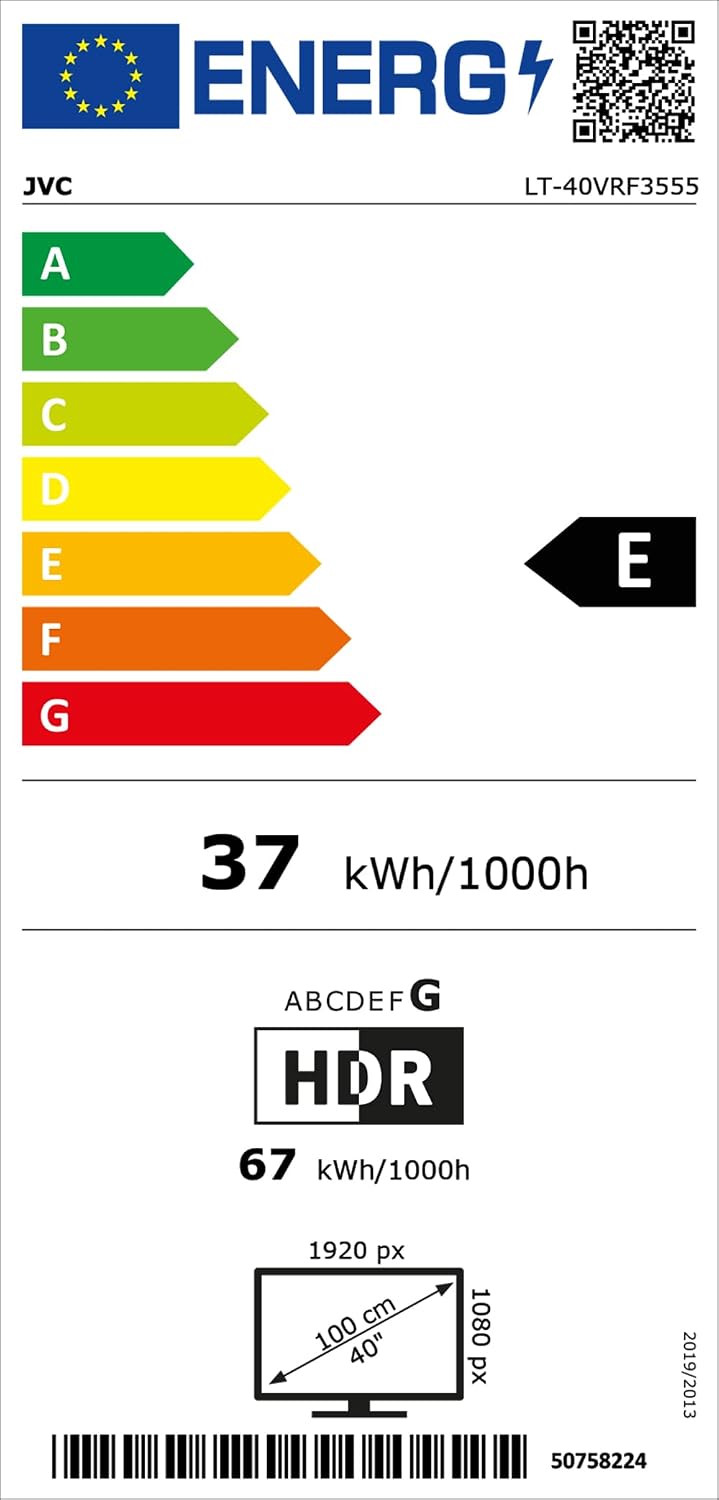
Image: EU Energy Label for the JVC LT-40VRF3555 TV, showing an energy efficiency class of E and an annual energy consumption of 37 kWh/1000h. The EPREL QR code is visible. For more details, refer to the EPREL database.
Warranty and Support
Your JVC LT-40VRF3555 TV comes with a Limited Warranty. Please refer to the warranty card included in the packaging for specific terms and conditions.
- Warranty Type: Limited
- EU Spare Part Availability: 7 Years
For technical support, troubleshooting assistance, or warranty claims, please contact JVC customer service. Contact information can typically be found on the JVC official website or in the warranty documentation.


