
Introduction
This manual provides detailed instructions for the setup, operation, maintenance, and troubleshooting of your Jiawu SmartWatch Fitness Tracker. Please read this manual carefully before using the device to ensure proper functionality and to maximize your user experience.
Package Contents
Upon unpacking, please verify that all items listed below are present and in good condition.
- Jiawu SmartWatch (with metal band installed)
- Silicone Band (pair)
- Charging Cable (USB)
- User Manual (this document)

Image: Contents of the Jiawu SmartWatch package, showing the smartwatch with a metal band, a pair of silicone bands, and the USB charging cable.
Setup
1. Initial Charging
Before first use, fully charge your smartwatch. Connect the magnetic charging cable to the charging points on the back of the watch and plug the USB end into a power adapter (not included) or a computer's USB port. A full charge takes approximately 2 hours.

Image: Close-up of the USB charging cable for the Jiawu SmartWatch.
2. Powering On
Press and hold the power button (usually located on the side of the watch) until the screen illuminates. The watch will display the startup sequence.
3. App Installation and Pairing
- Download the FitCloudPro application from your smartphone's app store (compatible with Android 5.0 and above, iOS 11.0 and above).
- Open the FitCloudPro app and create an account or log in.
- Enable Bluetooth on your smartphone.
- In the FitCloudPro app, navigate to the device pairing section and search for your Jiawu SmartWatch.
- Select your watch from the list of available devices to initiate the pairing process. Follow any on-screen prompts on both your phone and watch to confirm the connection.
Once paired, the watch will synchronize time, date, and other settings with your smartphone.
4. Band Installation/Adjustment
The smartwatch comes with a metal band pre-installed and an additional silicone band. To change or adjust the band, use the quick-release pins located on the underside of the band near the watch lugs. Ensure the band is securely attached before wearing.

Image: Detail of the metal band attachment to the smartwatch body.

Image: The included silicone band for the Jiawu SmartWatch.
Operating Instructions
1. Navigating the Interface
The Jiawu SmartWatch features a 1.46-inch TFT touch screen with a 360x360 resolution. Swipe left, right, up, or down to access different functions and menus. Press the side button to return to the home screen or wake the device.
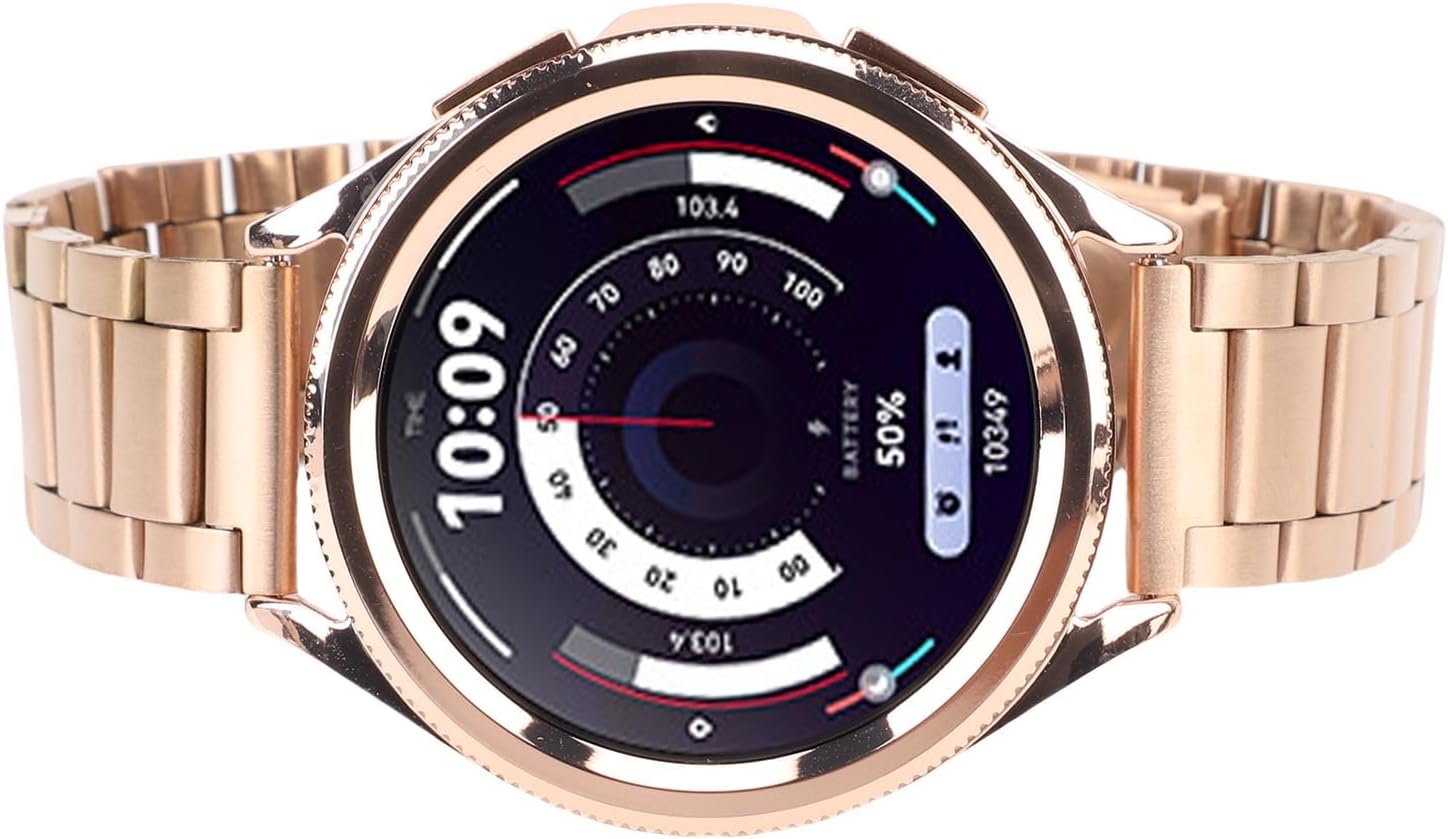
Image: The Jiawu SmartWatch display showing the current time, battery level, and activity data.
2. Customizing Watch Faces
You can personalize your watch face through the FitCloudPro app. Select from various pre-installed designs or upload your own images to customize the display to your preference.
3. Fitness Tracking (100+ Sports Modes)
The smartwatch supports over 100 sports modes. To start a workout:
- Swipe on the watch screen to find the "Workout" or "Sports" menu.
- Select your desired activity (e.g., running, cycling, swimming).
- Tap to start the tracking. The watch will record data such as steps, distance, calories burned, and heart rate.
- To end a workout, swipe or press the side button, then select "End" or "Pause".
All recorded data will synchronize with the FitCloudPro app for detailed analysis.
4. Call and Notification Management
Once paired with your smartphone, the smartwatch allows you to manage calls and receive notifications directly on your wrist.
- Incoming Calls: When a call comes in, the watch will display the caller ID. You can answer, reject, or end calls directly from the watch screen.
- Notifications: Receive alerts for messages, emails, and app notifications. Swipe down from the top of the watch face to view your notification history.

Image: A person wearing the Jiawu SmartWatch, displaying incoming notifications on the screen.

Image: A person interacting with the voice assistant feature on the Jiawu SmartWatch.
5. Sleep Monitoring
Wear the smartwatch while sleeping to track your sleep patterns. The watch automatically detects sleep duration and quality (deep sleep, light sleep, awake time). View detailed sleep reports in the FitCloudPro app to help improve your sleep habits.
Maintenance
1. Cleaning
- Wipe the watch screen and body with a soft, lint-free cloth.
- For stubborn stains, slightly dampen the cloth with water. Avoid using harsh chemicals or abrasive materials.
- Clean the charging contacts regularly to ensure efficient charging.
2. Water Resistance (IP67)
The Jiawu SmartWatch has an IP67 water resistance rating, meaning it is protected against dust and can withstand immersion in water up to 1 meter for up to 30 minutes. It is suitable for daily activities like hand washing, sweating during workouts, and rain. It is also suitable for swimming. However, it is not recommended for hot showers, saunas, or diving, as steam and high water pressure can compromise the seals.
3. Battery Care
- Avoid fully discharging the battery frequently.
- Store the watch in a cool, dry place when not in use for extended periods.
- Use only the provided charging cable.
Troubleshooting
| Problem | Possible Solution |
|---|---|
| Watch does not power on | Ensure the watch is fully charged. Press and hold the power button for at least 10-15 seconds. |
| Cannot pair with smartphone |
|
| Notifications not received |
|
| Inaccurate fitness data |
|
| Short battery life |
|
Specifications
| Model Number | Jiawu6wpv5q14ir |
| Display | 1.46 inch TFT, 360x360 resolution, Touch Screen |
| Main Control Chip | BT8959T5 |
| Flash Memory | 128 MB |
| Water Resistance Rating | IP67 |
| Battery Type | 260 mAh Lithium Battery |
| Charging Time | Approx. 2 hours |
| Usage Time | Up to 7 days |
| Standby Power Consumption | At least 70uA |
| Compatible Systems | Android 5.0 and above, iOS 11.0 and above |
| Application | FitCloudPro |
| Connectivity Technology | Bluetooth (implied by call function and app pairing) |
| Country of Origin | China |
Note: The specification "ethernet" for connectivity technology in some product listings appears to be an error in the source data. Smartwatches typically use Bluetooth for smartphone connectivity.
Warranty Information
This Jiawu SmartWatch comes with a 2-year manufacturer's warranty. This warranty covers defects in materials and workmanship under normal use. It does not cover damage caused by misuse, accidents, unauthorized modifications, or failure to follow the instructions in this manual. Please retain your proof of purchase for warranty claims.
Support
If you encounter any issues not covered in the troubleshooting section or require further assistance, please contact Jiawu customer support. Refer to the product packaging or the official Jiawu website for contact details.
For the latest updates and FAQs, visit the FitCloudPro app's support section or the manufacturer's website.