Introduction
This manual provides detailed instructions for the W&O Digital Camera Q5. Designed for ease of use, this camera features a CCD sensor, 180° flip screen, 64MP photo resolution, and 4K video capabilities, making it suitable for various photography and vlogging needs. Please read this manual thoroughly to ensure proper operation and to maximize your camera's potential.
What's in the Box
Verify that all items are present in the package:
- 1x W&O Digital Camera Q5
- 1x 32GB Memory Card
- 1x Type C Cable
- 1x USB Adapter
- 1x User's Manual (this document)
- 1x Camera Strap

The image above displays the W&O Digital Camera Q5 along with its standard accessories, including the 32GB memory card, Type C cable, USB adapter, and camera strap.
Setup
1. Battery Installation and Charging
The camera uses rechargeable Lithium Polymer batteries. Insert the battery into the designated compartment, ensuring correct polarity. Connect the camera to the USB adapter using the provided Type C cable to charge the battery. The charging indicator light will show the charging status.
2. SD Card Installation
Locate the SD card slot, typically on the side or bottom of the camera. Insert the included 32GB SD card until it clicks into place. The camera supports up to 128GB external memory. Ensure the card is inserted correctly to avoid damage.

This image shows the W&O Digital Camera Q5 in orange, highlighting its compact design and the included 32GB SD card, which is essential for storing photos and videos.
Operating the Camera
1. Power On/Off
Press and hold the power button to turn the camera on or off. The display screen will illuminate upon activation.
2. Taking Photos and Recording Videos
To take a photo, press the shutter button located on the top of the camera. To record a video, switch to video mode (if applicable) and press the record button. Press again to stop recording.
3. 180° Flip Screen and Fill Light
The camera features a 180° flip screen, allowing you to view yourself while taking selfies or vlogging. Simply flip the screen upwards to activate this function. The built-in LED fill light can be activated to provide additional illumination for brighter photos and videos, especially in low-light conditions.

This image illustrates the camera's 180° flip screen and integrated ring light, ideal for self-portraits and video calls. It also shows the camera connected to a laptop, functioning as a webcam.
4. Digital Zoom
Utilize the 16x digital zoom function to magnify your subject. Adjust the zoom using the dedicated zoom controls, typically a rocker switch near the shutter button.

The image demonstrates the camera's rotatable manual zoom, showing different levels of magnification (16x, 8x, 4x) on a distant subject.
5. Beauty Mode and AI Autofocus
Activate the built-in beauty mode to enhance portraits and selfies. The camera's AI autofocus system automatically detects and focuses on subjects, ensuring sharp and clear images, even with moving subjects.

This image illustrates the effect of the AI Beauty mode, showing a comparison of a portrait with and without the enhancement, alongside the camera's 4K Ultra HD capability.
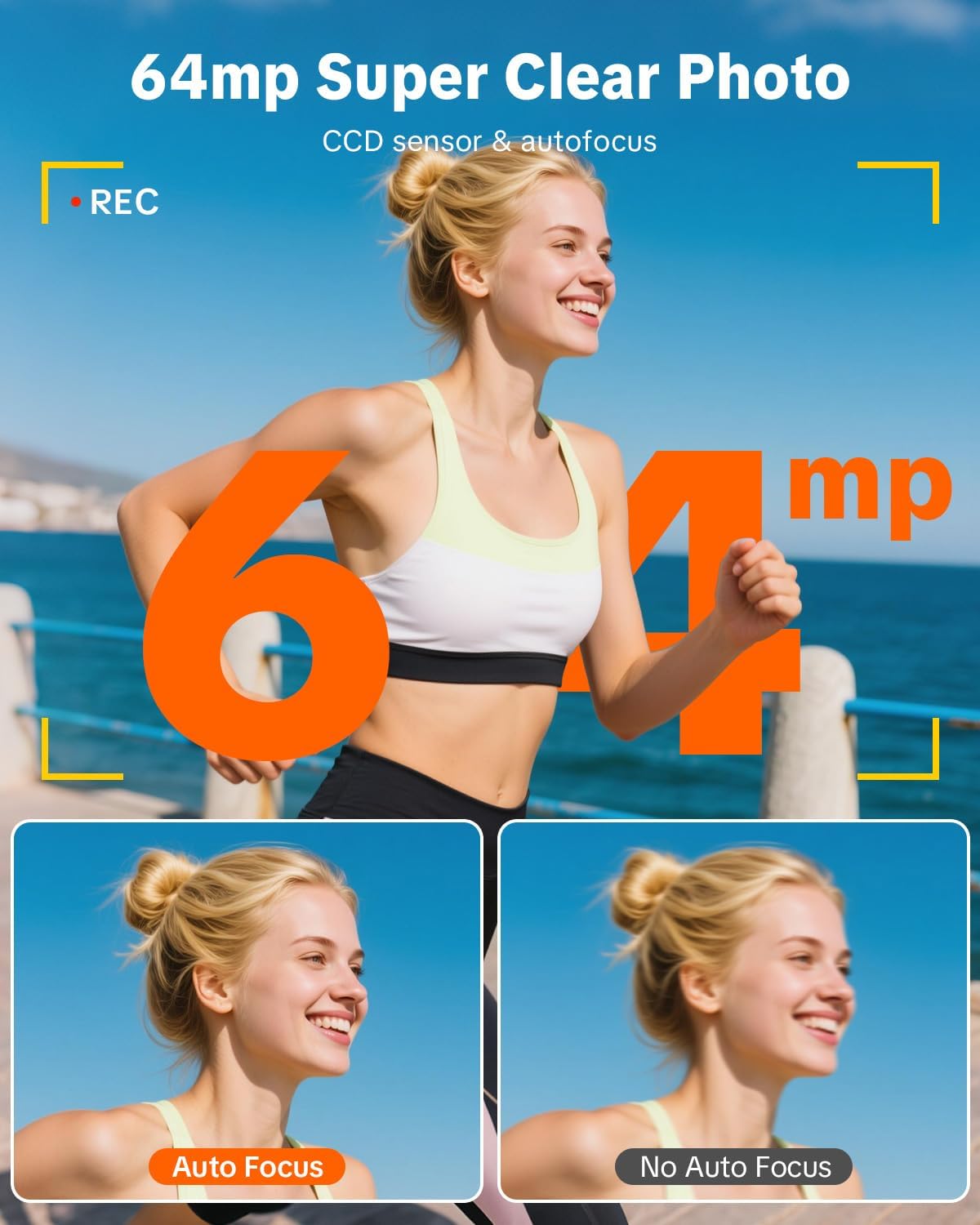
The image highlights the 64MP photo capability and the effectiveness of the autofocus feature, comparing a sharp image with autofocus to a blurred one without it.
6. Webcam Functionality
Connect the camera to a computer via the Type C cable to use it as a webcam for live streaming or video calls. Ensure the camera is in the correct mode for webcam use, as indicated in the camera's menu.
Official Product Videos
W&O Digital Camera for Photography
This video demonstrates various features and uses of the W&O Digital Camera, showcasing its capabilities for general photography.
Digital Camera for Kids
This video highlights the W&O Digital Camera's suitability and ease of use for younger users, demonstrating its features in a child-friendly context.
Specifications
| Feature | Detail |
|---|---|
| Brand | W & O |
| Model Name | Q5 |
| Model Number | Q5 |
| Photo Sensor Technology | CCD |
| Effective Still Resolution | 64 MP |
| Total Still Resolution | 64 MP |
| Video Resolution | 3840p (4K) |
| Digital Zoom | 16 x |
| Screen Size | 3 Inches |
| Display Fixture Type | Articulating (180° Flip Screen) |
| Memory Storage Capacity | 32 GB (included) |
| Flash Memory Supported Size Maximum | 128 GB |
| Connectivity Technology | USB (Type C) |
| Auto Focus Technology | Autofocus (AI High-Speed) |
| Image Stabilization | Digital |
| Special Features | 180° Flip Screen, LED Fill Light, Beauty Face, Webcam Function, Anti-Shake, Time Lapse, Slow Motion, Selfie, Continuous Shooting, Self-Timer, Smile Detection |
| Battery Type | Lithium Polymer |
| UPC | 739503699779 |
Maintenance
1. Cleaning the Camera
Use a soft, dry cloth to clean the camera body. For the lens and screen, use a specialized lens cleaning cloth and solution to avoid scratches. Do not use harsh chemicals or abrasive materials.
2. Storage
Store the camera in a cool, dry place away from direct sunlight and extreme temperatures. If storing for an extended period, remove the battery to prevent leakage.
3. Battery Care
To prolong battery life, avoid fully discharging the battery frequently. Charge the battery regularly, even if the camera is not in use, to maintain its capacity.
Troubleshooting
Camera Not Turning On
- Ensure the battery is fully charged.
- Check if the battery is inserted correctly.
- Try using a different charged battery if available.
Poor Image Quality
- Clean the camera lens for smudges or dust.
- Ensure sufficient lighting for your subject.
- Check camera settings for resolution and focus.
Memory Card Error
- Reinsert the SD card.
- Ensure the SD card is not locked (check the small switch on the side of the card).
- Try formatting the SD card (this will erase all data).
- Test with a different compatible SD card.
Warranty and Support
The W&O Digital Camera Q5 comes with a 1.5-year manufacturer's warranty. This warranty covers defects in materials and workmanship under normal use.
For technical support, warranty claims, or any other inquiries, please contact the seller or manufacturer directly. Refer to your purchase documentation for specific contact details.


