
1. Introduction
The Gemmac Stargate Projection Lamp is a versatile device combining multiple functions: aurora projection, interactive plasma ball, Bluetooth speaker, white noise generator, digital clock, and alarm clock. This manual provides instructions for safe and effective use of your device.
2. Package Contents
Please verify that all items listed below are included in your package:
- Stargate Projection Lamp Unit
- Remote Control
- Power Cable
- User Manual
- Astronaut Figure
- Alien Figure

Image: The Stargate Projection Lamp, its remote control, and the included user manual.
3. Product Overview
The Gemmac Stargate Projection Lamp features a central interactive plasma ball, a digital time display, and a projection lens for aurora effects. It includes a base designed to hold the decorative astronaut and alien figures. The unit can be controlled using its built-in buttons or the provided remote control.
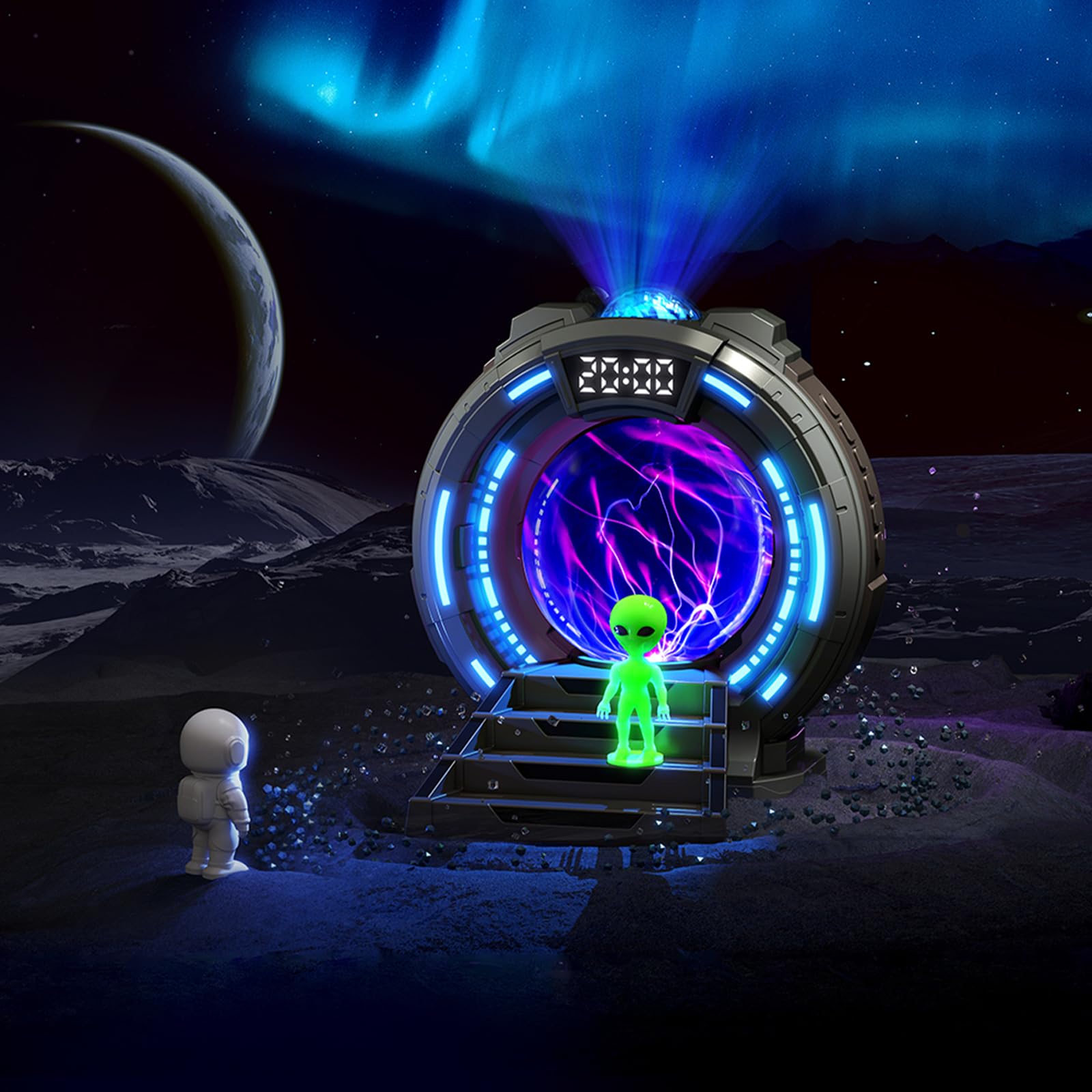
Image: Front view of the Stargate Projection Lamp, showcasing its design and included figures.

Image: Detailed dimensions of the Stargate Projection Lamp and its remote control for reference.
4. Setup
- Unpacking: Carefully remove all components from the packaging. Retain packaging for future storage or transport.
- Placement: Place the lamp on a stable, flat surface. For optimal projection, ensure there is a clear ceiling or wall space above or in front of the device.
- Power Connection: Connect the provided power cable to the lamp's power input port. Then, connect the other end of the power cable to a suitable USB power adapter (not included) and plug it into a wall outlet. The lamp requires continuous power to operate.
- Figure Placement: Position the astronaut and alien figures on the designated steps in front of the plasma ball for decorative display.
5. Operating Instructions
5.1 Power On/Off
Use the power button on the unit or the remote control to turn the lamp on or off.
5.2 Aurora Projection
- Press the "Projection" button on the remote to activate the aurora effect.
- Cycle through 8 different color options using the color selection buttons on the remote.
- Adjust brightness with the brightness control buttons (5 levels available).
- The aurora creates a dynamic, flowing light effect on walls and ceilings.

Image: Visual representation of the 8 available aurora light colors.

Image: Diagram showing the 5 adjustable brightness levels from 15% to 100%.
5.3 Plasma Ball
The central plasma ball activates automatically when the lamp is on. Touch the glass surface of the plasma ball to interact with the light streams, creating dynamic electrical patterns.

Image: The plasma ball in action, displaying its interactive light streams.

Image: A hand interacting with the plasma ball, showing how the light reacts to touch.
5.4 Bluetooth Speaker Function
- Activate Bluetooth mode on the lamp (refer to the unit's controls or remote for specific button).
- On your mobile device or computer, search for "Gemmac Stargate Lamp" (or a similar name) in your Bluetooth settings and pair.
- Once paired, play audio from your device; sound will output through the lamp's speaker.
- Adjust volume using the remote control or your connected device.

Image: The lamp's Bluetooth speaker function, indicating wireless audio playback.
5.5 White Noise Function
- Press the "White Noise" button on the remote to activate this feature.
- Cycle through 8 different white noise sounds (e.g., rain, birdsong, wind, campfire, stream, cicadas, ocean waves, frog croaks) to aid relaxation or sleep.

Image: Examples of the 8 white noise sounds available for relaxation and sleep.
5.6 Alarm Clock and Time Display
The digital display shows the current time. Refer to the specific instructions in the included paper manual for detailed steps on setting the time and up to two alarms.
5.7 Remote Control Usage
The remote control allows adjustment of light modes, colors, brightness, volume, music playback, white noise selection, and timer settings. Ensure the remote has working batteries and is pointed towards the lamp's sensor for optimal functionality.
6. Maintenance
- Cleaning: Use a soft, dry cloth to clean the exterior of the lamp. Do not use liquid cleaners, solvents, or abrasive materials, as these may damage the surface or internal components.
- Storage: When not in use for extended periods, store the lamp in a cool, dry place, away from direct sunlight and moisture.
- Handling: Avoid dropping or subjecting the device to strong impacts. Do not attempt to open or repair the unit yourself, as this will void the warranty and may cause damage or injury.
7. Troubleshooting
- No Power:
- Ensure the power cable is securely connected to both the lamp and a functional power outlet.
- Verify the USB power adapter (if external) is working correctly.
- No Projection:
- Check if the projection feature is activated via the remote or unit buttons.
- Ensure the projection lens is not obstructed.
- Bluetooth Pairing Issues:
- Make sure the lamp is in Bluetooth pairing mode.
- Ensure your device's Bluetooth is enabled and within range.
- Try restarting both the lamp and your Bluetooth device.
- Poor Speaker Sound Quality:
- The speaker is designed for ambient audio. For high-fidelity sound, external speakers may be preferred.
- Ensure the volume on both the lamp and your connected device is adjusted appropriately.
- Remote Control Not Working:
- Check and replace the remote control batteries if necessary.
- Ensure there are no obstructions between the remote and the lamp's sensor.
8. Specifications
| Feature | Detail |
|---|---|
| Model Number | TSD-CSM-003 |
| Brand | Gemmac |
| Product Dimensions | 10.8D x 10W x 14.2H centimetres |
| Item Weight | 0.25 Kilograms |
| Material | Acrylonitrile Butadiene Styrene |
| Lamp Type | Night Light |
| Bulb Type | LED |
| Wattage | 5 watts |
| Connectivity Protocol | Bluetooth |
| Power Source | Corded Electric |
| Switch Type | Remote |
| Indoor/Outdoor Usage | Indoor |
9. Warranty and Support
This product comes with a standard manufacturer's warranty. Please refer to the product packaging or the official Gemmac website for specific warranty terms and conditions. For technical support, troubleshooting assistance, or any inquiries regarding your Gemmac Stargate Projection Lamp, please contact Gemmac customer service through their official channels.
Note: The provided product data did not include specific video URLs for embedding. Therefore, no videos are included in this manual.