
1. Introduction
This manual provides detailed instructions for the installation, operation, and maintenance of your CENMATE 4-Bay RAID Enclosure. This device is designed to provide a reliable external storage system for individuals and enterprises, supporting both 2.5-inch and 3.5-inch SATA HDDs and SSDs with a maximum capacity of up to 80TB (20TB per hard drive).
Package Contents:
- CENMATE 4-Bay RAID Enclosure
- USB A/C 3.0 Cable
- Power Adapter
- User Manual (this document)
2. Setup and Installation
Follow these steps to install your hard drives and connect the enclosure to your computer.
2.1. 3.5" HDD Installation
- Remove the blue clasps from the sides of the drive tray.
- Gently place the 3.5" HDD into the drive tray. Snap the carabiner pins on the blue clasps into the side screw holes of the 3.5" HDD.
- Slide the loaded drive tray into an available bay in the enclosure until it clicks securely into place.

Image: Illustration of 3.5" HDD installation into the drive tray, showing the blue clasps securing the drive.
Video: A demonstration of installing a 3.5-inch HDD into the enclosure's drive bay. This video also shows the overall product features and connectivity.
2.2. 2.5" HDD/SSD Installation
- Remove the blue clasps from the sides of the drive tray.
- Place the 2.5" HDD/SSD into the drive tray.
- Use the provided screws to secure the 2.5" HDD/SSD to the drive tray through the corresponding holes.
- Slide the loaded drive tray into an available bay in the enclosure until it clicks securely into place.
2.3. Connecting the Enclosure
- Ensure all hard drives are securely installed in their bays.
- Connect the power adapter to the enclosure's DC 12V port and then to a power outlet.
- Connect the USB A/C 3.0 cable from the enclosure's USB 3.0 port to an available USB port on your computer.
- Turn on the enclosure using the ON/OFF switch located at the rear.

Image: Rear view of the enclosure showing the DC 12V power input and USB 3.0 port connected to a laptop, ensuring stable power supply and data transfer.
3. Operating Modes (RAID Configuration)
This enclosure supports four RAID modes: Normal, JBOD, RAID 0, and RAID 1. The product consists of two 2-bay RAID units combined into a single 4-bay unit, allowing for independent RAID configurations for HDD 1/2 and HDD 3/4. Note: Designing RAID may result in data loss. Always back up important data before changing RAID modes.
To change RAID modes, use the DIP switches located at the rear of the enclosure. After setting the switches, press and hold the "Reset" button for 5 seconds to apply the new RAID array configuration. For MAC OS, RAID software is not provided.
RAID Mode Settings:
- Normal Mode:
(Switch 1 & 2 are down) Each hard disk functions independently. Data is transferred individually to each drive. This mode offers no performance or redundancy benefits.
- JBOD Mode (Spanning):
(Switch 1 down & Switch 2 up) Joins both hard drives' capacities to provide a single large volume. There is no performance improvement or data redundancy in this mode.
- RAID 0 Mode (Stripping):
(Switch 1 up & Switch 2 down) Provides the best performance by combining both drives for read/write operations. Data is striped across both drives, increasing speed but offering no redundancy. If one drive fails, all data is lost.
- RAID 1 Mode (Mirroring):
(Switch 1 & 2 are up) Provides RAID 1 protection against HDD failure. Data is mirrored across both drives, meaning both drives contain identical data. This offers redundancy but reduces usable capacity by half. If one drive fails, data can be recovered from the other.
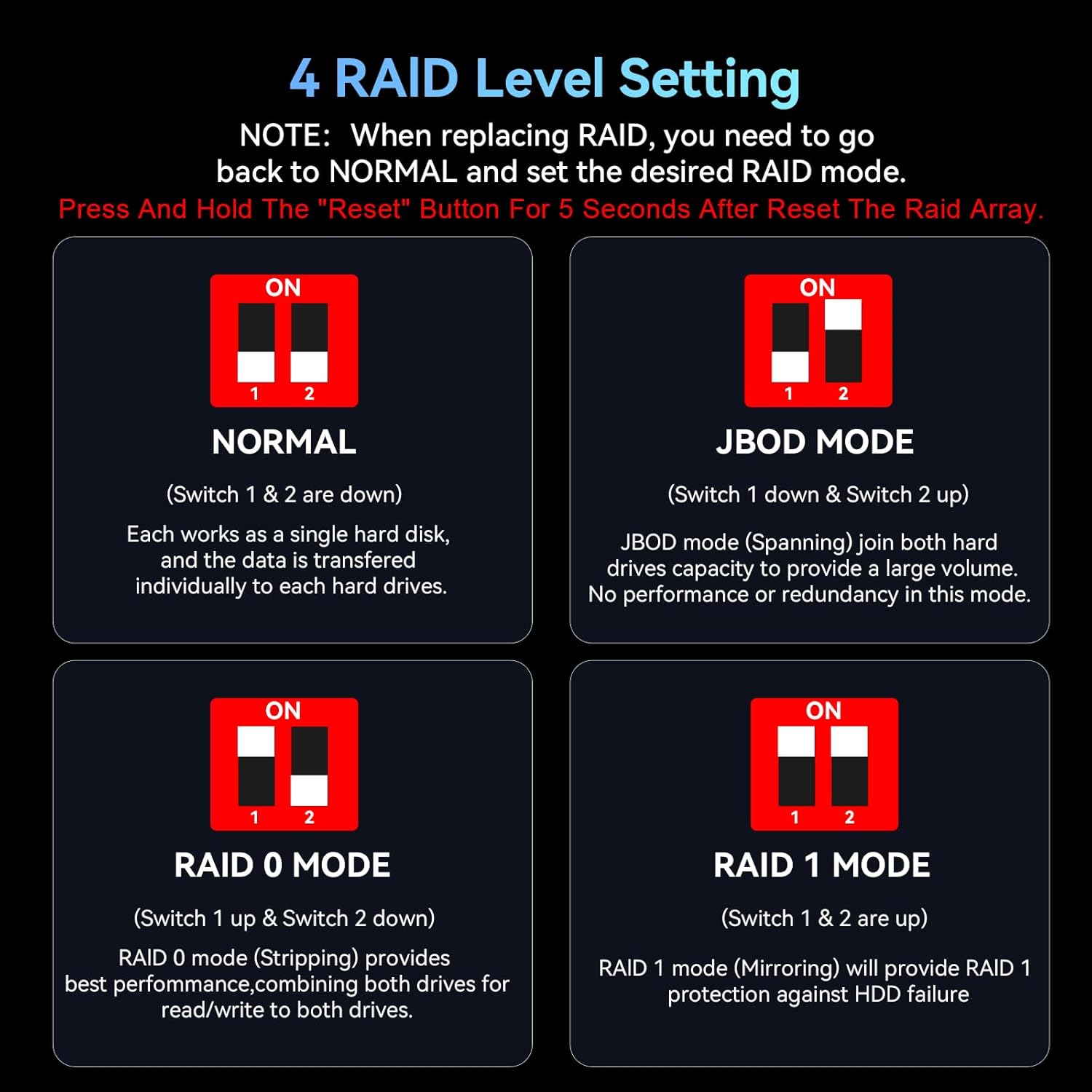
Image: Visual guide for setting the 4 RAID levels using DIP switches, including instructions to reset after changes.
Data Transfer:
The enclosure is equipped with a JMS561 chip and a USB 3.0 output interface, supporting data transfer speeds of up to 5Gbps under UASP control. This allows for efficient transfer of large files.

Image: Visual representation of the enclosure's capability to transfer data at speeds up to 5Gbps.
4. Maintenance and Features
Cooling System:
The 4-bay hard drive enclosure features an aluminum-alloy construction and a built-in cooling fan to maximize data security by dissipating heat. Note: The fan noise is approximately 40-50 decibels. If you are highly sensitive to noise, this product may not be recommended for quiet environments.

Image: Cutaway view highlighting the internal cooling fan and aluminum housing for heat dissipation.
Anti-slip Design:
The enclosure is equipped with silicone anti-skid pads to prevent accidental movement and protect the unit from damage.

Image: Detail of the enclosure's non-slip feet and tool-free design for 3.5-inch drives.
LED Indicators:
- Blue: Always on means standby mode.
- Red: Flashing means reading and writing data.
- Purple: Indicates a hard drive problem.
5. Troubleshooting and Compatibility
Compatibility:
The CENMATE 4-Bay RAID Enclosure is plug-and-play compatible with Windows 7 and above, Mac OS 9.1 and above, and Linux operating systems.

Image: Visual representation of the enclosure's compatibility with laptops, PCs, and operating systems including Windows, Mac OS, and Linux.
Common Issues:
- Drives Not Recognized: Ensure all drives are properly seated in their bays. Verify the USB cable is securely connected to both the enclosure and the computer. Check the power adapter connection. If changing RAID modes, ensure you have pressed and held the "Reset" button for 5 seconds after setting the DIP switches.
- Data Loss After RAID Change: As noted, changing RAID modes can lead to data loss. Always back up your data before reconfiguring RAID.
- Fan Noise: The built-in fan operates at 40-50 decibels. This is normal operation. If the noise is excessive or unusual, ensure the enclosure is placed on a stable surface and that the fan vents are not obstructed.
- Slow Transfer Speeds: Ensure you are using a USB 3.0 port on your computer for optimal speeds. Older USB 2.0 ports will result in significantly slower transfers.
6. Specifications
| Feature | Detail |
|---|---|
| Brand | CENMATE |
| Model Number | 4 Bay RAID |
| Material | Aluminum |
| Compatible Devices | Desktop, Laptop |
| Hard Disk Form Factor | 2.5 Inches, 3.5 Inches |
| Max Number of Supported Devices | 4 |
| Memory Storage Capacity | Up to 80 TB (20TB per drive) |
| Data Transfer Rate | 5 Gigabits Per Second (USB 3.0) |
| Hardware Interface | USB 3.0 |
| Hardware Platform | Windows, MAC, Linux |
| Product Dimensions | 7.95"L x 5.2"W x 5.75"H |
| Item Weight | 3.01 pounds (1.37 Kilograms) |
7. Warranty and Support
CENMATE provides technical support for this product. If you have any questions or encounter issues, please do not hesitate to contact CENMATE customer service. They aim to reply and resolve your problem within 24 hours.
For contact information, please refer to the CENMATE official website or the contact details provided with your purchase.


