
1. Introduction
This manual provides detailed instructions for the installation, operation, and maintenance of your CP PLUS CP-E21Q 2MP Smart Wi-Fi CCTV Camera. This indoor camera offers Full HD 1080p resolution, 360° pan and tilt functionality, advanced smart detection features, and secure cloud recording, designed to enhance your home security.
Key Features:
- 2MP Full HD Resolution: Provides clear 1080p video with H.265 compression for efficient storage.
- 360° Pan & 71° Tilt: Ensures comprehensive area coverage without blind spots.
- 15M IR Night Vision: Delivers clear video monitoring in low-light or dark conditions.
- Smart Detection Suite: Includes motion detection, human body detection, sound detection, motion tracking, and a built-in siren for instant alerts.
- Two-Way Audio: Enables communication through the camera via the View & Talk feature.
- Cloud Recording: Offers secure and accessible video storage.
- CTC Cyber Secure Tech: Ensures advanced data privacy and security.
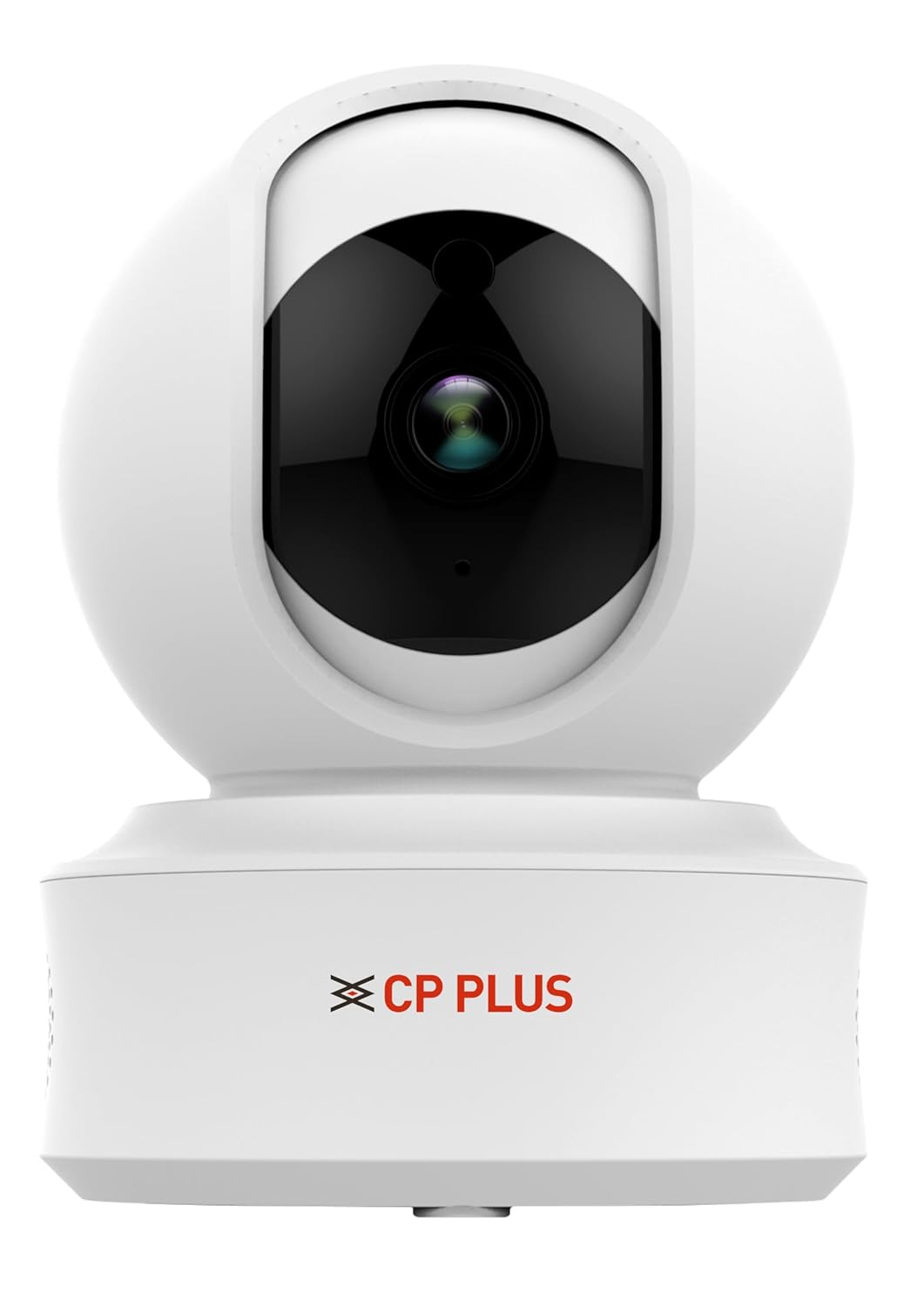
Figure 1: CP PLUS CP-E21Q Smart Wi-Fi CCTV Camera
2. Package Contents
Verify that all items listed below are included in your package:
- CP PLUS CP-E21Q Camera
- Power Adapter
- Charging Cable
- Stand
- Mounting Screw Set
3. Setup and Installation
3.1 Physical Installation
The CP-E21Q camera is designed for indoor use and can be placed on a tabletop or mounted on a ceiling using the provided stand and mounting screws.
- Choose a Location: Select an indoor location that provides the desired viewing angle and is within range of your Wi-Fi network.
- Tabletop Placement: Simply place the camera on a flat, stable surface.
- Ceiling Mounting:
- Attach the stand to the camera.
- Mark the screw positions on the ceiling using the stand as a template.
- Drill pilot holes and insert the mounting screws to secure the stand to the ceiling.
- Ensure the camera is securely fastened and oriented correctly.

Figure 2: Front view of the camera
3.2 Power Connection
Connect the camera to a power source using the provided power adapter and charging cable.
- Insert the small end of the charging cable into the power port on the camera.
- Plug the power adapter into a standard electrical outlet.
- The camera will power on, and an indicator light will show its status.

Figure 3: Back view of the camera showing power port
3.3 Network Connection (Wi-Fi)
To connect your camera to your home Wi-Fi network, you will need the CP PLUS mobile application.
- Download the App: Search for the official CP PLUS app on your smartphone's app store (iOS or Android) and install it.
- Create an Account: Open the app and follow the on-screen instructions to create a new user account or log in if you already have one.
- Add Device: Tap the '+' icon or 'Add Device' option in the app.
- Select Camera Type: Choose the appropriate camera model (CP-E21Q) or scan the QR code on the camera if available.
- Follow In-App Instructions: The app will guide you through connecting the camera to your Wi-Fi network. This typically involves entering your Wi-Fi password and allowing the camera to scan a QR code displayed on your phone screen.
- Confirmation: Once connected, the camera's indicator light will change, and the app will confirm successful pairing.
3.4 MicroSD Card Installation (Optional)
For local video storage, you can install a MicroSD card (up to 256GB).
- Locate the MicroSD card slot on the camera (refer to the camera's physical design for exact placement, often under the lens or on the side).
- Gently insert the MicroSD card into the slot until it clicks into place.
- Format the MicroSD card through the camera settings in the mobile app for optimal performance.
4. Operating the Camera
Access and control your CP-E21Q camera using the CP PLUS mobile application.
4.1 Live View and Pan/Tilt Control
Open the app and select your camera to view the live feed. Use the on-screen controls to remotely pan (rotate horizontally 360°) and tilt (rotate vertically 71°) the camera lens to monitor different areas.

Figure 4: Camera demonstrating pan and tilt capabilities

Figure 5: Example of 360° view coverage
4.2 Two-Way Audio (View & Talk)
The camera features a built-in microphone and speaker. Tap the microphone icon in the app to speak through the camera, and listen to audio from the camera's location.

Figure 6: Two-Way Communication via the app
4.3 Smart Detection Suite
Configure various detection settings in the app to receive alerts for specific events:
- Motion Detection: Detects general movement within the camera's field of view.
- Human Body Detection: Specifically identifies human shapes, reducing false alarms.
- Sound Detection: Triggers alerts based on detected sounds.
- Motion Tracking: The camera automatically follows detected movement.
- Built-in Siren: Can be activated manually or automatically upon detection to deter intruders.
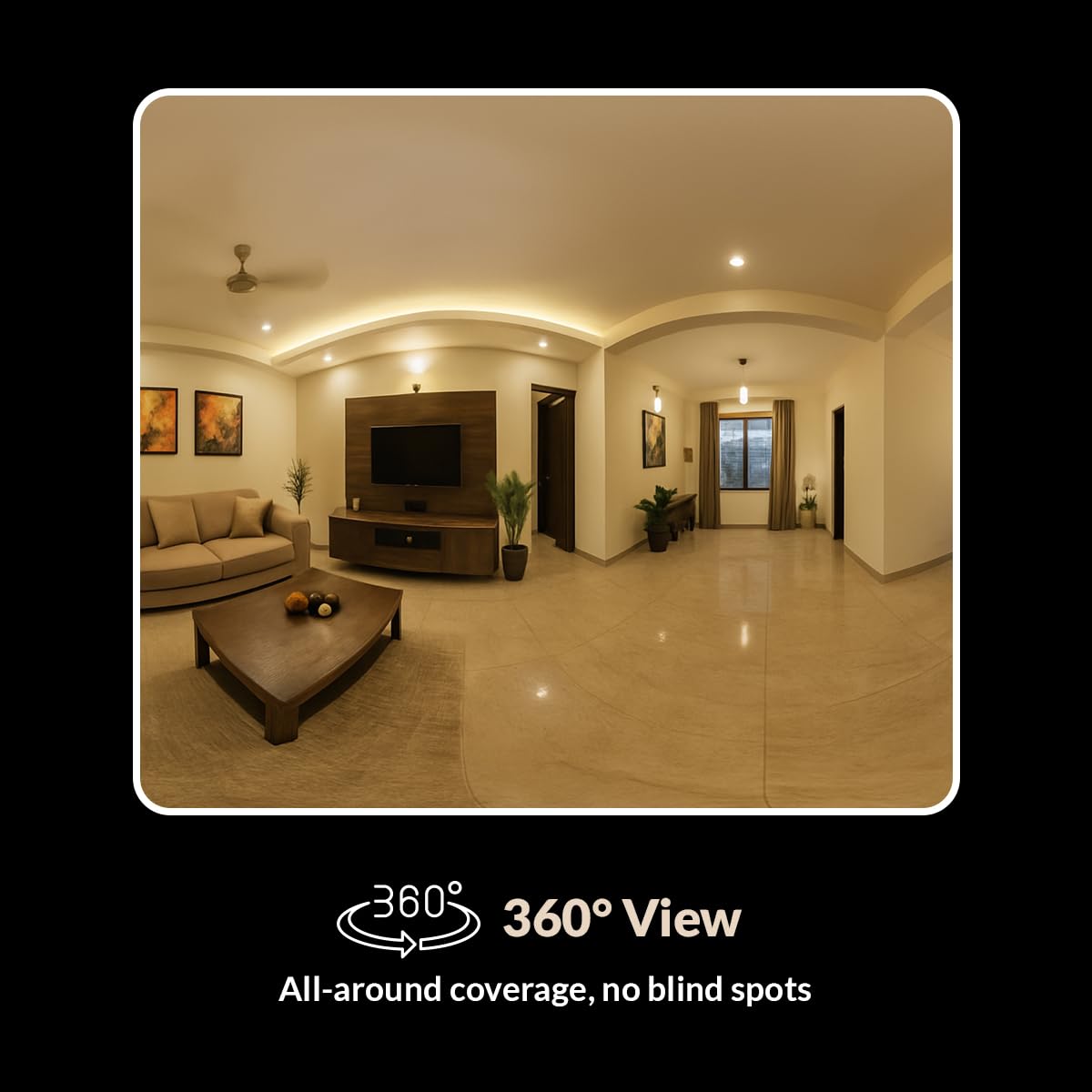
Figure 7: Smart Detection Suite capabilities
4.4 Night Vision
The camera automatically switches to infrared (IR) night vision in low-light conditions, providing clear black-and-white video up to 15 meters.
4.5 Cloud Recording and Local Storage
Recordings can be stored in two ways:
- Cloud Recording: Subscribe to CP PLUS cloud services for secure, remote access to your video history.
- Local Storage: Videos are saved to an installed MicroSD card (up to 256GB). Manage recordings and playback through the app.

Figure 8: Cloud Recording for secure access
4.6 Privacy Mode
Activate Privacy Mode via the app to temporarily disable video recording and live viewing when privacy is desired.
5. Maintenance
5.1 Cleaning
To maintain optimal performance, periodically clean the camera lens and exterior.
- Ensure the camera is powered off before cleaning.
- Use a soft, dry cloth to wipe the camera body.
- For the lens, use a lens cleaning cloth and a specialized lens cleaning solution to avoid scratches.
- Do not use harsh chemicals or abrasive cleaners.
5.2 Firmware Updates
Regularly check the CP PLUS app for available firmware updates. Updates often include performance improvements, new features, and security enhancements. Follow the in-app instructions to perform firmware updates.
6. Troubleshooting
If you encounter issues with your CP-E21Q camera, refer to the following common problems and solutions:
| Problem | Possible Solution |
|---|---|
| Camera not connecting to Wi-Fi |
|
| Poor video quality or blurry images |
|
| Motion detection alerts are inconsistent |
|
| Two-way audio issues (echo, low volume) |
|
| Camera frequently goes offline or glitches during live view |
|
7. Specifications
| Feature | Detail |
|---|---|
| Model Name | CP-E21Q (Ezykam) |
| Video Capture Resolution | 1080p (Full HD) |
| Connectivity Technology | Wireless (Wi-Fi) |
| Connectivity Protocol | Wi-Fi (2.4GHz) |
| Special Features | 2 Way Audio, HD Resolution, Motion Sensor, Night Vision, Pan & Tilt |
| Indoor/Outdoor Usage | Indoor |
| Power Source | Corded Electric |
| Mounting Type | Tabletop Mount |
| Product Dimensions (LxWxH) | 7.7 x 7.7 x 10.7 cm |
| Item Weight | 176 g |
| MicroSD Card Support | Up to 256GB |
8. Warranty and Support
Your CP PLUS CP-E21Q camera is manufactured by AIL DIXON Technologies and imported by Aditya Infotech Ltd. For specific warranty terms and conditions, please refer to the warranty card included with your product or visit the official CP PLUS website.
For technical assistance, troubleshooting beyond this manual, or warranty claims, please contact CP PLUS customer support. Contact details can typically be found on the product packaging, the official CP PLUS website, or within the mobile application.


