
Introduction
This manual provides essential information for setting up, operating, maintaining, and troubleshooting your HP Victus 15 Gaming Laptop. Please read these instructions carefully to ensure optimal performance and longevity of your device.
Product Overview
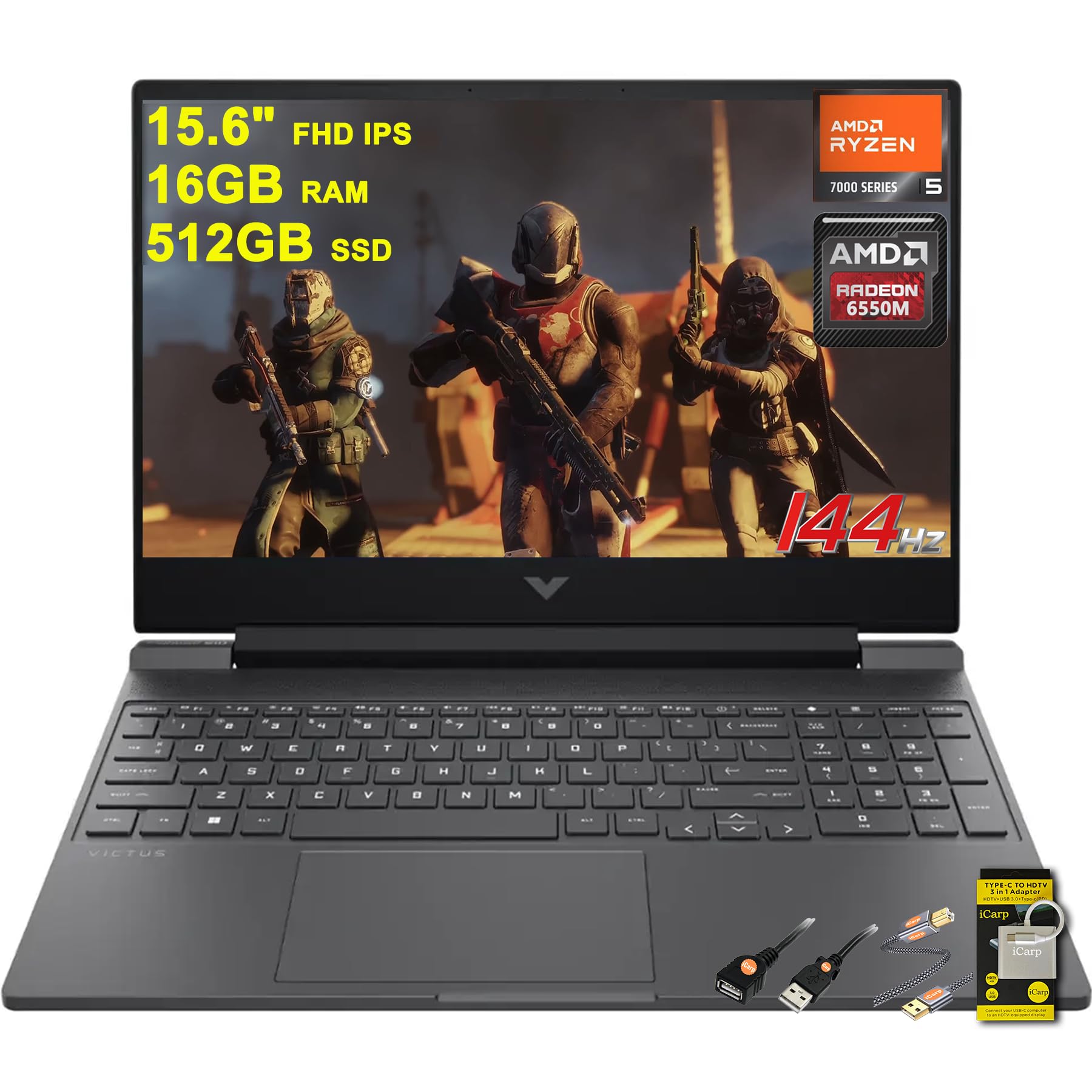
Figure 1: HP Victus 15 Gaming Laptop, showcasing its sleek design and vibrant display.
Key Features
- Processor: Equipped with the powerful AMD Hexa-Core Ryzen 5 7535HS Processor.
- Memory: 16GB DDR5 RAM for smooth multitasking.
- Storage: 512GB SSD for fast boot times and ample storage.
- Display: 15.6" FHD (1920x1080) IPS 144Hz Anti-glare display with AMD FreeSync Premium.
- Graphics: Dedicated AMD Radeon RX 6550M Graphic.
- Operating System: Microsoft Windows 11 Home.
- Keyboard: Backlit Keyboard for enhanced visibility in low-light conditions.
- Audio: DTS:X Ultra for immersive sound.
- Connectivity: Multiple ports including SuperSpeed USB-C, SuperSpeed USB-A, HDMI 2.1, Ethernet RJ45, and Multi-format SD Media Card Reader.
- Charging: Fast Charge capability.
Detailed Specifications
| Feature | Specification |
|---|---|
| Standing screen display size | 15.6 Inches |
| Screen Resolution | 1920 x 1080 pixels |
| Max Screen Resolution | 1920x1080 |
| Processor | 3.3 GHz Ryzen 5 7535HS |
| RAM | 16 GB DDR5 |
| Hard Drive | 512 GB SSD |
| Graphics Coprocessor | AMD Radeon RX 6550M |
| Graphics Card Ram Size | 4 GB |
| Operating System | Windows 11 Home |
| Item Weight | 5.06 pounds |
| Product Dimensions | 10.04 x 14.09 x 0.93 inches |
| Color | Black |
What's in the Box
- HP Victus 15 Gaming Laptop
- Charger
- USB-C Hub
- USB Extension
- Printer Cable
Setup
- Unpack the Laptop: Carefully remove the laptop and all accessories from the packaging.
- Connect Power: Plug the charger into the laptop's power port and then into a wall outlet.
- Initial Boot: Open the laptop lid and press the power button. The laptop will guide you through the initial Windows 11 setup process. Follow the on-screen instructions to configure your language, region, network, and user account.
- Connect Peripherals: Connect any external devices such as a mouse, keyboard, or external monitor using the available USB or HDMI ports.
- Software Updates: Once Windows is set up, connect to the internet and check for any available system and driver updates to ensure optimal performance and security.
Operating Instructions

Figure 2: HP Victus 15 Gaming Laptop, open view.
Display and Graphics
The HP Victus 15 features a 15.6-inch Full HD (1920x1080) IPS display with a 144Hz refresh rate and AMD FreeSync Premium technology. This combination provides smooth visuals and reduces screen tearing, crucial for an immersive gaming experience. The dedicated AMD Radeon RX 6550M graphics card handles demanding games and applications with efficiency.
Processor and Memory
Powered by an AMD Hexa-core Ryzen 5 7535HS processor and 16GB of DDR5 RAM, the laptop delivers robust performance for gaming, multitasking, and content creation. The 512GB SSD ensures quick application loading and system responsiveness.
Keyboard and Touchpad
The full-size backlit keyboard offers comfortable typing and gaming, even in dimly lit environments. The integrated touchpad supports multi-touch gestures for intuitive navigation.
Ports and Connectivity
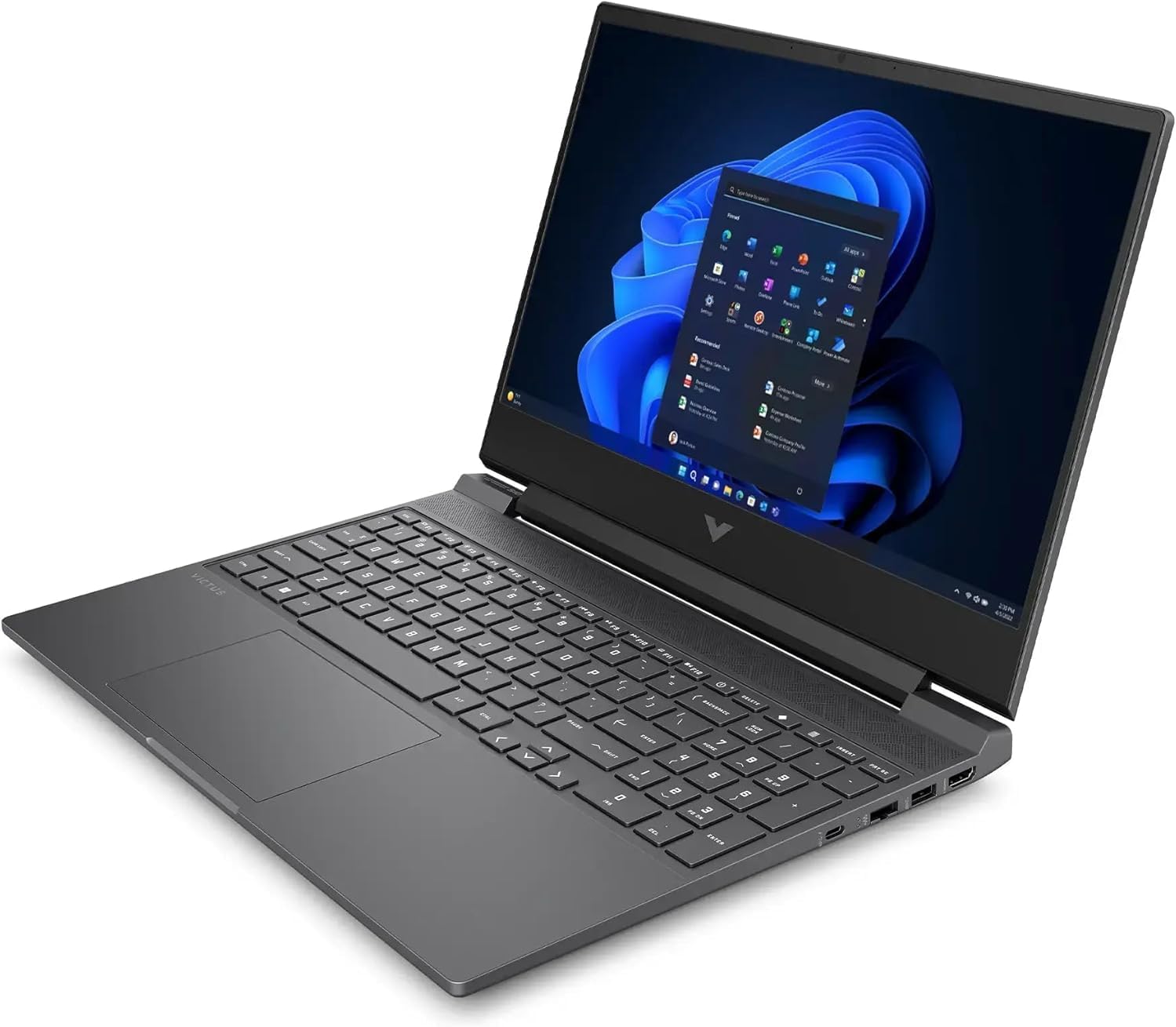
Figure 3: Side view of the HP Victus 15, highlighting its connectivity ports.
The laptop is equipped with a variety of ports for all your peripheral needs:
- 1 x SuperSpeed USB Type-C
- 2 x SuperSpeed USB-A
- 1 x HDMI 2.1 (for external displays)
- 1 x Ethernet RJ45 (for wired network connection)
- 1 x Multi-format SD Media Card Reader
- 1 x Headphone/Microphone combo jack
Maintenance
- Cleaning: Regularly clean the screen with a soft, lint-free cloth and a screen-safe cleaner. Use compressed air to clear dust from keyboard keys and ventilation grilles.
- Software Updates: Keep your Windows operating system, drivers, and applications updated to ensure optimal performance, security, and compatibility.
- Battery Care: To prolong battery life, avoid fully discharging the battery frequently. It is recommended to keep the battery charged between 20% and 80% when possible.
- Ventilation: Ensure that the laptop's ventilation openings are not obstructed to prevent overheating, especially during intensive tasks like gaming.
- Upgradability: The HP Victus 15 is designed for easy access to internal components, allowing for potential RAM or storage upgrades. Refer to HP's official service guides for detailed instructions on component replacement or upgrades.
Troubleshooting
- No Power: Ensure the power adapter is securely connected to both the laptop and a working power outlet. Try a different outlet if necessary.
- Display Issues: If the screen is blank or flickering, try restarting the laptop. If using an external monitor, ensure the HDMI cable is properly connected and the correct display input is selected on the monitor.
- Performance Slowdown: Close unnecessary applications running in the background. Check Task Manager for high CPU, RAM, or disk usage. Ensure drivers are up to date.
- Network Connectivity: If you cannot connect to Wi-Fi or Ethernet, check your router and modem. Ensure Wi-Fi is enabled in Windows settings and try restarting your network adapter.
- Audio Problems: Verify that the volume is not muted and that the correct audio output device is selected in Windows sound settings.
Warranty and Support
Your HP Victus 15 Gaming Laptop comes with a standard manufacturer's warranty. For detailed information regarding warranty terms, coverage, and duration, please refer to the warranty documentation included with your product or visit the official HP support website.
Additional protection plans are available for purchase, including 2-Year and 4-Year Protection Plans, and a Complete Protect plan. For technical assistance, driver downloads, and troubleshooting resources, please visit the HP Support Website.


