
1. Introduction
Welcome to the user manual for your AWOW Mini PC AMD Ryzen 5 7430U. This guide provides essential information for setting up, operating, and maintaining your new mini PC. Please read this manual thoroughly before using the device to ensure optimal performance and longevity.
2. Product Overview
The AWOW Mini PC BA7 is a compact and powerful computing solution designed for various applications, from daily tasks to light gaming and multi-display setups. It features an AMD Ryzen 5 7430U processor, ample memory, and fast storage.
Key Features:
- Processor: AMD Ryzen 5 7430U (6 Cores, 12 Threads, up to 4.3 GHz)
- Graphics: Integrated AMD Radeon Graphics
- Memory: 16GB DDR4 RAM (expandable up to 64GB)
- Storage: 512GB PCIe 3.0 SSD (expandable up to 2TB M.2 NVMe)
- Operating System: Windows 11 Pro
- Display Support: Triple 4K display output via HDMI 2.0, DisplayPort 1.2, and USB-C
- Connectivity: WiFi 6, Bluetooth 5.2, 1000Mbps RJ45 LAN
- Compact Design: Small footprint with efficient cooling.
Processor Details
The AWOW Mini PC is equipped with an AMD Ryzen 5 7430U processor, offering 6 cores and 12 threads for efficient multitasking and performance. It boasts a turbo frequency of up to 4.3 GHz and includes 16 MB of cache.
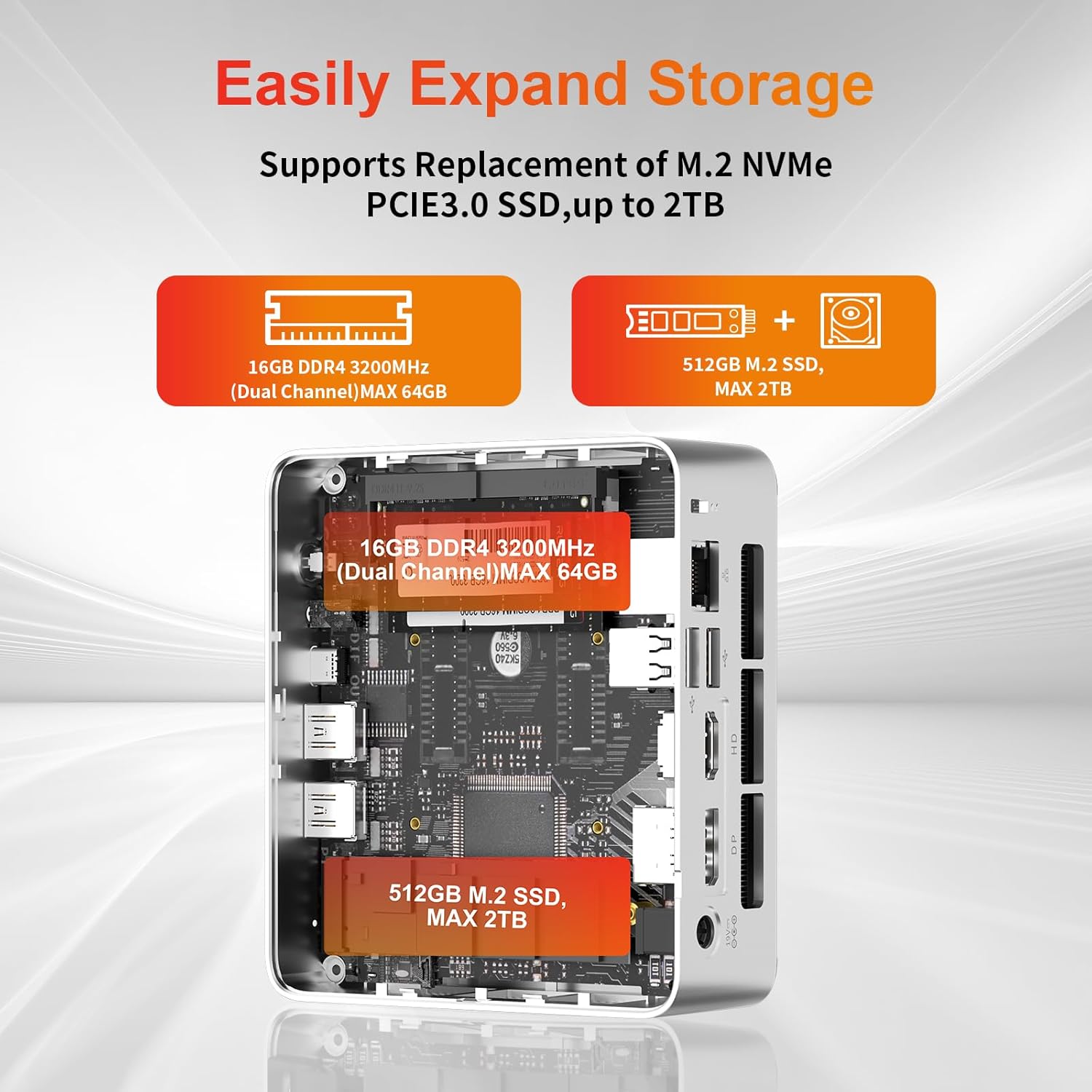
Image: Detailed view of the AMD Ryzen 5 7430U processor, highlighting its 6 cores, 12 threads, 4.3GHz turbo frequency, and 16MB cache.
Interfaces and Ports
The mini PC provides a comprehensive set of ports for various connections, including multiple USB ports, display outputs, and network connectivity.

Image: Front and rear views of the AWOW Mini PC, illustrating the location of the Power Button, Type-C Full Function port, USB3.2*2, CLR CMOS, 3.5mm Audio Jack, DC IN, DP1.2, HDMI2.0, USB 2.0*2, and RJ45 LAN 1000 Mbps port.
3. Setup Guide
3.1 Unboxing and Package Contents
Before starting, ensure all components are present in the package:
- AWOW BA7 Mini PC
- Power Adapter
- Screws
- VESA Mount
- HDMI Cable
- User Manual (this document)

Image: Contents of the AWOW Mini PC package, including the mini PC unit, power adapter, screws, VESA mount, HDMI cable, and user manual.
3.2 Connecting Peripherals
- Connect Display: Use the provided HDMI cable or a DisplayPort/USB-C cable to connect your monitor(s) to the corresponding ports on the mini PC.
- Connect Keyboard and Mouse: Plug your USB keyboard and mouse into the available USB ports.
- Connect Power: Plug the power adapter into the DC IN port on the mini PC, then connect the adapter to a power outlet.
- Network Connection (Optional): For a wired connection, connect an Ethernet cable from your router to the RJ45 LAN port.
3.3 Initial Boot
Press the Power Button on the front of the mini PC. The system will boot up, and you will see the Windows 11 Pro operating system. Follow any on-screen instructions for initial setup.
4. Operating Instructions
4.1 Power On/Off
- Power On: Press the Power Button once.
- Power Off: Click the Windows Start button, then select Power > Shut down. Alternatively, press and hold the Power Button for 5 seconds to force a shutdown (use only when necessary).
4.2 Display Configuration
The AWOW Mini PC supports up to three 4K displays simultaneously. Connect your monitors to the HDMI, DisplayPort, and USB-C ports. Windows will automatically detect the displays. You can configure display settings (resolution, orientation, extended/duplicated desktop) via the Windows Display Settings.
4.3 Storage Expansion
The mini PC allows for easy storage expansion. You can replace the existing M.2 NVMe PCIe 3.0 SSD with a larger one (up to 2TB) or add a 2.5-inch SATA SSD/HDD.

Image: Internal view of the AWOW Mini PC showing the locations for the 16GB DDR4 RAM (expandable to 64GB) and the 512GB M.2 SSD (expandable to 2TB).
4.4 Network and Wireless Connectivity
- WiFi 6: Connect to wireless networks via the built-in WiFi 6 module. Access network settings through Windows.
- Bluetooth 5.2: Pair Bluetooth devices such as keyboards, mice, or headphones.
- RJ45 LAN: For a stable wired connection, use the 1000Mbps Ethernet port.
5. Maintenance
5.1 Cleaning
- Ensure the device is powered off and unplugged before cleaning.
- Use a soft, dry cloth to wipe the exterior of the mini PC.
- Keep the ventilation openings clear of dust and debris to maintain optimal airflow.
5.2 Cooling System
The AWOW Mini PC features an efficient cooling system with a low-noise fan to dissipate heat effectively, ensuring stable performance.
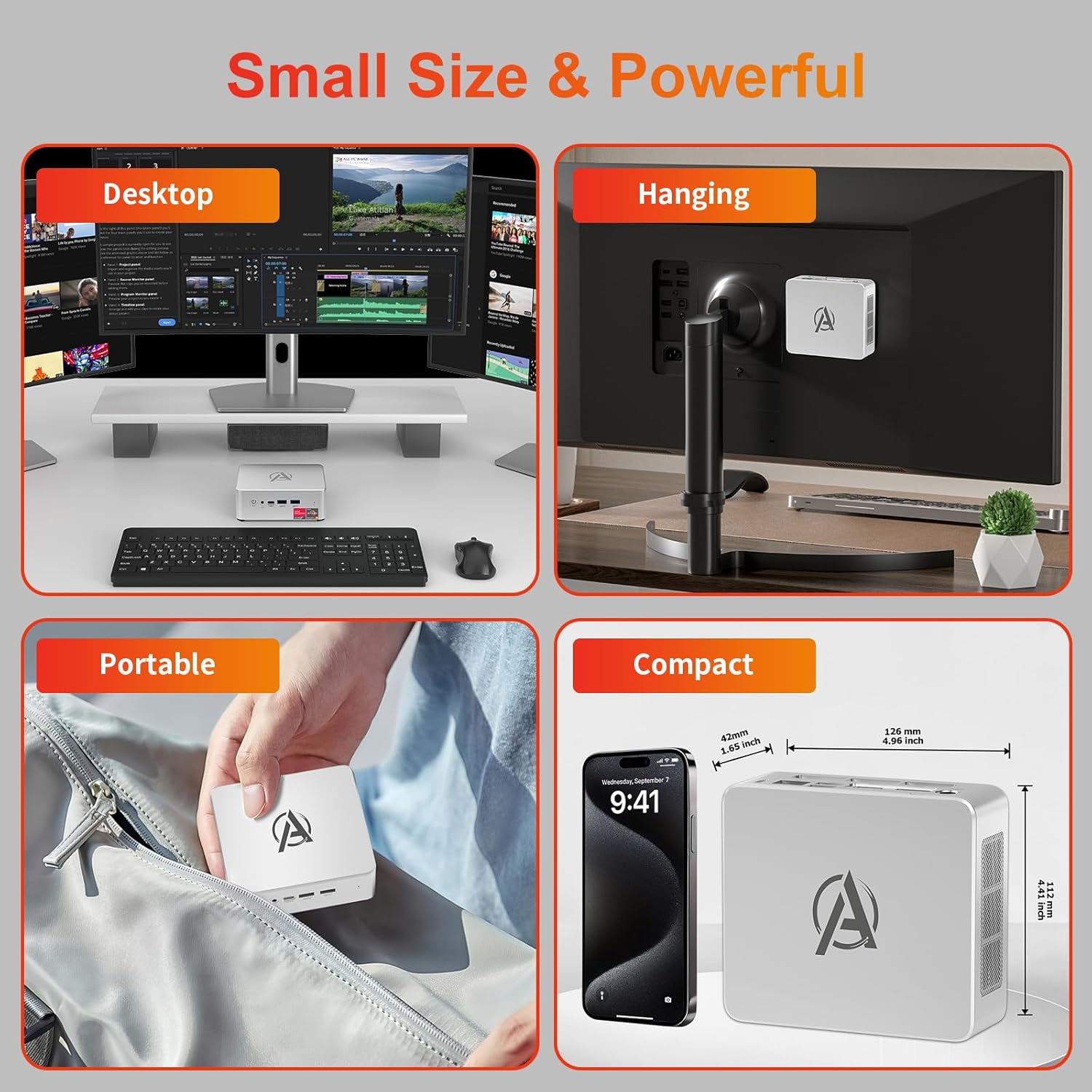
Image: Diagram illustrating the internal cooling system of the AWOW Mini PC, showing the fan and heat sink working to dissipate hot air.
5.3 Software Updates
Regularly update your Windows operating system and drivers to ensure security, stability, and performance. Windows Update can be accessed through the Settings menu.
6. Troubleshooting
If you encounter issues with your AWOW Mini PC, refer to the following common troubleshooting steps:
- No Power:
- Ensure the power adapter is securely connected to both the mini PC and a working power outlet.
- Verify the power outlet is functional by plugging in another device.
- No Display:
- Check that the HDMI, DisplayPort, or USB-C cable is firmly connected to both the mini PC and the monitor.
- Ensure your monitor is set to the correct input source (e.g., HDMI 1, DisplayPort).
- Try connecting to a different display or using a different cable.
- Network Connectivity Issues:
- For WiFi, check if the WiFi adapter is enabled in Windows settings and ensure you are connected to the correct network.
- For wired LAN, ensure the Ethernet cable is properly connected and your router is functioning.
- Restart your router and the mini PC.
- Slow Performance:
- Close unnecessary applications running in the background.
- Check available storage space on your SSD.
- Ensure Windows and drivers are up to date.
- System Unresponsive:
- Press and hold the Power Button for 5 seconds to force a shutdown, then restart the PC.
7. Specifications
| Feature | Specification |
|---|---|
| Brand | AWOW |
| Model Number | BA7 |
| Processor | AMD Ryzen 5 7430U (6 Cores, 12 Threads, up to 4.3 GHz) |
| Graphics | Integrated AMD Radeon Graphics |
| RAM | 16GB DDR4 (Max 64GB) |
| Storage | 512GB PCIe 3.0 SSD (Max 2TB M.2 NVMe) |
| Operating System | Windows 11 Pro |
| Display Output | 3x 4K (HDMI 2.0, DP 1.2, USB-C) |
| Wireless Connectivity | WiFi 6, Bluetooth 5.2 |
| Wired LAN | 1000Mbps RJ45 |
| USB Ports | 2x USB 3.2, 2x USB 2.0, 1x Type-C (Full Function) |
| Audio Port | 1x 3.5mm Audio Jack |
| Other Ports | 1x DC IN, 1x CLR CMOS |
| Dimensions (L x W x H) | 126mm x 112mm x 42mm (4.96 x 4.41 x 1.65 inches) |
| Weight | 398g |
8. Warranty and Support
8.1 Warranty Information
Please refer to your purchase documentation or contact AWOW customer support for specific warranty details regarding your Mini PC. Warranty terms may vary by region and retailer.
8.2 Customer Support
For technical assistance, product inquiries, or further support, please visit the official AWOW website or contact their customer service department. Contact information can typically be found on the AWOW website or in your product packaging.


