
1. Introduction
Welcome to the ANRAN Q04 Solar Security Camera user manual. This guide provides detailed instructions for the installation, operation, and maintenance of your 4G LTE cellular solar-powered security camera. Please read this manual thoroughly before use to ensure proper functionality and safety.
Important Note: This 4G LTE Cellular Solar Security Camera does not support Wi-Fi connections. It operates exclusively via 4G LTE cellular networks.
2. Product Overview
The ANRAN Q04 is a wireless outdoor security camera designed for areas without Wi-Fi access, utilizing 4G LTE connectivity and solar power for continuous operation. It features an integrated solar panel and a high-capacity battery.
2.1 Package Contents
The standard package includes the following items:
- ANRAN Q04 Solar Security Camera (White or Black)
- Integrated Solar Panel
- 4G SIM Card (Built-in 100MB initial data, activation required)
- 32GB MicroSD Card
- Mounting Bracket and Screws
- User Manual
2.2 Camera Components

Image: Overview of the ANRAN Q04 Solar Security Camera system, showing both white and black models, integrated solar panels, a 4G SIM card, and a 32GB microSD card. This illustrates the complete package contents.

Image: Close-up of the white ANRAN Q04 camera, highlighting the lens, infrared LEDs, status indicator light, and the integrated solar panel.

Image: Close-up of the black ANRAN Q04 camera, showing the lens, LEDs, and solar panel, accompanied by a SIM card and a 32GB microSD card, indicating their inclusion.
3. Setup and Installation
3.1 SIM Card and MicroSD Card Insertion
Before mounting, ensure the 4G SIM card and microSD card are correctly inserted into their respective slots on the camera. Refer to the camera's physical diagram (not provided in this manual, typically found on the device itself or a quick start guide) for exact slot locations. Ensure the SIM card is activated with a cellular data plan.
3.2 App Download and Account Creation
Download the official ANRAN app from your smartphone's app store (iOS or Android). Follow the in-app instructions to create an account and add your camera by scanning the QR code on the device or entering its serial number.
3.3 Mounting Location Selection
Choose a location that receives ample direct sunlight for the solar panel and has good 4G LTE cellular signal strength. Avoid obstructions such as trees, buildings, or dense foliage that could block sunlight or cellular reception. Test the cellular signal strength at the intended location before final installation.

Image: A user installing the ANRAN Q04 camera on an exterior wall, illustrating the ease of installation without separate solar panels.
3.4 Camera Mounting
- Secure the mounting bracket to the desired surface using the provided screws and anchors.
- Attach the camera to the mounting bracket, ensuring it is firmly in place.
- Adjust the camera's angle to cover the desired monitoring area. Ensure the integrated solar panel is oriented to receive maximum direct sunlight throughout the day.

Image: The black ANRAN Q04 camera mounted on a tree, showcasing its wire-free and 4G cellular capabilities for remote security monitoring in various outdoor locations.
4. Operating Instructions
4.1 Powering On
Once mounted and the SIM/microSD cards are inserted, the camera should power on automatically if the battery has sufficient charge or if the solar panel is receiving light. A status indicator light on the camera will confirm its operational status.
4.2 Using the ANRAN App
The ANRAN app is your primary interface for controlling and monitoring the camera. Key functionalities include:
- Live View: Access real-time video feed from your camera from anywhere with cellular coverage.
- Recording: Manually initiate video recordings or configure motion-triggered recordings based on your preferences.
- Playback: Review recorded footage stored on the inserted microSD card.
- Notifications: Receive instant alerts on your smartphone for motion detection events.
- Settings: Adjust various camera parameters such as video resolution, motion detection sensitivity, night vision modes, and battery management options.
4.3 Night Vision Modes
The ANRAN Q04 supports multiple night vision modes for optimal visibility in low-light conditions:
- Smart Mode: Automatically switches between infrared and color night vision based on detected motion or ambient light.
- Color Mode: Utilizes built-in spotlights to provide full-color video footage at night.
- Infrared Mode: Provides clear black and white video footage using infrared LEDs in complete darkness.
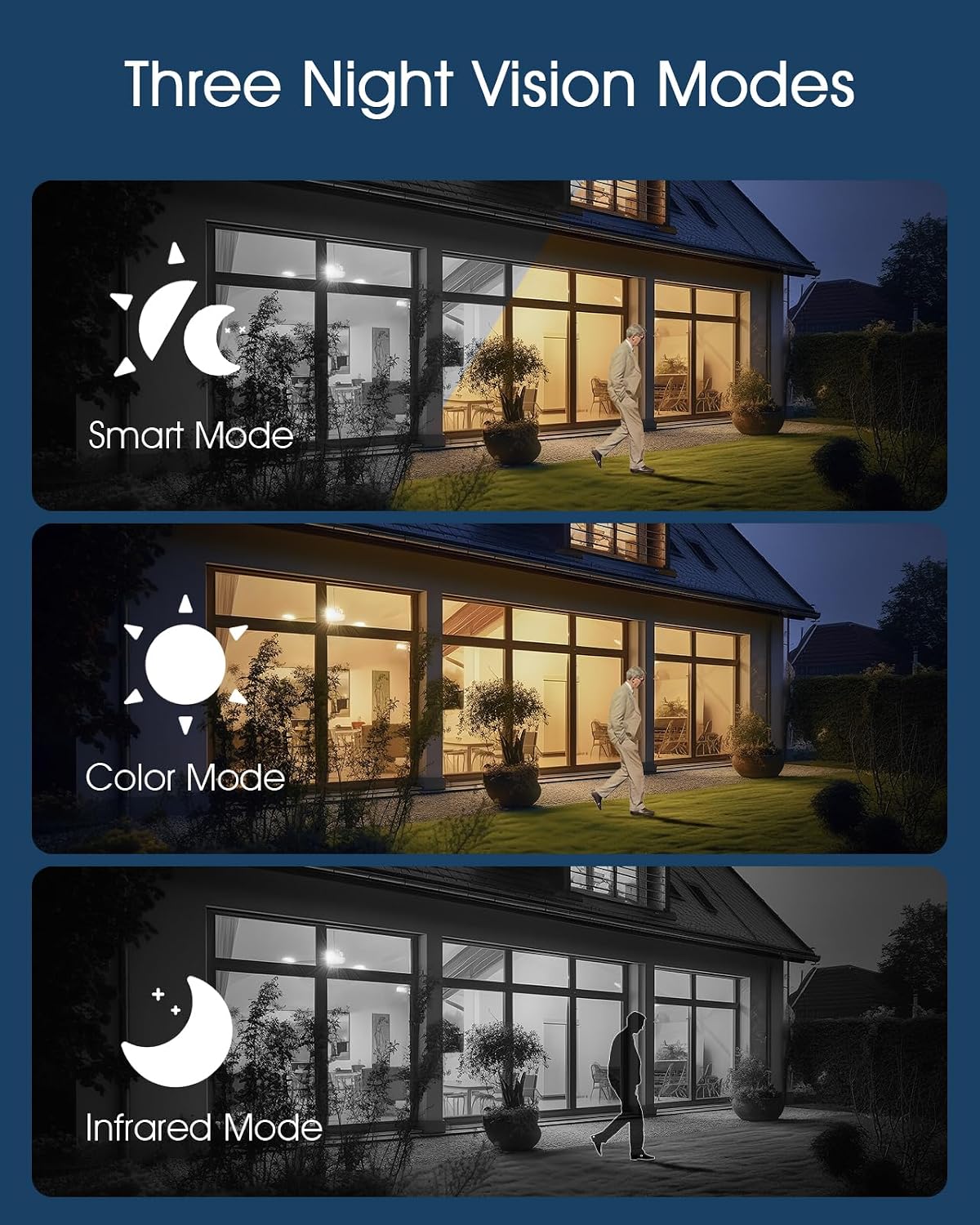
Image: Visual representation of the three night vision modes: Smart Mode (automatic switching), Color Mode (full-color night vision), and Infrared Mode (black and white), demonstrating their visual output.
5. Maintenance
5.1 Solar Panel Cleaning
Regularly clean the solar panel surface with a soft, damp cloth to ensure maximum charging efficiency. Dust, dirt, leaves, or debris can significantly reduce power generation. Avoid abrasive cleaners or harsh chemicals.
5.2 Battery Management
The camera features a 9600mAh rechargeable battery. Ensure the solar panel receives adequate direct sunlight daily to keep the battery charged. In prolonged periods of low sunlight, heavy cloud cover, or high usage, the camera's battery level may drop. If the battery becomes critically low, the camera may require manual charging via its USB charging port (located under a protective cover, refer to device diagram) using a standard 5V USB power adapter.
5.3 Firmware Updates
Check the ANRAN app periodically for available firmware updates. Keeping the camera's firmware updated ensures optimal performance, security enhancements, and access to new features. Follow the in-app instructions for safe firmware updates.
6. Troubleshooting
6.1 Camera Not Powering On
- Check if the battery is charged. Allow the solar panel to charge for several hours in direct sunlight, or manually charge the camera via its USB port.
- Ensure the power switch (if present, typically under a protective cover) is in the ON position.
6.2 No 4G LTE Connection
- Verify the SIM card is correctly inserted and activated with a sufficient data plan from your cellular provider.
- Check cellular signal strength at the camera's location using your smartphone. Relocate the camera to an area with better signal if necessary.
- Restart the camera by powering it off and then on again.
6.3 App Connection Issues
- Ensure your smartphone has a stable internet connection (Wi-Fi or cellular data).
- Restart the ANRAN app.
- If the issue persists, try removing the camera from the app and re-adding it.
6.4 Poor Video Quality
- Clean the camera lens with a soft, lint-free cloth.
- Ensure adequate lighting for the scene, especially at night. Adjust night vision settings if needed.
- Check your cellular data speed; lower speeds can affect live view quality and recording resolution.
7. Specifications
- Model: Q04
- Connectivity: 4G LTE Cellular (Does not support Wi-Fi)
- Power Source: Integrated Solar Panel, 9600mAh Rechargeable Battery
- Storage: MicroSD Card (up to 32GB included, expandable to higher capacity, check product details)
- Weather Resistance: IP66 Waterproof & Dustproof
- Operating Temperature: -40°F to 140°F (-40°C to 60°C)
- Night Vision: Smart Mode, Color Mode, Infrared Mode

Image: The ANRAN Q04 camera demonstrating its IP66 waterproof and dustproof capabilities, suitable for extreme outdoor temperatures ranging from -40°F to 140°F.

Image: The ANRAN Q04 camera highlighting its continuous solar power capability, 9600mAh battery, and IP66 waterproof rating, ensuring year-round operation.
8. Warranty and Support
For detailed warranty information, technical support, and customer service, please refer to the ANRAN official website or contact ANRAN customer service directly. Contact details are typically found on the product packaging, the ANRAN app, or the official ANRAN website.
Official Website: www.anran-cctv.com (Please verify the exact URL on your product packaging or official ANRAN documentation)
Email Support: support@anran-cctv.com (Example email, please verify official support channels)


