
Introduction
Welcome to the Sanorum Smart Watch user manual. This guide provides comprehensive instructions to help you set up, operate, and maintain your new smart watch. Please read this manual carefully to ensure proper use and to fully utilize all available features. The Sanorum Smart Watch combines advanced health monitoring, communication features, and fitness tracking in a stylish design.
Key Features
- 1.27-inch AMOLED Display: Vibrant screen with over 400 customizable watch faces.
- Bluetooth Calling & Notifications: Make and answer calls directly from your wrist and receive real-time app notifications.
- 24/7 Health Monitoring: Tracks heart rate, blood oxygen (SpO2), and sleep quality.
- 70+ Sports Modes: Accurate tracking for various activities including steps, calories, and distance.
- IP68 Waterproof: Suitable for daily use, sweat, and rain.
- Long Battery Life: Up to 14 days of use on a single charge.
- Women's Health Tracking: Monitors menstrual cycles, ovulation, and pregnancy.
What's in the Box
Upon opening your Sanorum Smart Watch package, you should find the following items:
- Sanorum Smart Watch (1 unit)
- Classic Comfort Silicone Band (1 unit)
- Athletic Silicone Band (1 unit)
- Charging Cable (1 unit)
- User Manual (this document)

Image: The Sanorum Smart Watch in purple, displayed with both the classic and athletic silicone bands.
Setup
1. Charging the Device
Before first use, fully charge your Sanorum Smart Watch. Connect the magnetic charging cable to the charging contacts on the back of the watch and plug the USB end into a compatible power adapter (not included) or a computer's USB port.
- Charging Time: Approximately 2 hours for a full charge.
- Battery Life: 7-14 days for routine use, 25-30 days standby time.

Image: An illustration showing the smart watch displaying a full battery icon, alongside text detailing charging time, routine use, and standby time.
2. App Installation and Pairing
To unlock the full functionality of your Sanorum Smart Watch, you need to install the companion application on your smartphone. The watch is compatible with iOS 9.0+ and Android 6.0+ devices.
- Download the App: Scan the QR code provided in the quick start guide or search for the official Sanorum app in your smartphone's app store (Apple App Store for iOS, Google Play Store for Android).
- Enable Bluetooth: Ensure Bluetooth is enabled on your smartphone.
- Open the App: Launch the Sanorum app and follow the on-screen instructions to create an account or log in.
- Pair the Watch: Within the app, navigate to the device pairing section. The app will search for your smart watch. Select your watch from the list of available devices to initiate pairing. Confirm the pairing request on both your phone and the watch if prompted.
3. Initial Settings
After successful pairing, you can customize various settings through the app, such as personal profile, notification preferences, and health monitoring intervals.
Operating Instructions
1. Basic Navigation
The Sanorum Smart Watch features a touch-sensitive 1.27-inch AMOLED display for easy interaction.
- Swipe Up/Down: Scroll through menus and notifications.
- Swipe Left/Right: Access quick widgets or different feature screens.
- Tap: Select an item or confirm an action.
- Press Side Button: Return to the home screen or power on/off the device.
2. Bluetooth Calls and Smart Notifications
Stay connected by managing calls and notifications directly from your wrist.
- Making/Answering Calls: Once connected via Bluetooth 5.3, you can dial numbers, access your contact list, and answer incoming calls using the built-in microphone and speaker.
- Receiving Notifications: The watch displays real-time notifications from messages and various apps (e.g., WhatsApp, Facebook, Twitter). Note: Message reply is not supported directly from the watch.
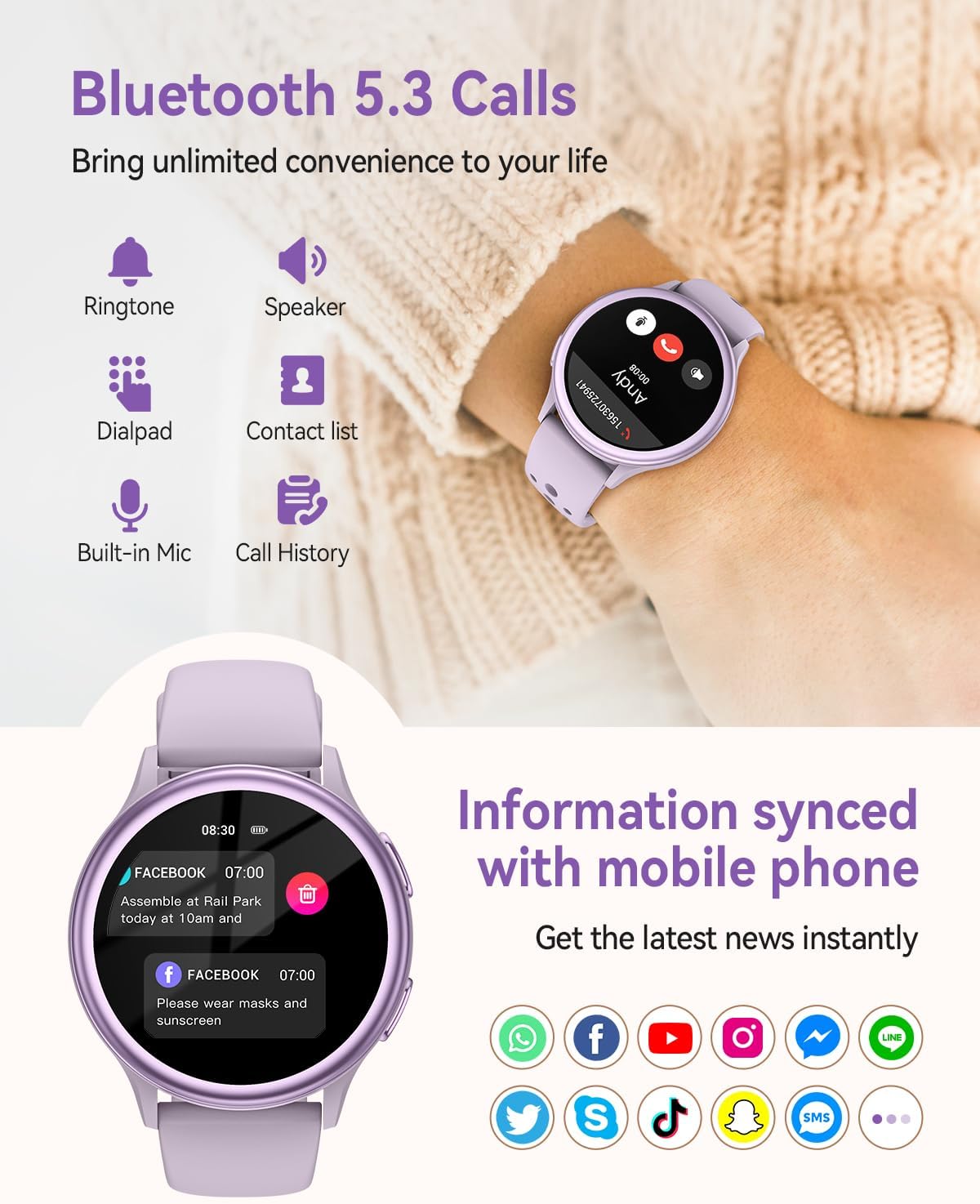
Image: The smart watch screen showing an incoming call from 'Andy' and a Facebook notification, illustrating Bluetooth call and notification features.
3. Health Monitoring
The Sanorum Smart Watch provides continuous health tracking to help you monitor your well-being.
- Heart Rate Monitoring: Tracks your heart rate 24/7. View real-time data on the watch or detailed trends in the app.
- Blood Oxygen (SpO2) Monitoring: Measures your blood oxygen saturation levels.
- Sleep Tracking: Automatically monitors your sleep patterns, including deep sleep, light sleep, and awake times. Provides insights to improve sleep quality.
- Women's Health Tracking: Record and predict menstrual cycles, ovulation, and track pregnancy stages.
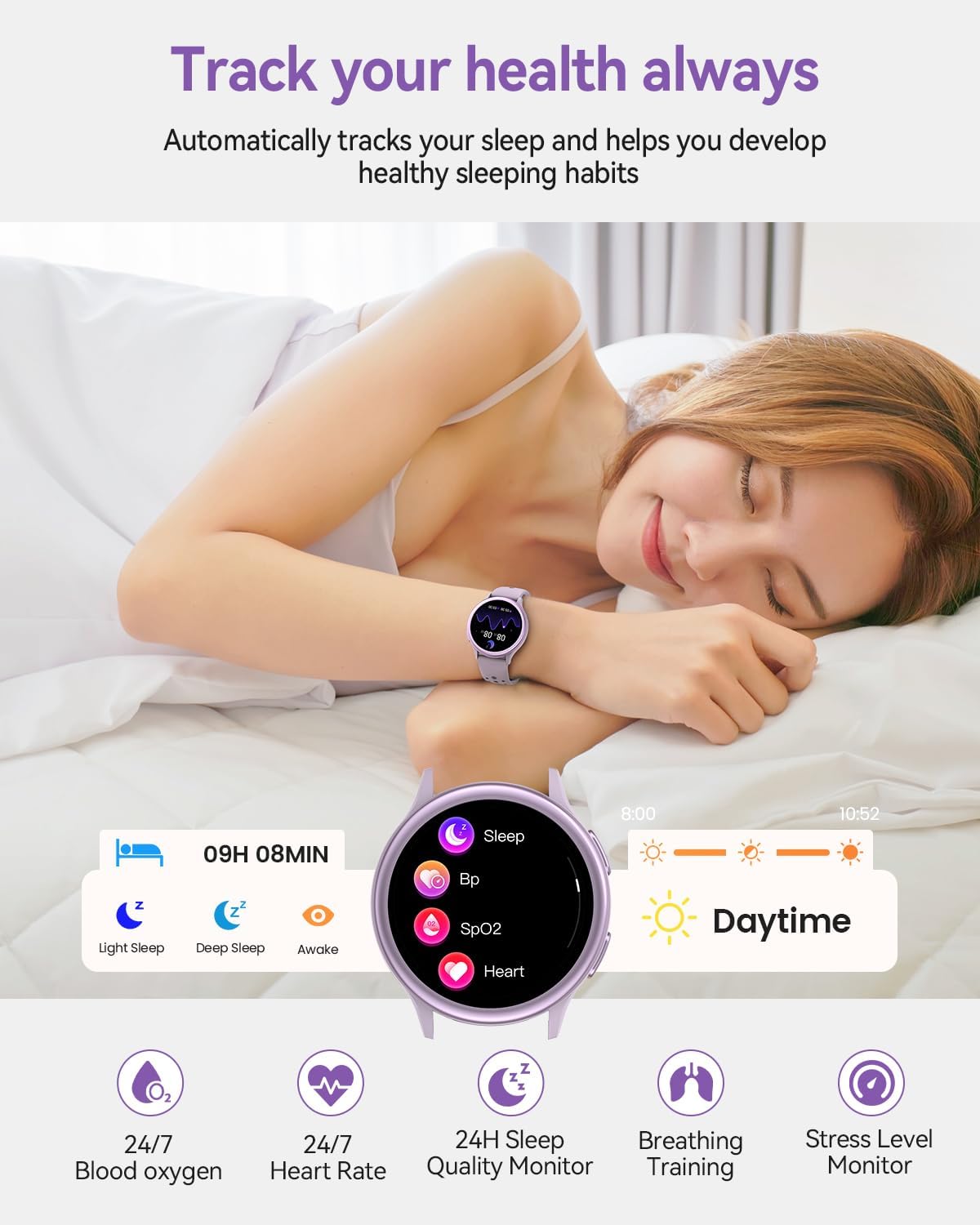
Image: A woman sleeping with the smart watch on her wrist, showing the watch interface with sleep, blood pressure, SpO2, and heart rate icons, and a timeline of sleep stages.

Image: A woman holding a cup, wearing the smart watch which displays a menstrual period reminder. Icons for ovulation, menstruation, period prediction, and pregnancy are shown.
4. Sports Modes
The watch supports over 70 sports modes to accurately track your physical activities.
- Activity Tracking: Records steps, calories burned, distance, and workout duration.
- GPS Tracking: Utilizes your smartphone's GPS for route tracking during outdoor activities.
- UV Index Monitoring: Provides UV value monitoring for outdoor safety.

Image: A woman running outdoors with the smart watch, which displays calories burned, distance, UV index, and steps taken. A map overlay shows a tracked route.
5. Watch Faces and Customization
Personalize your watch with a wide selection of watch faces.
- 400+ Watch Faces: Choose from a diverse library of online watch faces via the app.
- DIY Customization: Upload personal photos to create unique watch faces.
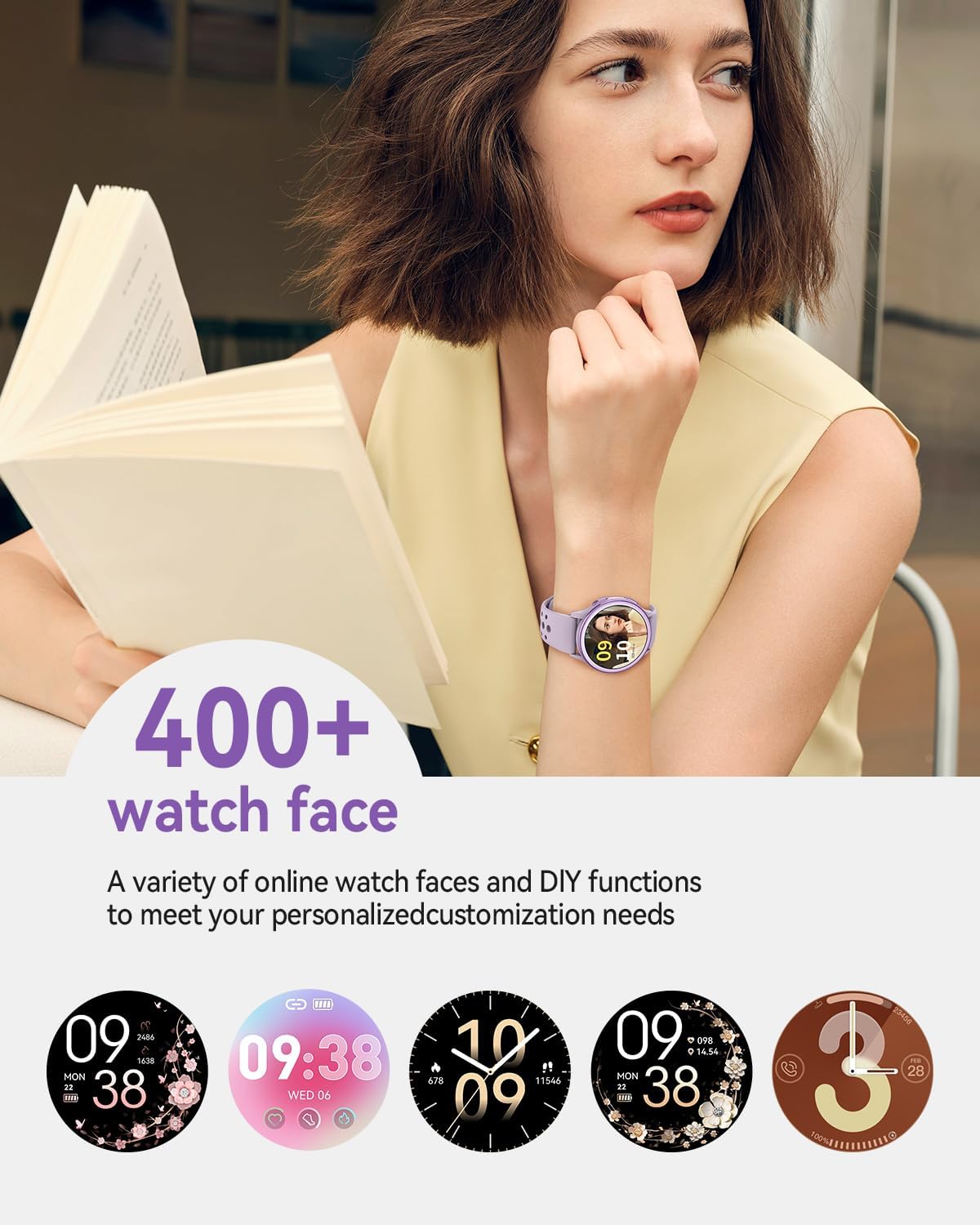
Image: A woman wearing the smart watch, with multiple examples of different watch faces displayed below, highlighting customization options.
6. Other Features
The Sanorum Smart Watch includes several convenient features to enhance your daily life:
- Weather Display: Get real-time weather updates.
- Music Control: Control music playback on your smartphone.
- Camera Shutter: Use the watch as a remote shutter for your phone's camera.
- Sedentary Reminders: Receive alerts to encourage movement after periods of inactivity.
- Breathing Exercise Guides: Follow guided breathing exercises for relaxation.
- Alarm & Stopwatch: Standard timekeeping functions.
- Find My Phone: Locate your paired smartphone.

Image: A collage of images demonstrating various smart watch features including camera control, Bluetooth calling, notification alerts, voice command assistant, music playback control, and weather display.
Maintenance
1. Cleaning Your Smart Watch
Regular cleaning helps maintain the watch's appearance and functionality.
- Wipe the screen and body with a soft, damp, lint-free cloth.
- For the bands, use mild soap and water, then rinse thoroughly and dry.
- Avoid using harsh chemicals or abrasive materials.
2. Water Resistance (IP68)
The Sanorum Smart Watch has an IP68 waterproof rating, meaning it is resistant to dust and can withstand immersion in water up to 1.5 meters for 30 minutes. This makes it suitable for:
- Daily use (e.g., washing hands, light rain)
- Sweat-resistant during workouts
- Rain-resistant
Note: Not recommended for hot showers, saunas, or diving, as steam and high water pressure may compromise the seal.

Image: A woman in water, wearing the smart watch, with text indicating IP68 water resistance for daily use, sweat, and rain.
3. Battery Care
- Avoid extreme temperatures, which can degrade battery performance.
- Do not leave the watch fully discharged for extended periods.
- Use only the provided charging cable.
Troubleshooting
If you encounter issues with your Sanorum Smart Watch, please refer to the following common solutions:
- Watch Not Turning On: Ensure the watch is fully charged. Connect it to the charger for at least 10 minutes.
- Cannot Pair with Phone:
- Ensure Bluetooth is enabled on your phone and the watch is discoverable.
- Restart both your phone and the watch.
- Make sure the Sanorum app is updated to the latest version.
- Clear Bluetooth cache on your phone (Android) or forget the device and re-pair (iOS).
- Inaccurate Health Data: Ensure the watch is worn snugly on your wrist, not too tight or too loose. Clean the sensor on the back of the watch.
- Notifications Not Appearing: Check app notification settings on your phone and within the Sanorum app. Ensure the watch is connected via Bluetooth.
- Short Battery Life: Reduce screen brightness, disable unnecessary features, and ensure background app usage is optimized.
If the problem persists, please contact customer support for further assistance.
Specifications
| Feature | Specification |
|---|---|
| Model | B0FPQ7PF81 |
| Brand | Sanorum |
| Display | 1.27-inch AMOLED, 360x360 resolution, 365 pixels per inch |
| Connectivity | Bluetooth 5.3 |
| Battery Capacity | 300 mAh Lithium Polymer |
| Charging Time | Approximately 2 hours |
| Battery Life (Routine Use) | 7-14 days |
| Standby Time | 25-30 days |
| Water Resistance | IP68 |
| Operating System Compatibility | iOS 9.0+ and Android 6.0+ |
| Memory Storage Capacity | 128 MB |
| Item Weight | 3.84 ounces |
| Package Dimensions | 10.91 x 3.58 x 0.75 inches |
Warranty and Support
Sanorum is committed to providing high-quality products and excellent customer service.
- Warranty: Your Sanorum Smart Watch comes with a 2-year free replacement warranty from the date of purchase.
- Return Policy: We offer a 30-day no-reason return policy.
- Customer Support: Our professional customer service team is available 24/7 to assist you with any questions or issues. We provide lifetime support and aim for satisfied solutions.
For support, please refer to the contact information provided on the Sanorum official website or within the companion app.
