
1. Introduction
Thank you for choosing the SOLAKAKA A75 Wireless Mechanical Keyboard. This manual provides detailed instructions for setting up, operating, and maintaining your keyboard to ensure optimal performance and longevity. The A75 is a versatile 75% layout keyboard designed for various users, offering multiple connectivity options, customizable RGB lighting, and a comfortable typing experience.

Figure 1: SOLAKAKA A75 Wireless Mechanical Keyboard
2. Package Contents
Please verify that all items are present in your package:
- SOLAKAKA A75 Wireless Mechanical Keyboard
- USB-C to USB-A Cable
- 2.4GHz USB Receiver
- Keycap Puller
- Switch Puller
- Spare Mechanical Switches (2 pieces)
- User Manual (this document)
3. Product Overview
The SOLAKAKA A75 keyboard is engineered with several key features for enhanced user experience:
- 75% Compact Layout: An 81-key layout that saves desk space while retaining essential keys.
- Tri-mode Connectivity: Supports 2.4GHz wireless, Bluetooth 5.0, and USB-C wired connections.
- Gasket Mounted Structure: Designed for a softer, more cushioned typing feel and reduced acoustic resonance.
- Hot-Swappable Switches: Compatible with 3-pin and 5-pin mechanical switches, allowing for easy customization without soldering.
- PBT Keycaps: Durable, wear-resistant, and fade-proof keycaps with side-etched legends for enhanced backlighting.
- RGB Backlighting: Features 17 lighting modes with adjustable brightness and speed.
- Multifunction Metal Knob: Provides quick control over lighting effects or multimedia functions.
- Long Battery Life: Equipped with a 4000mAh battery for extended usage.

Figure 2: Key Features of the A75 Keyboard

Figure 3: Gasket Structure Components
4. Setup and Connectivity
The A75 keyboard offers three connection modes: Wired, 2.4GHz Wireless, and Bluetooth. You can switch between these modes using the toggle switch located on the back of the keyboard.
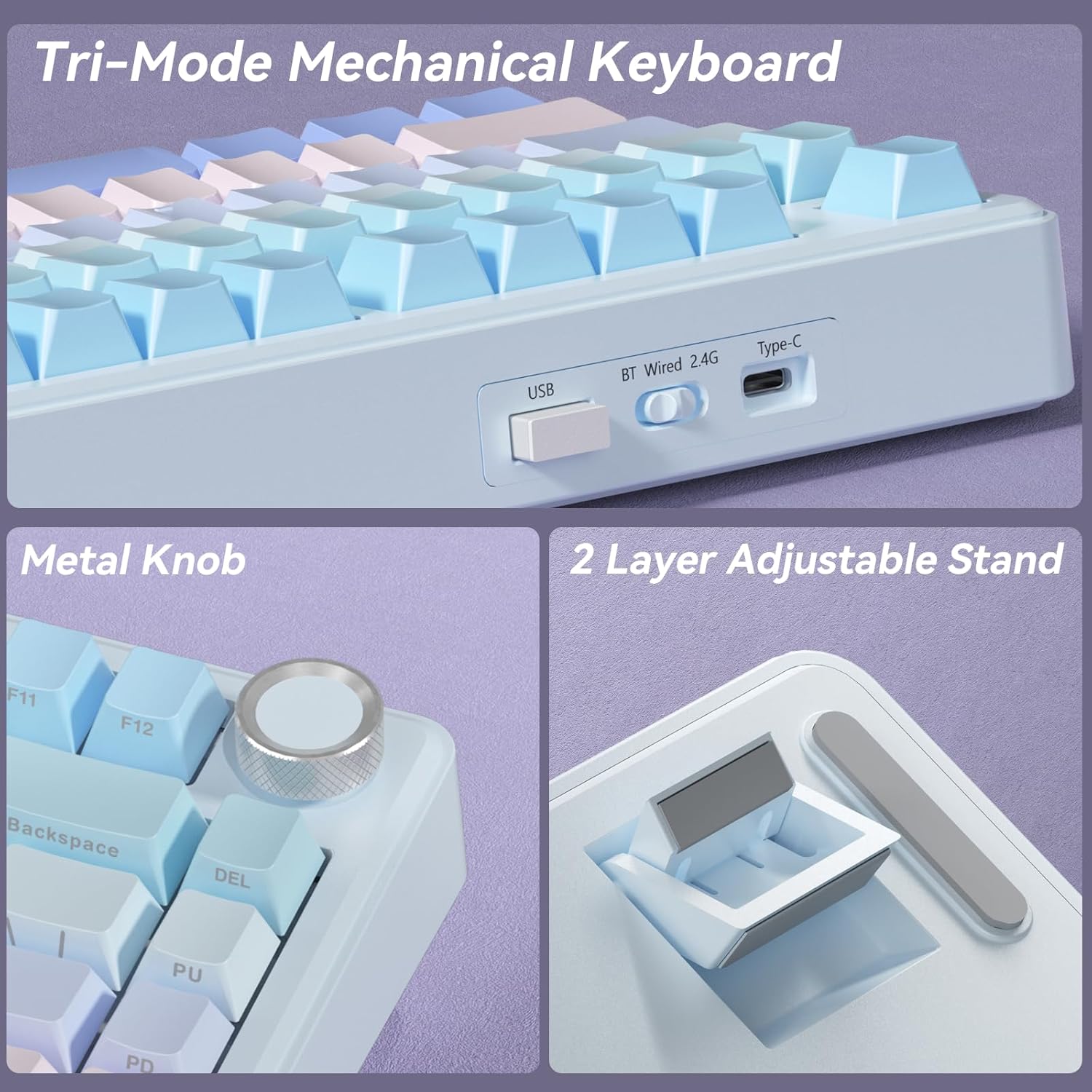
Figure 4: Connectivity Ports and Switch
4.1 Wired Connection
- Connect the provided USB-C cable to the keyboard's Type-C port.
- Connect the other end of the cable to a USB-A port on your computer.
- Set the toggle switch on the back of the keyboard to 'Wired'.
- The keyboard will be automatically recognized by your system.
4.2 2.4GHz Wireless Connection
- Locate the 2.4GHz USB receiver (often stored in a slot on the keyboard).
- Plug the USB receiver into an available USB-A port on your computer.
- Set the toggle switch on the back of the keyboard to '2.4G'.
- The keyboard should connect automatically.
4.3 Bluetooth Connection
The A75 keyboard supports Bluetooth 5.0 and can remember up to three paired devices.
- Set the toggle switch on the back of the keyboard to 'BT'.
- To enter pairing mode, press and hold Fn + Q, Fn + W, or Fn + E for 3-5 seconds until the corresponding key (Q, W, or E) flashes rapidly. This indicates the keyboard is ready to pair.
- On your device (computer, tablet, smartphone), go to Bluetooth settings and search for 'SOLAKAKA A75'.
- Select the keyboard to pair. The flashing light will become solid once connected.
- To switch between paired Bluetooth devices, simply press Fn + Q, Fn + W, or Fn + E (short press) corresponding to the device's assigned slot.

Figure 5: Tri-Mode Connectivity for Multiple Devices
5. Operating Instructions
5.1 RGB Lighting Control
The A75 keyboard features 17 RGB lighting modes. Use the following key combinations to adjust the lighting:
- Fn + \|: Switch Lighting Mode
- Fn + Tab: Switch Light Colors
- Fn + ↑: Increase Lighting Brightness
- Fn + ↓: Reduce Lighting Brightness
- Fn + ←: Reduce Light Speed
- Fn + →: Increase Light Speed
Advanced customization, including 10 music-sync lighting effects, is available through the programmable software. Download the driver from solakakadriver.com.

Figure 6: RGB Lighting Shortcuts
5.2 Multifunction Metal Knob
The metal knob on the top right of the keyboard serves dual functions, switching between Gaming and Office modes with a long press.
- Gaming Mode: A short press selects lighting patterns. Rotating the knob adjusts lighting brightness.
- Office Mode: A short press controls multimedia playback (play/pause). Rotating the knob adjusts the system volume.

Figure 7: Multifunction Metal Knob
5.3 System Compatibility Modes
The keyboard is compatible with Windows, Mac, and iOS systems. Use the following to switch modes:
- Fn + A: Switch to Windows mode.
- Fn + S: Switch to Mac mode. (In Mac mode, function keys will behave as typical macOS functions).
The keyboard also supports locking the WIN key and full N-key rollover to prevent accidental presses during gaming.
5.4 Battery Status Check
To check the remaining battery life, press Fn + B. The number keys (1-0) will light up to indicate the battery level (1 being lowest, 10 being full).
6. Maintenance
6.1 Cleaning
- Disconnect the keyboard from all power sources before cleaning.
- Use a soft, lint-free cloth slightly dampened with water or a mild cleaning solution to wipe the keycaps and chassis.
- For deeper cleaning, use the provided keycap puller to remove keycaps and clean underneath with compressed air or a small brush.
6.2 Replacing Switches and Keycaps
The A75 keyboard is hot-swappable, allowing for easy replacement of switches and keycaps.
- Use the keycap puller to gently remove the desired keycap.
- Use the switch puller to carefully grip the switch and pull it straight up to remove it.
- Align the pins of the new switch with the holes on the PCB and press down firmly until it clicks into place. Ensure pins are not bent.
- Place the new keycap onto the switch stem and press down.

Figure 8: Hot-Swappable Switches
7. Troubleshooting
If you encounter issues with your SOLAKAKA A75 keyboard, please refer to the following common solutions:
- Keyboard not responding: Ensure the keyboard is charged. Check the connection mode switch (Wired, 2.4G, BT) is set correctly. For 2.4G, ensure the USB receiver is properly inserted. For Bluetooth, re-pair the device.
- Keys not registering: Check if any keycaps or switches are loose. Try replacing the switch if it's faulty (refer to Section 6.2).
- RGB lighting not working: Ensure the keyboard is powered on. Adjust brightness using Fn + ↑. Cycle through modes using Fn + \|.
- Bluetooth pairing issues: Ensure the keyboard is in pairing mode (Fn + Q/W/E held for 3-5 seconds). Remove previous pairings from your device's Bluetooth list and try again.
- Latency issues: For critical applications like gaming, a wired connection or 2.4GHz wireless connection is recommended for the lowest latency.
If the problem persists, please contact SOLAKAKA customer support.
8. Specifications
| Feature | Specification |
|---|---|
| Model | A75 |
| Layout | 75% (81 keys) |
| Connectivity | 2.4GHz Wireless, Bluetooth 5.0, USB-C Wired |
| Switch Type | LEOBOG Reaper Switches (Hot-swappable 3-pin/5-pin) |
| Keycaps | PBT, Double Injection Molding, Side-etched |
| Backlighting | RGB (17 modes) |
| Battery Capacity | 4000mAh |
| Battery Life (with lighting) | Up to 17 hours |
| Battery Life (lighting off) | Up to 11 days |
| Product Dimensions | 12.79 x 5.51 x 1.73 inches |
| Item Weight | 2.82 pounds |
| Compatible Devices | Laptop, PC, Smartphone (Windows, Mac, iOS) |
| Special Features | Gasket Mounted, Multifunction Knob, Programmable Software, N-key Rollover |
9. Official Product Video
Video 1: Overview of the SOLAKAKA A75 75% Wireless Mechanical Keyboard, demonstrating its features and functionality.
10. Warranty and Support
For warranty information and customer support, please refer to the documentation included with your purchase or visit the official SOLAKAKA website. If you have any questions or require assistance, do not hesitate to contact our support team.

