
Romicta AK50
Romicta AK50 Stereo Audio Amplifier User Manual
Model: AK50 | Brand: Romicta
1. Introduction
The Romicta AK50 Digital Audio Amplifier is designed to enhance your home audio experience. This 2-channel amplifier delivers 50W+50W rated power (400W+400W peak power) and supports a variety of audio sources including Bluetooth 5.0, USB, SD card, FM radio, and auxiliary inputs. It also features microphone inputs with echo control, making it suitable for karaoke and public address applications. Its compact design allows for versatile placement in various home environments.
2. Package Contents
Please check the box for the following items:
- 1x AK50 Amplifier
- 1x Remote Control
- 1x FM Antenna
- 1x Power Supply
- 1x Instruction Manual
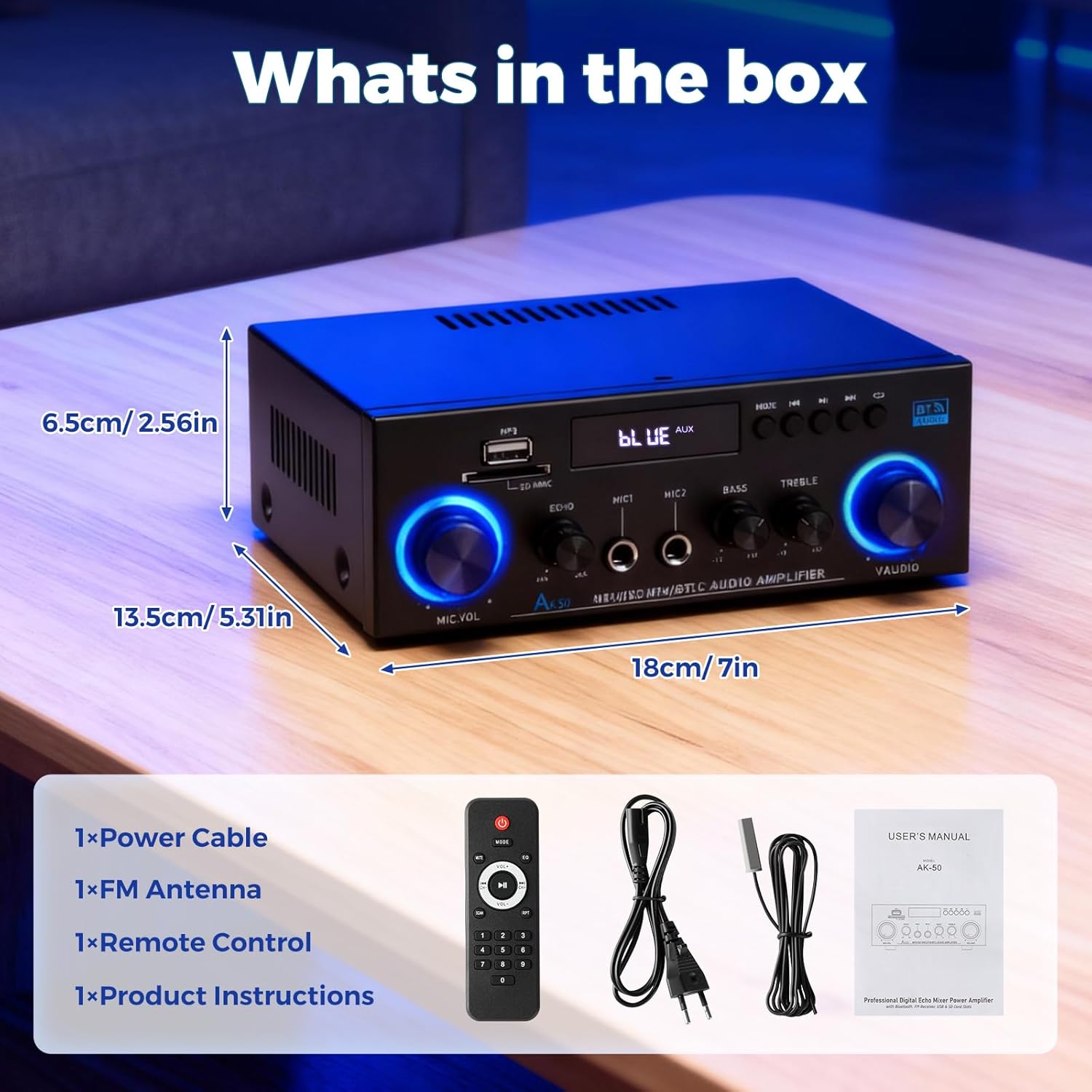
Image: The AK50 amplifier, remote control, FM antenna, power supply, and instruction manual are shown on a table, illustrating the package contents.
3. Product Overview
3.1 Front Panel Controls
The front panel provides access to various controls and input ports for easy operation:
- USB Port: For connecting USB flash drives for MP3 playback.
- SD/MMC Card Slot: For inserting SD/MMC cards for MP3 playback.
- Display Screen: Shows current mode, track information, and FM frequency.
- Mode Button: Switches between input sources (Bluetooth, USB/SD, FM, AUX/Line).
- Playback Controls: Play/Pause, Previous/Next Track buttons.
- MIC VOL Knob: Adjusts microphone volume.
- ECHO Knob: Controls the echo effect for microphones.
- MIC1/MIC2 Inputs: 1/4-inch (6.35mm) jacks for connecting microphones.
- BASS Knob: Adjusts low-frequency audio levels.
- TREBLE Knob: Adjusts high-frequency audio levels.
- VOLUME Knob: Master volume control for all outputs.

Image: A detailed view of the AK50 amplifier's front panel, highlighting the USB, SD/MMC, display, mode buttons, microphone inputs, and various control knobs for volume, echo, bass, and treble.
3.2 Rear Panel Connections
The rear panel provides all necessary connections for power, speakers, and external audio sources:
- AUX/LINE Input (RCA): For connecting external audio devices like CD/DVD players, TVs, or laptops.
- OUTPUT (RCA): For connecting to an active subwoofer or other recording devices.
- FM ANT: Connection point for the included FM antenna.
- Speaker System (4Ω-16Ω): Spring clip terminals for connecting passive speakers.
- DC INPUT (12V/5A): Power input for DC power supply (if applicable).
- AC POWER INPUT (90-240V 50-60Hz): Main power input for the AC power cord.
- POWER ON/I Switch: Main power switch for the amplifier.
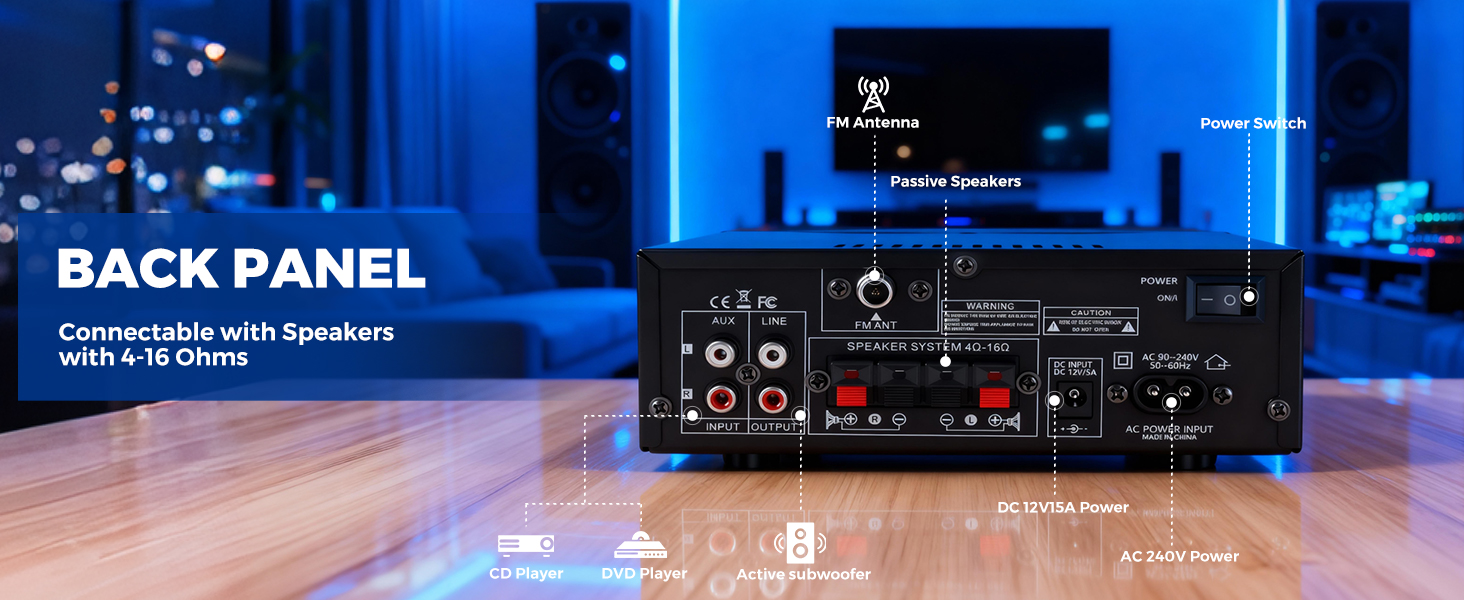
Image: A detailed view of the AK50 amplifier's rear panel, illustrating connections for AUX/Line input, output, FM antenna, speaker terminals, DC input, AC power input, and the power switch.
4. Setup
- Connect Speakers: Connect your passive speakers (4-16Ω) to the red and black spring clip terminals on the rear panel. Ensure correct polarity (red to red, black to black).
- Connect FM Antenna: Attach the included FM antenna to the 'FM ANT' connector on the rear panel for radio reception.
- Connect Audio Sources:
- For external devices (CD/DVD player, TV, laptop), use RCA cables to connect to the 'AUX/LINE INPUT' ports.
- For USB flash drives or SD cards, insert them into the respective slots on the front panel.
- For Bluetooth devices, refer to Section 5.1 for pairing instructions.
- Connect Power: Plug the AC power cord into the 'AC POWER INPUT' on the rear panel and then into a wall outlet. If using a DC power supply, connect it to the 'DC INPUT (12V/5A)' port.
- Power On: Flip the 'POWER ON/I' switch on the rear panel to the 'ON' position. The front panel display will illuminate.
Video: An unboxing and setup demonstration of the AK50 amplifier, showing the contents of the box, connecting the power cable, and powering on the device. This video is provided by a seller.
5. Operating Instructions
5.1 Bluetooth Connectivity
- Power on the AK50 amplifier.
- Press the 'MODE' button on the front panel or remote control until 'BLUE' appears on the display screen. This indicates Bluetooth pairing mode.
- On your mobile device (smartphone, tablet, etc.), enable Bluetooth and search for available devices.
- Select 'AK50' from the list of devices to pair. Once connected, the amplifier will confirm with an audible tone or a steady 'BLUE' indicator.
- You can now stream audio wirelessly from your device to the AK50 amplifier.
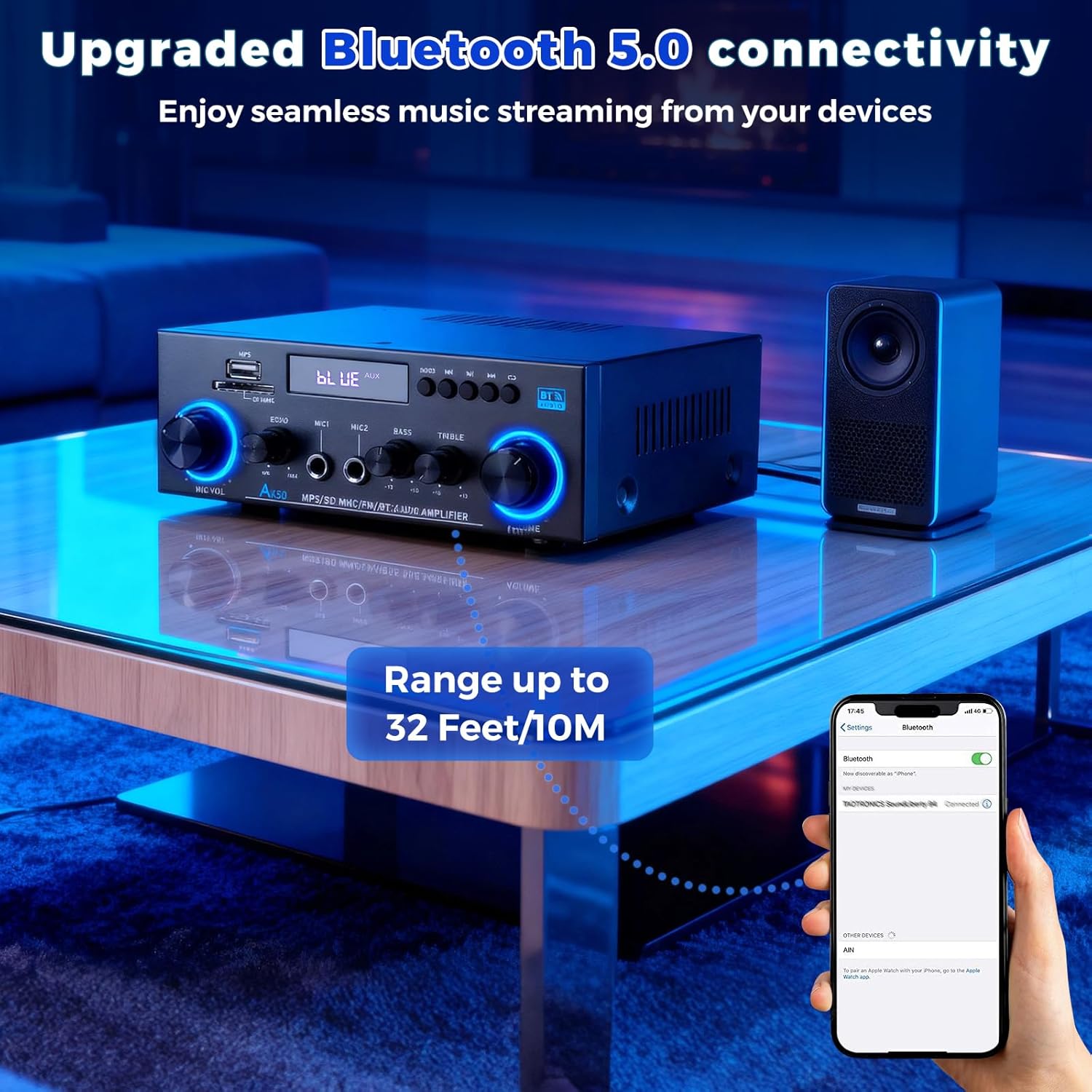
Image: A smartphone screen shows a successful Bluetooth connection to the AK50 amplifier, which is placed on a coffee table next to a small speaker.
5.2 USB/SD Card Playback
- Insert a USB flash drive or SD card containing MP3 audio files into the respective slot on the front panel.
- The amplifier should automatically switch to USB/SD mode and begin playback. If not, press the 'MODE' button to select the correct source.
- Use the Play/Pause, Previous/Next Track buttons on the front panel or remote control to manage playback.
5.3 FM Radio Operation
- Ensure the FM antenna is properly connected to the rear panel.
- Press the 'MODE' button until 'FM' appears on the display.
- Use the Previous/Next Track buttons to manually tune to a station or press and hold them to auto-scan for available stations.
5.4 Microphone Usage and Echo Control
- Connect up to two microphones to the 'MIC1' and 'MIC2' 1/4-inch input jacks on the front panel.
- Adjust the 'MIC VOL' knob to control the volume of the microphones.
- Turn the 'ECHO' knob to add or reduce the echo effect to the microphone audio.
Video: A demonstration of the microphone vocal effects, specifically the echo function, on the AK50 amplifier. This video is provided by a seller.
5.5 Tone and Master Volume Control
- BASS Knob: Rotate clockwise to increase bass, counter-clockwise to decrease.
- TREBLE Knob: Rotate clockwise to increase treble, counter-clockwise to decrease.
- VOLUME Knob: Adjusts the overall output volume of the amplifier.
5.6 Remote Control
The included remote control provides convenient access to all major functions from a distance, including power, mode selection, volume adjustment, and playback controls.
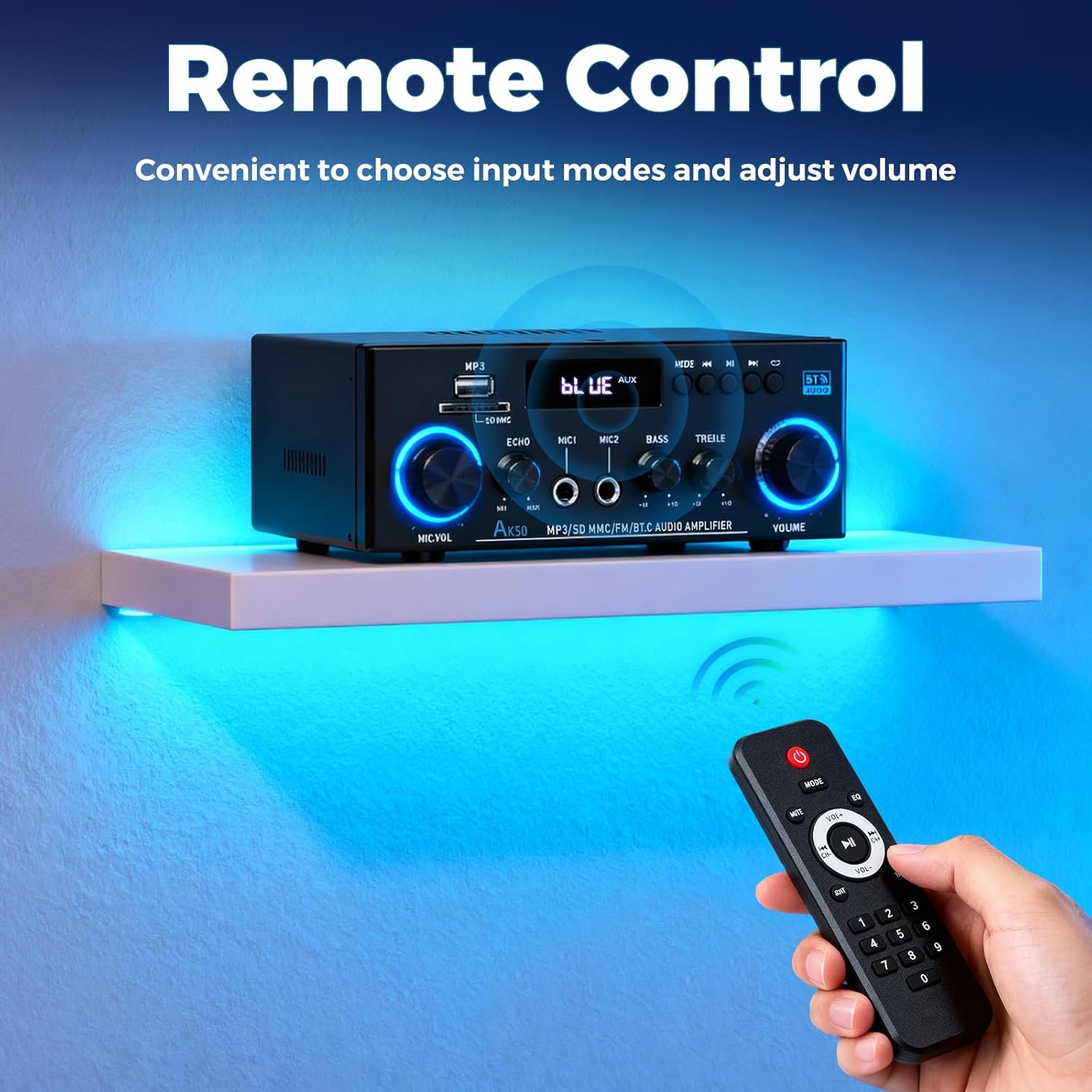
Image: A hand holds the remote control, pointing it towards the AK50 amplifier, demonstrating its use for convenient adjustments.
6. Maintenance
- Cleaning: Use a soft, dry cloth to clean the amplifier's exterior. Do not use liquid cleaners or solvents.
- Ventilation: Ensure the amplifier has adequate ventilation to prevent overheating. Do not block the ventilation openings.
- Storage: Store the amplifier in a cool, dry place away from direct sunlight and extreme temperatures when not in use for extended periods.
7. Troubleshooting
- No Power: Check if the power cord is securely connected to both the amplifier and the power outlet. Ensure the power switch on the rear panel is in the 'ON' position.
- No Sound:
- Verify that speakers are correctly connected and the volume knob is turned up.
- Ensure the correct input mode is selected (Bluetooth, USB/SD, FM, AUX/Line).
- Check the audio source device for proper playback and volume settings.
- Bluetooth Pairing Issues: Ensure the amplifier is in Bluetooth mode ('BLUE' on display) and your device's Bluetooth is enabled and searching. Try restarting both the amplifier and your device.
- Poor FM Reception: Adjust the position of the FM antenna. Ensure it is fully extended and away from other electronic devices that may cause interference.
- Microphone Not Working: Check microphone connections and ensure 'MIC VOL' is adjusted.
8. Specifications
| Feature | Specification |
|---|---|
| Brand | Romicta |
| Model Number | AK-50 |
| Output Power | 50W + 50W (Rated), 400W + 400W (Peak) |
| Number of Channels | 2 |
| Bluetooth Version | 5.0 |
| Speaker Impedance | 4Ω-16Ω |
| Voltage | 110 Volts (AC 90-240V 50-60Hz) |
| Item Weight | 1.96 pounds |
| Package Dimensions | 8.5 x 8.15 x 3.82 inches |
9. Safety Information
- Do not expose this appliance to rain or moisture.
- To prevent electric shock, do not open the casing. Refer all servicing to qualified personnel.
- Ensure proper ventilation to avoid overheating.
- Keep out of reach of children.
10. Warranty and Support
For warranty information and customer support, please refer to the documentation included with your purchase or contact Romicta customer service directly. Details are typically provided on the product packaging or the manufacturer's official website.
Ask a question about this manual
Ask about setup, troubleshooting, compatibility, parts, safety, or missing instructions. Manuals+ will review the question and use this page’s manual context to help answer it.