
1. Introduction
This manual provides essential information for setting up, operating, maintaining, and troubleshooting your Motorola Razr 60 5G smartphone. Please read this guide thoroughly to ensure optimal performance and longevity of your device.
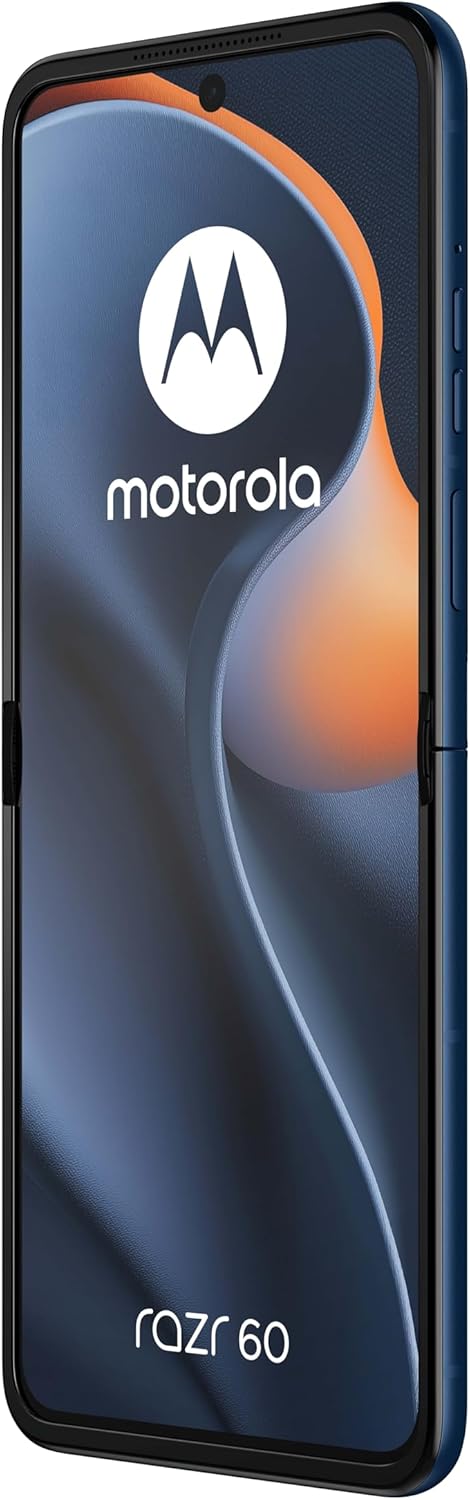
Figure 1: Motorola Razr 60 in unfolded state, displaying the main screen.
2. Setup
2.1. Unboxing and Initial Inspection
Carefully remove all components from the packaging. Verify that the following items are present:
- Motorola Razr 60 Smartphone
- USB Cable
- Quick Start Guide (if included)
Inspect the device for any visible damage before proceeding.
2.2. Inserting SIM Cards
The Motorola Razr 60 supports Dual SIM functionality. To insert your SIM cards:
- Locate the SIM card tray on the side of the device.
- Use a SIM ejector tool (not included, typically comes with new phones) to open the tray.
- Place your nano-SIM cards into the designated slots, ensuring the gold contacts face downwards.
- Carefully reinsert the SIM tray into the device.

Figure 2: Side view of the Motorola Razr 60, indicating the location of the SIM tray and power/volume buttons.
2.3. Charging the Battery
Before first use, it is recommended to fully charge the device. Connect the provided USB cable to the phone's USB-C port and the other end to a compatible power adapter (sold separately) or a computer's USB port.

Figure 3: Bottom view of the Motorola Razr 60, highlighting the USB-C charging port.
2.4. Powering On and Initial Configuration
Press and hold the Power button (located on the side) until the Motorola logo appears. Follow the on-screen prompts to select your language, connect to a Wi-Fi network, and set up your Google account.
3. Operating Your Device
3.1. Foldable Screen Operation
The Motorola Razr 60 features a foldable display. Gently unfold the device to access the main 6.9-inch screen. When finished, you can fold the device to a compact form factor for portability and to utilize the external display.
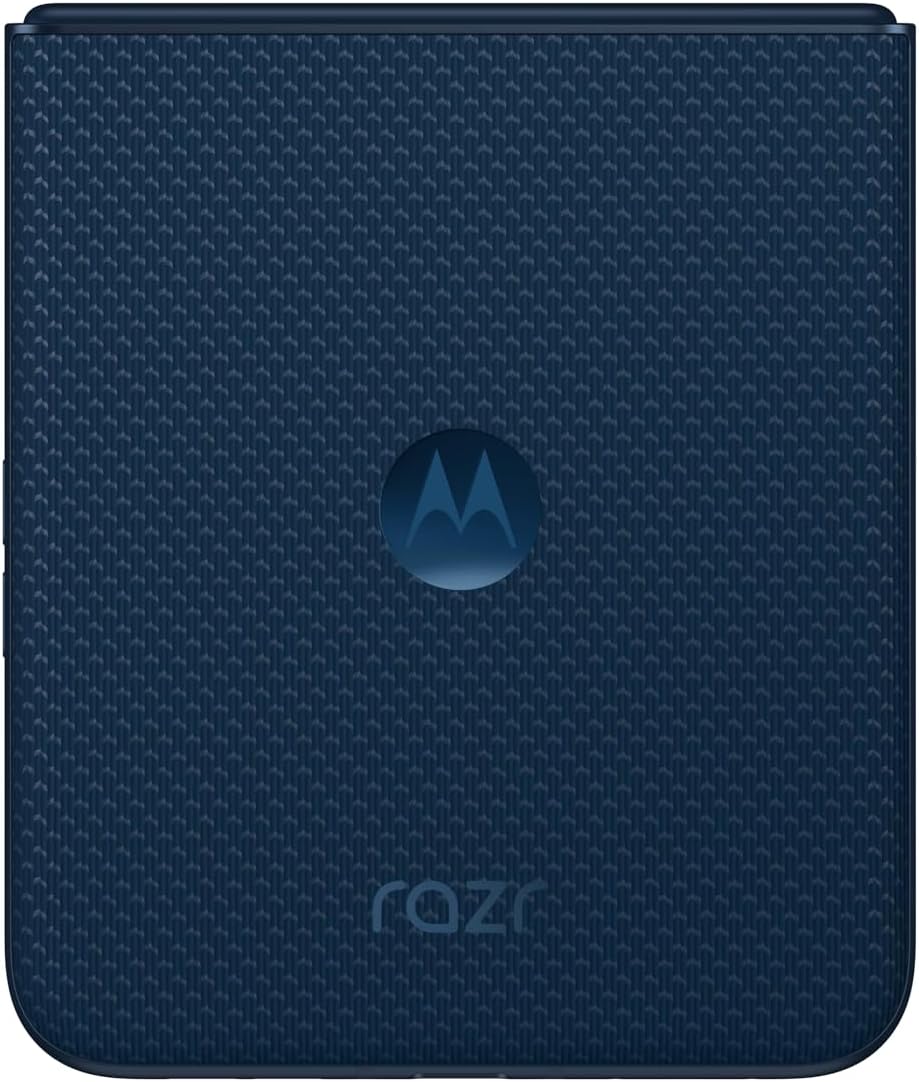
Figure 4: Motorola Razr 60 in its folded, compact state.

Figure 5: Motorola Razr 60 partially folded, showcasing the external display and camera module.
3.2. Android 15 Operating System
Your device runs on Android 15. Navigate through the interface using gestures and taps. Swipe up from the bottom to access the app drawer, swipe down from the top for notifications and quick settings.
3.3. Connectivity
The Razr 60 supports 5G connectivity for high-speed mobile data. Ensure your SIM card is provisioned for 5G service. The device also features Wi-Fi for internet access and Bluetooth for connecting accessories.
3.4. Dual SIM Functionality
With Dual SIM support, you can use two different phone numbers or carriers simultaneously. Manage your SIM preferences for calls, messages, and mobile data through the Settings menu under "Network & internet" > "SIMs".
4. Maintenance
4.1. Cleaning Your Device
To clean your Motorola Razr 60, use a soft, lint-free cloth. For stubborn smudges, slightly dampen the cloth with water. Avoid using harsh chemicals, abrasive materials, or aerosol sprays, as these can damage the screen and finish.
4.2. Battery Care
The device is equipped with a 4500 mAh battery. To prolong battery life:
- Avoid extreme temperatures.
- Do not leave the device fully charged or fully discharged for extended periods.
- Use only approved charging accessories.
4.3. Software Updates
Regularly check for and install software updates to ensure your device has the latest features, security patches, and performance improvements. Go to Settings > System > System updates to check for available updates.
5. Troubleshooting
If you encounter issues with your Motorola Razr 60, try the following steps:
5.1. Device Not Responding
If the device is unresponsive, press and hold the Power button for approximately 10-15 seconds to force a restart.
5.2. Network Connectivity Issues
- Ensure Airplane Mode is off (Settings > Network & internet).
- Check that your SIM cards are properly inserted.
- Restart the device.
- Contact your mobile carrier to verify service status.
5.3. Battery Draining Quickly
- Reduce screen brightness.
- Close unused apps running in the background.
- Disable unnecessary features like GPS or Bluetooth when not in use.
- Check battery usage in Settings > Battery to identify power-consuming apps.
5.4. Factory Reset
As a last resort, if software issues persist, you may perform a factory data reset. This will erase all data from your phone. Backup your data before proceeding. Go to Settings > System > Reset options > Erase all data (factory reset).
6. Specifications
Below are the key technical specifications for the Motorola Razr 60:
| Feature | Specification |
|---|---|
| Model Name | Motorola Razr 60 |
| Operating System | Android 15 |
| CPU Model | Cortex |
| CPU Speed | 2.8 GHz |
| RAM Memory Installed Size | 8 GB |
| Internal Storage | 256 GB |
| Screen Size | 6.9 Inches (Main Display) |
| Resolution | 1080 x 2640 |
| Connectivity Technologies | 5G |
| Special Features | Dual SIM, Foldable Screen |
| Battery Power Rating | 4500 Milliamp Hours |
| Product Dimensions | 6.74 x 0.29 x 2.91 inches |
| Item Weight | 7.1 ounces (200 Grams) |
| Audio Jack | No headphone jack |
| Color | Pantone Gibraltar Sea |
7. Warranty and Support
7.1. Warranty Information
Your Motorola Razr 60 is covered by a limited warranty. For detailed warranty terms and conditions, please refer to the warranty card included with your device or visit the official Motorola support website. This product is listed as "Renewed," which may affect warranty terms; consult your seller for specific details regarding renewed product warranties.
7.2. Customer Support
For further assistance, technical support, or service inquiries, please visit the official Motorola support website or contact their customer service. You can typically find contact information on the manufacturer's website or in the documentation provided with your device.
For issues related to the "Renewed" status or purchase, please contact your seller directly.


