
1. Introduction
Thank you for choosing the Azeyou 8.7-inch Android Tablet F68. This manual provides essential information for setting up, operating, and maintaining your device. Please read it carefully to ensure optimal performance and longevity of your tablet.
2. Safety Information
- Do not expose the tablet to extreme temperatures, direct sunlight, or high humidity.
- Avoid dropping or subjecting the tablet to strong impacts.
- Use only the provided charger and accessories to prevent damage and ensure safety.
- Keep the tablet away from water and other liquids.
- Do not attempt to disassemble or repair the tablet yourself. Contact customer support for assistance.
3. Package Contents
Verify that all items are present in your package:
- Azeyou 8.7-inch Android Tablet F68
- USB Type-C Charging Cable
- Power Adapter
- User Manual (this document)

Image: Tablet and included accessories.
4. Product Overview
The Azeyou F68 tablet features a sleek, all-metal design, making it both durable and portable. It is equipped with essential ports and components for a comprehensive user experience.
Physical Components
- 8.7-inch IPS Display: High-resolution screen (1340x800) for vivid visuals.
- Front Camera: 5MP for video calls and selfies.
- Rear Camera: 13MP for capturing photos and videos.
- Power Button: Located on the side for turning the device on/off and screen lock.
- Volume Buttons: Adjust audio levels.
- USB Type-C Port: For charging and data transfer.
- 3.5mm Headphone Jack: For connecting wired headphones.
- Dual Speakers: Enhanced audio output.
- MicroSD Card Slot: For storage expansion up to 1TB.
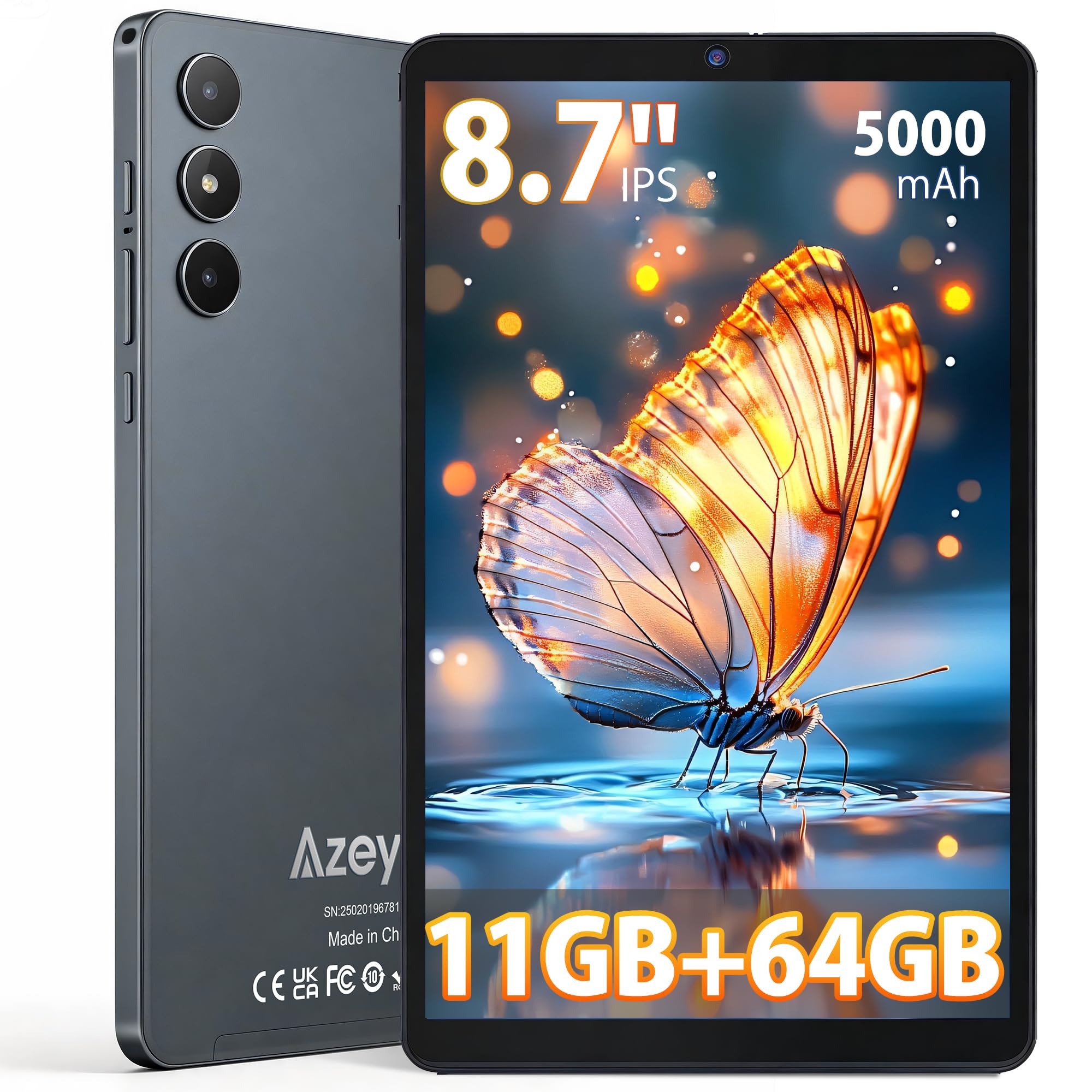
Image: Front view of the Azeyou F68 tablet.

Image: Tablet held in hand, demonstrating portability.

Image: Tablet side profile, highlighting thinness and weight.
5. Setup
5.1 Initial Charge
Before first use, fully charge your tablet. Connect the USB Type-C cable to the tablet's charging port and the power adapter to a wall outlet. The battery indicator will show charging status.
5.2 Power On/Off
- To Power On: Press and hold the Power button until the Azeyou logo appears on the screen.
- To Power Off: Press and hold the Power button, then select 'Power off' from the options.
- To Restart: Press and hold the Power button, then select 'Restart' from the options.
5.3 Initial Setup Wizard
Upon first power-on, the tablet will guide you through an initial setup process. This includes:
- Selecting your language.
- Connecting to a Wi-Fi network.
- Setting up your Google account (required for GMS services like Google Play Store).
- Setting up screen lock (PIN, pattern, or password).
5.4 Inserting a MicroSD Card
To expand storage, insert a microSD card (up to 1TB) into the designated slot. Ensure the tablet is powered off before inserting or removing the card.
6. Operating Instructions
6.1 Navigation
The tablet runs on Android 15, offering an intuitive touch interface. Use gestures like tapping, swiping, pinching, and spreading to navigate.
6.2 Wi-Fi and Bluetooth Connectivity
Access Wi-Fi settings from the Quick Settings panel (swipe down from the top of the screen) or through the Settings app. The tablet supports dual-band Wi-Fi (2.4G+5G) and Bluetooth 5.0 for stable connections.

Image: High-speed and stable connectivity features.
6.3 Media Consumption
The 8.7-inch IPS display with 1340x800 resolution and T-Colour image technology provides a vibrant viewing experience. With Widevine L1 support, you can stream high-definition content from platforms like Netflix, YouTube, and Prime Video.

Image: Tablet display quality for video viewing.

Image: Widevine L1 support for high-definition streaming.
6.4 Camera Usage
The tablet features a 13MP rear camera and a 5MP front camera. Open the Camera app to capture photos and videos. The AI camera features enhance image quality.

Image: Camera features and examples.
6.5 OTG Functionality
The tablet supports USB On-The-Go (OTG), allowing you to connect external devices such as USB drives, keyboards, or mice using an OTG adapter (sold separately).
6.6 Kids Protection Mode
Utilize the built-in parental control features to manage screen time and content access for children. This helps maintain a balance between learning and entertainment.
6.7 Multitasking and Wireless Projection
The Android 15 operating system supports multitasking, allowing you to run multiple applications simultaneously. The tablet also supports wireless projection for displaying content on compatible screens.

Image: Wireless projection and split-screen multitasking.
7. Maintenance
7.1 Cleaning the Tablet
Use a soft, lint-free cloth to clean the screen and body of the tablet. Avoid using harsh chemicals or abrasive materials that could damage the surface.
7.2 Battery Care
To prolong battery life, avoid fully discharging the tablet frequently. Charge the tablet regularly, and if storing for an extended period, ensure it has at least a 50% charge.
7.3 Software Updates
Regularly check for and install system updates to ensure your tablet has the latest features, security patches, and performance improvements. Go to Settings > System > System update.
8. Troubleshooting
- Tablet not turning on: Ensure the tablet is charged. Connect it to the charger and wait a few minutes before attempting to power on again.
- Screen is unresponsive: Try restarting the tablet by holding the Power button for about 10-15 seconds until it reboots.
- Apps are crashing or freezing: Close background apps. Clear the cache of the problematic app (Settings > Apps > [App Name] > Storage > Clear cache). If the issue persists, uninstall and reinstall the app.
- Wi-Fi connection issues: Restart your Wi-Fi router and the tablet. Forget the network on your tablet and reconnect.
- Slow performance: Close unnecessary background apps. Clear cached data. Consider uninstalling unused apps.
- Battery draining quickly: Reduce screen brightness. Turn off Wi-Fi, Bluetooth, and GPS when not in use. Limit background app activity.
9. Specifications
| Feature | Description |
|---|---|
| Model | F68 |
| Display | 8.7-inch IPS LCD, 1340x800 pixels, 60Hz refresh rate, 300 nits brightness, 16:9 aspect ratio |
| Processor | Unisoc T310 (1.8 GHz CPU speed, 2 GHz max CPU speed), 12nm process |
| RAM | 11GB (3GB base + 8GB expansion) |
| Internal Storage | 64GB |
| Expandable Storage | MicroSD card up to 1TB |
| Operating System | Android 15 (GMS Certified) |
| Battery | 5000mAh, up to 6.5 hours continuous use |
| Charging Port | USB Type-C |
| Cameras | Rear: 13MP, Front: 5MP |
| Connectivity | Wi-Fi (802.11a/b/g/n/ac, Dual-Band 2.4G+5G), Bluetooth 5.0 |
| Audio | 3.5mm Headphone Jack, Dual Speakers |
| Dimensions | 24.3 cm (L) x 16.2 cm (W) x 0.9 cm (T) |
| Weight | Approx. 360g |
| Certifications | PSE, CE, FCC, TELEC, GMS |
| Special Features | Widevine L1, OTG Support, Wireless Projection, Screen Split, Kids Protection Mode |

Image: Overview of tablet features.

Image: Storage and RAM details.

Image: Battery and connectivity ports.
10. Warranty and Support
Your Azeyou F68 tablet comes with a 12-month warranty from the date of purchase. Additionally, a 30-day refund period is offered for eligible returns.
Warranty Coverage
This warranty covers manufacturing defects and malfunctions under normal use. It does not cover damage caused by misuse, accidents, unauthorized repairs, or normal wear and tear.
How to Obtain Support
If you encounter any issues or have questions about your product, please contact Azeyou customer support. You can reach us via email (English and Japanese support available). To facilitate the process, please provide your Amazon order number.
You can typically find contact information by navigating to your Amazon purchase history, clicking on the product, and then selecting the seller's name to find the 'Ask a question' option.


