
1. Introduction
The CORBOBO LINGBAO K75 is a 75% wireless mechanical keyboard designed for versatility and performance. It features three-mode connectivity (2.4GHz wireless, Bluetooth, and wired USB-C), hot-swappable switches, vibrant RGB backlighting, and a high-capacity 10000mAh battery. This manual provides detailed instructions for setting up, operating, and maintaining your keyboard.
2. Package Contents
- K75 Wireless Mechanical Keyboard x1
- User Manual x1
- USB-C Cable x1
- Keycap Puller x1
- Extra Switches x2
3. Product Overview
The LINGBAO K75 keyboard combines a compact 75% layout with advanced features for an enhanced typing and gaming experience. Key features include a gasket structure for improved acoustics, durable PBT keycaps, and customizable RGB lighting.
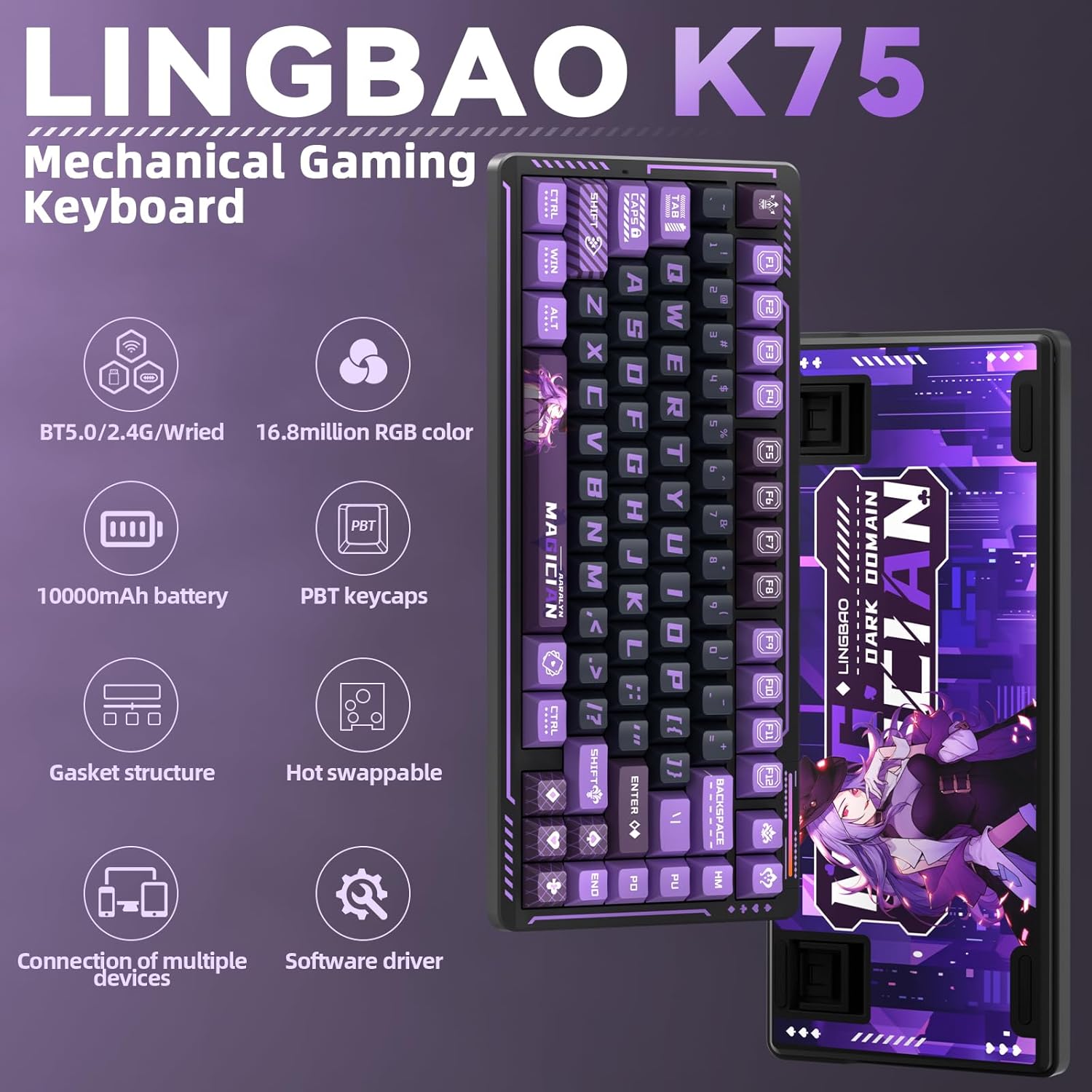
Image 1: LINGBAO K75 Mechanical Gaming Keyboard highlighting key features such as BT5.0/2.4G/Wired connectivity, 16.8 million RGB colors, 10000mAh battery, PBT keycaps, gasket structure, hot-swappable switches, connection of multiple devices, and software driver.

Image 2: Detailed diagram illustrating the five-layer gasket structure of the K75 keyboard, including PBT keycaps, FR4 positioning plate, PO sandwich foam, IXPE switch pad, PET sound optimizing pad, cotton layer, and silicone base pad.
4. Setup
4.1 Initial Charging
Before first use, fully charge the keyboard using the provided USB-C cable. Connect the cable to the keyboard's USB-C port and the other end to a computer's USB port. Do not use mobile phone fast chargers or overcurrent/overvoltage chargers, as this may damage the battery.

Image 3: The K75 keyboard connected via USB-C, illustrating its 10,000 mAh large-capacity battery, capable of approximately 40 hours with RGB lighting or 500 hours with lights off.
4.2 Connectivity Modes
The K75 keyboard supports three connection modes: 2.4GHz wireless, Bluetooth (BT5.0), and wired USB-C. Use the switch located on the top edge of the keyboard to select your desired mode.

Image 4: Close-up of the K75 keyboard's top edge, showing the 2.4G/USB/BT mode switch, the USB-C port, and the hidden magnetic compartment for the 2.4GHz USB receiver.
- 2.4GHz Wireless: Insert the USB receiver into an available USB port on your computer. Switch the keyboard to '2.4G' mode. The keyboard should connect automatically.
- Bluetooth (BT5.0): Switch the keyboard to 'BT' mode. On your device (PC, laptop, smartphone, tablet), search for Bluetooth devices and select 'K75'. The keyboard can store up to 5 different Bluetooth devices.
- Wired USB-C: Connect the USB-C cable from the keyboard to your computer. Switch the keyboard to 'USB' mode. This mode provides a stable connection and is required for driver customization.
5. Operating Instructions
5.1 RGB Backlighting
The K75 keyboard features 16.8 million color RGB backlighting with various effects. You can adjust the lighting using keyboard shortcuts or the dedicated software driver.

Image 5: The K75 keyboard displaying various RGB lighting effects and illustrating how to adjust them using Fn key combinations for switching light effect modes, light color, speed, and brightness.
- Switching Light Effect Modes: Press Fn + \|
- Switching Light Color: Press Fn + Tab
- Light Speed Down/Up: Press Fn + ↑/↓
- Increase/Reduce Brightness: Press Fn + ←/→
- Side Light Strips: Use Fn + /? to switch colors, Fn + .> to switch brightness, Fn + Shift + ! to toggle modes, and Fn + Ctrl + @ to switch speed.
- Top Ambient Light: Use Fn + B to enter power mode, Fn + Z to switch colors, Fn + Shift + . to toggle modes, and Fn + Ctrl + / to switch speed.
- Music-synchronized Lighting: The keyboard supports a unique music rhythm lighting effect mode via the driver software, converting computer audio into dynamic RGB backlight effects.
5.2 Programmable Driver
The K75 keyboard supports full-key macro command programming and comprehensive customization through its multi-functional software driver. This driver allows for personalized key assignments and lighting effects.

Image 6: Screenshot of the K75 keyboard's multi-functional software driver, showing options for key assignment, macro programming, RGB settings, and music rhythm synchronization. The driver can be downloaded from bit.ly/m/corbobo.
Note: The driver can only be used and configured when the keyboard is connected via wired USB-C mode and is compatible with Windows systems.
5.3 Hot-Swappable Switches
The K75 features a full-key hot-swappable socket, allowing users to easily replace 3-pin or 5-pin mechanical switches without soldering. This provides flexibility for customizing your typing feel.
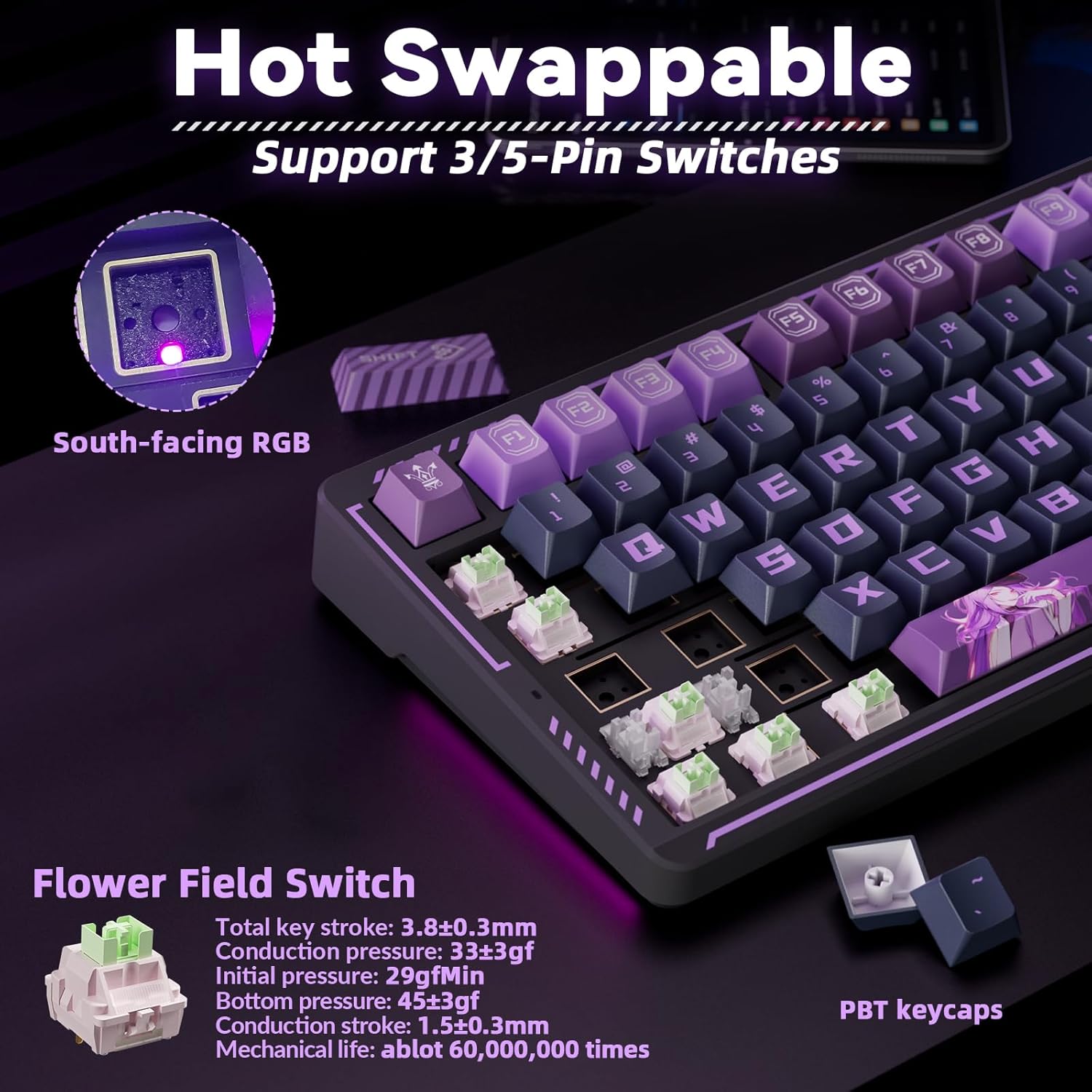
Image 7: The K75 keyboard with several keycaps and switches removed, demonstrating its hot-swappable feature. It highlights the 'Flower Field Switch' specifications and the durable PBT keycaps.
To replace a switch:
- Carefully remove the keycap using the provided keycap puller.
- Use a switch puller (not included, but often comes with replacement switches) to gently pull the switch upwards until it detaches from the PCB.
- Align the pins of the new switch with the holes on the PCB and press down firmly until it clicks into place. Ensure the switch is properly seated to avoid bent pins.
- Reattach the keycap.
6. Maintenance
6.1 Cleaning
To clean your keyboard, first disconnect it from all power sources. Use a soft, lint-free cloth dampened with a small amount of water or a mild cleaning solution. Avoid spraying liquids directly onto the keyboard. For cleaning between keycaps, use a can of compressed air or the provided keycap puller to remove keycaps and clean the switches and plate.
6.2 Battery Care
To prolong battery life, always charge the keyboard exclusively via a computer's USB port. Avoid using mobile phone fast chargers or any chargers that deliver overcurrent or overvoltage, as these can degrade the battery over time.
7. Troubleshooting
- Keyboard not responding: Ensure the keyboard is charged and the correct connection mode (2.4G, BT, or USB) is selected. For wireless modes, check if the USB receiver is properly inserted or if Bluetooth is paired. Try connecting via USB-C cable.
- RGB lighting not working: Check keyboard brightness settings using Fn shortcuts. Ensure the driver software is correctly installed and configured if using custom effects.
- Keys not registering: If a specific key is not working, try removing and re-seating its switch. If the issue persists, the switch may need replacement.
- Driver software issues: Ensure the keyboard is connected via USB-C cable to a Windows system when using the driver. Reinstall the driver if necessary.
8. Specifications
| Feature | Specification |
|---|---|
| Product Dimensions | 13.77 x 7.08 x 1.88 inches |
| Item Weight | 3.19 pounds |
| Connectivity Technology | 2.4GHz, BT 5.0, USB-C |
| Battery Capacity | 10000mAh (2 Nonstandard Battery batteries included) |
| Keyboard Description | Mechanical Gaming Keyboard |
| Keycap Material | PBT (Two-color injection-molded) |
| Switch Type | Pre-lubed Linear Mechanical Switches (Hot-swappable 3-pin or 5-pin) |
| Backlighting | RGB (16.8 million colors) |
| Compatible Devices | Gaming Console, Laptop, PC, Smartphone, Tablet |
| Special Features | Anime design, Backlit, Hot-Swappable, Programmable Keys |
9. Official Product Video
Watch the official product video for a visual overview of the CORBOBO LINGBAO K75 Gaming Keyboard's features and design.
Video 1: Official product video showcasing the LINGBAO K75 Gaming Keyboard by CORBOBO Direct. This video highlights the keyboard's design, RGB lighting, and overall aesthetic.
10. Warranty and Support
For warranty information and technical support, please refer to the contact details provided on the product packaging or visit the official CORBOBO website. Keep your purchase receipt for warranty claims.