
1. Important Safety Instructions
Please read all instructions carefully before using this projector and retain them for future reference. Incorrect operation may result in fire, electric shock, or other hazards.
- Do not block the ventilation openings. Ensure adequate space around the projector for proper airflow.
- Do not expose the projector to rain or moisture to prevent fire or electric shock.
- Use only attachments/accessories specified by the manufacturer.
- Unplug the projector during lightning storms or when unused for long periods.
- Refer all servicing to qualified service personnel.
- Avoid looking directly into the projector lens when the lamp is on.
2. Package Contents
Verify that all items are present in the package:
- 1 x Yaber L2s Projector
- 1 x HDMI Cable
- 1 x Power Cord
- 1 x Projector Lens Cover
- 1 x Remote Control
- 1 x Cleaning Kit
3. Product Overview
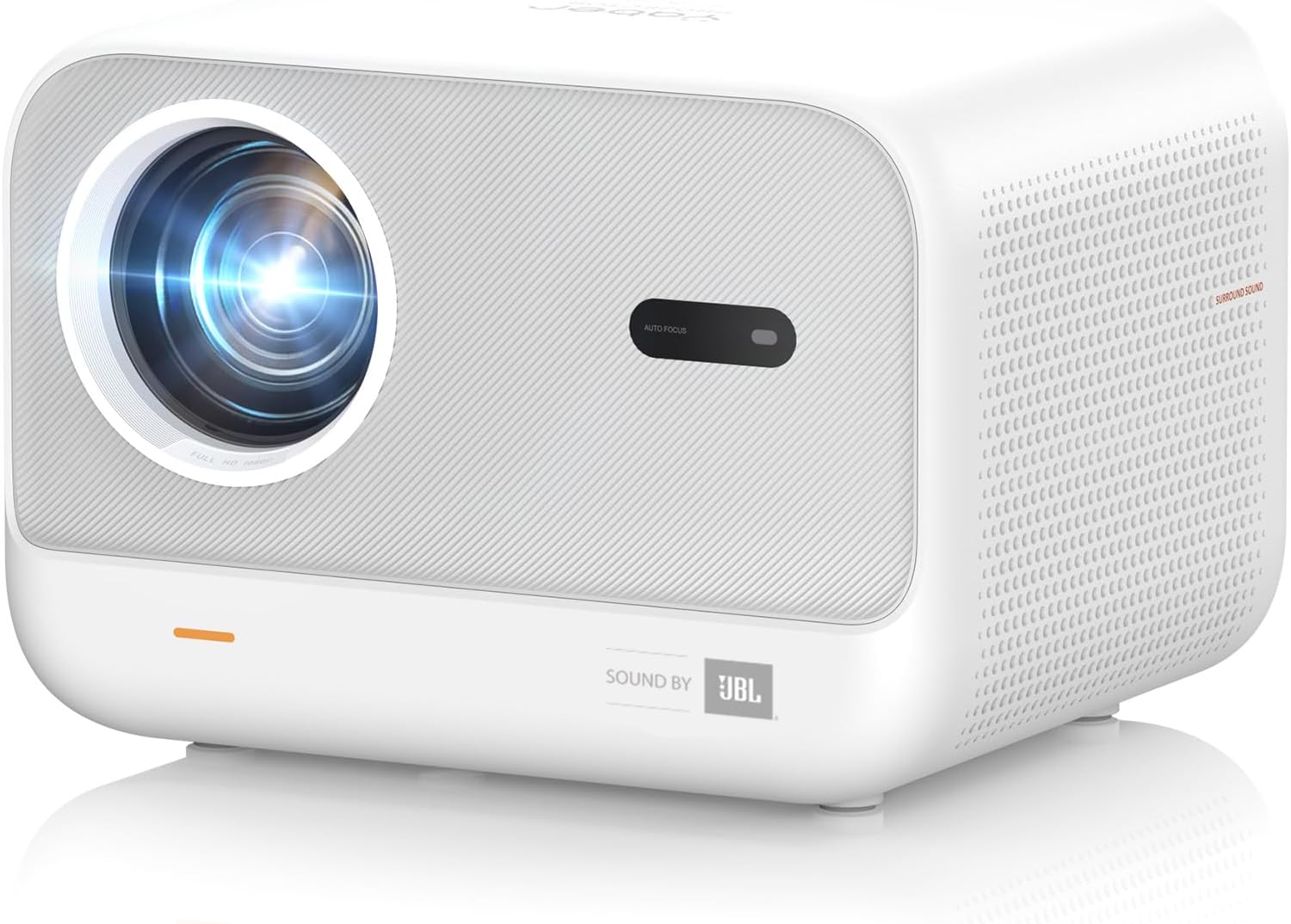
Figure 3.1: Front view of the Yaber L2s Projector, showing the lens and auto-focus sensor.
3.1 Main Components
- Projection Lens: Emits the image.
- Auto Focus Sensor: Automatically adjusts image clarity.
- Ventilation Openings: For heat dissipation.
- JBL Speakers: Integrated audio output.
- Input Ports: HDMI, USB, 3.5mm Audio Jack.

Figure 3.2: Overview of key features including 1080P FHD, higher brightness, JBL speakers, seamless autofocus, auto vertical keystone, zoom, Wi-Fi 6, and Bluetooth 5.1.
4. Setup
4.1 Placement
Position the projector on a stable, flat surface. Ensure the projection path is clear of obstructions. The optimal projection distance and screen size are detailed below:
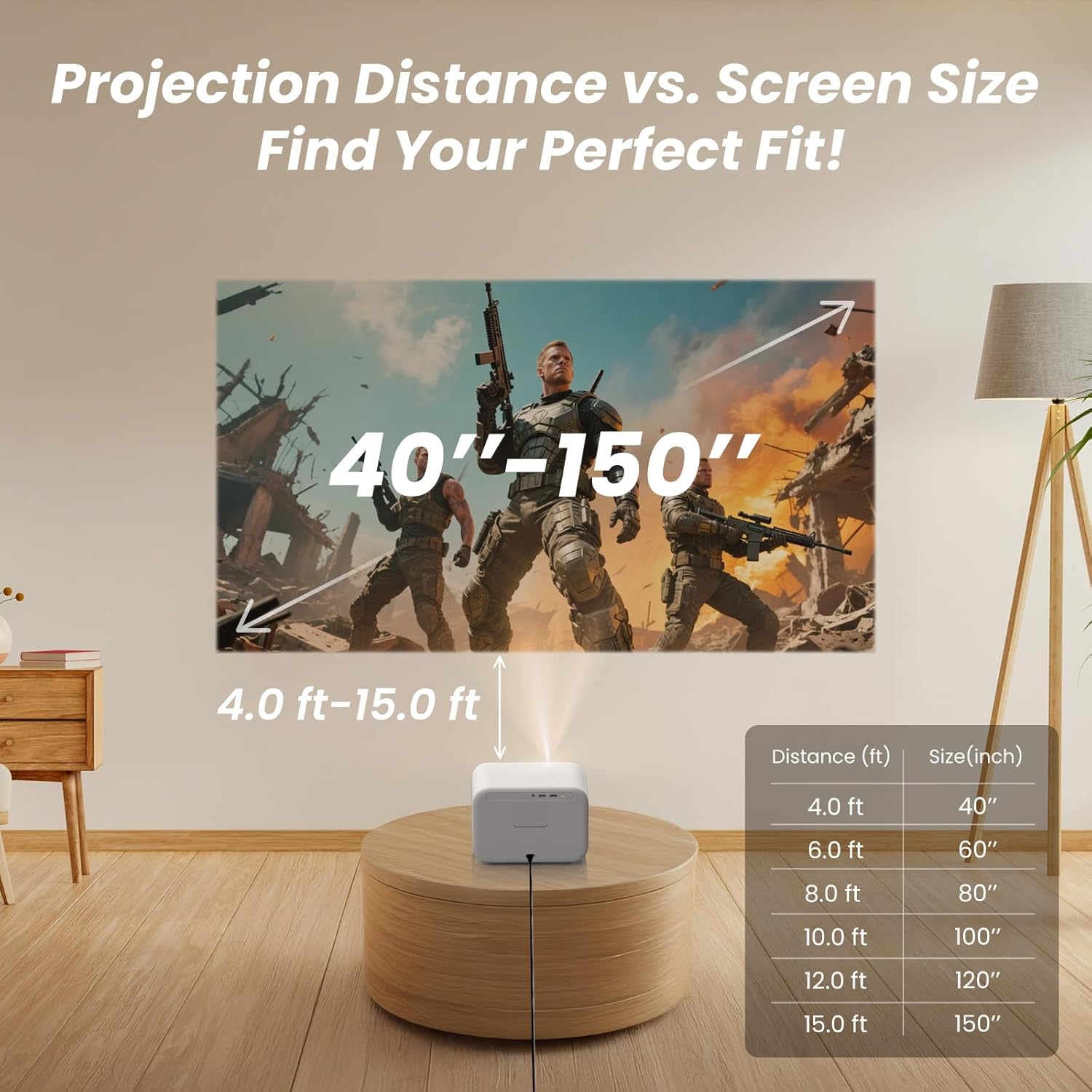
Figure 4.1: Recommended projection distances for various screen sizes (40-150 inches).
| Distance (ft) | Screen Size (inch) |
|---|---|
| 4.0 ft | 40" |
| 6.0 ft | 60" |
| 8.0 ft | 80" |
| 10.0 ft | 100" |
| 12.0 ft | 120" |
| 15.0 ft | 150" |
4.2 Power Connection
- Connect the power cord to the projector's power input.
- Plug the other end of the power cord into a suitable electrical outlet.
4.3 Initial Power On and Adjustments
- Press the power button on the projector or remote control to turn it on.
- The projector will automatically perform autofocus and vertical keystone correction to achieve a clear and rectangular image. This process typically takes 1-3 seconds.
- If further adjustments are needed, use the remote control to access the menu for manual keystone correction or digital zoom (50%-100%).

Figure 4.2: The projector features seamless autofocus, auto vertical keystone, and 50-100% zoom for quick image setup.
5. Operation
5.1 Connecting Devices
The Yaber L2s Projector supports various input sources:

Figure 5.1: Available input options for the projector.
- HDMI: Connect devices such as laptops, gaming consoles (PS4/PS5), Blu-ray players, or TV sticks using an HDMI cable.
- USB: Plug in a USB drive to play media files directly.
- 3.5mm Audio Jack: Connect external headphones or speakers if desired.
5.2 Wireless Connectivity
The projector offers advanced wireless options:
- Wi-Fi 6: Connect to your home network for faster and more stable streaming from compatible devices. Access the Wi-Fi settings in the projector's menu to connect.
- Bluetooth: Pair with Bluetooth speakers or headphones for enhanced audio. The projector can also function as a standalone Bluetooth speaker.

Figure 5.2: Wi-Fi 6 connectivity provides a smoother experience for activities like gaming.

Figure 5.3: The projector can connect to external Bluetooth devices or act as a Bluetooth speaker.
5.3 Audio Output
The projector features integrated JBL speakers for clear and powerful audio. For private listening, connect headphones via the 3.5mm audio jack. For a larger sound experience, pair with external Bluetooth speakers.

Figure 5.4: The projector is equipped with 2x8W JBL speakers for integrated audio.
6. Maintenance
6.1 Cleaning the Lens
Use the provided cleaning cloth or a soft, lint-free cloth to gently wipe the projector lens. Avoid using abrasive cleaners or excessive force, as this can damage the lens coating.
6.2 Dust Filter Maintenance
The projector includes a built-in dust filter designed to block up to 95% of dust, reducing maintenance requirements. Periodically check the filter for dust accumulation and clean it as needed to ensure optimal performance and longevity.

Figure 6.1: The built-in dust filter helps maintain projector performance.
7. Troubleshooting
If you encounter issues with your Yaber L2s Projector, refer to the following common problems and solutions:
- No Power: Ensure the power cord is securely connected to both the projector and a working electrical outlet. Try a different outlet.
- No Image: Check that the input source is correctly selected (e.g., HDMI 1, USB). Verify that the connected device is powered on and outputting a signal.
- Blurry Image: The projector features autofocus. If the image remains blurry, ensure the lens is clean and there are no obstructions. Manual focus adjustment may be available in the settings menu if autofocus is overridden.
- No Sound: Check the projector's volume settings and ensure it is not muted. If using external speakers, verify their connection and power. If using Bluetooth, ensure proper pairing.
- Connectivity Issues (Wi-Fi/Bluetooth): Ensure the projector is within range of your Wi-Fi router or Bluetooth device. Re-enter Wi-Fi passwords or re-pair Bluetooth devices.
For further assistance, please contact customer support.
8. Specifications
| Feature | Detail |
|---|---|
| Product Dimensions | 8.94 x 7.24 x 6.26 inches |
| Item Weight | 5.06 pounds |
| Item Model Number | L2s |
| Brand | Yaber PROJECTOR |
| Special Features | 1080P HD Quality, Built-In Speaker (JBL), High Brightness, Low Noise, Auto Focus, Auto Vertical Keystone |
| Connectivity Technology | 3.5mm Jack, Bluetooth, HDMI, USB, Wi-Fi 6 |
| Display Resolution | 1920 x 1080 (Native 1080P FHD, 4K Support) |
| Manufacturer | Yaber PROJECTOR |
| First Available Date | September 3, 2025 |
9. Warranty and Support
9.1 Warranty Information
For detailed warranty information, please refer to the warranty card included with your product packaging or visit the official Yaber Projector website. The warranty typically covers manufacturing defects under normal use conditions.
9.2 Customer Support
If you have any questions, require technical assistance, or need to report an issue, please contact Yaber customer support:
- Email: service@yaber.com

Figure 9.1: Yaber customer service contact email.


