
Introduction
This manual provides essential information for the safe and efficient use of your Getac B300 G7 Fully Rugged Notebook. Please read this manual thoroughly before operating the device and retain it for future reference.
The Getac B300 G7 is designed for demanding environments, featuring MIL-STD-810G and IP65 certifications for resistance against shock, vibration, dust, and water.
Setup
1. Unpacking and Initial Inspection
Carefully remove the notebook and all accessories from the packaging. Inspect the device for any signs of damage. If any damage is found, contact your vendor immediately.
2. Connecting Power
Before initial use, ensure the battery is fully charged. Connect the AC adapter to the notebook's DC-in jack and then to a power outlet.
- AC Adapter: 90W
- Battery: Li-on 10.8V

Figure 1: Left side of the Getac B300 G7, showing various ports including the power input.
3. First Boot-up
Press the power button to turn on the notebook. The device will boot into Windows 11 Pro. Follow the on-screen instructions to complete the initial setup of the operating system.
4. Connecting Peripherals
The Getac B300 G7 offers multiple ports for connecting external devices:
- USB 3.0: 3 ports for connecting USB devices like external drives, keyboards, or mice.
- LAN (RJ45): For wired network connection.
- HDMI: For connecting to external displays.
- External VGA: For connecting to older external displays.
- Serial Port: 2 ports for legacy device connectivity.
- Microphone (Mini-jack): For external microphone input.
- Audio Output (Mini-jack): For headphones or external speakers.
- Docking Connector: For connecting to a compatible docking station.
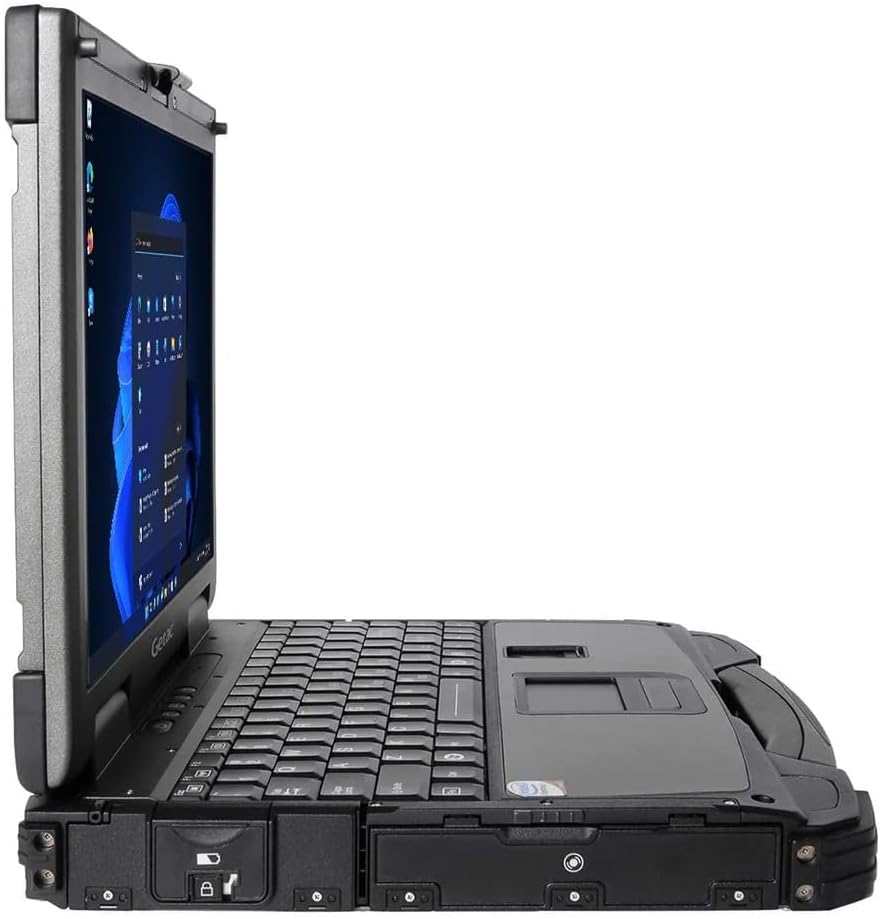
Figure 2: Right side of the Getac B300 G7, showing additional ports.
Operating the Notebook
1. Power On/Off
- To Power On: Press the power button located on the device.
- To Power Off: Use the Windows Start menu to select 'Shut down'. Avoid forced shutdowns unless necessary to prevent data loss.
2. Display and Touchscreen
The notebook features a 13.3-inch TFT LCD XGA (1024 x 768) touchscreen display with 700 nits brightness. You can interact with the display using your finger or a compatible stylus (not included).
- Touch Gestures: Standard Windows 11 touch gestures are supported.
- Brightness Adjustment: Adjust display brightness through Windows settings or dedicated function keys (if available).
3. Keyboard and Input Devices
The Getac B300 G7 includes a backlit keyboard for use in low-light conditions. The integrated touchpad can be used for cursor control. An Insertable Smartcard Reader is also available for secure access applications.
- Backlight Control: Use the appropriate function key combination to toggle or adjust keyboard backlight.
- Smartcard Reader: Insert your smartcard into the designated slot for authentication or data access.
4. Optical Drive
The notebook is equipped with a DVD Super Multi Drive. This allows you to read and write various CD and DVD formats.
- Inserting a Disc: Gently push the disc into the drive until it clicks into place.
- Ejecting a Disc: Use the eject button on the drive or the eject option in Windows File Explorer.
5. Operating System
Your Getac B300 G7 comes with Windows 11 Pro pre-installed. Refer to Microsoft's documentation for detailed information on using Windows 11 Pro features and functionalities.
Maintenance
1. Cleaning the Notebook
- Exterior: Use a soft, damp cloth with a mild cleaning solution. Avoid harsh chemicals or abrasive materials.
- Display: Use a microfiber cloth specifically designed for screens. Do not spray cleaners directly onto the screen.
- Ports: Ensure ports are free of dust and debris. Use compressed air if necessary, holding the can upright.
2. Battery Care
To maximize battery life and performance:
- Avoid extreme temperatures.
- Do not fully discharge the battery frequently.
- If storing the notebook for an extended period, charge the battery to approximately 50-60% before storage.
3. Rugged Features
While the B300 G7 is designed to be rugged, proper care is still essential:
- Ensure all port covers are securely closed to maintain IP65 dust and water resistance.
- Avoid unnecessary drops or impacts, even though the device is MIL-STD-810G certified.
- Clean any mud or dirt from the casing promptly.

Figure 3: Top view of the Getac B300 G7, showcasing its robust design.
Troubleshooting
This section addresses common issues you might encounter with your Getac B300 G7 notebook.
1. Notebook Does Not Power On
- Ensure the AC adapter is securely connected to both the notebook and a working power outlet.
- Verify the battery is charged. If the battery is completely drained, it may take a few minutes of charging before the notebook can power on.
- Try removing and reinserting the battery (if user-removable) to reset it.
2. Display Issues
- No Display: Connect an external monitor to the HDMI or VGA port to check if the issue is with the internal display.
- Dim Display: Adjust the brightness settings in Windows or using the keyboard function keys.
- Touchscreen Unresponsive: Restart the notebook. If the issue persists, check for driver updates in Windows Device Manager.
3. Peripheral Devices Not Working
- Ensure the device is properly connected to the correct port.
- Try connecting the device to a different port or another computer to rule out device malfunction.
- Check Windows Device Manager for any driver issues related to the peripheral.
4. System Performance Issues
- Close unnecessary applications running in the background.
- Ensure Windows and drivers are up to date.
- Run a disk cleanup and defragmentation (for HDDs, not necessary for SSDs).
- Check for malware or viruses.
Specifications
| Feature | Description |
|---|---|
| Model Name | B300 G7 |
| Processor | Intel Core i5-8350U (1.7 GHz, up to 3.6 GHz with Turbo Boost, 6MB Cache) |
| RAM | 16GB DDR4 (2400 MHz), Max 32GB |
| Storage | 512GB SSD |
| Display | 13.3-inch TFT LCD XGA (1024 x 768), 700 nits, Touchscreen |
| Graphics | Integrated Intel UHD Graphics 620 |
| Operating System | Windows 11 Pro |
| Optical Drive | DVD Super Multi Drive |
| Ports | USB 3.0 x 3, LAN (RJ45), HDMI, External VGA, Serial Port x 2, Microphone (Mini-jack), Audio Output (Mini-jack), DC-in Jack, Docking Connector |
| Special Features | Backlit Keyboard, Insertable Smartcard Reader |
| Rugged Certification | MIL-STD-810G, IP65 |
| Dimensions (L x W x H) | 11.9" x 10.35" x 2.36" |
| Weight | 7.7 lbs |
| Connectivity | Ethernet (No Wi-Fi, No Bluetooth) |
| Included Items | Li-on battery 10.8V, AC Adapter 90W |

Figure 4: Top view of the Getac B300 G7, highlighting its robust casing and integrated handle for portability.
Warranty Information
This Getac B300 G7 notebook comes with a 90-day limited warranty. This warranty covers defects in materials and workmanship under normal use during the warranty period.
The warranty does not cover:
- Damage caused by accident, abuse, misuse, flood, fire, earthquake, or other external causes.
- Damage caused by operating the product outside the permitted or intended uses described by Getac.
- Damage caused by service performed by anyone who is not an authorized service provider.
- Products or parts that have been modified to alter functionality or capability without the written permission of Getac.
For specific terms and conditions, please refer to the warranty documentation provided with your purchase or contact your vendor.
Support
If you encounter issues that cannot be resolved using the troubleshooting guide in this manual, please contact your vendor or an authorized service center for assistance. When contacting support, please have your model number (B300 G7) and serial number ready.
For the latest drivers, software updates, and additional support resources, please visit the official Getac support website.


