
HUAWEI ATM-B29
HUAWEI Watch GT 6 Pro Smart Watch User Manual
Model: ATM-B29
1. Introduction
This manual provides essential instructions for the setup, operation, and maintenance of your HUAWEI Watch GT 6 Pro Smart Watch. Please read this manual thoroughly before using the device to ensure proper function and safety.
What's in the Box:
- HUAWEI Watch GT 6 Pro Smart Watch
- Charging Cable
- User Manual (this document)
2. Product Overview
The HUAWEI Watch GT 6 Pro features a 1.47-inch AMOLED display, a durable titanium alloy casing, and sapphire glass. It is designed for comprehensive health monitoring and advanced sports tracking.
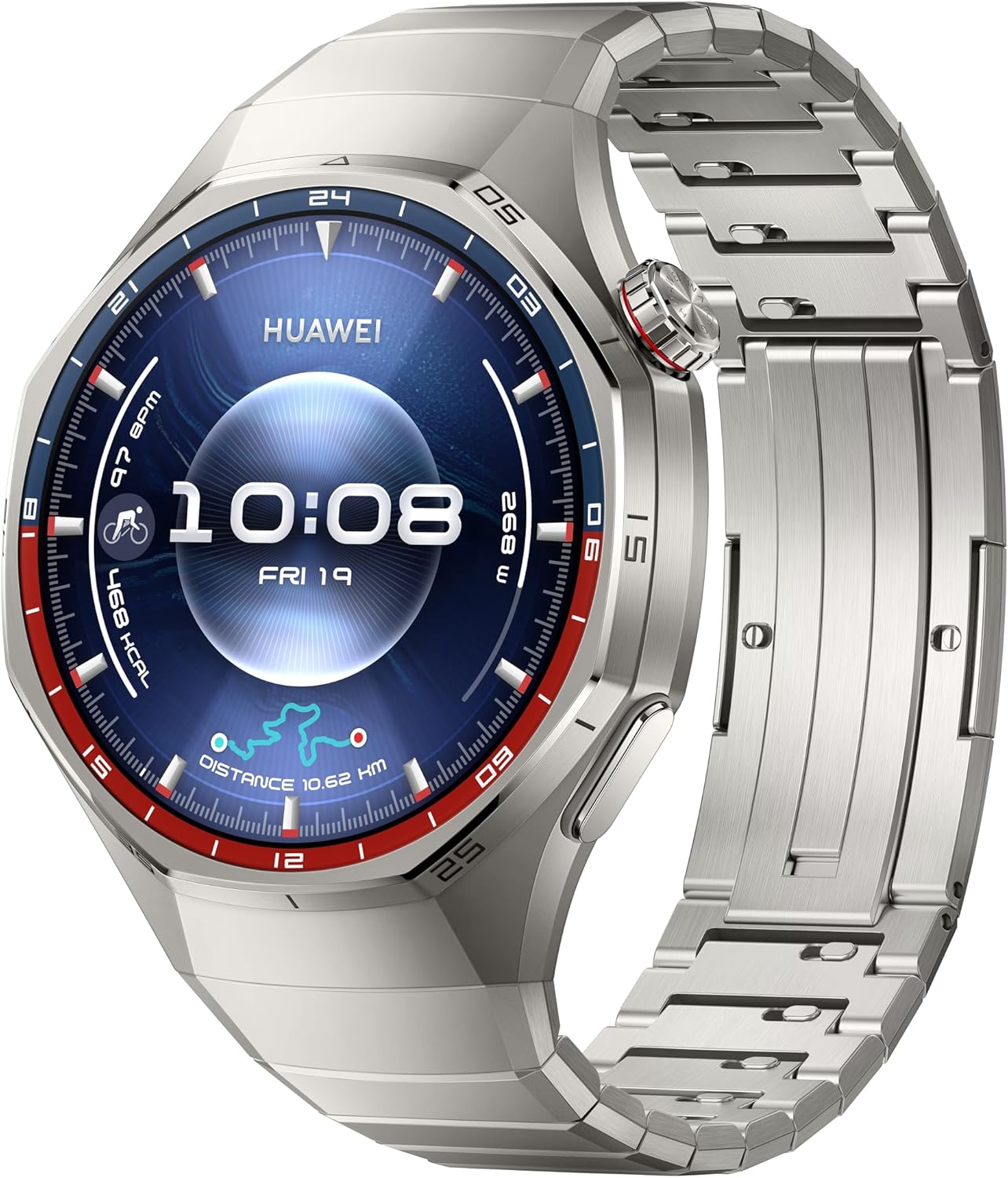
Figure 2.1: Front view of the HUAWEI Watch GT 6 Pro, displaying the watch face with time, date, and various health and activity metrics. The watch features a round display with a metallic bezel and a matching metal strap.
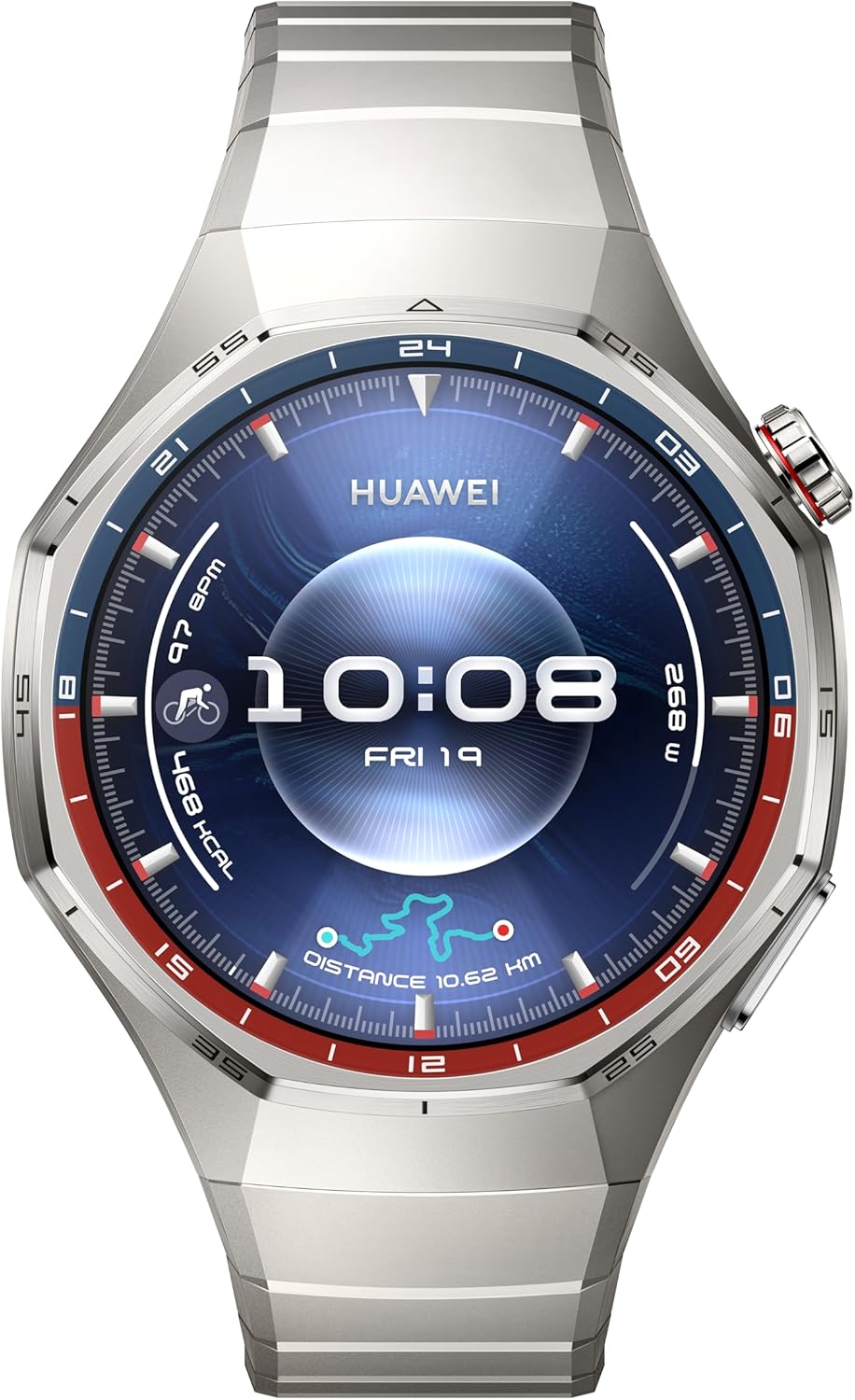
Figure 2.2: Another front view of the HUAWEI Watch GT 6 Pro, showcasing a different watch face. This image highlights the watch's sleek design and the clarity of its AMOLED display.
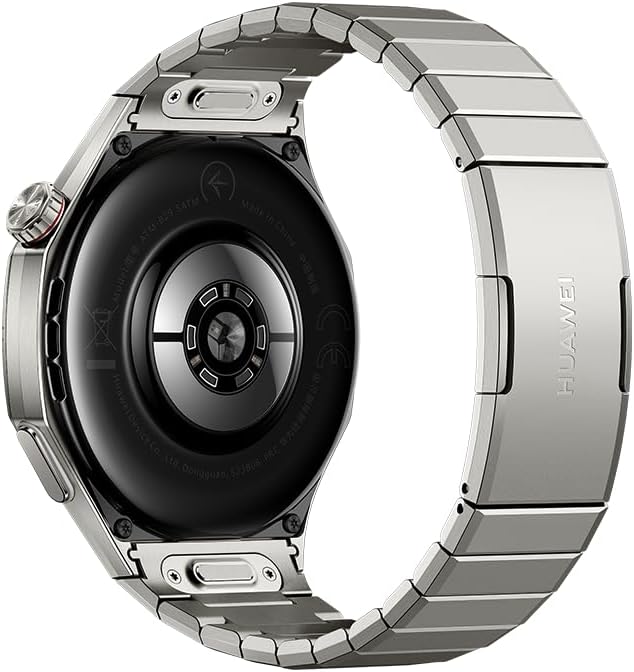
Figure 2.3: Rear view of the HUAWEI Watch GT 6 Pro, showing the advanced health sensors and charging contacts. The back casing is designed for comfortable wear and accurate data collection.
3. Setup
3.1 Initial Charging
- Connect the charging cable to the charging port on the back of the watch.
- Connect the other end of the charging cable to a compatible USB power adapter (not included) or a computer's USB port.
- Allow the watch to charge fully before first use. A full charge can provide up to 21 days of battery life under typical usage.
3.2 Pairing with Your Smartphone
- Download and install the HUAWEI Health app from your smartphone's app store (compatible with iOS and Android devices).
- Open the HUAWEI Health app and follow the on-screen instructions to create an account or log in.
- Ensure Bluetooth is enabled on your smartphone.
- In the HUAWEI Health app, navigate to "Devices" and select "Add device."
- Select your HUAWEI Watch GT 6 Pro from the list of available devices.
- Confirm the pairing request on both your watch and smartphone.
4. Operating Instructions
4.1 Basic Navigation
- Touchscreen: Swipe up, down, left, or right to navigate through menus and notifications. Tap to select items.
- Crown: Rotate the crown to scroll through lists or zoom in/out. Press the crown to return to the home screen or access the app list.
- Side Button: Press the side button to access customizable shortcuts or specific functions.
4.2 Sports Modes
The watch supports over 100 sports modes, including advanced tracking for trail running, cycling, and free diving. Integrated GPS provides accurate location and route tracking.
- From the app list, select the "Workout" app.
- Choose your desired sports mode (e.g., Outdoor Run, Cycling, Free Dive).
- Follow the on-screen prompts to start your workout. The watch will record relevant data such as duration, distance, heart rate, and calories burned.
- For free diving, ensure you understand the safety guidelines provided by the watch and consult a medical professional if necessary.
4.3 Health Monitoring
Utilizing the HUAWEI TruSense System, the watch provides comprehensive health insights:
- Heart Rate Monitoring: Continuous heart rate tracking with alerts for abnormal readings.
- Sleep Tracking: Monitors sleep stages, quality, and provides suggestions for improvement.
- Emotional Wellbeing: Tracks stress levels and offers breathing exercises.
- SpO2 Monitoring: Measures blood oxygen saturation levels.
Access health data through the respective apps on your watch or the HUAWEI Health app on your smartphone.
4.4 Notifications
Receive notifications from your paired smartphone directly on your watch. Manage notification settings through the HUAWEI Health app.
5. Maintenance
5.1 Cleaning Your Watch
- Wipe the watch screen and body with a soft, lint-free cloth.
- For stubborn stains, dampen the cloth slightly with water. Avoid using harsh chemicals or abrasive materials.
- Ensure the charging contacts are clean and dry before charging.
5.2 Water Resistance
The HUAWEI Watch GT 6 Pro is designed to be water-resistant. However, avoid exposing it to hot water, steam, or high-velocity water. After exposure to saltwater, rinse the watch with fresh water and dry it thoroughly.
6. Troubleshooting
| Issue | Possible Solution |
|---|---|
| Watch does not turn on | Ensure the watch is fully charged. Connect it to the charger for at least 10 minutes. |
| Cannot pair with smartphone |
|
| Inaccurate health data | Ensure the watch is worn snugly on your wrist, not too loose or too tight. Clean the sensors regularly. |
| Short battery life | Reduce screen brightness, disable always-on display, limit background app refresh, and turn off unnecessary notifications. |
7. Specifications
| Feature | Detail |
|---|---|
| Model Number | ATM-B29 |
| Display | 1.47 Inches AMOLED |
| Battery Life | Up to 21 days (typical usage) |
| Battery Capacity | 800 Milliamp Hours (Lithium Polymer) |
| Operating System | HarmonyOS |
| Connectivity | Bluetooth |
| GPS | Built-in GPS |
| Special Features | Activity Tracker, Cycle Tracking, Health Monitoring (Heart Rate, Sleep, Emotional Wellbeing, SpO2), 100+ Sports Modes (including Free Diving, Trail Running, Cycling) |
| Material | Aerospace-grade Titanium Alloy, Sapphire Glass |
| Dimensions | 0.47 x 0.47 x 0.26 inches (approximate watch body) |
| Weight | 12.3 ounces / 0.35 Kilograms (approximate) |
8. Safety Information
- Consult your doctor before starting any new exercise regimen or if you have pre-existing health conditions.
- The watch is not a medical device and should not be used for medical diagnosis, treatment, or prevention.
- Keep the device and its accessories out of reach of children.
- Avoid extreme temperatures, direct sunlight, and high humidity.
- Do not attempt to disassemble or repair the watch yourself. This may void the warranty and cause damage.
- Use only approved charging cables and adapters.
9. Warranty and Support
For warranty information, technical support, or service inquiries, please refer to the official HUAWEI website or contact HUAWEI customer service in your region. Keep your proof of purchase for warranty claims.
Official HUAWEI Support: consumer.huawei.com/en/support/
Related documentsATM-B29


Ask a question about this manual
Ask about setup, troubleshooting, compatibility, parts, safety, or missing instructions. Manuals+ will review the question and use this page’s manual context to help answer it.