
1. Introduction
This manual provides detailed instructions for setting up, operating, maintaining, and troubleshooting your Amzfast 27 Inch Gaming Monitor (Model AMZG27F5 Pro). Please read this manual thoroughly before using the monitor to ensure proper functionality and to maximize your user experience.
The Amzfast AMZG27F5 Pro is a 27-inch Full HD (1080P) gaming monitor featuring a 240Hz refresh rate, 1ms response time, Adaptive Sync technology, and HDR400 support, designed for an immersive gaming experience.
2. Package Contents
Verify that all items are present in your package:
- Amzfast 27 Inch Gaming Monitor
- Monitor Stand (Base and Neck)
- Power Adapter
- DisplayPort (DP) Cable (1.5m)
- User Manual (this document)
- Quick Start Guide (QSG)
3. Setup
3.1 Assembling the Stand
- Carefully remove the monitor from its packaging, placing it face down on a soft, clean surface to prevent scratches.
- Attach the stand neck to the monitor panel.
- Secure the stand base to the stand neck using the provided screws.
- Ensure all connections are firm before placing the monitor upright.
Alternatively, the monitor supports VESA mounting (100x100mm) for wall or arm installation. Ensure the VESA mount is compatible and securely installed.

Figure 3.1: Front view of the Amzfast 27 Inch Gaming Monitor.

Figure 3.2: Back view of the monitor, highlighting the VESA mounting points.
3.2 Connecting to a Device
The monitor features DisplayPort 1.4 and HDMI 2.0 ports. Choose the appropriate cable for your device.
- Power Connection: Connect the power adapter to the monitor's DC input port, then plug the adapter into a power outlet.
- DisplayPort (DP): Connect one end of the DP cable to the monitor's DP 1.4 port and the other end to your computer's graphics card DP output. This connection supports up to 240Hz refresh rate.
- HDMI: Connect one end of the HDMI cable to the monitor's HDMI 2.0 port and the other end to your device's HDMI output. This connection supports up to 240Hz refresh rate.
- Audio Output: Connect headphones or external speakers to the 3.5mm audio jack for sound output.

Figure 3.3: Monitor dimensions and available input/output ports.
3.3 Initial Power On
- After connecting all necessary cables, press the power button on the monitor.
- The monitor will automatically detect the input source. If not, manually select the input source using the OSD menu.
4. Operating the Monitor
4.1 On-Screen Display (OSD) Menu
The OSD menu allows you to adjust various monitor settings. Navigate the menu using the joystick or buttons located on the monitor (refer to the Quick Start Guide for exact button locations).
Key OSD Settings:
- Picture Settings: Adjust brightness, contrast, sharpness, and color temperature.
- Color Settings: Fine-tune color gamut (125% sRGB, 91% DCI-P3), HDR400 mode, and gamma.
- Gaming Settings: Enable/disable Adaptive Sync, adjust response time (OD overdrive for 1ms MPRT), select FPS/RTS modes, activate customizable crosshair, and modify black level.
- Input Source: Manually select between DisplayPort and HDMI inputs.
- Audio: Adjust volume for built-in speakers or the headphone jack.
- Eye Care: Activate Low Blue Light mode, Anti-flicker, and Anti-glare features.

Figure 4.1: Visual representation of the monitor's color and brightness capabilities.

Figure 4.2: Examples of Esports Game Assist Modes for enhanced gameplay.
4.2 Gaming Features
- 240Hz Refresh Rate: Provides ultra-smooth motion for competitive gaming. Ensure your graphics card and cable support this refresh rate.
- 1ms Response Time (MPRT/OD): Reduces motion blur and ghosting for clear, fast-paced visuals.
- Adaptive Sync: Synchronizes the monitor's refresh rate with your graphics card's frame rate to eliminate screen tearing and stuttering.
- FPS/RTS Modes: Pre-calibrated display settings optimized for First-Person Shooter and Real-Time Strategy games.
- Customizable Crosshair: An on-screen crosshair overlay for improved aiming accuracy.
- Black Level Adjustment: Enhances visibility in dark in-game areas.
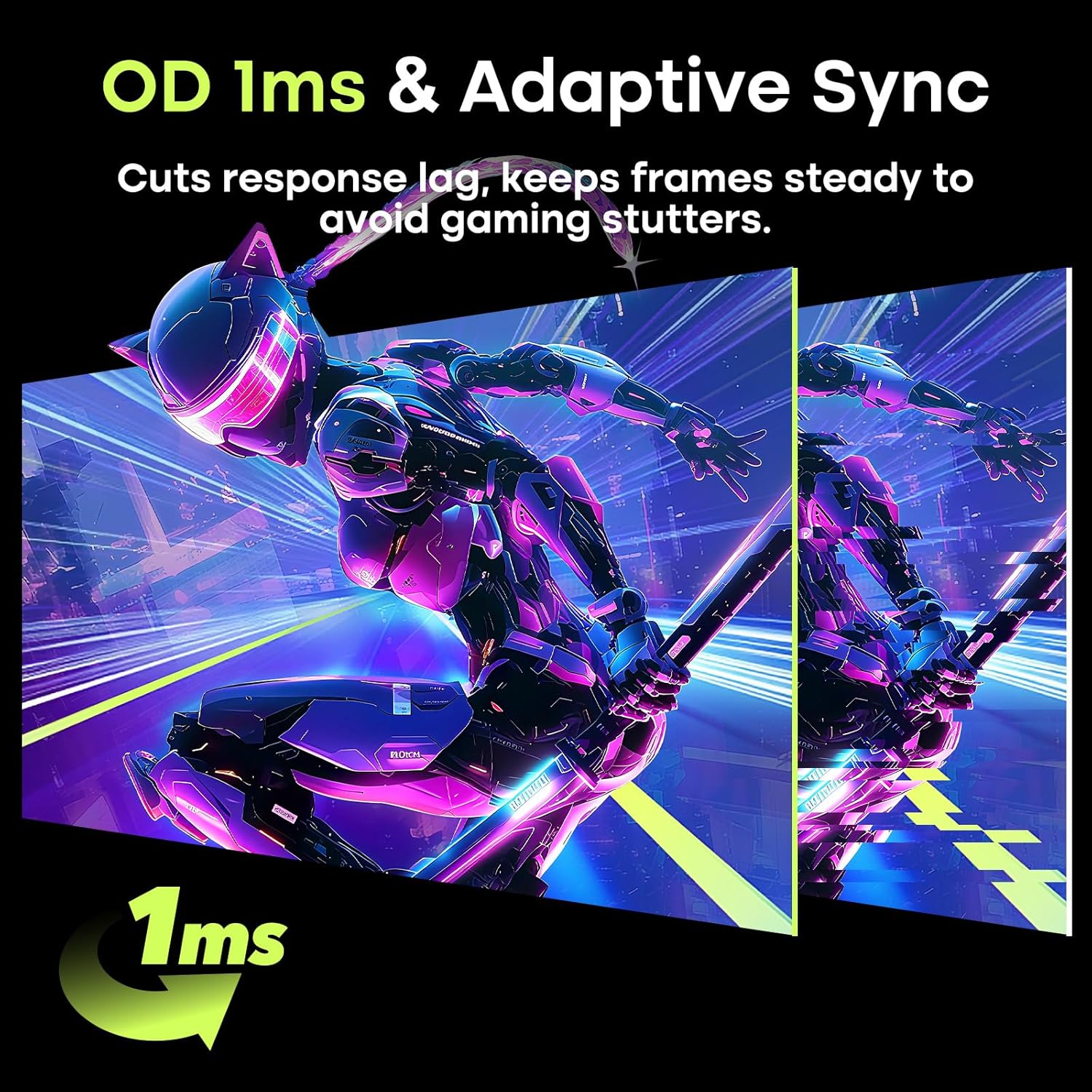
Figure 4.3: Visual demonstration of 1ms response time and Adaptive Sync benefits.
4.3 Eye Care Technology
The monitor incorporates features to reduce eye strain during extended use:
- Low Blue Light: Filters out harmful blue light emissions.
- Anti-Flicker: Eliminates screen flickering for a more comfortable viewing experience.
- Anti-Glare: Reduces reflections from ambient light sources.

Figure 4.4: Eye Care Technology features for reduced eye fatigue.
4.4 Retractable Headphone Holder
The monitor includes a retractable headphone holder for convenient storage and to save desk space.

Figure 4.5: Retractable headphone holder in use.
4.5 Product Overview Video
Video 4.1: An official overview of the Amzfast 27 Inch 240Hz Gaming Monitor AMZG27F5 Pro, demonstrating its features and design.
5. Maintenance
5.1 Cleaning the Monitor
- Always unplug the monitor from the power outlet before cleaning.
- Use a soft, lint-free cloth slightly dampened with water or a mild, non-abrasive screen cleaner.
- Do not spray cleaner directly onto the screen. Apply it to the cloth first.
- Avoid using harsh chemicals, alcohol, or ammonia-based cleaners, as these can damage the screen surface.
- Wipe the screen gently to remove dust and smudges.
5.2 General Care
- Keep the monitor away from direct sunlight, excessive heat, and humidity.
- Ensure adequate ventilation around the monitor to prevent overheating.
- Avoid placing heavy objects on the monitor or its cables.
- Do not attempt to disassemble or repair the monitor yourself. Refer to qualified service personnel.
6. Troubleshooting
If you encounter issues with your monitor, refer to the following common problems and solutions:
| Problem | Possible Cause | Solution |
|---|---|---|
| No image on screen | Power cable disconnected; Video cable disconnected; Incorrect input source selected. | Ensure power cable is securely connected. Check video cable (DP/HDMI) connections. Select the correct input source via the OSD menu. |
| Image flickering or unstable | Faulty video cable; Graphics card driver issues; Adaptive Sync not enabled/compatible. | Replace video cable. Update graphics card drivers. Ensure Adaptive Sync is enabled on both monitor and graphics card. |
| Poor image quality (washed out colors, dull) | Incorrect picture settings; HDR not properly configured. | Adjust brightness, contrast, and color settings in the OSD menu. Ensure HDR is enabled in both monitor settings and your operating system/game if desired. |
| No sound from speakers/headphone jack | Volume too low; Incorrect audio output selected on computer; Audio cable issue. | Increase monitor volume via OSD. Verify your computer's audio output is set to the monitor. Check headphone/speaker connection. |
| Monitor randomly shuts off or displays a grey screen | Power supply issue; Loose cable connection; Monitor defect. | Ensure power and video cables are firmly connected. Try a different power outlet. If the issue persists, contact customer support. |
7. Specifications
| Feature | Specification |
|---|---|
| Brand | Amzfast |
| Model Number | AMZG27F5 Pro |
| Screen Size | 27 inches |
| Resolution | FHD 1080p (1920 x 1080 pixels) |
| Refresh Rate | 240 Hz |
| Response Time | 1 ms |
| Display Technology | VA Panel |
| Contrast Ratio | 4000:1 |
| Brightness | 400 cd/m² |
| Color Gamut | 125% sRGB |
| HDR Support | HDR400 |
| Adaptive Sync | FreeSync |
| Connectivity | 1x DisplayPort 1.4, 1x HDMI 2.0, 1x 3.5mm Audio Jack |
| Built-in Speakers | Yes |
| VESA Mount Compatible | 100x100mm |
| Tilt Adjustment | -5° to 15° |
| Eye Care Features | Low Blue Light, Anti-Flicker, Anti-Glare |
8. Warranty and Support
8.1 Warranty Information
The Amzfast 27 Inch Gaming Monitor AMZG27F5 Pro comes with a 1-year warranty from the date of purchase. This warranty covers manufacturing defects and malfunctions under normal use. It does not cover damage caused by misuse, accidents, unauthorized modifications, or external factors.
8.2 Customer Support
For technical assistance, warranty claims, or any questions regarding your Amzfast monitor, please contact Amzfast customer support. Refer to the contact information provided in your Quick Start Guide or visit the official Amzfast website for support details.
Please have your monitor's model number (AMZG27F5 Pro) and purchase information ready when contacting support.

