
1. Introduction
This manual provides detailed instructions for the setup, operation, and maintenance of your Rettru W7 Mini WiFi Security Camera. Please read this manual thoroughly before using the product to ensure proper functionality and safety. This camera is designed for indoor security monitoring, offering features such as motion detection, night vision, and remote access via a dedicated mobile application.

Figure 1: Versatile applications of the Rettru W7 Mini WiFi Security Camera.
2. Product Overview
2.1 Package Contents
- Rettru W7 Mini WiFi Security Camera
- Charging Cable
- User Manual (this document)
2.2 Key Features
- HD 1080P Resolution: Provides clear video quality.
- WiFi Connectivity: Supports 2.4GHz WiFi for remote access (5GHz not supported).
- Motion Detection & Alarm Push: Sends notifications to your smartphone upon detecting movement.
- Night Vision: Enhanced night vision performance up to 5 meters in complete darkness with 4 infrared LEDs.
- Loop Recording: Automatically overwrites older footage when the memory card is full.
- MicroSD Card Support: Compatible with MicroSD cards up to 128GB (not included).
- Compact Design: Small and portable for discreet placement.
- App Control: Manage and view footage via a dedicated mobile application for iOS and Android.
2.3 Product Dimensions and Design
The camera measures approximately 40 x 33 x 33 mm (1.57 x 1.29 x 1.29 inches), making it highly compact and suitable for discreet placement.

Figure 2: Camera dimensions. The camera is shown with a digital caliper indicating its small size.

Figure 3: Compact design for discreet placement, shown hidden within a woven basket among plants.

Figure 4: Camera hidden on a bookshelf, demonstrating its unobtrusive design.
3. Setup Instructions
- Charge the Camera: Before initial use, fully charge the camera using the provided charging cable.
- Insert MicroSD Card: Insert a MicroSD card (up to 128GB, not included) into the designated slot for local storage.
- Download the App: Prepare an iPhone or Android smartphone and download the free dedicated application from your smartphone's app store.
- Power On: Press and hold the power button to turn on the camera.
- Connect to WiFi:
- Open the app and follow the on-screen instructions to add a new device.
- Ensure your smartphone is connected to a 2.4GHz WiFi network. The camera does not support 5GHz WiFi.
- The app will guide you through connecting the camera to your home or office WiFi network.
- Placement: Position the camera in your desired location. Its small size allows for versatile placement.

Figure 5: Camera held in hand, illustrating its portability and ease of setup.
4. Operating Instructions
4.1 Live View
Once connected, open the dedicated app on your smartphone. You can access the live video feed from the camera anytime, anywhere. Multiple users can log in to the app to monitor a single camera.

Figure 6: 150-degree wide-angle view. The image shows a living room from the camera's perspective, highlighting its broad field of view.

Figure 7: App interface for live monitoring. A smartphone displays the camera's live feed of a room.
4.2 Motion Detection and Alarms
The camera features motion detection technology. When a change in the image is detected, the camera will immediately send a notification message to your smartphone. Log in to the app to view the situation at home anytime, anywhere. Motion detection recordings are saved to the memory card as evidence.

Figure 8: Motion detection alarm notification on a smartphone.
4.3 Night Vision
The camera provides high-definition 1080p night vision, allowing clear visibility up to 5 meters in complete darkness. This ensures you can monitor activities even in low-light conditions without the camera emitting visible light.

Figure 9: Example of night vision in a dark room.
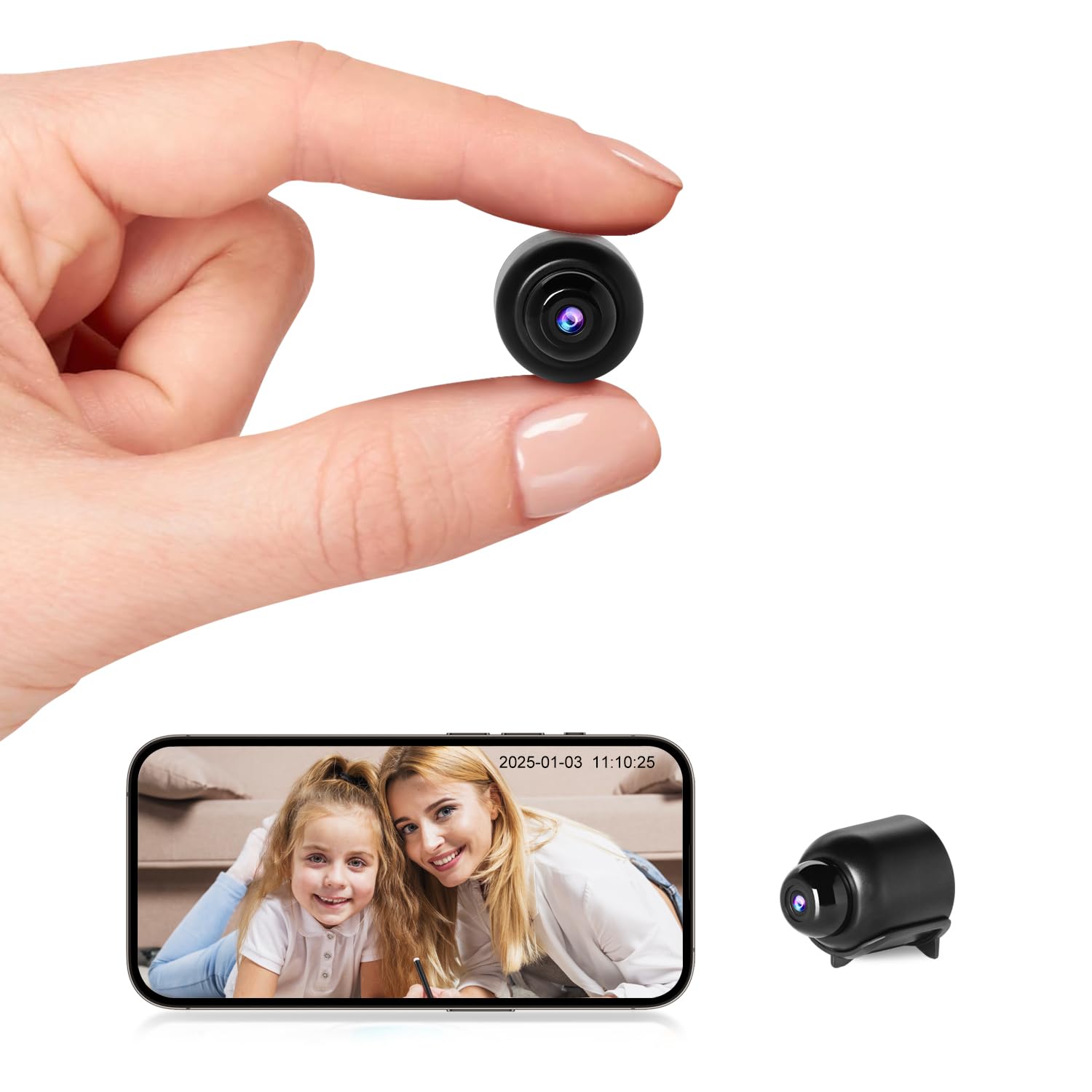
Figure 10: Night vision view on the app, showing a sleeping child in black and white.
4.4 Loop Recording
When the MicroSD card is full, the camera automatically overwrites the oldest video files, ensuring continuous recording without the need to manually delete footage.

Figure 11: Loop recording functionality and MicroSD card support.
5. Maintenance
- Cleaning: Use a soft, dry cloth to clean the camera lens and body. Avoid using liquid cleaners or abrasive materials.
- Storage: Store the camera in a cool, dry place when not in use for extended periods.
- Battery Care: To prolong battery life, avoid fully discharging the battery frequently. Charge the camera regularly.
- Software Updates: Check the app periodically for any available firmware updates for the camera to ensure optimal performance and security.
6. Troubleshooting
| Problem | Possible Cause | Solution |
|---|---|---|
| Camera does not power on. | Low battery or faulty charging cable. | Ensure the camera is fully charged. Try a different charging cable and power adapter. |
| Cannot connect to WiFi. | Incorrect WiFi password, 5GHz network, or camera too far from router. |
|
| App does not detect the device. | Camera not in pairing mode, app permissions, or network issues. |
|
| Video footage is unclear or blurry. | Dirty lens or insufficient lighting. | Clean the camera lens with a soft cloth. Ensure adequate lighting or verify night vision is active in low light. |
| Motion detection alerts are not received. | App notification settings, motion detection sensitivity, or network issues. |
|
7. Specifications
| Feature | Detail |
|---|---|
| Model Number | W7 |
| Video Resolution | 1080p HD |
| Frame Rate | 25 fps |
| Field of View | 150 degrees |
| Night Vision Range | Up to 5 meters |
| Infrared LEDs | 4 |
| Connectivity | Wi-Fi (2.4GHz only) |
| Storage | MicroSD card, up to 128GB (not included) |
| Video Capture Format | AVI |
| Sensor Technology | CMOS |
| Product Dimensions | 40 x 33 x 33 mm |
| Recommended Use | Indoor Security |
| Waterproof Type | Non-waterproof |
| Mounting Type | Tabletop Mount |
| Included Components | Charging cable, User manual |
| Country of Origin | China |
8. Warranty and Support
Rettru products are designed for reliability and performance. If you encounter any issues or have questions regarding your Rettru W7 Mini WiFi Security Camera, please do not hesitate to contact our customer support. We are committed to providing assistance for your purchase and use.
Please refer to your purchase documentation or the retailer's website for specific warranty terms and contact information.
