
1. Introduction
This manual provides detailed instructions for the installation, operation, and maintenance of your SIXTOP Android Car Stereo. This unit is specifically designed for Ford Mustang models manufactured between 2010 and 2014. Please read this manual thoroughly before installation and use to ensure proper functionality and safety.
2. Product Overview
The SIXTOP Android Car Stereo is an advanced in-dash navigation system featuring a 10.1-inch IPS touchscreen, Android operating system, and extensive connectivity options. Key features include:
- Display: 10.1-inch HD IPS touchscreen with 1280x720 resolution.
- Performance: 4GB RAM and 128GB ROM for fast operation and ample storage.
- Smartphone Integration: Wireless CarPlay and Android Auto support, along with Mirror Link functionality.
- Audio: Built-in DSP with 32-band EQ for customizable sound.
- Navigation: Integrated GPS for online and offline mapping.
- Connectivity: Bluetooth 5.0 for hands-free calls and audio streaming, Wi-Fi for internet access.
- Radio: FM/RDS tuner with preset stations.
- Safety: Supports AHD backup camera (included) and steering wheel controls.
- User Interface: Split-screen mode and multiple customizable UI themes.
2.1 Package Contents
Verify that all components are present in the package before proceeding with installation.
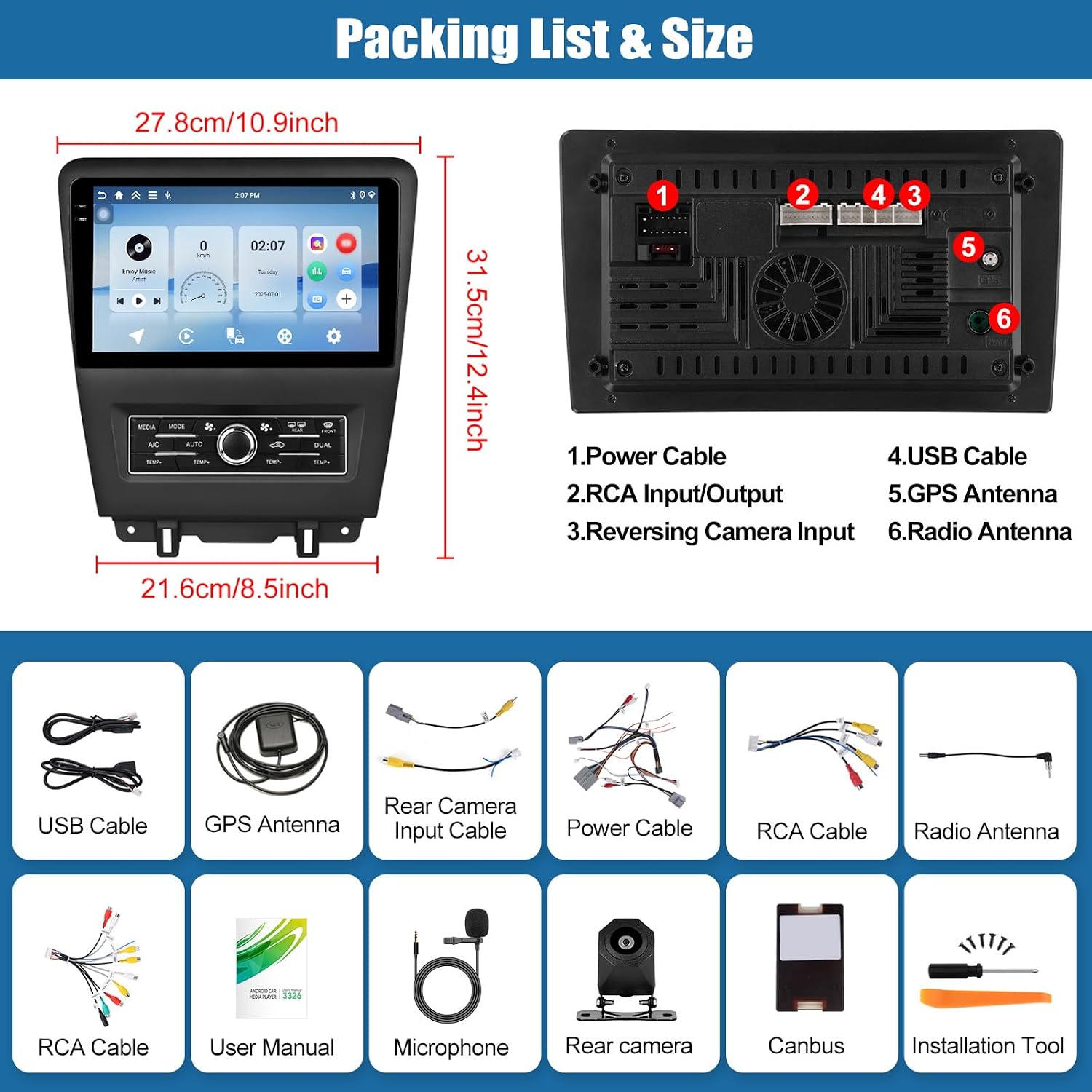
Image: Overview of the SIXTOP Android Car Stereo unit, its dimensions, and the included accessories. The image details the rear ports and lists items such as power cable, USB cable, RCA input/output, GPS antenna, reversing camera input, radio antenna, user manual, microphone, rear camera, Canbus, and installation tool.
- Android Car Stereo Unit (10.1-inch display)
- Power Cable
- USB Cables
- GPS Antenna
- RCA Input/Output Cables
- Reversing Camera Input Cable
- Radio Antenna
- AHD Backup Camera
- Microphone
- Canbus Decoder
- Installation Tool
- User Manual
3. Installation
Installation of the SIXTOP Android Car Stereo requires basic automotive electrical knowledge. If you are unfamiliar with car audio installation, it is recommended to seek professional assistance.
3.1 Compatibility
This unit is designed for Ford Mustang models from 2010 to 2014. Please confirm your vehicle's original center console matches the design shown in the product images before installation.
3.2 Pre-Installation Steps
- Disconnect Battery: Before starting, disconnect the negative terminal of your vehicle's battery to prevent electrical shorts.
- Remove Factory Radio: Carefully remove the existing factory radio and trim panels. Refer to your vehicle's service manual for specific instructions.
- Inspect Wiring: Identify the factory wiring harness for power, speakers, and other connections.
3.3 Wiring Connections
Refer to the wiring diagram provided in the included user manual and the 'Packing List & Size' image for detailed connection points.
- Power Cable: Connect the main power harness to the vehicle's power supply. Ensure correct connections for constant power (B+), accessory power (ACC), and ground.
- USB Cables: Connect the provided USB cables for external devices or data transfer.
- GPS Antenna: Mount the GPS antenna in a location with a clear view of the sky, typically on the dashboard or under the windshield.
- Reversing Camera Input: Connect the AHD backup camera cable to the designated input. Ensure the camera is properly mounted and powered.
- Radio Antenna: Connect the vehicle's radio antenna to the unit.
- RCA Cables: Use RCA cables for external amplifiers, subwoofers, or auxiliary audio/video inputs/outputs as needed.
- Canbus Decoder: Connect the Canbus decoder as per the wiring diagram to ensure proper communication with vehicle systems (e.g., steering wheel controls).
- Microphone: Connect the external microphone for improved call quality. Position it near the driver for optimal performance.
3.4 Mounting the Unit
Once all wiring is connected, carefully mount the SIXTOP Android Car Stereo into the dashboard opening. Secure it using the provided brackets and screws. Reinstall trim panels.

Image: A comparison showing the Ford Mustang dashboard before and after the installation of the SIXTOP Android Car Stereo. The 'Before' image displays the factory radio, while the 'After' image shows the integrated 10.1-inch touchscreen unit, demonstrating a seamless and modernized appearance.
3.5 Post-Installation
Reconnect the vehicle's battery. Turn on the ignition and test all functions of the stereo unit.
4. Initial Setup
After successful installation, follow these steps for initial setup:
- Power On: The unit should power on automatically with the vehicle's ignition.
- Language Selection: Follow the on-screen prompts to select your preferred language.
- Wi-Fi Connection: Navigate to Settings > Network & Internet > Wi-Fi. Connect to an available Wi-Fi network or your phone's hotspot to enable online features and updates.
- Date and Time: Set the correct date and time, or enable automatic synchronization via network.
- GPS Calibration: Ensure the GPS antenna is properly connected and the unit acquires a satellite signal.
5. Operating Instructions
5.1 Wireless CarPlay and Android Auto
This unit supports both Wireless CarPlay for iOS devices and Wireless Android Auto for Android devices, allowing seamless integration of your smartphone's features.

Image: The SIXTOP Android Car Stereo display showing the main interface with various app icons, including those for CarPlay and Android Auto. This image highlights the 10.1-inch IPS touchscreen, 4GB RAM, 128GB ROM, and 1280x720 resolution, emphasizing the unit's responsive and superior display capabilities.
- Enable Bluetooth/Wi-Fi: On your smartphone, ensure Bluetooth and Wi-Fi are enabled.
- Pair Device: On the car stereo, go to the CarPlay or Android Auto application. Follow the on-screen instructions to pair your phone via Bluetooth.
- Automatic Connection: Once paired, your phone should automatically connect to CarPlay or Android Auto when the stereo is powered on.
- Voice Control: Use voice commands (Siri for CarPlay, Google Assistant for Android Auto) to navigate, play music, make calls, and send messages.

Image: A detailed view of the SIXTOP Android Car Stereo screen displaying both CarPlay and Android Auto interfaces. The image illustrates how users can access phone contacts, GPS navigation, music, and other apps directly from the car stereo, enhancing driving convenience and safety.
5.2 Mirror Link
Mirror Link allows you to display your smartphone's screen directly onto the car stereo's display.

Image: An illustration demonstrating the Mirror Link feature, showing a smartphone screen being mirrored onto the SIXTOP Android Car Stereo display. It indicates wireless connection for iOS and wireless/wired connection for Android devices.
- Connect Phone: For Android, connect via USB cable or Wi-Fi. For iOS, connect via Wi-Fi.
- Activate Mirror Link: Open the Mirror Link application on the stereo and follow the pairing instructions.
5.3 GPS Navigation
The unit features built-in GPS for navigation, supporting both online and offline maps.

Image: A four-panel image showcasing the SIXTOP Android Car Stereo's connectivity and navigation features. It displays Wi-Fi connection with various app icons, GPS navigation with a map view, Bluetooth 5.0 for calls and music, and FM/RDS radio interface.
- Access Navigation: Tap the 'Navigation' icon on the home screen.
- Online Maps: With a Wi-Fi connection, use pre-installed online map applications or download others from the app store.
- Offline Maps: Download map data for offline use in areas with limited network coverage.
5.4 Bluetooth 5.0
Bluetooth 5.0 provides stable and fast connections for hands-free calling and wireless audio streaming.
- Pairing: Go to the 'Bluetooth' application. Enable Bluetooth on your phone and search for the stereo. Select the stereo from your phone's list and confirm pairing.
- Hands-Free Calling: Once paired, you can make and receive calls directly from the stereo's interface. Your phonebook can be synchronized.
- Audio Streaming: Play music from your phone wirelessly through the car's speakers.
5.5 FM/RDS Radio
Tune into your favorite radio stations with the built-in FM/RDS tuner.
- Access Radio: Tap the 'Radio' icon.
- Tuning: Use the on-screen controls to manually tune or scan for stations.
- Presets: Save your preferred stations for quick access. RDS (Radio Data System) displays station information where available.
5.6 DSP Audio (Digital Sound Processor)
Customize your audio experience with the integrated DSP and 32-band equalizer.

Image: The SIXTOP Android Car Stereo's interface showing the EQ adjustment screen. This image illustrates how users can alter sound balance and shape the tone to improve clarity within the car's audio system.
- Access DSP: Open the 'Sound Effects' or 'DSP' application.
- Equalizer: Adjust the 32-band equalizer to fine-tune frequencies.
- Sound Field: Modify sound stage and balance settings.
- Presets: Select from various pre-defined sound effects (e.g., Pop, Rock, Jazz).
5.7 Steering Wheel Control (SWC)
Integrate your vehicle's existing steering wheel controls for convenient operation.

Image: The SIXTOP Android Car Stereo display showing the steering wheel control learning interface, alongside a steering wheel with control buttons. This image demonstrates how users can program their steering wheel buttons to control functions like volume, track skipping, and call management.
- Access SWC Settings: Go to Settings > Steering Wheel Control.
- Program Buttons: Follow the on-screen instructions to assign functions (e.g., volume up/down, track skip, answer call) to your steering wheel buttons.
5.8 AHD Backup Camera
The included AHD backup camera provides a clear view when reversing, enhancing safety.

Image: A graphic illustrating the AHD rear view camera functionality with the SIXTOP Android Car Stereo. It shows a car reversing with parking guidelines displayed on the stereo screen, emphasizing features like high definition, night vision, waterproofing, and a 170-degree wide angle lens.
When the vehicle is shifted into reverse gear, the stereo display will automatically switch to the backup camera view. Parking guidelines assist in maneuvering.
5.9 Split Screen Mode
Utilize the split-screen feature to run two applications simultaneously.

Image: The SIXTOP Android Car Stereo display demonstrating the split-screen feature, showing two applications running side-by-side. Below, it illustrates various UI themes and wallpaper options for customizing the stereo's appearance.
- Activate: Tap the rectangle icon at the top of the screen.
- Select Apps: Drag a desired application to the left or right side of the screen.
- Independent Operation: Both applications can be operated independently.
5.10 UI Themes
Personalize your stereo's interface by choosing from multiple UI themes.
Navigate to Settings > Display > Themes to browse and select your preferred interface design.
6. Maintenance
- Screen Cleaning: Use a soft, lint-free cloth to clean the touchscreen. Avoid abrasive cleaners.
- Software Updates: Periodically check for system updates via Wi-Fi in the Settings menu to ensure optimal performance and access to new features.
- General Care: Keep the unit free from dust and extreme temperatures.
7. Troubleshooting
If you encounter issues, refer to the following common problems and solutions:
| Problem | Possible Cause | Solution |
|---|---|---|
| No Power | Incorrect wiring, blown fuse, loose connection. | Check power cable connections, inspect vehicle fuses, ensure battery is connected. |
| No Sound | Speaker wiring issues, volume too low, mute activated. | Verify speaker connections, increase volume, check DSP settings, ensure unit is not muted. |
| GPS Signal Lost | GPS antenna improperly placed or disconnected. | Ensure GPS antenna has a clear view of the sky and is securely connected. |
| Bluetooth Connection Issues | Phone not discoverable, incorrect pairing, interference. | Ensure phone's Bluetooth is on and discoverable, delete previous pairings and re-pair, restart both devices. |
| Touchscreen Unresponsive | Software glitch, temporary freeze. | Restart the unit (refer to manual for reset button location if available), ensure screen is clean. |
If problems persist, please contact customer support.
8. Specifications
- Model: SIXTOP 4G+128G Android Car Stereo
- Display Size: 10.1 Inches
- Screen Resolution: 1280x720 IPS
- Operating System: Android
- RAM: 4GB
- ROM: 128GB
- Bluetooth Version: 5.0
- Connectivity: Bluetooth, Wi-Fi
- Special Features: Wireless CarPlay, Android Auto, Mirror Link, GPS Navigation, DSP with 32-band EQ, Split Screen, AHD Backup Camera Support, Steering Wheel Control.
- Audio Output Mode: Stereo
- Mounting Type: Dashboard Mount
- Parcel Dimensions: 32.6 x 32.4 x 8.4 cm
- Weight: 1.78 kg
- Manufacturer: SIXTOP
- Country of Origin: China
9. Warranty and Support
9.1 Warranty Information
This SIXTOP Android Car Stereo comes with a 2-year warranty from the date of purchase. The warranty covers manufacturing defects and malfunctions under normal use. Please retain your proof of purchase for warranty claims. The warranty does not cover damage caused by improper installation, misuse, accidents, or unauthorized modifications.
9.2 Customer Support
For technical assistance, troubleshooting, or warranty inquiries, please contact SIXTOP customer support. You can typically find contact information on the seller's page or within the product packaging.

Image: A graphic illustrating online support options, showing a customer service representative and instructions on how to contact the seller 'xinshunhang' via the 'Ask a question' link on the product page.
When contacting support, please provide your product model (4G+128G) and purchase details (ASIN: B0FPFHHYDX) to expedite assistance.


