
1. Introduction
This manual provides instructions for the Hagibis 6-in-1 USB-C Docking Station, designed for the Steam Deck and Steam Deck OLED. This docking station expands the connectivity of your device, offering video output, network access, additional USB ports, and power delivery.
2. Product Overview
The Hagibis 6-in-1 Docking Station integrates multiple essential ports into a compact design, enhancing your Steam Deck experience. It features a unique hidden cable design for portability and a dedicated kickstand.
2.1 Port Layout
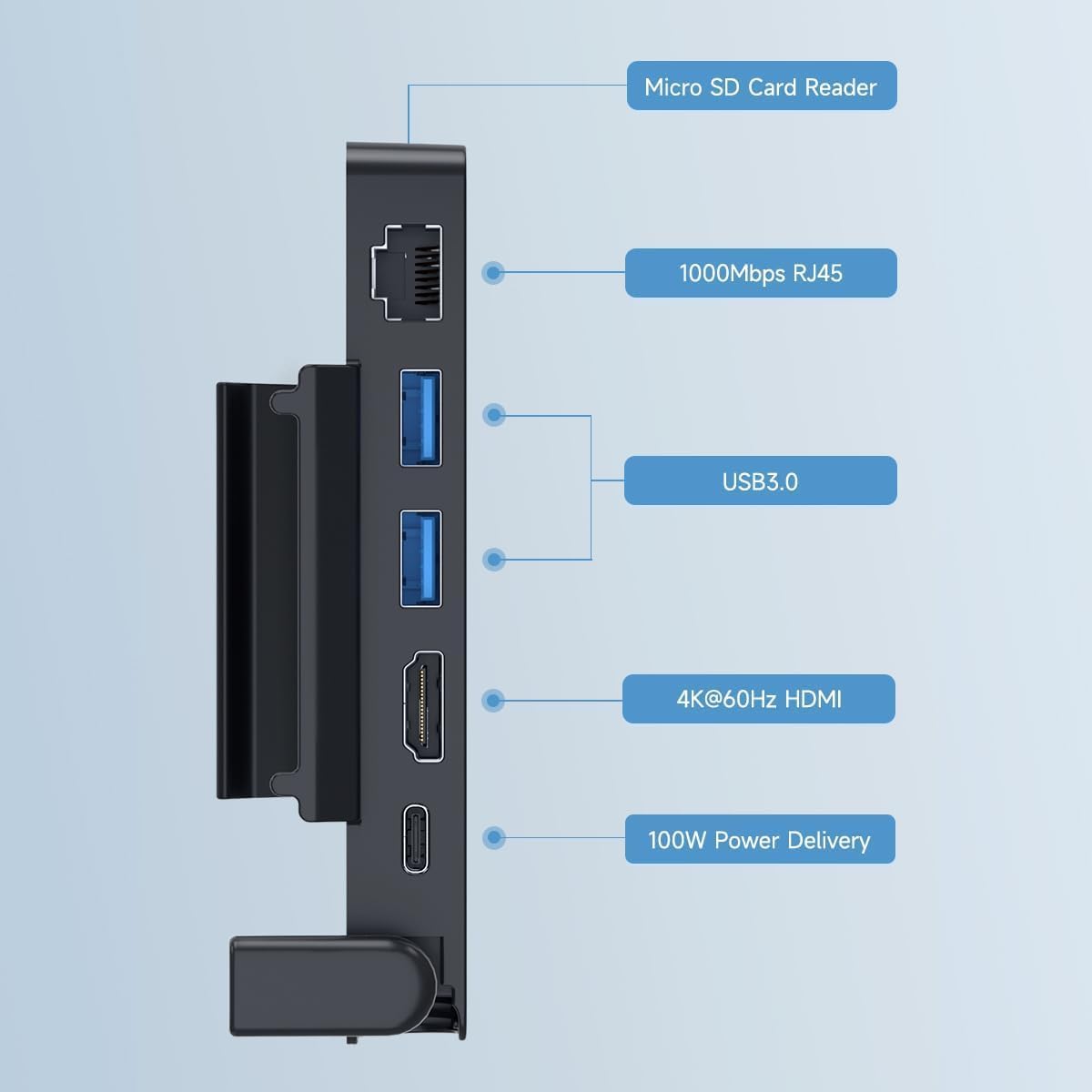
Image 2.1: Overview of the Hagibis docking station ports, including Micro SD Card Reader, 1000Mbps RJ45 Ethernet, two USB 3.0 ports, 4K@60Hz HDMI, and 100W Power Delivery USB-C port.
- Micro SD Card Reader: For expanding storage or transferring data.
- 1000Mbps RJ45 Ethernet Port: Provides a stable wired network connection.
- 2 x USB 3.0 Ports: For connecting external peripherals like keyboards, mice, or external storage.
- 4K@60Hz HDMI 2.0 Port: Connects your Steam Deck to an external display for high-resolution video output.
- 100W Power Delivery USB-C Port: Allows for fast charging of your Steam Deck while using the dock. Note: The Steam Deck's maximum charging speed is 45W.
2.2 Design Features
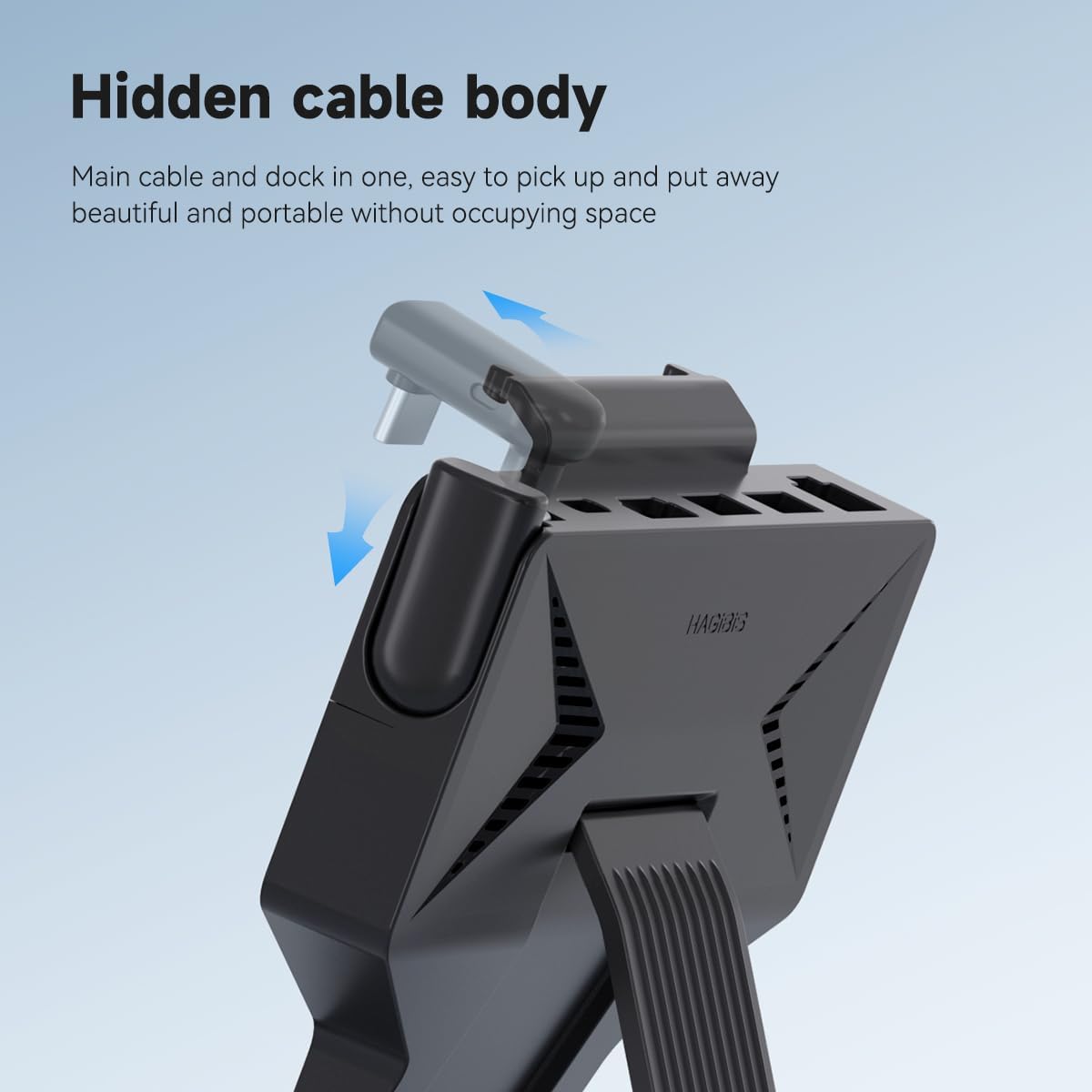
Image 2.2: The docking station features a hidden, retractable USB-C cable for connection to the Steam Deck, ensuring a compact and tidy setup.
The docking station incorporates a hidden USB-C cable that neatly tucks away when not in use, contributing to its portable design. It also features a built-in kickstand for stable placement of your Steam Deck.

Image 2.3: The docking station's design includes ventilation features to prevent blocking the Steam Deck's cooling hole, aiding in heat dissipation during extended use.
The design ensures that the Steam Deck's cooling vents are not obstructed, promoting efficient heat dissipation during prolonged gaming sessions.
3. Setup Instructions
- Unpack the Dock: Remove the Hagibis docking station from its packaging.
- Connect to Steam Deck:
- Locate the hidden USB-C cable on the docking station.
- Gently pull out and extend the USB-C connector.
- Insert the USB-C connector into the USB-C port on your Steam Deck.
Video 3.1: This video demonstrates the simple installation process of attaching the Hagibis docking station to the Steam Deck, highlighting the retractable USB-C cable and the integrated kickstand.
- Position the Kickstand: Extend the integrated kickstand on the docking station to provide stable support for your Steam Deck.
- Connect Power (Optional but Recommended): For optimal performance and charging, connect your Steam Deck's original charger (or a compatible 100W PD charger) to the 100W Power Delivery USB-C port on the docking station.
- Connect External Display (Optional): Use an HDMI 2.0 cable to connect the docking station's 4K@60Hz HDMI port to your monitor or TV.
- Connect Peripherals (Optional):
- For wired internet, connect an Ethernet cable to the 1000Mbps RJ45 port.
- Connect USB devices (e.g., keyboard, mouse, external drive) to the USB 3.0 ports.
- Insert a Micro SD card into the Micro SD card reader if needed.
4. Operating Instructions
4.1 Using with an External Display
Once connected via the HDMI port, your Steam Deck should automatically detect the external display. You may need to adjust display settings within the Steam Deck's operating system (SteamOS) for optimal resolution and refresh rate (up to 4K@60Hz).

Image 4.1: The Steam Deck connected to a large screen TV through the docking station, enabling a larger display for gaming.
4.2 Network Connection
Connecting an Ethernet cable to the RJ45 port will provide a stable wired internet connection, which can be beneficial for online gaming or large downloads. The Steam Deck should prioritize the wired connection over Wi-Fi automatically.
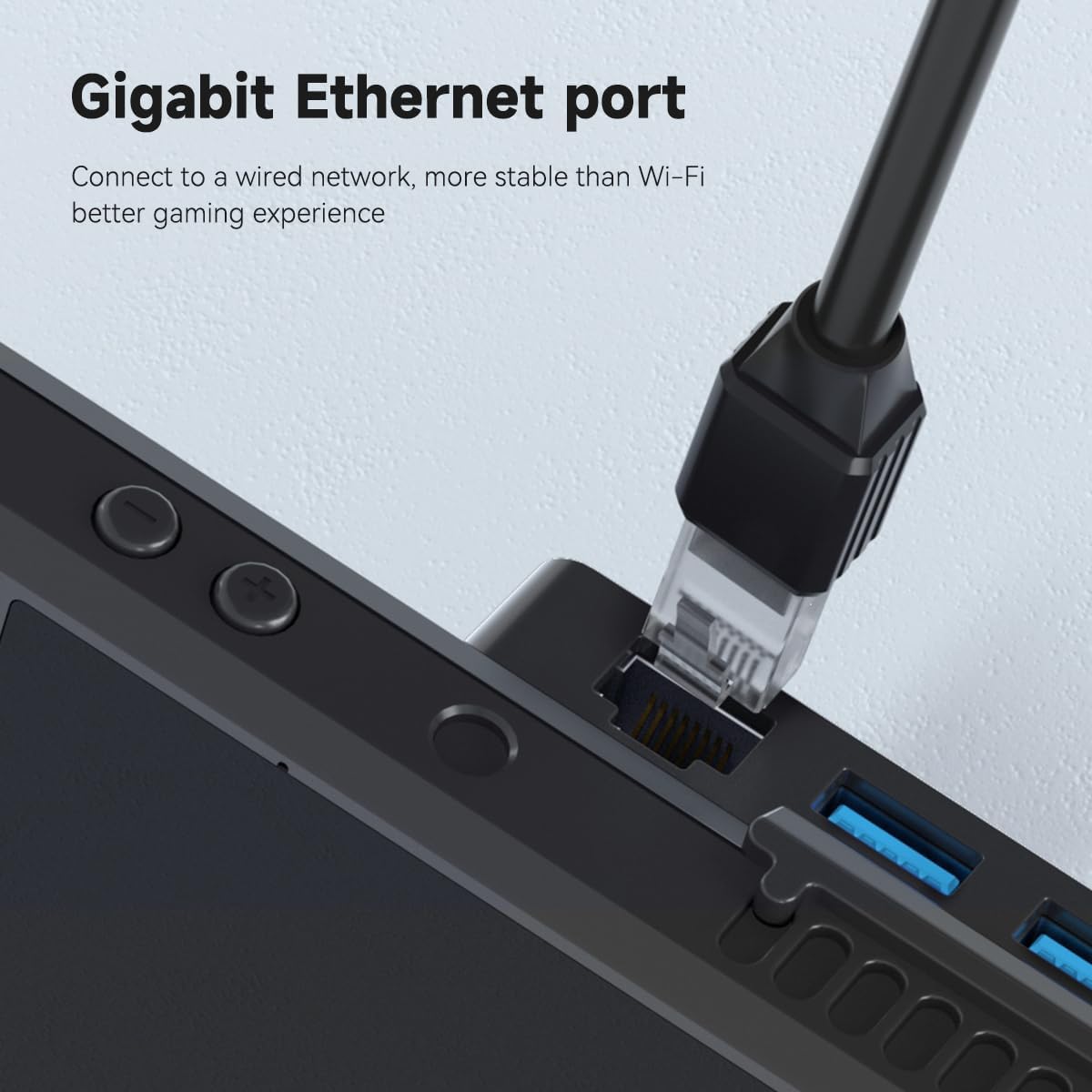
Image 4.2: A close-up view of an Ethernet cable securely connected to the Gigabit Ethernet port on the docking station, providing a stable wired network.
4.3 Charging
When a power adapter is connected to the 100W PD USB-C port, the docking station will pass through power to charge your Steam Deck. While the dock supports up to 100W, the Steam Deck itself will draw a maximum of 45W.
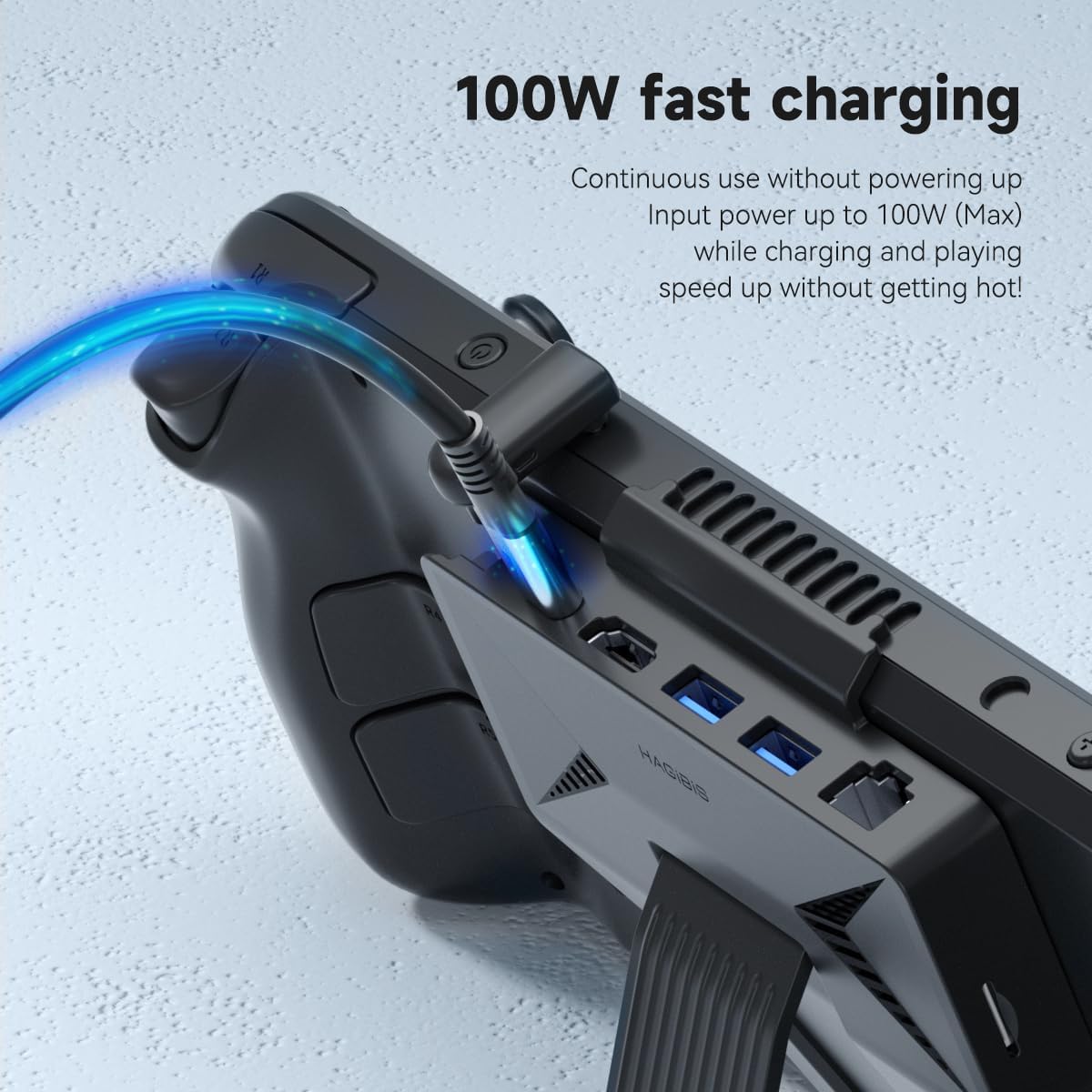
Image 4.3: The Steam Deck receiving power through the docking station's 100W Power Delivery port, indicated by a glowing blue cable.
4.4 Using USB Peripherals and Micro SD Card
Connect any standard USB devices to the USB 3.0 ports. Insert a Micro SD card into the designated slot for additional storage or data access. The Steam Deck's operating system will recognize these devices automatically.
5. Maintenance
- Cleaning: Use a soft, dry cloth to wipe the surface of the docking station. Avoid using liquid cleaners or abrasive materials.
- Storage: When not in use, retract the USB-C cable into its hidden compartment to protect it. Store the dock in a cool, dry place away from direct sunlight.
- Cable Care: Avoid bending or twisting the integrated USB-C cable excessively to prevent damage.
- Ventilation: Ensure the ventilation areas on the dock and your Steam Deck remain clear of dust and debris to maintain optimal heat dissipation.
6. Troubleshooting
| Problem | Possible Cause | Solution |
|---|---|---|
| No video output to external display. |
|
|
| Steam Deck is not charging. |
|
|
| USB devices or Micro SD card not recognized. |
|
|
| No wired internet connection. |
|
|
7. Specifications
| Feature | Detail |
|---|---|
| Brand | Hagibis |
| Model | 6-in-1 USB-C Dock Stand |
| Color | Black |
| Hardware Interface | Ethernet, HDMI, MicroSD, USB 3.0 |
| Compatible Devices | Steam Deck, Steam Deck OLED, tablets, laptops, and Android phones with full-featured USB-C ports. |
| Total USB Ports | 2 (USB 3.0) |
| Number of Ports | 6 |
| HDMI Output | 4K@60Hz HDMI 2.0 |
| Ethernet Port | 1000Mbps RJ45 |
| Power Delivery | Up to 100W (Max 45W for Steam Deck) |
| Micro SD Card Reader | Yes |
| Item Weight | 4 Ounces |
| Manufacturer | Shanghai Xinxie Industrial Co., Ltd. |

Image 7.1: Basic dimensions of the Hagibis docking station: 120mm width, 122mm height, and 15mm thickness.
8. Warranty and Support
8.1 Warranty Information
The Hagibis 6-in-1 USB-C Docking Station comes with a 1-Year Limited Warranty from the date of purchase. This warranty covers manufacturing defects and malfunctions under normal use. It does not cover damage caused by misuse, accidents, unauthorized modifications, or external causes.
Please retain your proof of purchase for warranty claims.
8.2 Customer Support
For technical assistance, troubleshooting, or warranty inquiries, please contact Hagibis customer support through the official website or your retailer's support channels.
You can visit the Hagibis Store on Amazon for more information: Hagibis Amazon Store