
1. Introduction
This manual provides detailed instructions for the operation and maintenance of your ZAQE Clip MP3 Player X20. Please read this manual thoroughly before using the device to ensure proper function and to maximize your user experience. Keep this manual for future reference.
2. What's in the Box
Upon opening your ZAQE Clip MP3 Player X20 package, please verify that all the following items are included:
- ZAQE Clip MP3 Player X20
- USB Charging Cable
- Wired Earphones
- User Manual (this document)
If any items are missing or damaged, please contact customer support.

Image: Contents of the ZAQE Clip MP3 Player X20 package, including the player, charging cable, earphones, and user manual.
3. Product Overview
3.1 Device Layout
The ZAQE Clip MP3 Player X20 features a compact design with intuitive controls and a secure clip for portability.
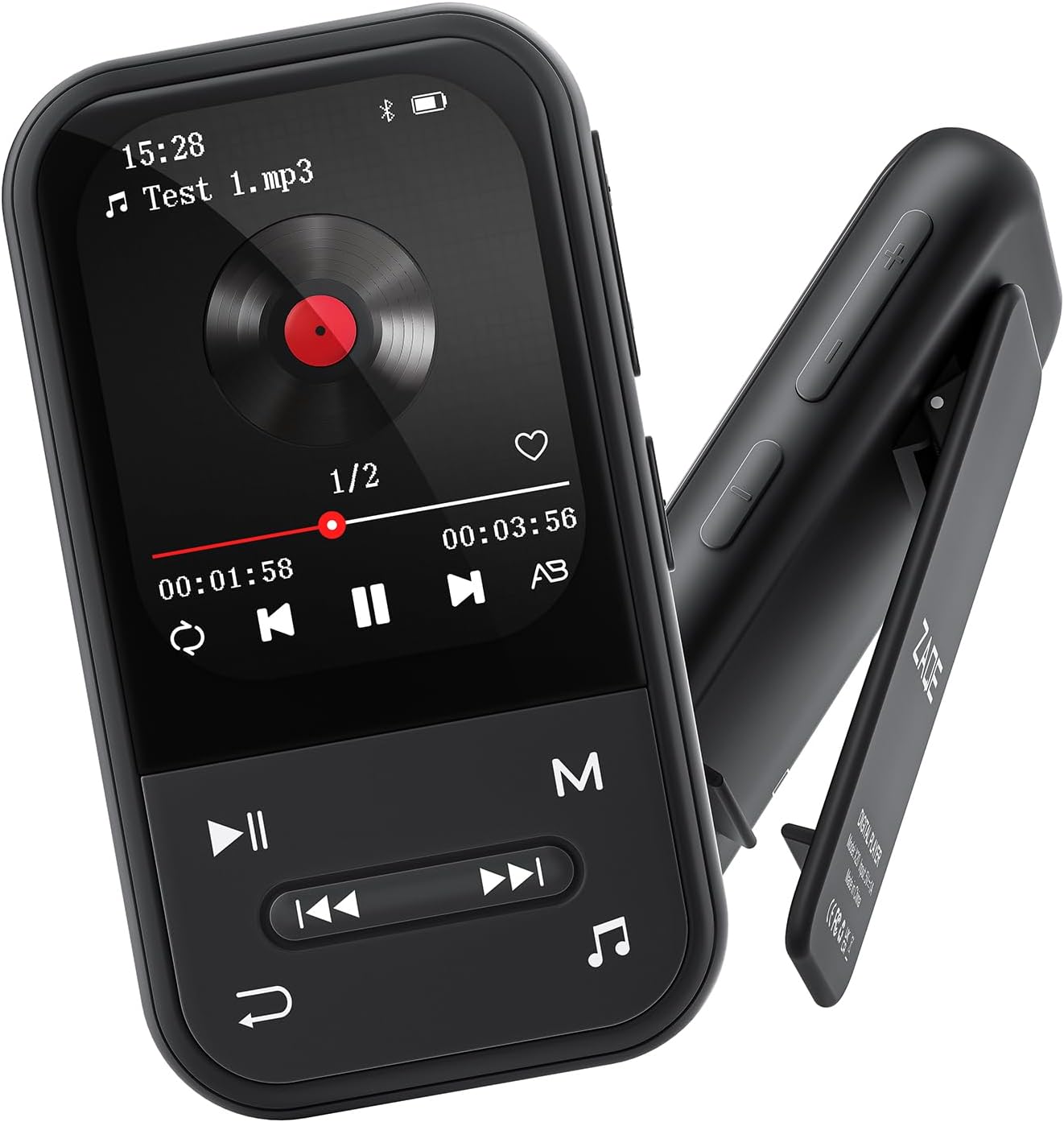
Image: Front and side view of the ZAQE Clip MP3 Player X20, highlighting its compact design and rear clip.
3.2 Display Interface
The device features a 2.0-inch TFT color display with a user-friendly interface for easy navigation through its various functions.
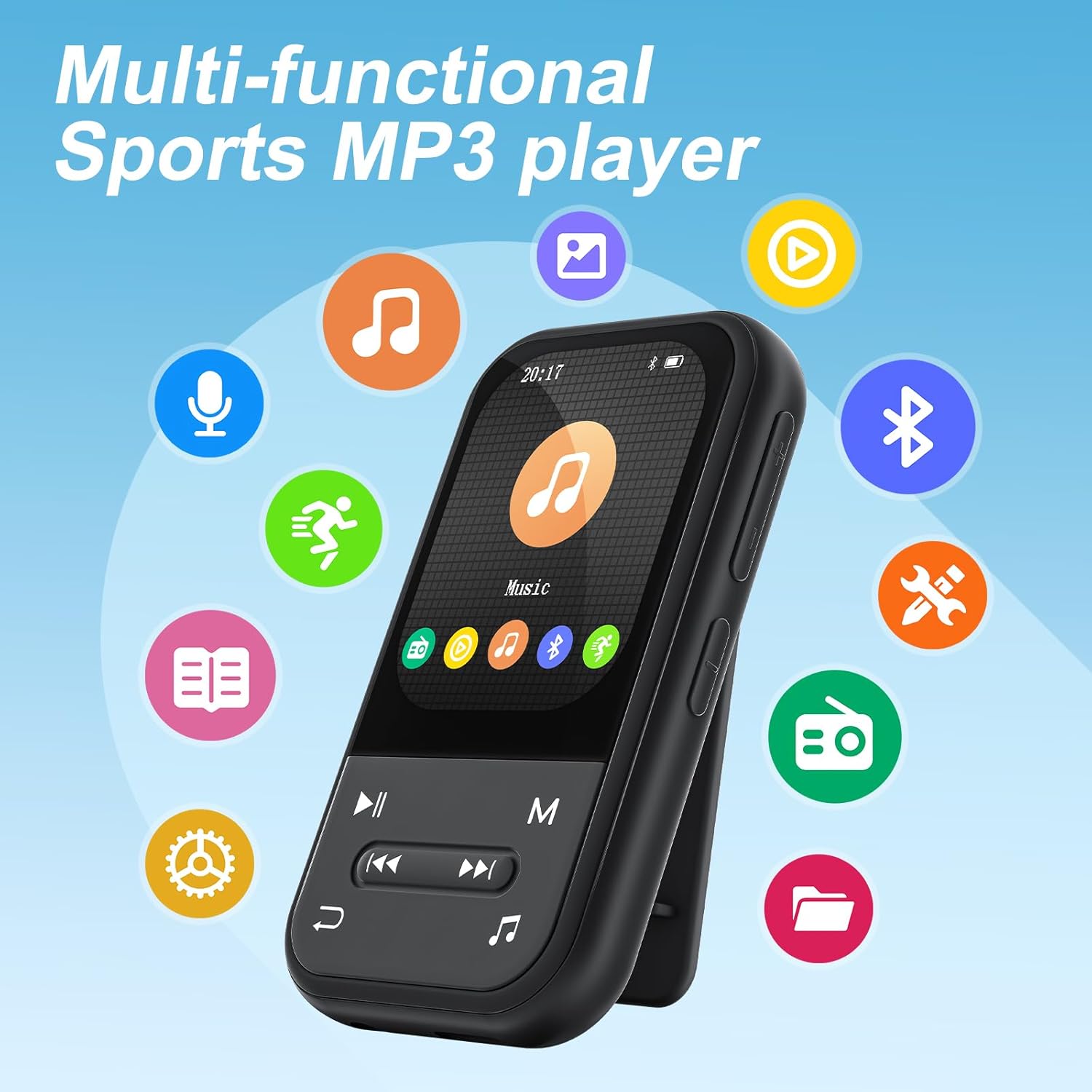
Image: The ZAQE Clip MP3 Player X20 displaying its main interface, surrounded by icons representing its various functions such as music, video, Bluetooth, FM radio, and pedometer.
4. Getting Started
4.1 Charging the Device
Before first use, fully charge the MP3 player. Connect the provided USB charging cable to the device's charging port and to a USB power adapter (not included) or a computer's USB port. The battery indicator on the screen will show charging status.
4.2 Powering On/Off
- To Power On: Press and hold the Power button until the screen illuminates.
- To Power Off: Press and hold the Power button until the power-off prompt appears, then confirm.
4.3 File Transfer
To transfer music, videos, or other files to your MP3 player:
- Connect the MP3 player to your computer using the USB cable.
- The device will appear as a removable disk on your computer.
- Drag and drop your desired files into the appropriate folders on the MP3 player (e.g., 'Music' for audio files).
- Safely eject the device from your computer before disconnecting the USB cable.

Image: The ZAQE Clip MP3 Player X20 supports 128GB internal storage and expandable memory.
4.4 Inserting a MicroSD Card
The ZAQE Clip MP3 Player X20 supports expandable storage up to 128GB via a MicroSD card (not included). Locate the MicroSD card slot on the device and gently insert the card until it clicks into place. Ensure the card is inserted in the correct orientation.
5. Operating Instructions
5.1 Basic Navigation
Use the physical buttons on the device to navigate through menus and select options. The central button typically acts as 'Enter' or 'Confirm', while directional buttons allow movement. The 'Back' button returns to the previous screen.
5.2 Music Playback
From the main menu, select the 'Music' icon to access your audio library. You can browse by artist, album, genre, or all songs. During playback, controls for play/pause, skip track, and volume adjustment are available.
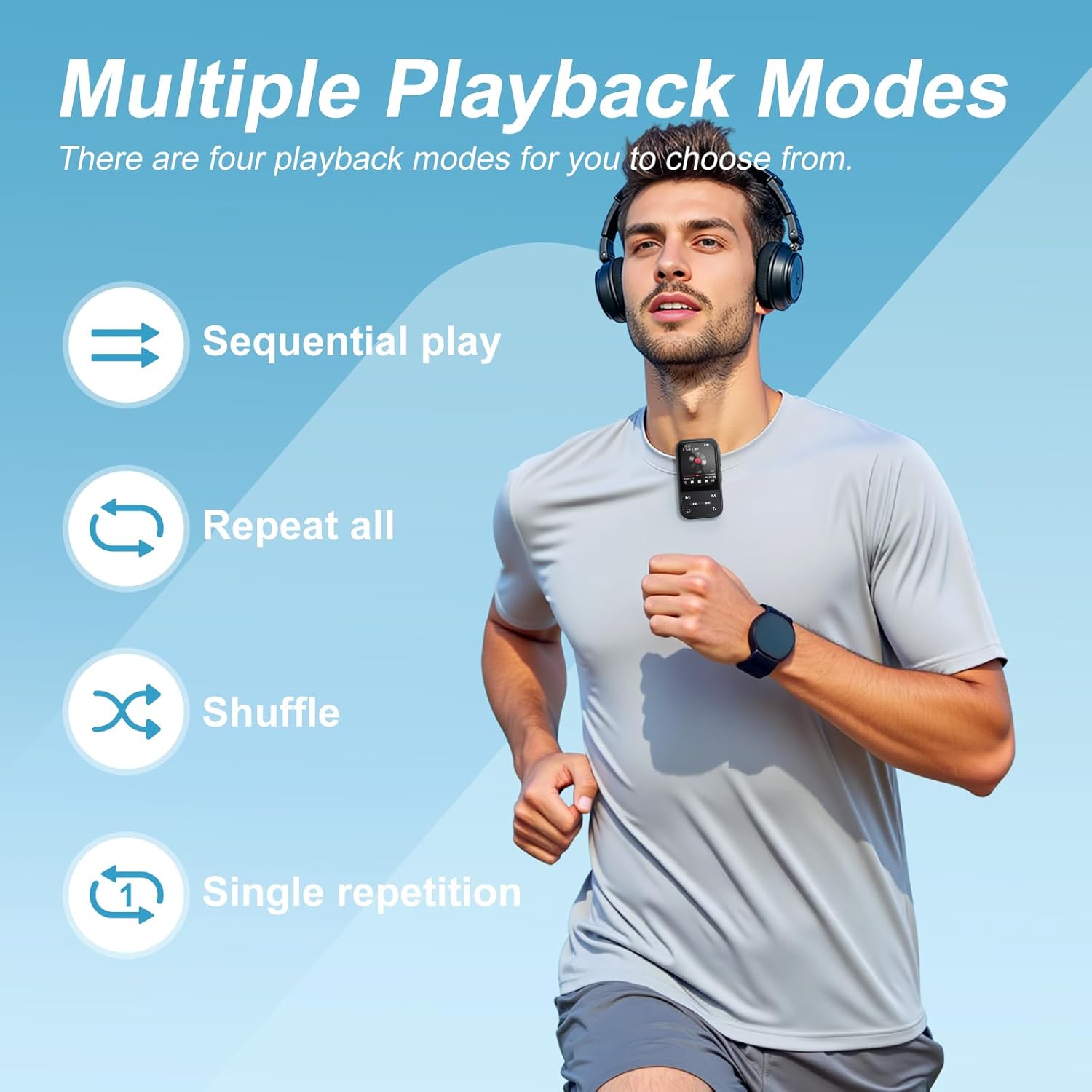
Image: The ZAQE Clip MP3 Player X20 offers multiple playback modes for music.

Image: Quick access to the music interface on the ZAQE Clip MP3 Player X20.
5.3 Bluetooth Connectivity
The device features Bluetooth 5.3 for wireless audio streaming.
- Navigate to the 'Bluetooth' menu from the main screen.
- Turn on Bluetooth and select 'Search for devices'.
- Ensure your Bluetooth headphones or speaker are in pairing mode.
- Select your device from the list to pair.
Note: This device cannot pair with smartphones or tablets.
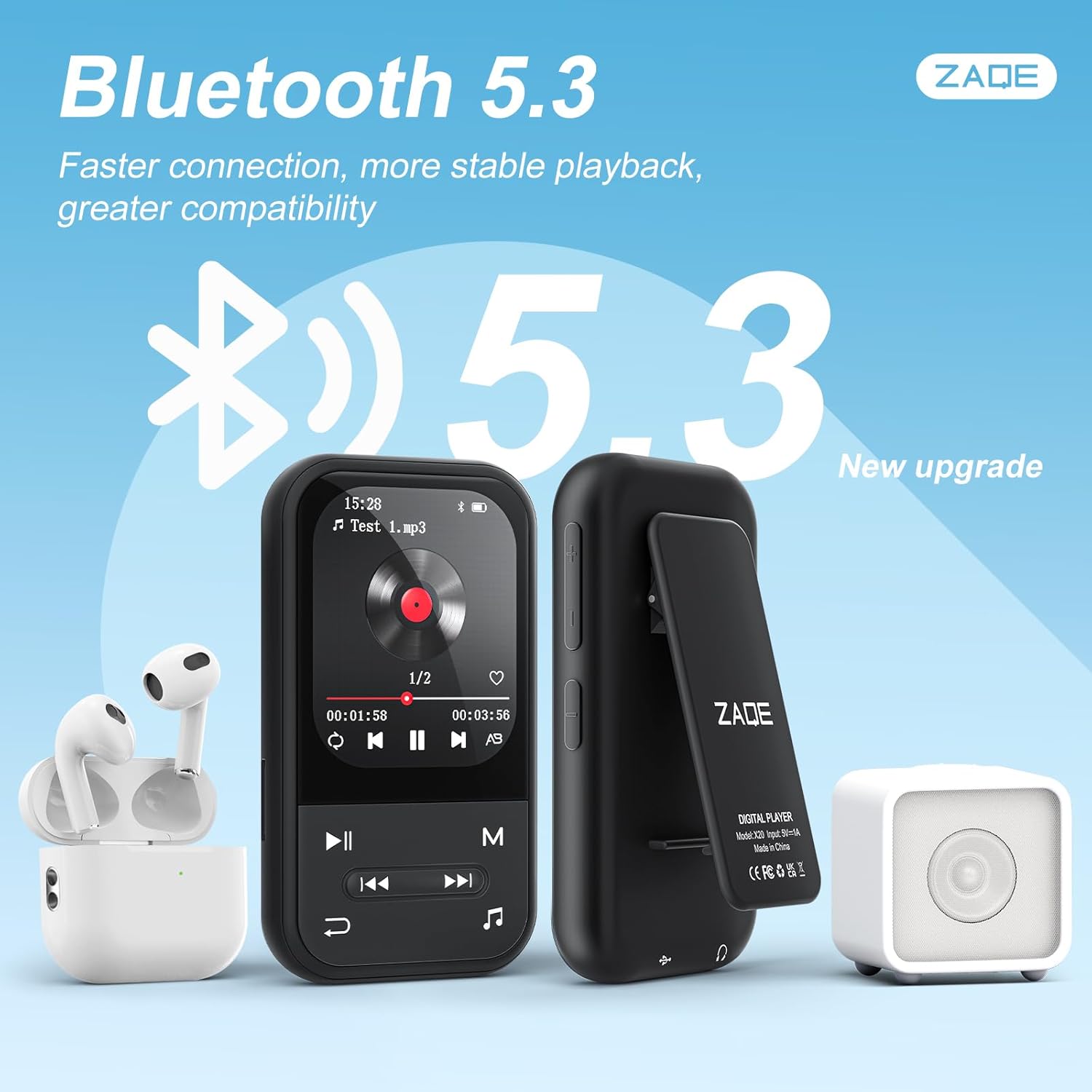
Image: ZAQE Clip MP3 Player X20 connected to Bluetooth headphones and speaker.
5.4 FM Radio
To use the FM Radio function, plug in the wired earphones (included) as they act as the antenna. Navigate to the 'FM Radio' icon, then scan for available stations.
5.5 Voice Recorder
Select the 'Voice Recorder' icon to access the recording function. You can start, pause, and save recordings. Recorded files are typically saved in WAV or MP3 format.
5.6 Pedometer Function
The built-in pedometer tracks your steps. Access this feature via the 'Pedometer' icon. Ensure the device is securely clipped to your clothing for accurate tracking.

Image: The ZAQE Clip MP3 Player X20 is ideal for sports and activities.
5.7 E-Book Reader
The device supports e-book reading. Transfer compatible text files to the 'E-Book' folder on the player. Select the 'E-Book' icon to browse and read your files.
5.8 Additional Tools
The ZAQE Clip MP3 Player X20 includes several useful tools:
- Alarm Clock: Set alarms for reminders or wake-up calls.
- Calendar: View the current date and manage simple schedules.
- Stopwatch: Use for timing activities or workouts.
6. Maintenance
- Keep the device dry. Moisture can damage electronic components.
- Clean the screen and body with a soft, dry cloth. Avoid abrasive cleaners.
- Avoid extreme temperatures.
- Do not drop or subject the device to strong impacts.
- Regularly back up important files to prevent data loss.
7. Troubleshooting
| Problem | Possible Cause | Solution |
|---|---|---|
| Device does not power on. | Low battery. | Charge the device for at least 30 minutes. |
| Cannot transfer files. | Incorrect USB connection or driver issue. | Ensure the USB cable is securely connected. Try a different USB port or computer. |
| Bluetooth device not pairing. | Device not in pairing mode or too far. | Ensure your Bluetooth device is in pairing mode and within range. Restart both devices. |
| No sound from FM Radio. | Earphones not connected or not functioning as antenna. | Ensure wired earphones are properly plugged in. They serve as the antenna. |
| MicroSD card not recognized. | Card improperly inserted or incompatible format. | Reinsert the card. Ensure it is formatted to FAT32 or exFAT. |
8. Specifications
| Brand | ZAQE |
| Model | X20 (Clip Player) |
| Memory Storage Capacity | 128 GB (Internal) + Expandable via Micro SDHC |
| Screen Size | 2.0 Inches |
| Display Technology | TFT |
| Bluetooth Version | 5.3 |
| Supported Audio Formats | MP3, OGG, APE, FLAC, WAV, AAC, ACELP |
| Battery Life | Up to 40 Hours (audio playback) |
| Item Weight | 1 Grams (0.035 ounces) |
| Package Dimensions | 4.72 x 4.69 x 0.94 inches |
9. Warranty and Support
ZAQE products are designed for reliability and performance. For warranty information, technical support, or customer service inquiries, please refer to the contact details provided on the product packaging or visit the official ZAQE website.
Please retain your proof of purchase for warranty claims.