
1. Introduction
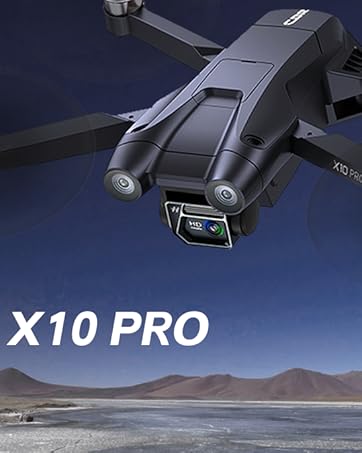
This manual provides essential information for the safe operation and maintenance of your CHUBORY X10 PRO Drone. Please read this manual thoroughly before operating the drone to ensure proper function and to prevent damage or injury. The CHUBORY X10 PRO is a mid-sized GPS drone designed for aerial photography and videography, featuring a 4K UHD camera, extended flight time, and intelligent flight modes.
2. What's in the Box
Carefully unpack all items and verify that all components are present. If any items are missing or damaged, please contact customer support.
- CHUBORY X10 PRO Drone
- Remote Controller
- Flight Batteries (x3)
- USB Charging Cable
- Spare Propellers
- Screwdriver
- Carrying Case

Unboxing and Review Video
This video provides an unboxing and review of the CHUBORY X10 PRO GPS Drone with Camera, detailing its components and initial impressions.
3. Setup
3.1 Drone Assembly
- Unfold the Drone Arms: Gently unfold the front and rear arms of the drone until they click into place. Ensure all arms are fully extended.
- Install Propellers (if necessary): If propellers are not pre-installed, attach them according to the markings (A/B) on the propellers and motor arms. Use the provided screwdriver to secure them.
3.2 Battery Installation and Charging
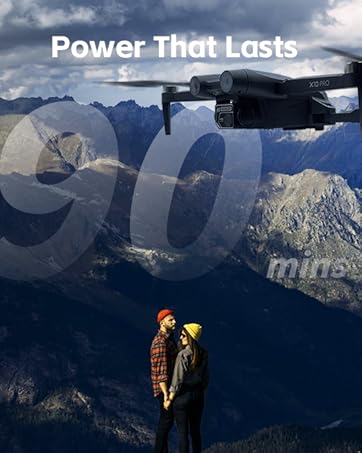
The drone comes with three batteries, providing up to 90 minutes of flight time (30 minutes per battery).
- Charge Batteries: Connect the flight batteries to the USB charging cable and plug it into a suitable USB power source (e.g., computer, USB wall adapter). The indicator light on the battery will show charging status. Charge all batteries fully before first use.
- Install Battery: Insert a fully charged battery into the battery compartment on the drone until it clicks securely into place.

3.3 Remote Controller Setup
- Install Controller Batteries: Insert 3 AA batteries (not included) into the remote controller's battery compartment.
- Attach Phone Holder: Extend the phone holder on the remote controller to securely mount your smartphone.
3.4 App Installation and Connection
- Download App: Scan the QR code in the quick start guide or search for the official CHUBORY drone app in your smartphone's app store.
- Connect to Drone Wi-Fi: Turn on the drone and the remote controller. On your smartphone, go to Wi-Fi settings and connect to the drone's Wi-Fi network (e.g., "CHUBORY-X10PRO-XXXX").
- Launch App: Open the CHUBORY drone app. The app should automatically connect to the drone, displaying a live FPV feed.
3.5 GPS Signal Acquisition
For stable outdoor flight and advanced features, GPS signal acquisition is crucial.
- Outdoor Placement: Place the drone on a flat, open surface outdoors, away from tall buildings or interference.
- Wait for GPS Lock: The drone will automatically search for GPS signals. The GPS indicator lights on the drone will change from a slow flash to a solid light when sufficient GPS satellites (typically 9 or more) are acquired.
- Unlock Drone: Once GPS lock is achieved, you can unlock the drone and proceed with flight.

Quick Start Guide Video
This video provides a quick start guide for the X10 PRO GPS Drone, covering initial setup and basic functions.
4. Operating Instructions
4.1 Pre-Flight Checklist
- Ensure all batteries (drone and controller) are fully charged.
- Check propellers for any damage or obstructions.
- Ensure the drone arms are fully unfolded and locked.
- Verify a strong GPS signal (for outdoor flight).
- Check for clear airspace and suitable weather conditions.
4.2 Basic Flight Controls
Familiarize yourself with the remote controller's joysticks and buttons.
- Left Joystick: Controls altitude (up/down) and rotation (yaw left/right).
- Right Joystick: Controls forward/backward movement (pitch) and left/right movement (roll).
- One-Key Take-off/Landing: Press the designated button for automatic take-off or landing.

4.3 Advanced Flight Modes
The CHUBORY X10 PRO includes several intelligent flight modes for enhanced control and creative shots.
- Auto Return Home: The drone automatically returns to its take-off point if the battery is low, signal is lost, or the RTH button is pressed.
- Follow Me Mode: The drone will autonomously follow the remote controller or a designated target.
- Point of Interest: The drone will circle around a specified point or object, maintaining focus.
- Tap Fly: Tap a destination on the app's map, and the drone will fly to that location.
- Gesture Photography: Use specific hand gestures to trigger photo or video capture.
4.4 Camera Operation
The drone is equipped with a 4K UHD camera for high-quality photo and video capture.
- Adjust Camera Angle: The camera's 100° expansive-view optic can be adjusted up to 90° via the remote controller or the app.
- Photo/Video Capture: Use the dedicated buttons on the remote controller or the app interface to take photos (4096x3072) or record videos (2048x1080).
- Live FPV Feed: View real-time footage on your connected smartphone via 5G FPV transmission.

Operation Guide Video
This comprehensive video guides you through the operation of the CHUBORY X10 PRO Drone, covering various flight functions and controls.
5. Maintenance
Regular maintenance ensures the longevity and optimal performance of your drone.
- Battery Care: Store batteries in a cool, dry place. Do not overcharge or over-discharge. If not used for extended periods, charge them to about 50-60% capacity.
- Propeller Inspection: Regularly check propellers for cracks, bends, or other damage. Replace damaged propellers immediately using the provided spare parts and screwdriver.
- Cleaning: Use a soft, dry cloth to clean the drone body and camera lens. Avoid using harsh chemicals or solvents.
- Motor Inspection: Ensure motors are free from dust and debris. Do not attempt to lubricate or disassemble the motors.
6. Troubleshooting
If you encounter issues, refer to the following common problems and solutions:
| Problem | Possible Cause | Solution |
|---|---|---|
| Drone does not power on | Low battery; improperly installed battery | Charge battery fully; ensure battery is securely inserted. |
| No FPV feed on smartphone | Not connected to drone Wi-Fi; app not open | Connect to drone's Wi-Fi network; open the CHUBORY app. |
| Drone drifts during flight | Insufficient GPS signal (outdoor); calibration needed | Ensure strong GPS signal; perform compass calibration as per app instructions. |
| Remote controller not responding | Low controller battery; not paired with drone | Replace controller batteries; re-pair controller with drone (refer to quick start guide). |
| Drone returns home unexpectedly | Low battery; signal loss; RTH button pressed | This is a safety feature. Monitor battery levels and maintain line of sight. |
If the problem persists, please refer to the official CHUBORY support resources or contact customer service.
7. Specifications
| Feature | Detail |
|---|---|
| Brand | CHUBORY |
| Model Name | X10 PRO |
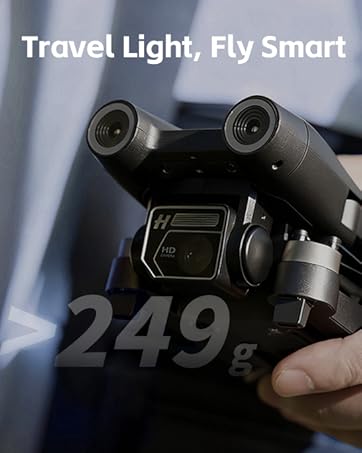
| Item Weight | 235 g (under 0.55lb) |
| Dimensions (L x W x H) | 3.74"L x 3.74"W x 1.18"H (folded) |
| Video Capture Resolution | 4K UHD (4096x3072 photos, 2048x1080 videos) |
| Camera Field of View (FOV) | 100° (90° remotely adjustable) |
| Connectivity Technology | Wi-Fi (5G FPV) |
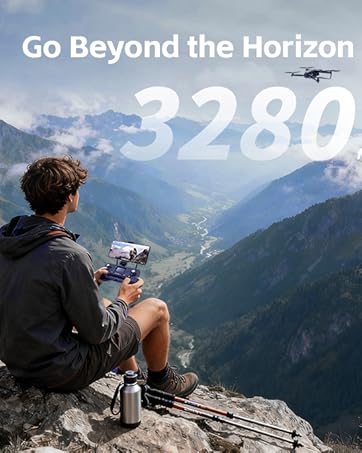
| Maximum Control Range | 3280 feet |
| Flight Time | Up to 90 minutes (with 3 batteries) |
| Positioning System | GPS, Optical Flow |
| Motor Type | Brushless |
| Battery Cell Composition | Lithium Ion |
| Material | Plastic (body), Metal (motors) |
| Age Range (Description) | Adult |
8. Warranty and Support
CHUBORY is committed to providing quality products and customer satisfaction. For any issues, questions, or support needs, please contact our dedicated support team.
- Customer Support: Our support team is available 24/7 to assist you. Refer to the contact information provided with your product packaging or on the official CHUBORY website.
- Warranty Information: Please retain your proof of purchase for warranty claims. Specific warranty terms and conditions are available on the official CHUBORY website.


