Introduction
This manual provides detailed instructions for the FUNNYPANDA T21 AI Language Translator Device. The T21 is designed to facilitate communication across language barriers through instant voice translation, photo translation, and offline capabilities. Please read this manual thoroughly to ensure proper use and optimal performance of your device.
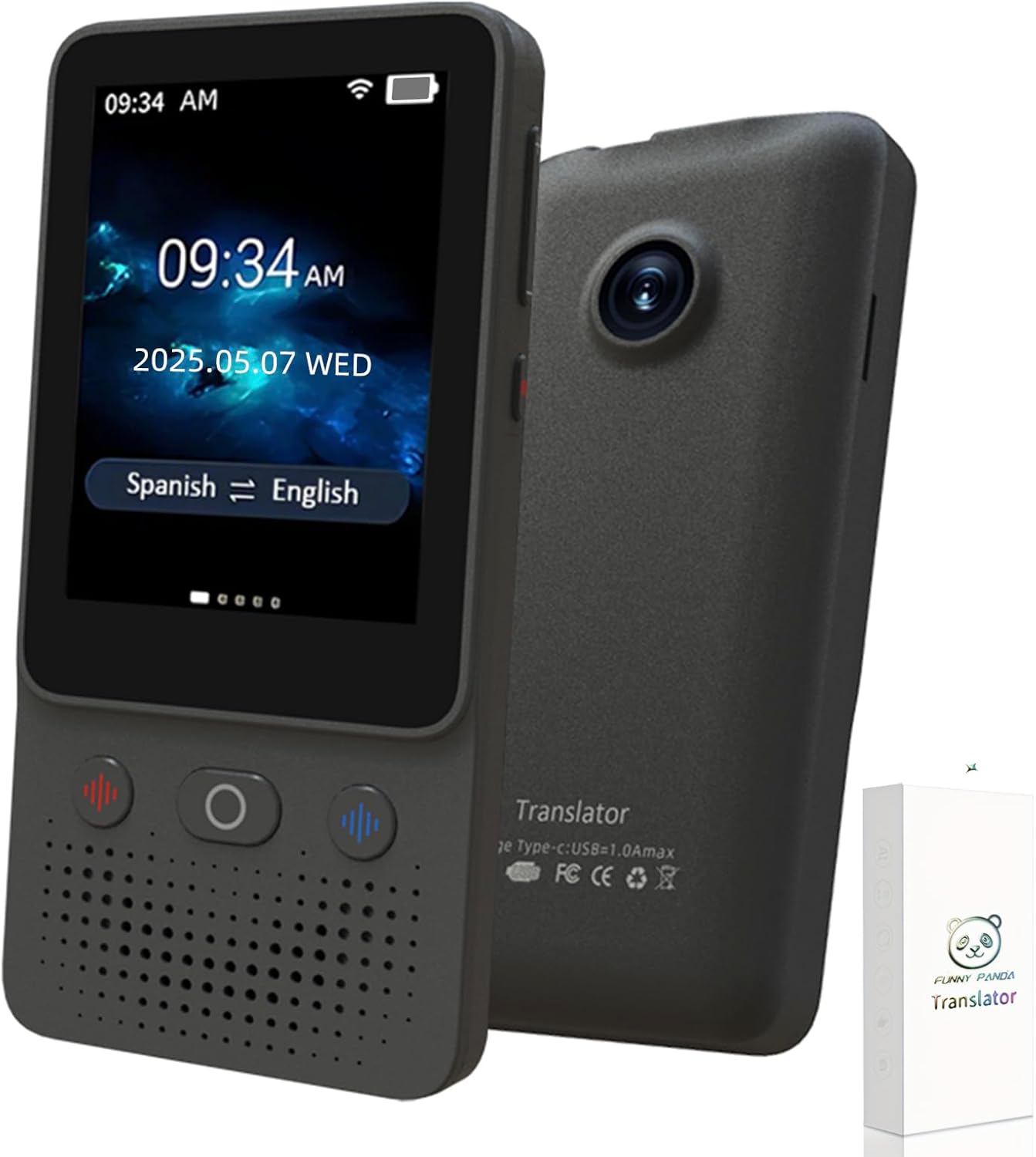
Image: The FUNNYPANDA T21 AI Language Translator Device, showcasing its compact design and user interface.
Package Contents
Upon opening the package, verify that all items are present:
- FUNNYPANDA T21 AI Language Translator Device
- Charging Cable (USB Type-C)
- Instruction Manual (this document)
Device Overview
The T21 translator features a compact design with a touch screen and physical buttons for intuitive operation.

Image: Diagram illustrating the dimensions of the FUNNYPANDA T21 translator device.
Key Features:
- AI Voice Translation: Supports 138 languages with a response time of 0.5 seconds and 98% accuracy.
- Photo Translation: Equipped with an 8-megapixel camera and OCR technology, supporting translation for up to 74 languages from images.
- Offline Translation: Provides translation capabilities for 17 languages without Wi-Fi.
- Offline Photo Translation: Supports photo translation for 49 languages without Wi-Fi.
- Recording Function: Allows recording and translation of conversations up to 60 minutes.
- Long Battery Life: Built-in 1200mAh rechargeable lithium battery, offering 5-6 hours of continuous use.
- Noise Reduction: Advanced noise reduction microphone for clear audio input in various environments.

Image: Visual representation of the FUNNYPANDA T21's key features, including touch screen size, number of languages, recording time, and translation speed/accuracy.
Setup
1. Charging the Device
Before first use, fully charge the device.
- Connect the provided USB Type-C charging cable to the device's charging port.
- Connect the other end of the cable to a compatible USB power adapter (not included) or a computer's USB port.
- The device typically takes 1-2 hours to fully charge. A full charge provides 5-6 hours of continuous operation.
2. Powering On/Off
- To Power On: Press and hold the power button (usually located on the side) until the screen illuminates.
- To Power Off: Press and hold the power button until a power-off option appears on the screen, then select it.
3. Initial Language Selection
Upon first startup, you will be prompted to select your preferred display language and the default translation languages.
- Follow the on-screen instructions to choose the device's system language.
- Select the two primary languages for voice translation (e.g., Spanish and English). These can be changed later in settings.
4. Wi-Fi Connection (Optional for Online Features)
While the device supports offline translation, connecting to Wi-Fi enables access to all 138 online languages, OTA updates, and advanced features like Chat GPT integration.
- Navigate to the "Settings" menu on the device.
- Select "Wi-Fi" and turn it on.
- Choose your desired Wi-Fi network from the list and enter the password if prompted.
- Once connected, the Wi-Fi icon will appear on the status bar.
Operating Instructions
1. Voice Translation
The device supports two-way voice translation.
- On the main screen, ensure the two desired languages are selected (e.g., Spanish ⇄ English). Tap on the language names to change them.
- Press and hold the left physical button (often red) to speak in the left-assigned language. Release the button when finished speaking.
- Press and hold the right physical button (often blue) to speak in the right-assigned language. Release the button when finished speaking.
- The translated text will appear on the screen, and the audio translation will play through the speaker.

Image: The FUNNYPANDA T21 translator being used in a group setting, demonstrating its two-way voice translation capability.
2. Photo Translation
Use the built-in camera to translate text from signs, menus, or documents.
- From the main menu, select the "Photo Translation" option.
- Point the device's camera at the text you wish to translate. Ensure the text is well-lit and clear within the frame.
- Tap the screen or press the designated button to capture the image.
- The device will process the image and display the translated text on the screen.
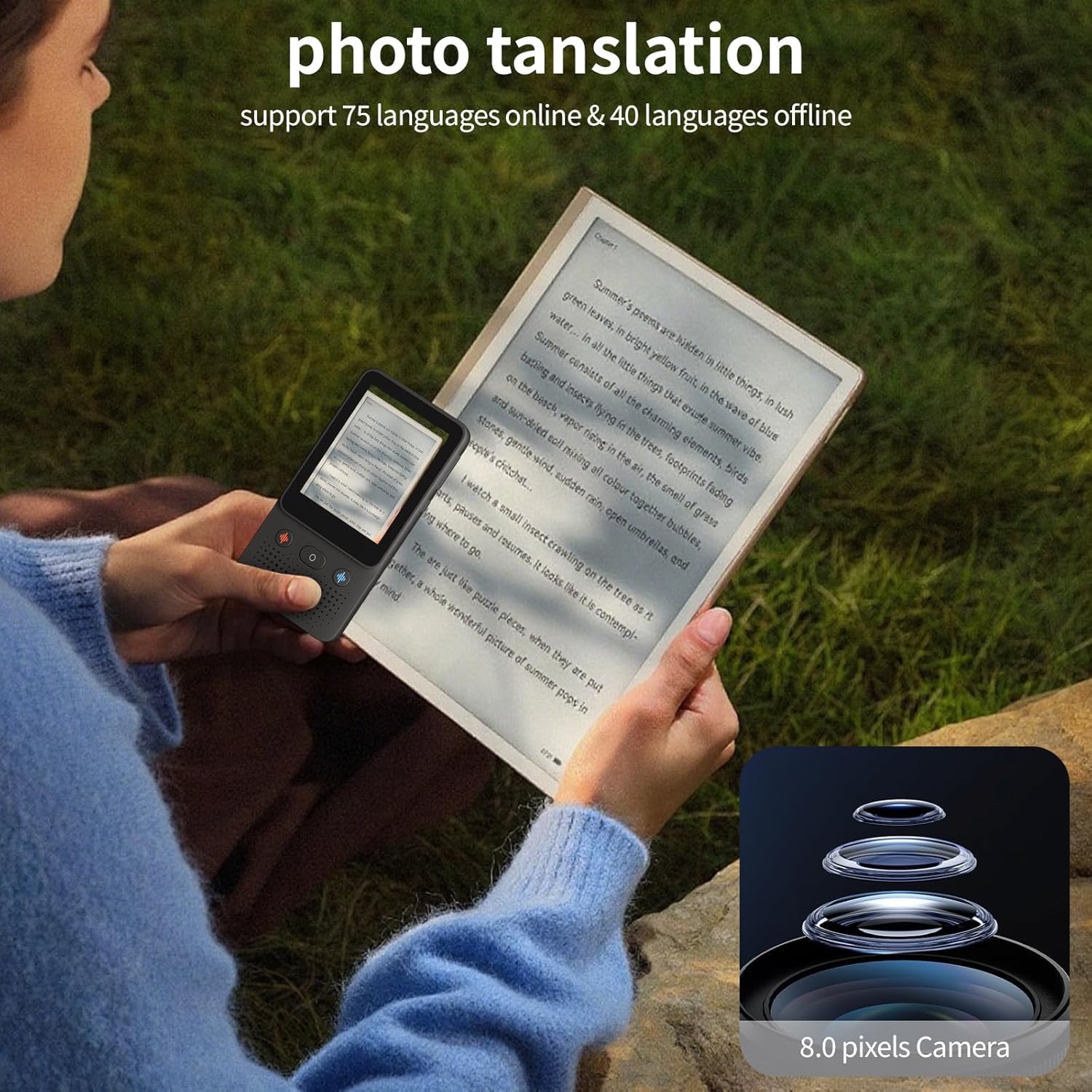
Image: A user holding the FUNNYPANDA T21 translator to translate text from a book using its camera function.
3. Offline Translation
The T21 supports offline translation for 17 languages. For offline photo translation, 49 languages are supported.
- To use offline translation, ensure you have downloaded the necessary language packs via Wi-Fi beforehand. Navigate to "Settings" > "Offline Languages" to manage downloads.
- Once downloaded, the device will automatically switch to offline mode if no Wi-Fi connection is available for supported languages.
- Proceed with voice or photo translation as described above.

Image: A visual display of the various languages available for offline translation on the FUNNYPANDA T21 device.
4. Recording and Translation
The device can record conversations and translate them in real-time or later.
- Select the "Recording" option from the main menu.
- Tap the record button to start recording.
- The device will capture audio and can display real-time translation if online, or save the recording for later translation.
- Recordings can be up to 60 minutes long.
Maintenance
1. Cleaning
To maintain the device's appearance and functionality:
- Wipe the screen and body with a soft, dry, lint-free cloth.
- Do not use abrasive cleaners, solvents, or aerosol sprays.
- Avoid getting moisture into openings.
2. Battery Care
The device contains a rechargeable lithium battery.
- Charge the device regularly, even if not in frequent use, to prolong battery life.
- Avoid exposing the device to extreme temperatures.
- If the device will not be used for an extended period, charge it to about 50% before storing.
3. Software Updates (OTA)
The device supports Over-The-Air (OTA) updates to ensure you have the latest features and improvements.
- Connect the device to a stable Wi-Fi network.
- Navigate to "Settings" > "System Update" or "About Device" to check for available updates.
- Follow the on-screen prompts to download and install any updates. Ensure the device has sufficient battery life or is connected to power during updates.
Troubleshooting
| Problem | Possible Cause | Solution |
|---|---|---|
| Device does not power on. | Low or depleted battery. | Charge the device for at least 30 minutes, then attempt to power on again. |
| Translation is slow or inaccurate. |
|
|
| Photo translation not working or inaccurate. |
|
|
| Cannot connect to Wi-Fi. | Incorrect password or network issue. | Double-check the Wi-Fi password. Restart the device and the Wi-Fi router if necessary. |
| Limited languages available. | Device is in offline mode or language packs are not downloaded. | Connect to Wi-Fi to access all 138 online languages. Download additional offline language packs via "Settings" > "Offline Languages". |
Specifications
| Feature | Detail |
|---|---|
| Model | T21 |
| Dimensions (Device) | Approximately 11cm (4.7 inches) x 5.5cm (2.17 inches) x 0.9cm (0.35 inches) |
| Item Weight | 6.4 ounces |
| Battery | 1200mAh Rechargeable Lithium Battery (1 A battery included) |
| Charging Time | 1-2 hours |
| Continuous Working Time | 5-6 hours |
| Online Voice Translation | 138+ languages |
| Offline Voice Translation | 17 languages (requires prior download) |
| Photo Translation (Online) | 74 languages |
| Photo Translation (Offline) | 49 languages (requires prior download) |
| Camera | 8 Megapixels with OCR technology |
| Screen | 5-inch High-Definition Touch Screen |
| Connectivity | Wi-Fi |
Warranty and Support
Warranty Information
Please refer to the warranty card included with your purchase or contact the retailer/manufacturer for specific warranty terms and conditions. Warranty coverage typically includes defects in materials and workmanship under normal use.
Customer Support
For technical assistance, troubleshooting beyond this manual, or inquiries regarding your FUNNYPANDA T21 device, please contact FUNNYPANDA customer support. Contact details can usually be found on the product packaging, the official FUNNYPANDA website, or through your purchase platform.


