
1. Introduction
Welcome to the TIBURN FLIP HUB 55" S2 Smart Board. This interactive display is designed to enhance collaboration and presentation experiences in various environments, including hybrid workplaces, conference rooms, and classrooms. Featuring a 4K UHD display, Android 13.0 operating system, and a unique rotating design, this smart board offers a versatile and intuitive user experience. This manual provides essential information for setting up, operating, maintaining, and troubleshooting your device.

Image 1.1: The TIBURN FLIP HUB 55" S2 Smart Board displayed in both vertical and horizontal orientations on its mobile stand, showcasing its rotating capability.
2. Product Overview
Key Features
- 4K UHD Android 13.0 Touch Screen: Experience precise interaction with 1mm touch accuracy and a 3-millisecond response time, mimicking natural writing.
- Rotatable Smart Board: The screen automatically adapts its orientation (portrait or landscape) using a built-in gravity sensor, suitable for various applications from meetings to fitness.
- Upgraded Rotatable Bracket: An ergonomically designed stand with a 15-degree viewing angle and a gear/spring damping mechanism ensures stable rotation.
- Enhanced Meeting Collaboration: Share content from up to four devices simultaneously. The low-latency panel maintains 4K resolution during interactions.
- Robust APP Ecosystem: Access and utilize a wide range of applications from the App Store to suit your team's needs.
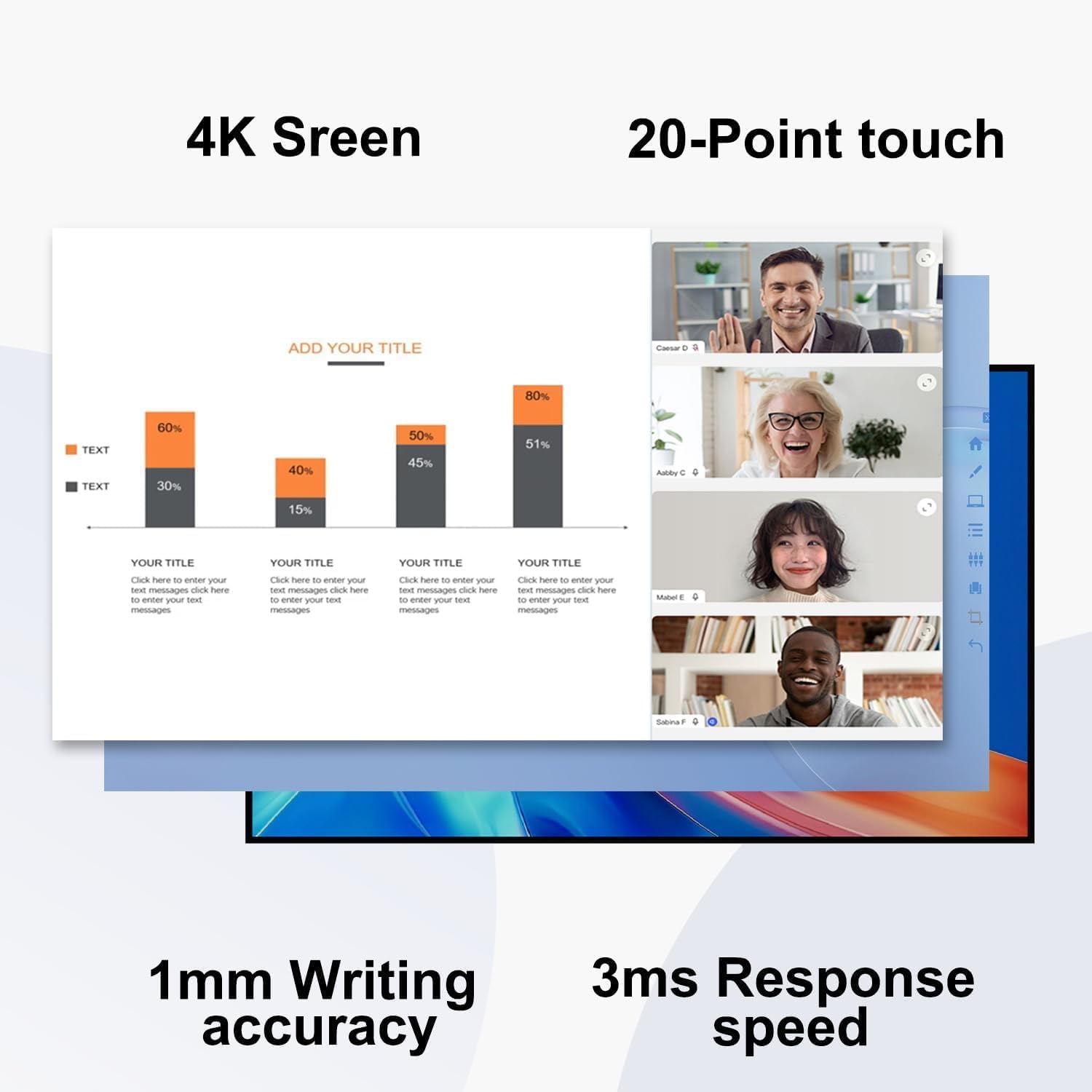
Image 2.1: Visual representation of the smart board's technical capabilities, including 4K resolution, 20-point multi-touch, 1mm writing accuracy, and a 3ms response time.
Package Contents
Upon unpacking, ensure all the following items are present:
- TIBURN FLIP HUB 55" S2 Smart Board
- Power Cord
- Mobile Rotating Stand (designed by TIBURN)
- Additional Related Accessories (e.g., stylus, remote control, documentation)
3. Setup
3.1 Unpacking
- Carefully open the packaging and remove all components.
- Inspect all items for any signs of damage. Contact customer support immediately if any damage is found.
- Retain packaging materials for future transport or service needs.
3.2 Stand Assembly
Assemble the mobile rotating stand according to the separate assembly guide provided with the stand. Ensure all screws are tightened securely for stability. The stand features a gear/spring damping mechanism for smooth and stable screen rotation.

Image 3.1: Detailed view of the mobile rotating stand's construction, highlighting the tension spring, damping mechanism, ball disc bearings for smooth rotation, and the ergonomic 75-degree tilt capability.
3.3 Power Connection
- Connect the provided power cord to the smart board's power input port.
- Plug the other end of the power cord into a grounded electrical outlet.
3.4 Initial Boot-up
- Press the power button located on the smart board.
- Follow the on-screen instructions to complete the initial setup, including language selection, network configuration, and time zone settings.

Image 3.2: Illustration of the smart board's multiple interfaces, including power input, HDMI 1, USB 2.0, USB 3.0, HDMI 2, and HDMI 1 (repeated, likely a typo in source, assuming two HDMI inputs).
4. Operating Instructions
4.1 Basic Operation
- Power On/Off: Press the power button once to turn on. Press and hold to access power options (shut down, restart).
- Touch Screen Interaction: Use your finger or the provided stylus for navigation, writing, and drawing. The screen supports multi-touch gestures.
4.2 Screen Rotation
The TIBURN FLIP HUB features a built-in gravity sensor that automatically detects the screen's orientation. Simply rotate the display on its stand, and the content will adjust accordingly between portrait and landscape modes without manual settings.

Image 4.1: The smart board demonstrating its automatic rotation feature, transitioning between horizontal and vertical display modes, powered by an internal gyro sensor.
4.3 Connectivity and Wireless Screen Casting
The smart board supports wireless screen sharing from up to four devices simultaneously. This feature is ideal for collaborative environments, allowing multiple participants to present their content without interruption.
- Wireless Casting: Use the integrated screen sharing application to connect your laptop, tablet, or smartphone. Follow the on-screen instructions for pairing.
- Multi-Device Sharing: Up to four devices can cast their screens concurrently, displayed in a split-screen layout.
- Wired Connections: Utilize the HDMI and USB ports for direct connections to external devices.

Image 4.2: The smart board showcasing its wireless screen casting capability, displaying content from four different devices (two laptops, two smartphones) simultaneously on a single screen.

Image 4.3: A meeting scenario demonstrating wireless screen casting, where participants can easily share their content to the TIBURN smart board for collaborative discussions.
4.4 Software Features
- Android 13.0 Interface: Navigate through the intuitive Android operating system.
- App Store Access: Download and install a variety of applications from the integrated App Store, expanding the board's functionality for productivity, entertainment, and fitness.
- Digital Whiteboard: Utilize the pre-installed whiteboard application for interactive writing, drawing, and annotation.
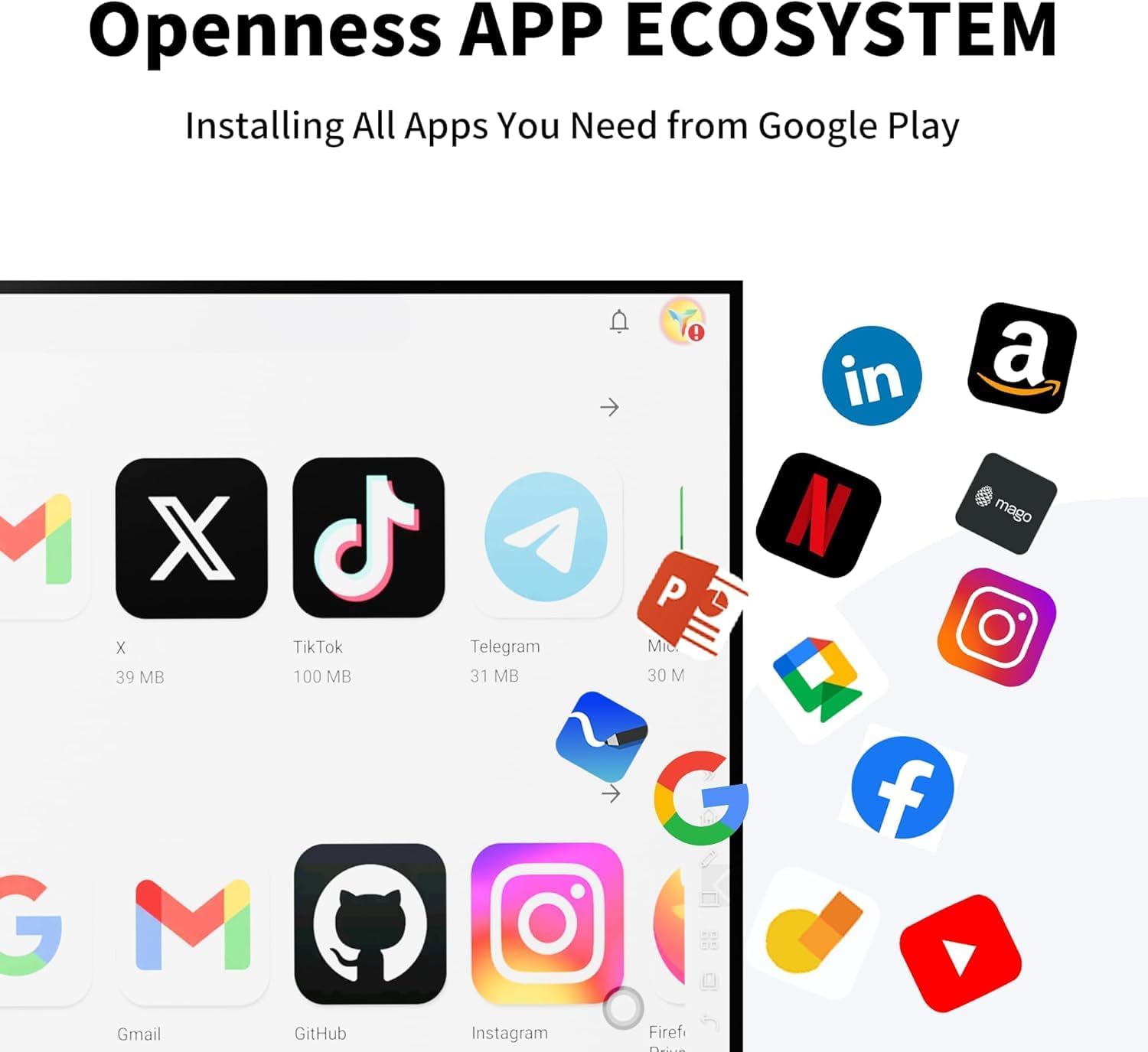
Image 4.4: The smart board's open app ecosystem, illustrating the availability of various applications from Google Play, including social media, productivity tools, and streaming services.

Image 4.5: The smart board used for home fitness, displaying a workout application in portrait mode, with content mirrored from a smartphone.
5. Maintenance
5.1 Cleaning the Screen
- Turn off the smart board before cleaning.
- Use a soft, lint-free cloth, slightly dampened with water or a non-abrasive screen cleaner.
- Avoid using harsh chemicals, alcohol, or abrasive materials, as these can damage the screen surface.
5.2 Software Updates
Regularly check for and install software updates to ensure optimal performance, security, and access to new features. Updates can typically be found in the system settings menu.
5.3 General Care
- Keep the smart board away from direct sunlight, excessive heat, and moisture.
- Ensure proper ventilation around the device.
- Avoid placing heavy objects on the smart board or stand.
6. Troubleshooting
Common Issues and Solutions
| Issue | Possible Cause | Solution |
|---|---|---|
| No Power | Power cord disconnected; power outlet fault. | Check power cord connection; try a different outlet. |
| Touch Screen Unresponsive | Software glitch; calibration issue. | Restart the device; check for software updates. |
| Wireless Casting Fails | Network issue; device compatibility. | Ensure both devices are on the same Wi-Fi network; restart casting app. |
| Screen Orientation Not Changing | Gravity sensor malfunction; software issue. | Restart the device; ensure the board is rotated smoothly. |
If you encounter issues not listed here or if the suggested solutions do not resolve the problem, please contact TIBURN customer support for further assistance.
7. Specifications
| Feature | Detail |
|---|---|
| Brand | TIBURN |
| Model Number | TE-QS1M-55 |
| Screen Size | 55 inches |
| Display Resolution | 4K UHD |
| Operating System | Android 13.0 |
| Touch Points | 20-Point Touch |
| Writing Accuracy | Within 1 mm |
| Response Time | 3 milliseconds |
| Product Dimensions | 49.2 x 49.2 x 78.7 inches (with stand, approximate) |
| Item Weight | 37.4 pounds |
| Color | Black |
| Material Type | Metal |
| Mounting Type | Stand Mount |
| Recommended Uses | Church, Community Center, Conference Room, Gym, Home, Office, School |

Image 7.1: Dimensions of the portable stand, indicating a width of 23.6 inches, height of 63 inches, and depth of 30 inches.
8. Warranty and Support
TIBURN products are manufactured with quality and reliability in mind. For information regarding warranty coverage, technical support, or service, please refer to the warranty card included in your package or visit the official TIBURN website. Please have your model number (TE-QS1M-55) and purchase date available when contacting support.
