
Introduction
This manual provides essential information for setting up, operating, maintaining, and troubleshooting your HP OmniDesk M02 Premium Business Desktop. Please read this guide thoroughly to ensure proper use and to maximize the performance and longevity of your device.

Image: The HP OmniDesk M02 desktop tower, showcasing its compact design and highlighting key features like the Intel Core i5-14400 processor, Windows 11, up to 32GB DDR5 RAM, up to 2TB PCIe M.2 SSD, Wi-Fi 6, and Copilot + AI readiness.
What's in the Box
Verify that all items are present in the packaging:
- HP OmniDesk Tower Desktop
- Wired Keyboard
- Wired Mouse
- Power Cable
- ADATA SD620-512GCRD External SSD
- Documentation (Quick Start Guide, Warranty Information)

Image: The HP OmniDesk M02 desktop tower shown alongside its included wired keyboard and mouse, illustrating the complete setup of the core components.
Setup
1. Connecting Peripherals
Before powering on your desktop, connect the necessary peripherals:
- Monitor: Connect your monitor to the desktop using an HDMI or DisplayPort cable.
- Keyboard and Mouse: Connect the wired keyboard and mouse to any available USB Type-A ports on the desktop.
- External SSD: Connect the ADATA SD620 External SSD to an available USB port for additional storage.
- Network (Optional): For a wired internet connection, connect an Ethernet cable to the RJ-45 port.

Image: A detailed diagram illustrating the front and rear ports of the HP OmniDesk M02 desktop. Front ports include Headphone/Microphone combo, 3x USB Type-A 5Gbps, and 1x USB Type-C 10Gbps. Rear ports include 4x USB 2.0 Type-A, 1x Display Port, 1x HDMI Out, and 1x RJ45.
2. Power Connection
Connect the power cable to the desktop's power input and then to a wall outlet.
3. Initial Power On
Press the power button located on the front of the desktop. Follow the on-screen instructions to complete the Windows 11 Home setup process.
Operating System and Features
Windows 11 Home
Your HP OmniDesk M02 comes pre-installed with Windows 11 Home, offering a modern interface and enhanced productivity features. Familiarize yourself with the Start Menu, Taskbar, and Settings to customize your experience.
Microsoft Copilot Integration
This desktop is AI and Copilot-Ready, providing intelligent assistance for various tasks. Access Copilot to streamline workflows, automate tasks, and enhance your productivity.
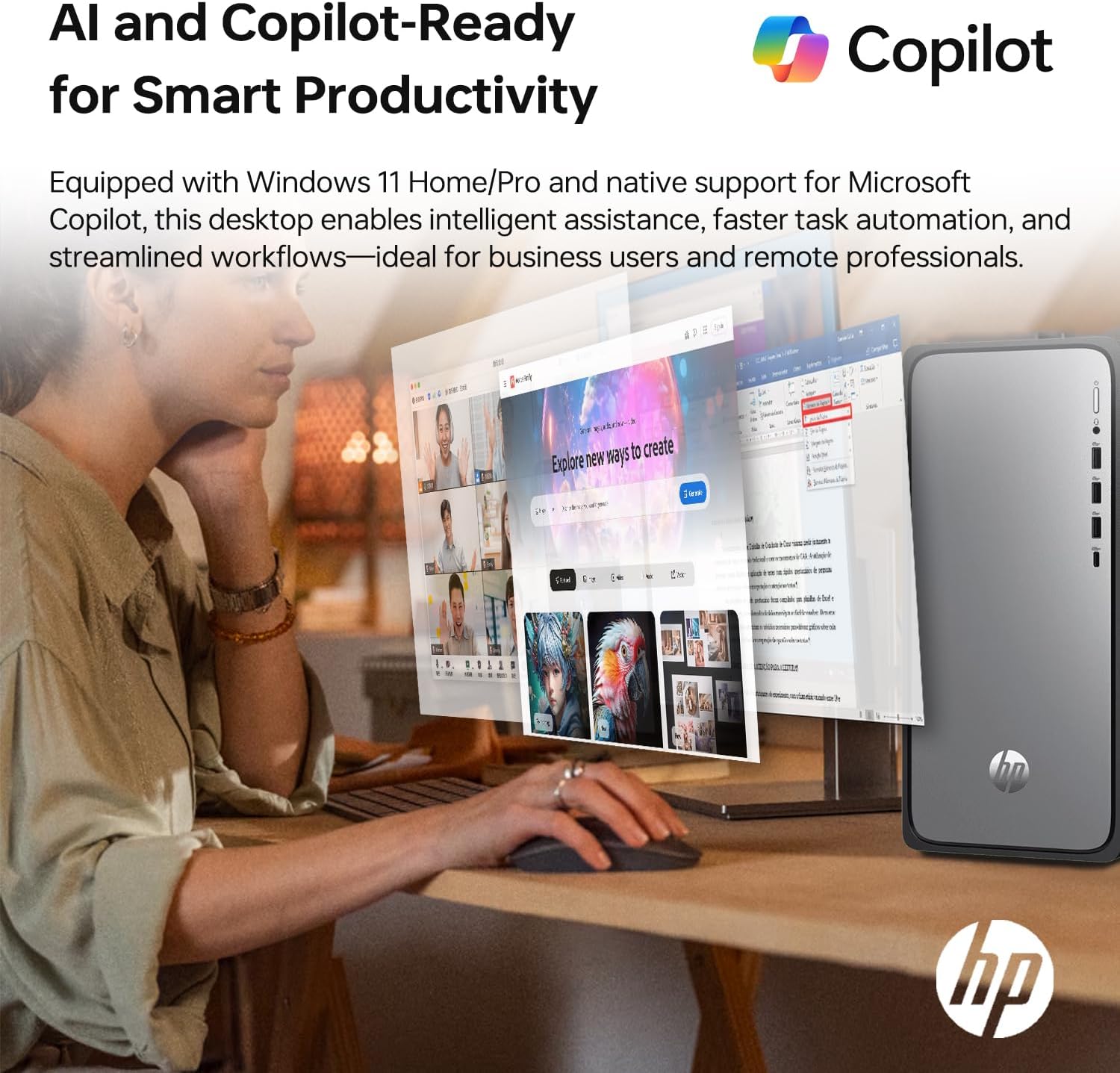
Image: A desktop screen displaying the Microsoft Copilot interface, emphasizing its role in smart productivity and AI-driven assistance for business users and remote professionals.
Intel UHD Graphics
The integrated Intel UHD Graphics provide clear visuals for daily computing tasks, streaming 4K content, and casual gaming.
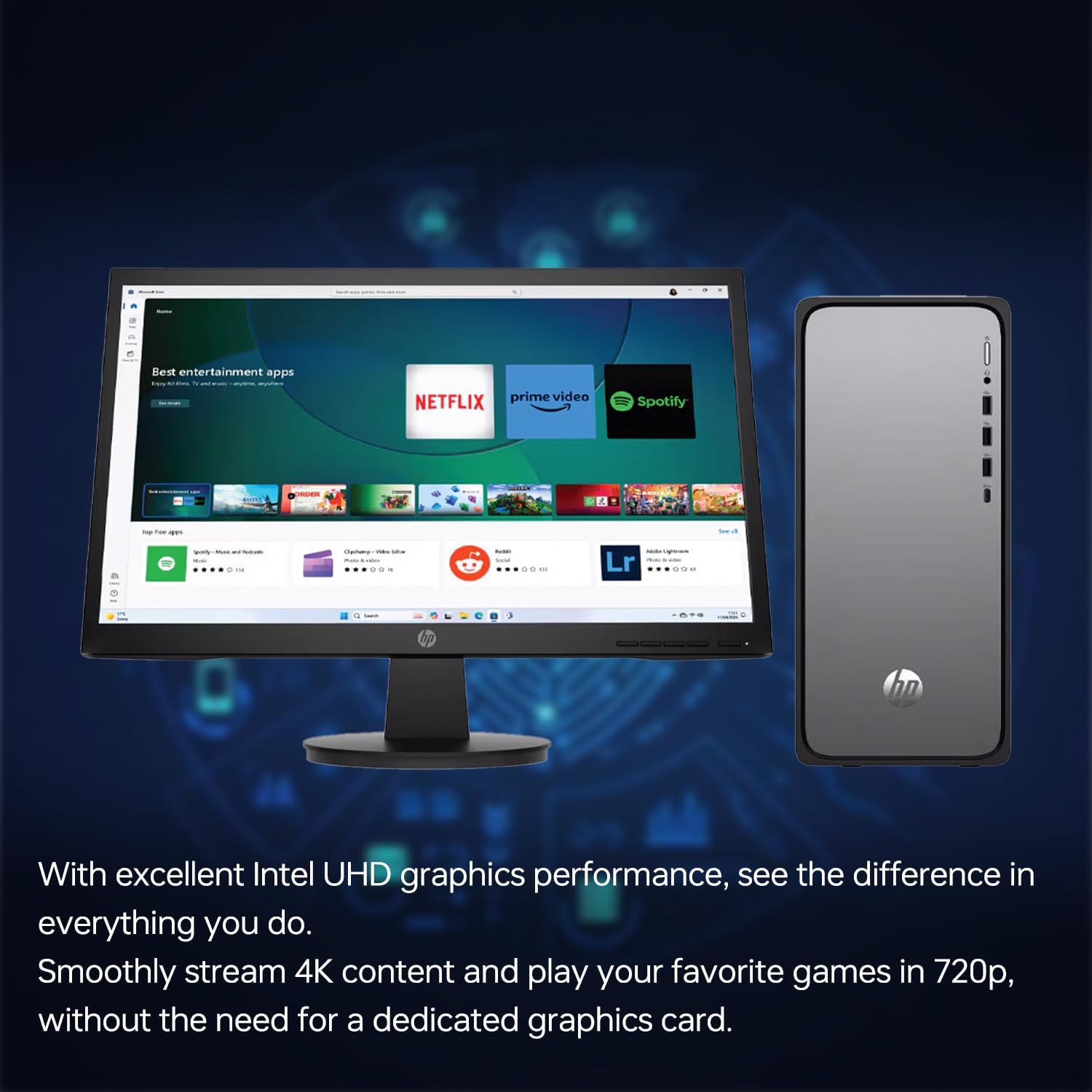
Image: The HP OmniDesk M02 desktop connected to a monitor displaying various entertainment applications like Netflix and Prime Video, highlighting the capabilities of Intel UHD graphics for streaming and media consumption.
Connectivity
The HP OmniDesk M02 offers a range of connectivity options:
- Wi-Fi 6 (802.11ax): For high-speed wireless internet access.
- Bluetooth: For connecting wireless peripherals such as headphones, speakers, or mobile devices.
- Front Ports:
- 1 x USB Type-C (10Gbps)
- 3 x USB Type-A (5Gbps)
- 1 x Headphone/Microphone Combo Jack
- Rear Ports:
- 4 x USB Type-A 2.0
- 1 x HDMI
- 1 x Display Port
- 1 x RJ-45 (Ethernet)
- 1 x Audio Out
External Storage: ADATA SD620 SSD
Your desktop includes an ADATA SD620-512GCRD external solid-state drive for expanded storage and fast data transfers. This rugged SSD is designed for durability and portability.
- Capacity: 512GB
- Interface: USB (connects to any available USB port on your desktop)
- Features: MIL-STD Shock Resistance, fast data transfer speeds.
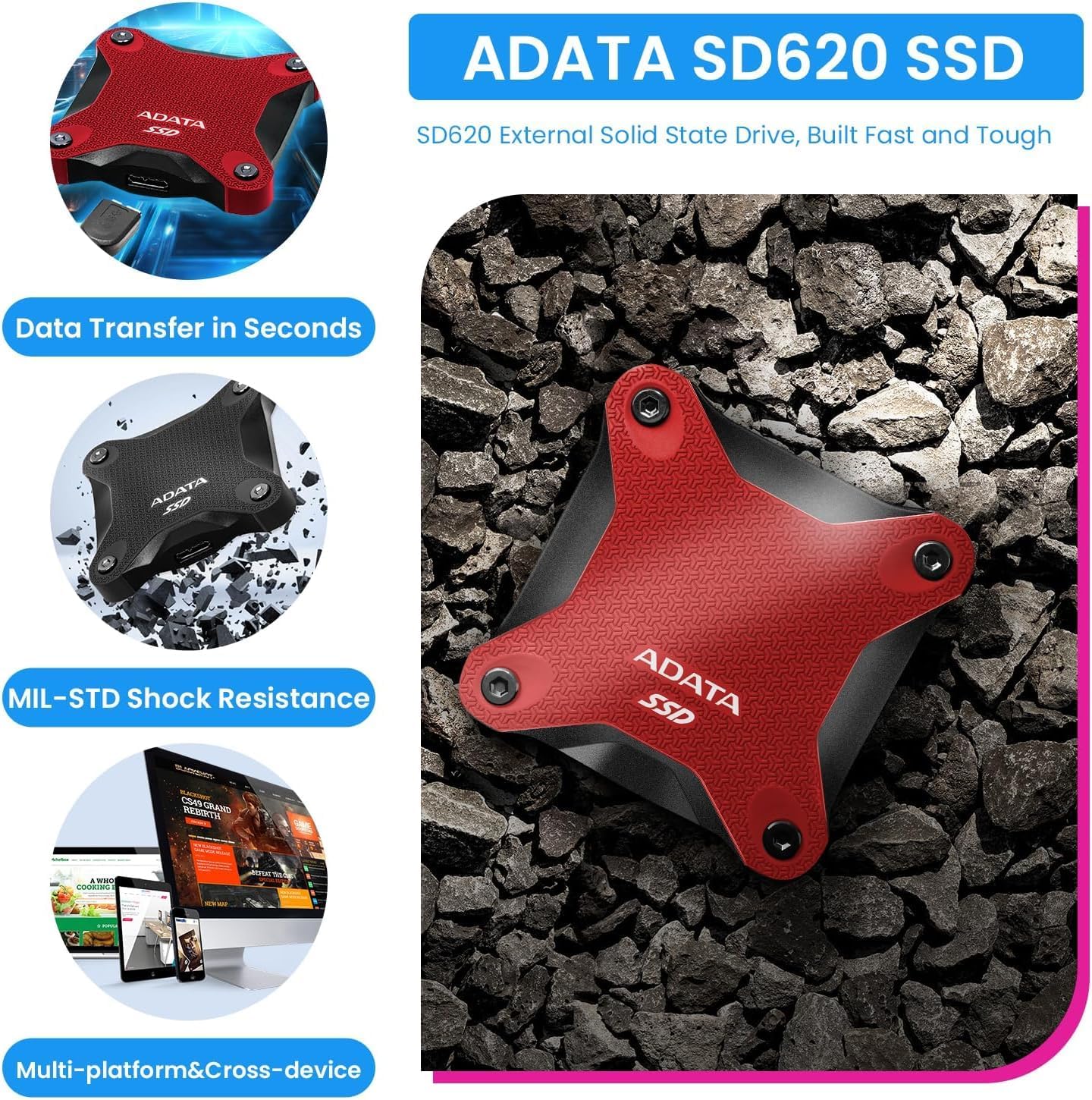
Image: The ADATA SD620 External SSD, shown in both red and black variants, highlighting its robust design, MIL-STD shock resistance, and fast data transfer capabilities for multi-platform use.
Maintenance
General Care
- Keep the desktop in a well-ventilated area to prevent overheating.
- Clean the exterior with a soft, damp cloth. Avoid harsh chemicals.
- Regularly dust air vents to maintain optimal airflow.
Software Updates
Ensure your Windows operating system and drivers are kept up-to-date. This helps improve security, performance, and compatibility.
- Windows Updates: Go to Settings > Windows Update to check for and install updates.
- Driver Updates: Visit the official HP support website for the latest drivers for your model.
Data Backup
Regularly back up important data to an external drive (like the included ADATA SSD) or cloud storage to prevent data loss.
Troubleshooting
If you encounter issues with your HP OmniDesk M02, consider the following basic troubleshooting steps:
- No Power:
- Check if the power cable is securely connected to both the desktop and the wall outlet.
- Ensure the power outlet is functional.
- No Display:
- Verify that the monitor is powered on and connected correctly to the desktop (HDMI or DisplayPort).
- Try a different monitor cable if available.
- Slow Performance:
- Close unnecessary applications running in the background.
- Check for and install any pending Windows updates.
- Run a disk cleanup and defragmentation (for HDDs, though SSDs manage this differently).
- Peripheral Not Detected:
- Ensure the peripheral is properly connected to a functional USB port.
- Try connecting the peripheral to a different USB port.
- Restart the desktop.
For more advanced issues or persistent problems, refer to the HP support website or contact customer service.
Specifications
| Feature | Detail |
|---|---|
| Model Number | TPC-F134-MT |
| Processor | Intel Core i5-14400 (10 Cores, 16 Threads, up to 4.7 GHz) |
| RAM | 16GB DDR5-4800MHz |
| Storage | 1TB PCIe NVMe M.2 SSD |
| External Storage | ADATA SD620-512GCRD 512GB External SSD |
| Graphics | Intel UHD Graphics (Integrated) |
| Operating System | Windows 11 Home |
| Wireless Connectivity | Wi-Fi 6 (802.11ax), Bluetooth |
| Front Ports | 1x USB Type-C (10Gbps), 3x USB Type-A (5Gbps), 1x Headphone/Mic Combo |
| Rear Ports | 4x USB Type-A 2.0, 1x HDMI, 1x Display Port, 1x RJ-45, 1x Audio Out |
| Dimensions (LxWxH) | 13.27 x 6.10 x 12.40 inches |
| Weight | 11.49 lbs |
| Color | Silver |

Image: A close-up view of the Intel Core i5-14400 processor chip, detailing its specifications including 10 Cores, 16 Threads, 4.70 GHz Max Turbo Frequency, and 20 MB L3 Cache.
Warranty and Support
Warranty Information
The HP OmniDesk M02 desktop comes with a manufacturer's warranty. For this specific unit:
- A 1-year warranty on the upgraded RAM and SSD is provided by PCOnline US.
- All other original components retain the original 1-year manufacturer's warranty from HP.
Please retain your proof of purchase for warranty claims.
Customer Support
For technical assistance, warranty claims, or further inquiries, please contact:
- HP Support: Visit the official HP support website for your region. You can find drivers, manuals, and troubleshooting guides.
- PCOnline US Support: For issues related to the upgraded RAM or SSD, refer to the contact information provided by PCOnline US at the time of purchase.
When contacting support, have your desktop's model number (TPC-F134-MT) and serial number ready.


