
1. Introduction
This manual provides essential information for the installation, operation, and maintenance of the Intelbras SS 3532 MF Facial Access Controller. The SS 3532 MF is a biometric access control device designed for secure and convenient access management in various environments, including businesses, condominiums, and other establishments requiring robust security solutions. It supports multiple authentication methods, including facial recognition, RFID card (MF 13.56 MHz), QR Code, and password.
2. Safety Information
- Read all instructions carefully before installation and operation.
- Ensure the power supply meets the device's specifications to prevent damage.
- Installation should be performed by qualified personnel to ensure proper functioning and safety.
- Avoid exposing the device to extreme temperatures, humidity, or direct sunlight for prolonged periods, even though it is rated for outdoor use, protection from direct rain is recommended.
- Do not attempt to disassemble or repair the device yourself. Contact authorized service personnel for assistance.
- Keep the device away from strong magnetic fields.
3. Package Contents
Verify that all items are present in the package:
- 1x Intelbras SS 3532 MF Facial Access Controller
- 1x Power Supply Unit
- 1x Cable Connection Set
- 1x Screw Set for Fixing
- 1x Mounting Bracket
- 1x User Manual (this document)
4. Product Overview
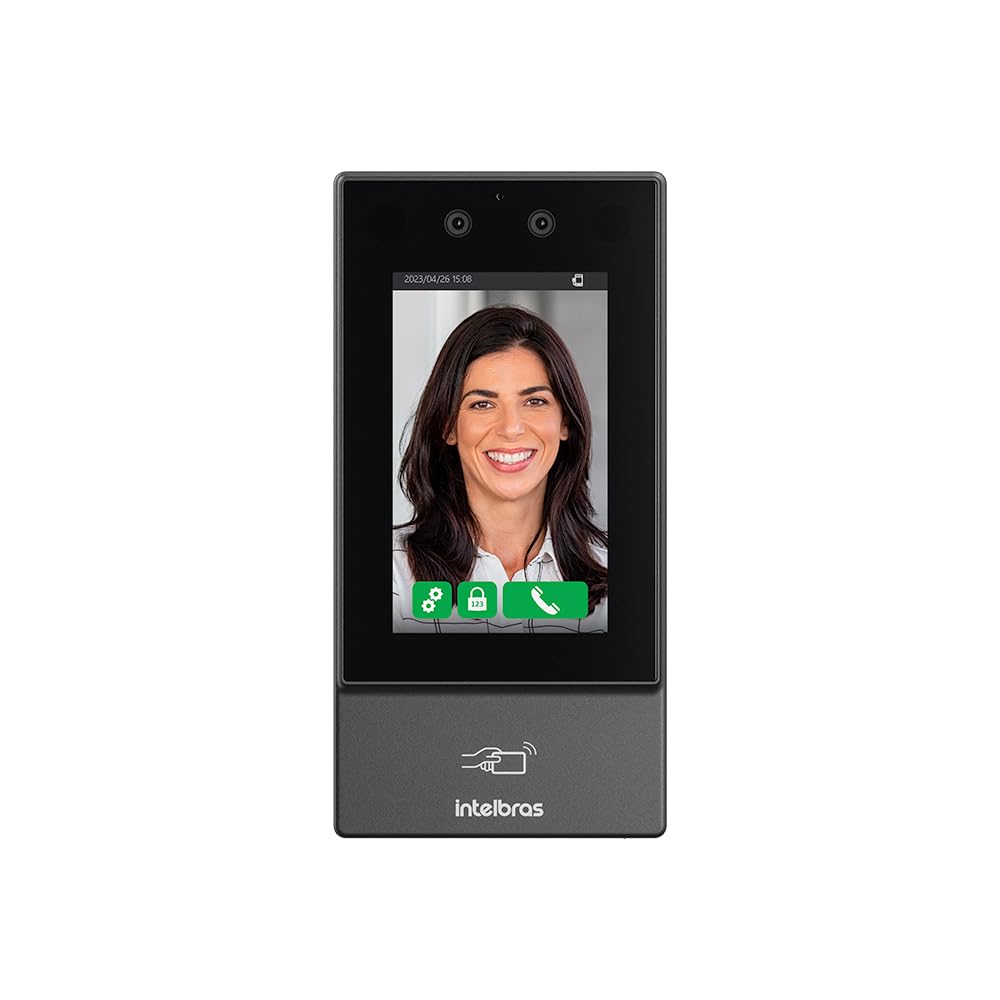
Figure 4.1: Front view of the Intelbras SS 3532 MF Facial Access Controller, showing the display screen, dual cameras at the top, and the Intelbras logo with an RFID card icon at the bottom.
The SS 3532 MF is equipped with advanced features for reliable access control:
- Facial Recognition: Utilizes anti-fake technology with depth detection to prevent unauthorized access using photos or videos.
- High Capacity: Stores up to 10,000 facial templates.
- Fast Recognition: Average recognition speed of approximately 0.2 seconds.
- Multi-Factor Authentication: Supports facial recognition, RFID MF 13.56 MHz cards, QR Code, and password.
- Intuitive Interface: Features a 4.3-inch touchscreen display for easy registration and management.
- Operation Modes: Can operate in Stand-Alone, Online/Offline modes, or integrate with compatible management software.
- Outdoor Suitability: Designed for both indoor and outdoor environments, with recommended protection against direct rain.
- Advertisement Mode: Allows the device screen to display videos or photos during operation.

Figure 4.2: Angled view of the Intelbras SS 3532 MF Facial Access Controller, highlighting its sleek black design and compact form factor.
5. Setup and Installation
This section provides a general overview of the installation process. For detailed instructions, refer to the separate installation guide included with your product or consult the manufacturer's support resources.
- Mounting: Securely attach the mounting bracket to the desired wall or surface using the provided screws and anchors. Ensure the mounting location is stable and at an appropriate height for facial recognition.
- Wiring: Connect the power supply unit and any external devices (e.g., electric locks, exit buttons, door sensors) to the controller using the cable connection set. Pay close attention to polarity and wiring diagrams.
- Power On: Connect the power supply to an appropriate power source. The device will initiate its startup sequence.
- Initial Configuration: Follow the on-screen prompts on the 4.3-inch touchscreen to perform initial setup, including network settings and administrator registration.
The device supports integration with electric locks, electromagnets, and solenoids via its activation output. It also supports intelligent interlocking between controllers when configured in a network.
6. Operation
The SS 3532 MF offers multiple methods for user authentication:
- Facial Recognition: Users stand in front of the device. The integrated cameras will scan their face for authentication. Ensure adequate lighting and a clear view of the face.
- RFID Card: Present a compatible RFID MF 13.56 MHz card to the designated reader area on the device.
- QR Code: Present a valid QR Code to the device's camera for scanning.
- Password: Enter the registered password using the touchscreen interface.
Upon successful authentication, the device will activate the connected lock, granting access. The device can operate in stand-alone mode or be integrated with compatible management software for centralized control.
7. Configuration and Management
User and device settings can be managed directly through the 4.3-inch touchscreen interface or via compatible management software when the device is connected to a network.
- User Registration: Add new users by registering their facial templates, RFID cards, QR Codes, and passwords. The device supports up to 10,000 facial templates.
- Access Permissions: Configure access groups, time schedules, and individual user permissions.
- Network Settings: Configure IP address, subnet mask, gateway, and DNS settings for network integration.
- System Settings: Adjust date/time, language, volume, and other system parameters.
- Advertisement Mode: Enable this feature to display custom videos or images on the screen during idle times.
8. Maintenance
- Cleaning: Regularly clean the screen and camera lenses with a soft, dry cloth. Do not use abrasive cleaners or solvents.
- Firmware Updates: Periodically check for official firmware updates from Intelbras to ensure optimal performance and security. Follow the manufacturer's instructions for updating firmware.
- Data Backup: If using integrated software, regularly back up user data and configurations.
9. Troubleshooting
| Problem | Possible Cause / Solution |
|---|---|
| Device does not power on. | Check power supply connection and ensure the power source is active. Verify the power adapter is functioning correctly. |
| Facial recognition fails or is slow. | Ensure adequate lighting. Clean camera lenses. User may not be properly registered or face template needs re-registration. Avoid direct sunlight or strong backlighting. |
| RFID card not recognized. | Ensure the card is an RFID MF 13.56 MHz type. Verify the card is properly registered to a user. Present the card correctly to the reader. |
| Door does not open after successful authentication. | Check wiring to the electric lock/solenoid. Verify lock power supply. Ensure access permissions are correctly configured for the user. |
| Facial recognition with mask. | Functionality depends on firmware and configuration. It is recommended to test in a real environment. QR Code and card authentication remain available alternatives. |
| Device needs software for user management. | The device can operate in stand-alone mode. For advanced management and integration, compatible management software is required. |
| Incompatibility with 125 kHz cards. | The SS 3532 MF operates with RFID MF 13.56 MHz. For other formats, check compatibility or consider an additional module. |
10. Specifications
| Feature | Detail |
|---|---|
| Model | SS 3532 MF |
| Manufacturer | Intelbras |
| Authentication Methods | Facial Recognition (Anti-fake), RFID MF 13.56 MHz, QR Code, Password |
| Facial Capacity | Up to 10,000 faces |
| Recognition Speed | Approx. 0.2 seconds |
| Display | 4.3-inch Touchscreen |
| Communication | Network integration for remote control via software |
| Material | Stainless Steel |
| Color | Black |
| Dimensions (L x W x H) | 30 x 90 x 181 mm (3 x 9.01 x 18.11 cm) |
| Weight | 300 g |
| Special Features | Facial Unlock, Weather Resistant (recommended protection from direct rain) |
| Certification | ANATEL |
11. Warranty and Support
This product is an original Intelbras device and comes with a manufacturer's warranty. To claim warranty service, retain your purchase invoice.
For technical support, installation guidance, configuration assistance, or any post-sales inquiries, please contact Intelbras authorized service centers or your reseller's specialized support team. Our team can assist with operational questions and integration with compatible software.
In case of a defect within the warranty period, contact your point of purchase and an authorized Intelbras technical assistance center with your invoice.


