
1. Introduction
Welcome to the user manual for your NIMO N152S 15.6-inch Laptop. This guide provides essential information on setting up, operating, maintaining, and troubleshooting your new device. Please read this manual thoroughly to ensure optimal performance and longevity of your laptop.
2. Product Overview
2.1 Key Features
- Powerful Performance: Equipped with an AMD Ryzen 5 3500U processor and integrated Radeon graphics for smooth multitasking and efficient performance.
- Immersive Full HD Display: A 15.6-inch Full HD (1920x1080) IPS display with a 180° wide hinge for vibrant visuals and wide viewing angles.
- Slim and Lightweight Design: Crafted with a sleek metal top cover, weighing under 3.7 lbs and measuring just 19.2 mm thin.
- Enhanced Connectivity: Features 2 USB-A, 2 USB-C (full function PD/DP/Data), HDMI, MicroSD, and a 3.5mm audio jack.
- Expandable Memory & Storage: Supports up to 32GB DDR4 RAM and M.2 PCIe 3.0 x4 SSD for future-proof upgrades.
- Smart Security & Comfort: Includes a fingerprint reader on the touchpad, a backlit keyboard for low-light use, and dual microphones.
2.2 Component Identification
Familiarize yourself with the various components of your NIMO N152S laptop as illustrated below.

Figure 2.1: Front view of the NIMO N152S laptop, showcasing its sleek design and key features like Windows 11, 32GB RAM, 1TB SSD, Full HD display, AMD Ryzen 5, Type-C PD Charger, Backlit Keyboard, and Fingerprint Reader.

Figure 2.2: Illustration of the AMD Ryzen 5 processor, detailing its specifications including 4 Cores, 8 Threads, 15W Power Consumption, and 3.7 GHz Turbo Boost, indicating its capability for daily tasks and light gaming.

Figure 2.3: The NIMO laptop screen showcasing a vivid Full HD (1920x1080) IPS display, highlighting features like bright view and eye protection, with an 85% screen-to-body ratio.

Figure 2.4: Detailed view of the NIMO laptop's expanded connectivity options, labeling ports such as Type-C (Charge Only), USB 3.0, HDMI, Type-C (Full Function), Charge LED, Micro SD Reader, USB 2.0, USB 3.0, Headphone Combo, and Kensington Lock.
3. Initial Setup
3.1 Charging the Laptop
Before first use, fully charge your NIMO laptop. Connect the provided 65W Type-C PD charger to the USB-C charging port on the laptop and then to a power outlet. The charge LED indicator will illuminate to confirm charging.

Figure 3.1: The 65W Type-C PD Charger, designed for universal compatibility with laptops, tablets, and smartphones, simplifying your charging needs compared to multiple chargers.
3.2 Powering On for the First Time
- Open the laptop lid.
- Press the power button located on the keyboard.
- Follow the on-screen instructions to complete the Windows 11 initial setup, including language selection, network connection, and user account creation.
4. Operating Your NIMO Laptop
4.1 Power On/Off and Sleep Mode
- Power On: Press the power button.
- Shut Down: Click the Start button, then Power > Shut down.
- Sleep Mode: Close the lid or click the Start button, then Power > Sleep.
4.2 Using the Keyboard and Touchpad
Your NIMO laptop features a full-sized keyboard with a numeric keypad and a responsive touchpad.
- Backlit Keyboard: Press Fn + F10 (or the key with the backlight icon) to toggle the keyboard backlight on/off or adjust brightness levels.
- Touchpad: Supports multi-touch gestures for navigation. Refer to Windows settings for customization.
- Numeric Keypad: Use the dedicated numeric keypad for efficient data entry.

Figure 4.1: The NIMO laptop keyboard, emphasizing its backlit keys, integrated touchpad, fingerprint reader, and numeric keypad, designed for comfortable typing in various lighting conditions.
4.3 Fingerprint Reader
The integrated fingerprint reader on the touchpad provides quick and secure access to your laptop.
- Go to Windows Settings > Accounts > Sign-in options.
- Set up Windows Hello Fingerprint.
- Follow the on-screen prompts to register your fingerprints.
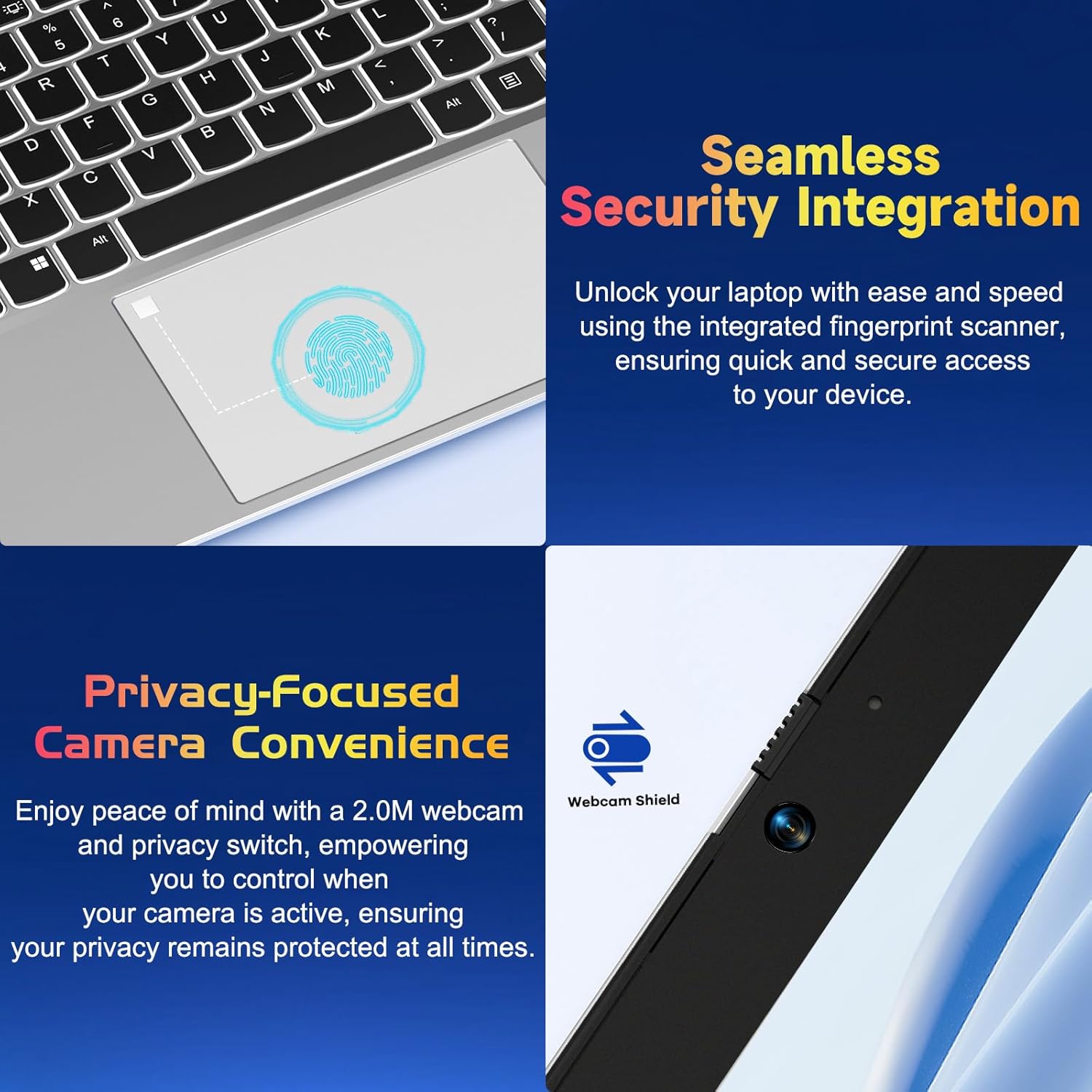
Figure 4.2: Close-up view of the NIMO laptop's touchpad, highlighting the integrated fingerprint scanner for seamless security integration, alongside the privacy-focused webcam with a physical shield.
4.4 Connecting Peripherals
Your laptop offers various ports for connecting external devices:
- USB-A Ports: For connecting standard USB devices like mice, keyboards, or external drives.
- USB-C Ports: Two full-function USB-C ports support Power Delivery (PD), DisplayPort (DP), and data transfer. One is dedicated for charging.
- HDMI Port: Connect to external monitors or projectors.
- MicroSD Card Reader: Insert a MicroSD card for additional storage or data transfer.
- 3.5mm Audio Jack: For headphones or external speakers.
4.5 Webcam Privacy
The laptop includes a 2.0MP webcam with a physical privacy shield. Slide the shield to cover the camera lens when not in use to ensure your privacy.
5. Maintenance and Care
- Cleaning: Use a soft, lint-free cloth slightly dampened with water or a screen cleaner to clean the display and exterior. Avoid harsh chemicals.
- Software Updates: Regularly update your Windows operating system and drivers to ensure optimal performance and security.
- Battery Care: To prolong battery life, avoid extreme temperatures and try to keep the battery charge between 20% and 80% when possible.
- Storage: Store the laptop in a cool, dry place away from direct sunlight and extreme temperatures.
6. Troubleshooting
This section addresses common issues you might encounter with your NIMO laptop.
| Issue | Possible Solution |
|---|---|
| Laptop does not power on. | Ensure the laptop is charged. Connect the charger and wait a few minutes before attempting to power on again. If unresponsive, perform a hard reset by holding the power button for 15 seconds. |
| Screen is blank or flickering. | Try adjusting the screen brightness (Fn + F5/F6). If connected to an external monitor, ensure the cable is secure. Restart the laptop. |
| Keyboard backlight is not working. | Press Fn + F10 (or the key with the backlight icon) to cycle through backlight settings. Ensure the function keys are enabled. |
| Fingerprint reader not recognized. | Ensure your finger is clean and dry. Re-register your fingerprint in Windows Hello settings if the issue persists. |
| Wi-Fi connection issues. | Check if Wi-Fi is enabled (Fn + F12 or Windows settings). Restart your router and laptop. Update Wi-Fi drivers if necessary. |
| Laptop is running slow. | Close unnecessary applications. Check Task Manager for resource-intensive processes. Ensure Windows and drivers are up to date. Consider running a disk cleanup. |
7. Technical Specifications
| Feature | Specification |
|---|---|
| Brand | NIMO |
| Model Name | NIMO N152S |
| Item Model Number | NIMO N152 |
| Screen Size | 15.6 Inches |
| Max Screen Resolution | 1920 x 1080 Pixels (Full HD) |
| Processor | AMD Ryzen 5 3500U (3.7 GHz) |
| RAM | 32 GB DDR4 (3200 MHz) |
| Hard Drive | 1024 GB SSD (Solid State) |
| Graphics Coprocessor | AMD Integrated graphics |
| Operating System | Windows 11 |
| Wireless Type | 802.11abg |
| Number of USB 2.0 Ports | 1 |
| Average Battery Life | 5 Hours |
| Item Weight | 3.8 pounds |
| Product Dimensions | 14.07 x 8.98 x 0.76 inches |
| Color | Classic Silver |
| Rear Webcam Resolution | 2 MP |
| Power Source | Battery Powered |
| Batteries | 1 Lithium Polymer batteries required (included) |
8. Warranty and Customer Support
8.1 Warranty Information
Your NIMO N152S laptop comes with a comprehensive warranty:
- 90-Day Free Return Policy: You may return your NIMO laptop for any reason within 90 days of purchase.
- 2-Year Warranty: All NIMO products are covered by a 2-year warranty for after-sales support.

Figure 8.1: NIMO's commitment to customer satisfaction, featuring a 90-day free return policy and a 2-year warranty for reliable support.
8.2 Customer Support
For any product-related questions, technical assistance, or warranty claims, please contact our U.S.-based support team:
- Visit the official NIMO website for support resources and contact options.
- Refer to your purchase documentation for specific contact details.
Our team is dedicated to providing professional and high-quality customer service to resolve any issues you may encounter.