
Introduction
This manual provides detailed instructions for the installation, operation, and maintenance of the ASUS B760M-AYW WiFi D4 II microATX motherboard. Please read this manual thoroughly before installing or using the product to ensure correct setup and optimal performance.
Safety Information
- Always disconnect the power cable from the wall socket before touching any internal components.
- Wear an anti-static wrist strap or frequently touch a grounded object to prevent electrostatic discharge (ESD) damage to components.
- Handle components by their edges to avoid touching sensitive parts.
- Ensure proper ventilation within your PC case to prevent overheating.
Setup
1. CPU Installation
The motherboard supports Intel LGA 1700 socket processors. Carefully align the CPU with the socket, ensuring the triangular mark on the CPU matches the mark on the socket. Lower the CPU gently into the socket, then close the load plate and secure the retention lever.
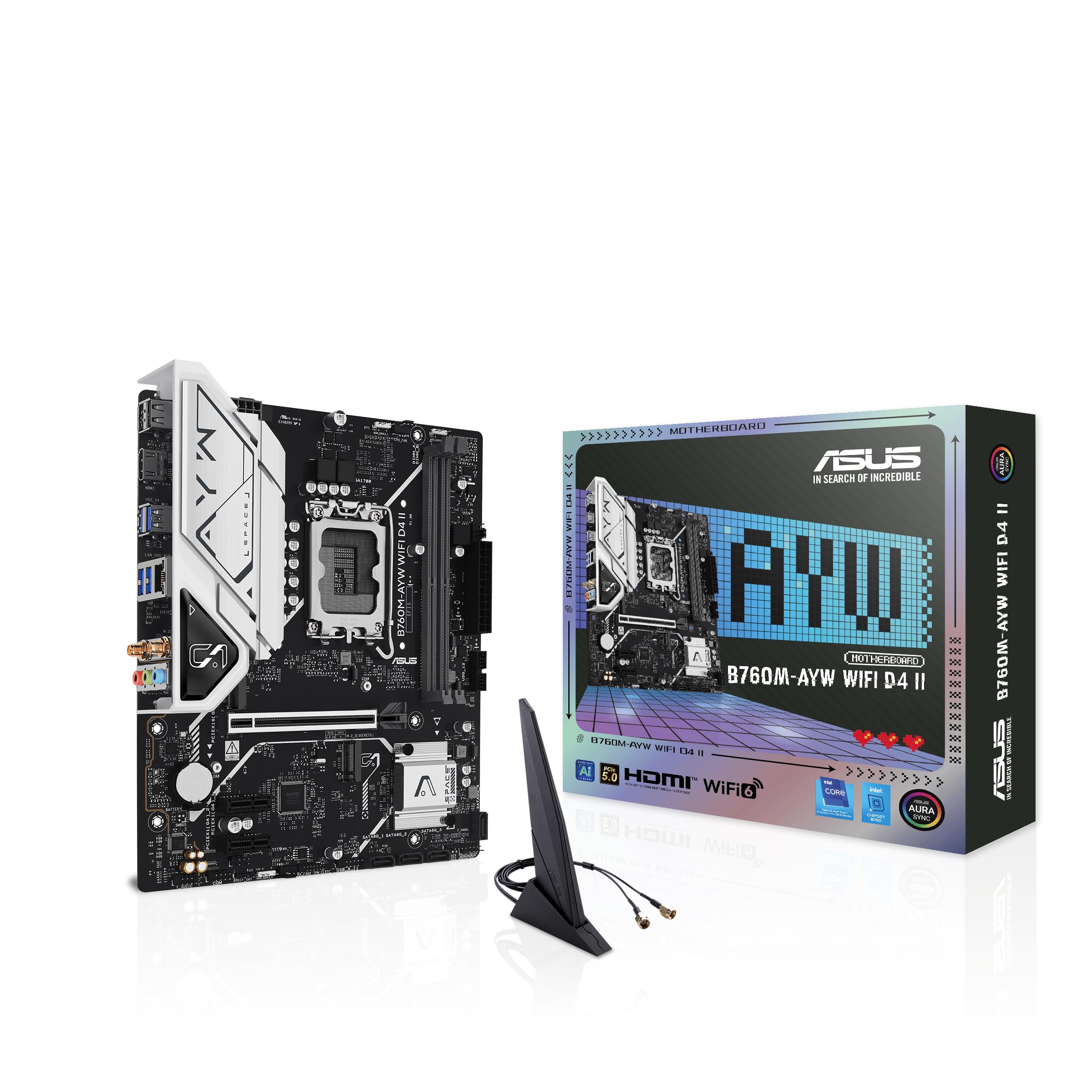
Image: Top-down view of the ASUS B760M-AYW WiFi D4 II motherboard, highlighting the LGA 1700 CPU socket.
2. Memory (RAM) Installation
This motherboard features two DDR4 DIMM slots. For optimal performance, install memory modules in a dual-channel configuration. Open the clips on both ends of the DIMM slot, align the memory module with the slot key, and press down firmly until the clips snap into place.
3. Storage Installation (M.2 and SATA)
The motherboard includes two M.2 slots for NVMe SSDs and four SATA 6 Gbps ports for traditional hard drives or SSDs.
- M.2 SSD: Insert the M.2 SSD into the slot at a 30-degree angle, then push it down and secure it with the provided M.2 screw package.
- SATA Drives: Connect SATA data cables from your storage drives to the SATA ports on the motherboard. Connect power cables from your power supply to the drives.

Image: The ASUS B760M-AYW WiFi D4 II motherboard shown with its retail box, Wi-Fi antenna, SATA cables, and M.2 screw packages.
4. Expansion Card Installation (PCIe)
The motherboard features one PCIe 5.0 x16 slot for graphics cards and additional PCIe 4.0 x1 slots for other expansion cards. Insert the card firmly into the desired slot until it clicks into place and secure it with a case screw.
5. Power Connections
Connect the 24-pin ATX power connector and the 8-pin CPU power connector from your power supply to the corresponding ports on the motherboard.
6. Front Panel Connections
Connect your PC case's front panel cables (USB 5Gbps, audio, power switch, reset switch, power LED, HDD LED) to the corresponding headers on the motherboard. Refer to the motherboard layout for exact header locations.
7. Rear I/O Connections
Connect your peripherals to the rear I/O ports. These include HDMI, USB 5Gbps Type-A, Realtek 2.5Gb Ethernet, and audio jacks.
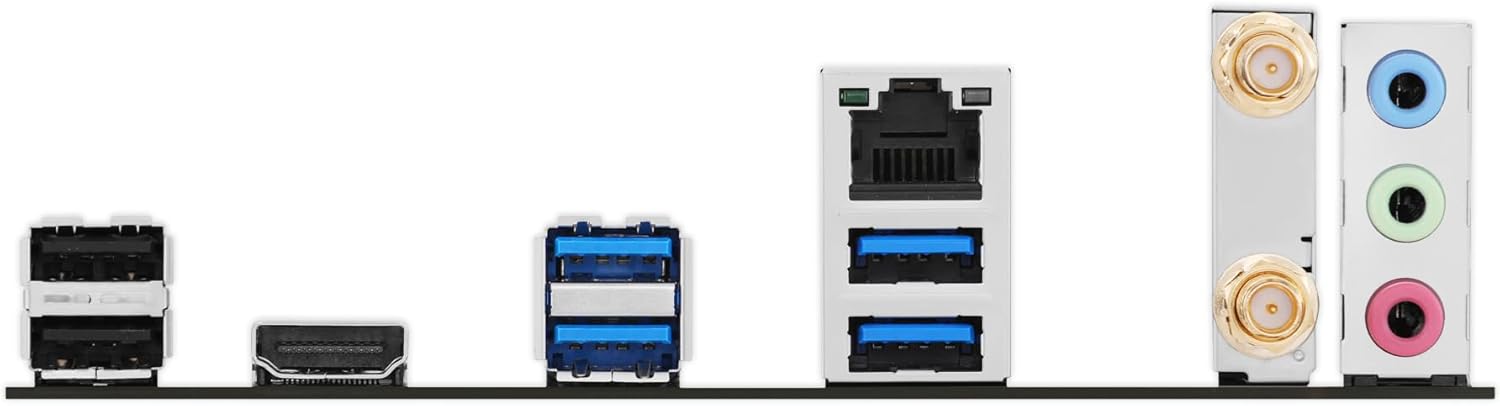
Image: A detailed view of the rear input/output panel of the ASUS B760M-AYW WiFi D4 II motherboard, showing USB ports, Ethernet, and audio jacks.
8. Wi-Fi Antenna Installation
Screw the included Wi-Fi antenna onto the two antenna connectors on the rear I/O panel. Position the antenna for optimal signal reception.
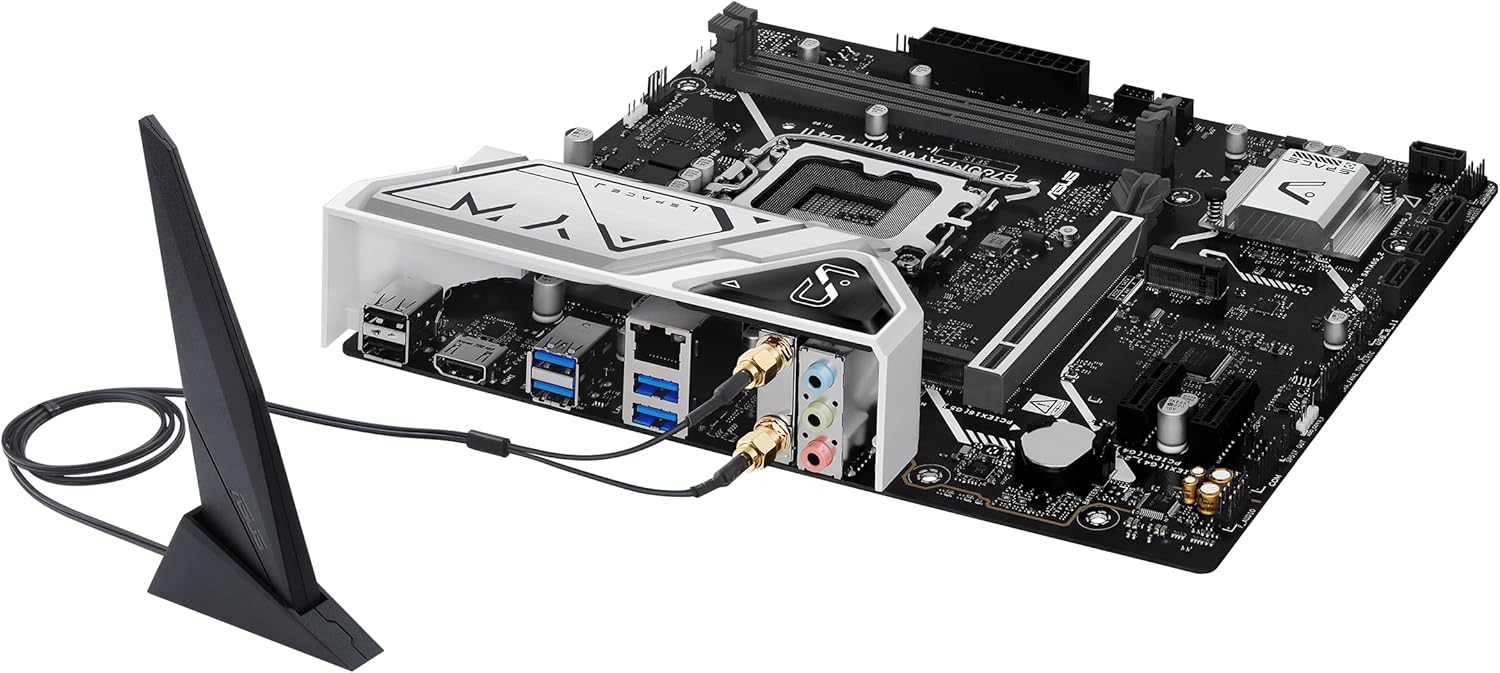
Image: The ASUS B760M-AYW WiFi D4 II motherboard with its external Wi-Fi antenna connected to the rear I/O ports.
Operating
1. BIOS/UEFI Configuration
To access the BIOS/UEFI setup utility, press the Delete key during the Power-On Self-Test (POST). Here you can configure boot order, enable XMP for memory, adjust fan speeds, and manage other system settings.
2. Driver Installation
After installing your operating system, install the necessary drivers for the motherboard's components. These include chipset drivers, LAN drivers, Wi-Fi drivers, and audio drivers. Drivers can be found on the ASUS support website for your specific motherboard model.
3. Software Utilities
ASUS provides several utilities to enhance your system experience:
- Aura Sync: For controlling RGB lighting on compatible components.
- Fan Xpert 2+: For advanced fan control and system cooling optimization.
- Armoury Crate: A centralized software suite for system monitoring, driver updates, and utility management.
Maintenance
1. BIOS Updates
Periodically check the ASUS support website for BIOS updates. BIOS updates can improve system stability, add support for new hardware, or fix bugs. Use the ASUS EZ Flash utility within the BIOS to perform updates, following the instructions carefully.
2. Driver Updates
Keep your drivers updated to ensure optimal performance and compatibility. Regularly check the ASUS support website for the latest drivers for your motherboard.
3. Cleaning
To maintain optimal performance and longevity, regularly clean dust from your PC case and motherboard components. Use compressed air to remove dust from heatsinks, fans, and slots. Ensure the system is powered off and unplugged before cleaning.
Troubleshooting
1. Q-LED Core Indicators
The motherboard features Q-LED Core indicators that light up to indicate the status of key components during POST. These LEDs can help diagnose issues:
- CPU LED: Indicates CPU initialization status.
- DRAM LED: Indicates memory detection status.
- VGA LED: Indicates graphics card detection status.
- BOOT LED: Indicates boot device detection status.
If an LED remains lit, it suggests an issue with the corresponding component.
2. Common Issues
- No Power: Check all power connections (24-pin ATX, 8-pin CPU, GPU power). Ensure the power supply is switched on.
- No Display: Verify the graphics card is properly seated and connected to power. Ensure the monitor cable is connected to the graphics card, not the motherboard (unless using integrated graphics).
- System Instability: Check memory seating, run memory diagnostic tools, ensure CPU cooler is properly installed, and verify BIOS settings.
- Peripheral Not Detected: Ensure the device is properly connected and its drivers are installed. Try a different port if available.
Specifications
| Feature | Specification |
|---|---|
| Brand | ASUS |
| Model Name | B760M-AYW WIFI D4 II |
| CPU Socket | LGA 1700 |
| Compatible Processors | Intel Core 14th, 13th, 12th Gen, Pentium Gold, Celeron Processors |
| Chipset Type | Intel B760 |
| RAM Memory Technology | DDR4 |
| Memory Slots Available | 2 |
| Max Memory Storage Capacity | 96 GB |
| Graphics Card Interface | PCI Express 5.0 x16 |
| Total M.2 Slots | 2 |
| Total SATA Ports | 4 |
| Ethernet | Realtek 2.5Gb Ethernet |
| Wi-Fi | Wi-Fi 6 |
| HDMI Ports | 1 |
| Front USB | USB 5Gbps support |
| Rear USB | USB 5Gbps Type-A |
| Form Factor | microATX |
| Item Dimensions (L x W x H) | 9.6"L x 8.3"W x 1.4"H |
Warranty Information
The ASUS B760M-AYW WiFi D4 II motherboard comes with a 3-year limited warranty. For detailed terms and conditions, please refer to the warranty card included with your product or visit the official ASUS support website.
Support
For technical support, driver downloads, BIOS updates, and further product information, please visit the official ASUS support website:
You can also find FAQs and troubleshooting guides on the support portal.


