
1. Introduction
This manual provides detailed instructions for the TISHLED NK20 Gasket Mechanical Numpad. It covers product features, setup procedures, operational guidelines, maintenance tips, and troubleshooting information to ensure optimal use of your device.

Image 1.1: TISHLED NK20 Gasket Mechanical Numpad, top-down view showing the keys, volume knob, and indicator lights.
2. Product Features
- Tri-Mode Connectivity: Supports 2.4G wireless, Bluetooth 5.0, and wired USB-C connections.
- Premium Gasket Structure: Features 5-layer sound-dampening materials for enhanced typing acoustics.
- Hot-Swappable Design: Allows for easy customization of switches without soldering.
- Dynamic RGB Lighting: 16.8 million color RGB backlight with south-facing LEDs and side-engraved legends.
- Multifunction Control Knob: Provides smooth control for volume, mute, and lighting adjustments.
- Durable Custom Switches: Equipped with White Horse switches rated for 50 million keystrokes.
- Long Battery Life: Built-in 1000mAh rechargeable battery with smart power-saving features.
- High-Quality PBT Keycaps: Original factory PBT side-engraved keycaps with double-shot construction for durability and light transmission.
- Advanced Software Support: Programmable keys and macro support via dedicated driver software.
3. Setup Instructions
3.1. Connectivity Modes
The NK20 Numpad offers three connection methods: Wired USB-C, 2.4G Wireless, and Bluetooth 5.0.

Image 3.1: Illustration showing the three connectivity options: Wired USB-C, Wireless 2.4GHz, and Bluetooth 5.0/3.0.
3.1.1. Wired USB-C Connection
- Connect the provided USB-C cable to the numpad's USB-C port.
- Connect the other end of the cable to an available USB port on your computer.
- The numpad will be automatically recognized and ready for use. The 'Cable' indicator light will illuminate.
3.1.2. 2.4G Wireless Connection
- Locate the 2.4G USB-A dongle.
- Plug the 2.4G dongle into an available USB-A port on your computer.
- On the numpad, switch the mode selector to '2.4G'. The '2.4G' indicator light will blink, then become solid when connected.
3.1.3. Bluetooth 5.0 Connection
- On the numpad, switch the mode selector to 'BT'. The 'BT' indicator light will blink rapidly, indicating pairing mode.
- On your device (computer, smartphone, tablet), enable Bluetooth and search for new devices.
- Select 'TISHLED NK20' from the list of available devices to pair.
- Once paired, the 'BT' indicator light will become solid. The numpad supports up to 3 Bluetooth devices.
3.2. Driver Installation (Optional)
For advanced customization, including key remapping and macro programming, download and install the dedicated driver software from the official TISHLED website. Refer to the website for the latest software version and installation instructions.
4. Operating Instructions
4.1. Gasket Structure and Hot-Swappable Design
The numpad features a gasket-mounted design with multiple layers of sound-dampening materials to provide a consistent and pleasant typing experience. The hot-swappable sockets allow for easy replacement of mechanical switches without soldering.

Image 4.1: Exploded diagram illustrating the layers of the numpad's gasket structure, including PBT keycaps, upper cover, mechanical switches, positioning plate, PORON cotton, under-switch pad, PET sound optimization pad, PCB, EPDM cotton, foam, battery, and bottom shell.
4.1.1. Replacing Switches
- Power off the numpad or disconnect it from your device.
- Use a switch puller tool (not included) to carefully remove the desired keycap.
- Use the switch puller to gently extract the switch from its socket.
- Align the pins of the new switch with the holes in the PCB socket.
- Press the new switch firmly into place until it clicks. Ensure the pins are straight to avoid bending.
- Replace the keycap.
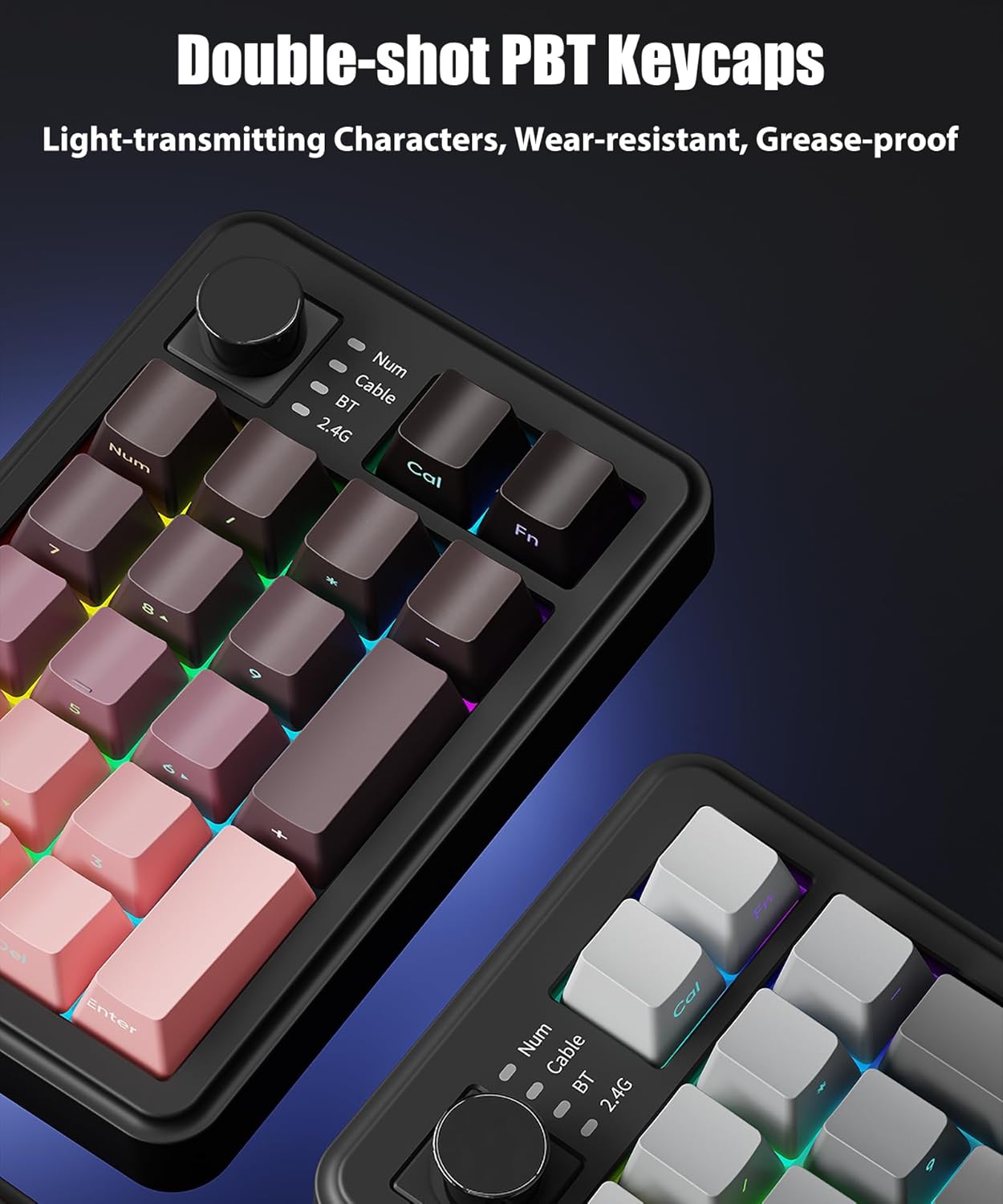
Image 4.2: Close-up view demonstrating the hot-swappable design, with keycaps and switches being removed from the numpad.
4.2. RGB Lighting Control
The numpad features customizable RGB backlighting. Use the multifunction knob or the dedicated software to adjust lighting effects.

Image 4.3: Two NK20 numpads displaying vibrant RGB backlighting, highlighting the 16 million color options and side-engraved keycaps.
4.2.1. Using the Multifunction Knob
- Rotate: Adjusts volume when in standard mode.
- Press: Mutes/unmutes audio.
- Press and Hold: Enters/exits lighting adjustment mode. While in lighting mode, rotate the knob to cycle through lighting effects or adjust brightness.
4.3. Macro Programming
Utilize the TISHLED driver software to program custom macros and key assignments. This allows for personalized workflows and enhanced productivity.
- Install the TISHLED driver software on your computer.
- Connect the numpad via USB-C or 2.4G wireless.
- Open the software and select the NK20 device.
- Follow the on-screen instructions to remap keys, create macros, and customize lighting profiles.
- Save your settings to the numpad's onboard memory.
5. Maintenance
5.1. Cleaning
- Disconnect the numpad from all power sources before cleaning.
- Use a soft, lint-free cloth slightly dampened with water or a mild cleaning solution to wipe the surface.
- For cleaning between keycaps, use compressed air or a small brush.
- Avoid using harsh chemicals, abrasives, or solvents that may damage the finish or keycap legends.
5.2. Battery Care
- To prolong battery life, avoid fully discharging the numpad frequently.
- Store the numpad in a cool, dry place when not in use for extended periods.
- The numpad features smart power-saving, auto light-off, and instant wake-up with a key press to conserve battery.
6. Troubleshooting
6.1. Connectivity Issues
- Numpad not responding: Ensure the numpad is charged. Check the connection mode (Wired, 2.4G, BT) and ensure it matches your device's connection.
- 2.4G Wireless not connecting: Ensure the 2.4G dongle is securely plugged into a USB port. Try a different USB port. Ensure the numpad is set to 2.4G mode.
- Bluetooth not pairing: Ensure the numpad is in Bluetooth pairing mode (BT indicator blinking). Remove previous pairings from your device and try pairing again. Ensure your device's Bluetooth is enabled.
6.2. Lighting Issues
- RGB lights not working: Check if the numpad is powered on. Ensure the brightness is not set to minimum. Use the multifunction knob or software to adjust lighting.
6.3. Key Functionality Issues
- Keys not registering: If a specific key is not working, try hot-swapping the switch with a known working one to determine if the issue is with the switch or the socket.
- Incorrect key output: If you have installed the driver software, check your key assignments and macros to ensure they are configured correctly.
7. Specifications
| Feature | Detail |
|---|---|
| Model Number | NK20 |
| Connectivity | Bluetooth 5.0, USB-C, Wireless 2.4GHz |
| Compatible Devices | Laptop, PC, Smart TV, Smartphone, Tablet |
| Keyboard Description | Numeric |
| Special Features | Hot-Swappable, Premium Gasket Structure, RGB LED Backlit, Tri-Mode Connectivity, Volume Knob |
| Keyboard Backlighting | RGB |
| Product Dimensions | 6.1 x 3.3 x 2 inches (15.5 x 8.4 x 5.1 cm) |
| Item Weight | 1.1 pounds (0.5 kg) |
| Battery | 1000mAh Nonstandard Battery (included) |
| Switch Type | Custom White Horse Switches |
| Switch Lifespan | 50 million keystrokes |

Image 7.1: Diagram illustrating the specifications of the HiFi White Horse switches, including lifespan, operating force, bottom-out force, actuation travel, and total travel.
8. Warranty and Support
For warranty information and technical support, please refer to the documentation included with your purchase or visit the official TISHLED website. The manufacturer provides support for product-related inquiries and assistance with troubleshooting.
Manufacturer: TISHLED
Date First Available: August 28, 2025